Automation & Routing
So far every action has been manual — you clicked, typed, and assigned. That works for ten conversations a day and collapses at a hundred. This page is about the systems that run while you sleep: business hours, auto-assignment, automation rules, and SLAs.
When to automate
Before you build any rule, ask: "Have I done this exact thing manually at least ten times in the last two weeks?" If yes, automate it. If no, do it manually a few more times until you're sure of the pattern. Bad automation is worse than none. Build slow, delete aggressively, review quarterly.
Admin access
Most of this page lives under Settings, which agents typically can't edit.
1. Business Hours
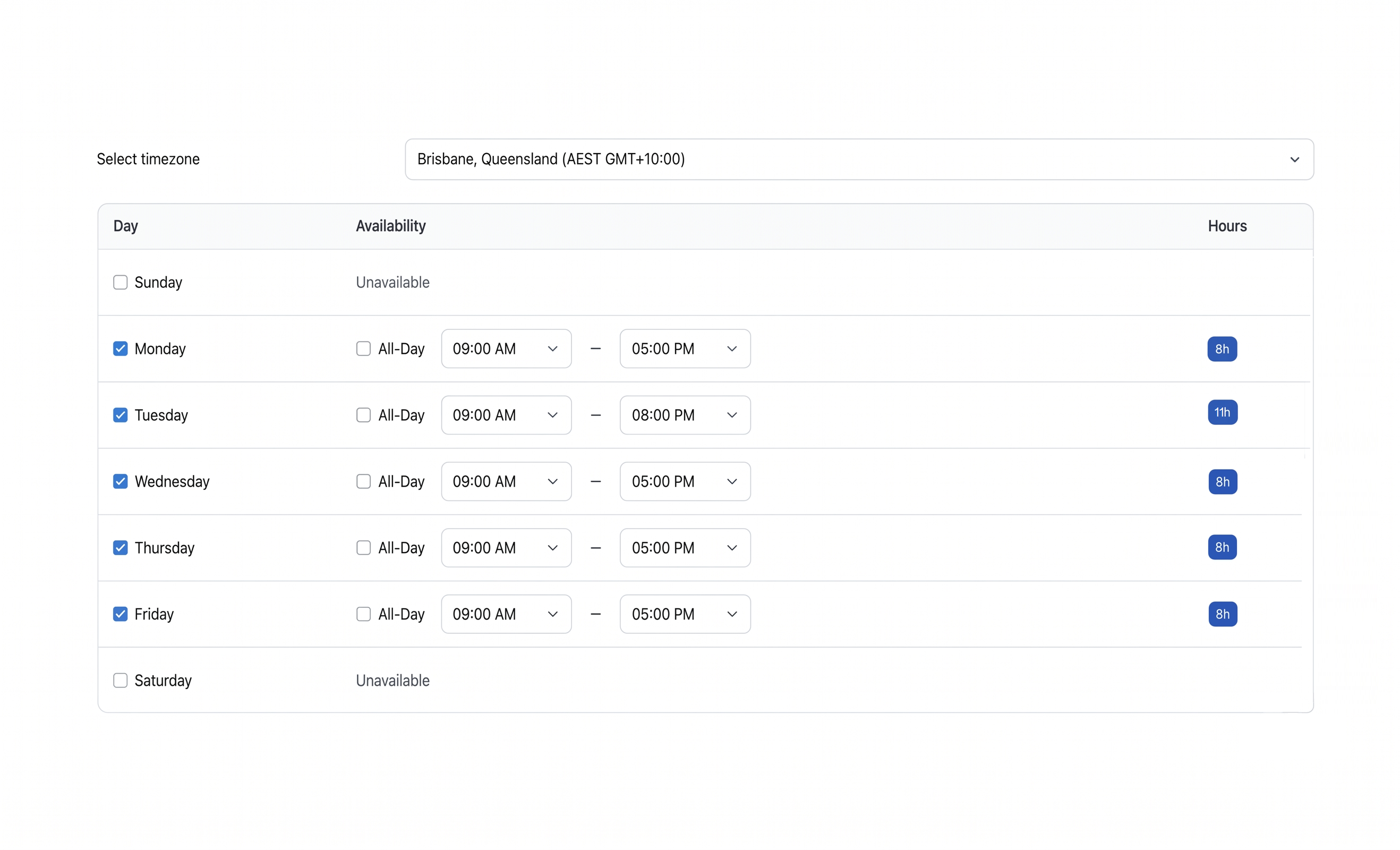
Business Hours define when your team is available, per inbox. They power three things: out-of-hours messages (customers who write after hours see a custom message), SLA timers (the clock can pause overnight and on weekends), and reporting accuracy (response times measured against working time).
Set them up: go to Settings → Inboxes, click your inbox, then the Business Hours tab. Toggle Enable business availability, pick your timezone, set start and end times per day (or mark a day unavailable), and write a short, warm out-of-office message.
2. Auto-assignment
By default, new conversations land in Unassigned and an agent grabs them. That's fine for tiny teams and painful at volume. Auto-assignment picks an agent automatically. Two strategies:
- Round Robin (the default) — distributes conversations evenly across all online, available agents in the inbox. What most teams should start with.
- Balanced Assignment — distributes based on current load; the agent with the fewest open conversations gets the next one. Better when some conversations take much longer than others.
Set it up: Settings → Inboxes → [your inbox] → Configuration, then choose an assignment policy.
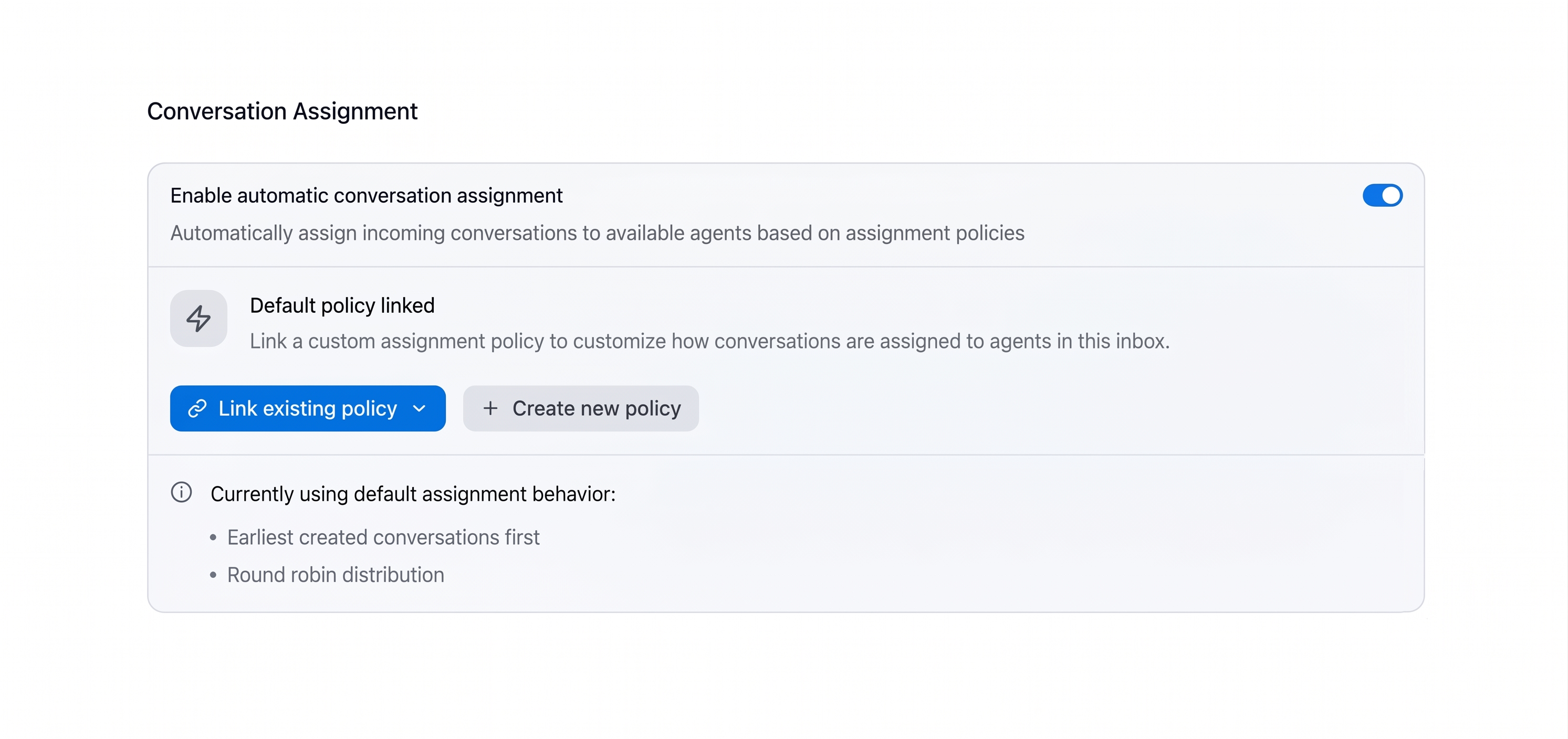
Auto-assignment respects agent availability (Offline and Busy agents are skipped), inbox membership (only agents added to that inbox are eligible), and capacity limits where configured.
3. Automation Rules
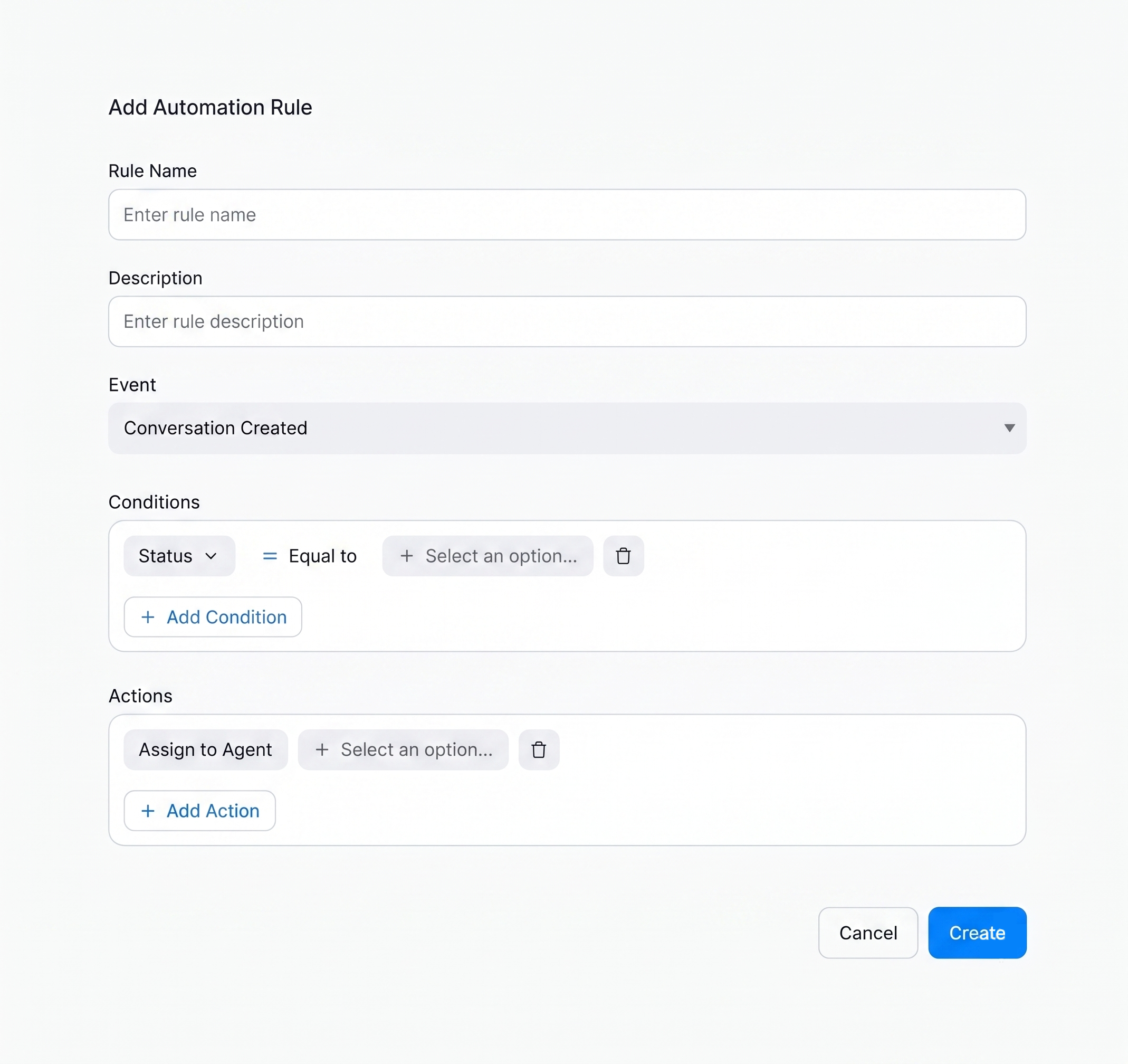
Where business hours and auto-assignment treat every conversation the same, automation rules handle specific conversations specifically. Every rule has three parts:
- Event — when the rule considers firing: Conversation Created, Conversation Updated/Opened/Resolved, or Message Created.
- Conditions — who it applies to: filters on inbox, channel, content, contact attributes, custom attributes, business hours, and more.
- Actions — what happens: assign an agent or team, add labels, send messages, change status, run a macro, and so on.
Set one up: Settings → Automation → Add Automation Rule. Name it, pick the event, build the conditions (combinable with AND/OR), pick the actions, and save. Rules run in the order they're listed.
Two rules worth building first:
| Rule name | Event | Condition | Actions |
|---|---|---|---|
| Route billing tickets | Conversation Created | Message contains invoice, charge, refund | Assign Team Finance; add label billing. |
| Flag VIPs | Conversation Created | Contact attribute Plan = Enterprise |
Set Priority High; add label vip; assign senior team. |
Common pitfalls
Loops — a rule that sends a message and listens for Message Created can re-trigger itself; scope conditions tightly. Silent rules — it's easy to forget a rule exists; review your automation rules quarterly.
4. SLAs
An SLA (Service Level Agreement) says "this kind of conversation must get a response within X minutes and a resolution within Y hours." ChannelX tracks the clock, surfaces conversations about to breach, and reports on how often you hit targets.
An SLA can track three timers: First Response Time (FRT), Next Response Time (NRT), and Resolution Time (RT) — in any combination, with different thresholds.
Set one up: Settings → SLA → Add SLA. Name it, set the targets (e.g. FRT: 15 min, NRT: 30 min, RT: 4 hours), choose whether the clock uses business hours or runs 24/7, and save. Apply SLAs to conversations via an automation rule (they aren't applied to everything by default).
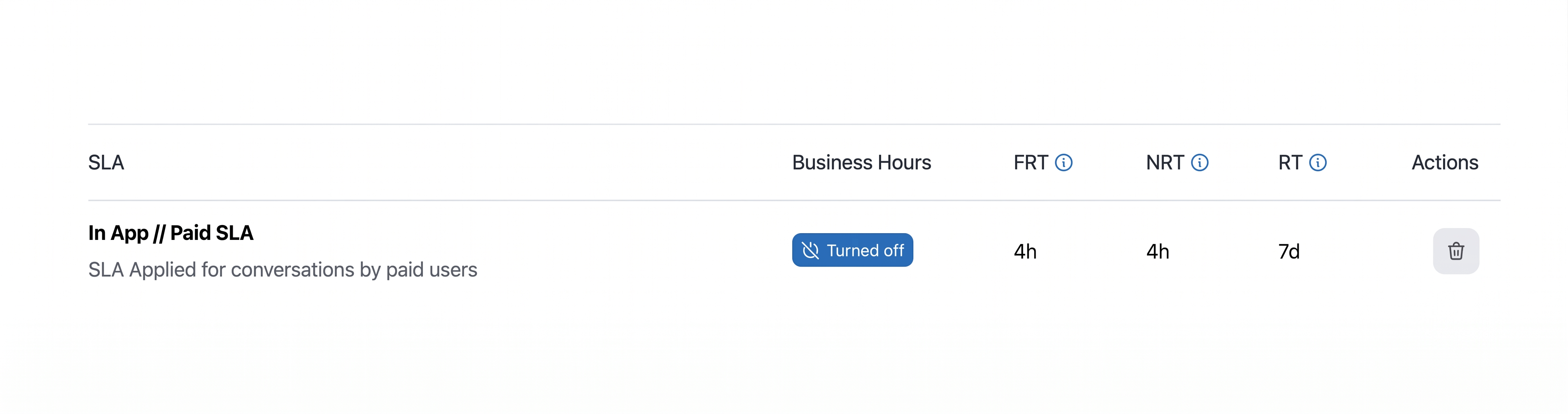
On the dashboard you'll see a countdown on conversations with an active SLA, a breach indicator when a target is missed, and a dedicated SLA report.
Don't over-promise
A 5-minute FRT SLA on every inbox sounds great until you breach it 80% of the time. Pick targets you can actually hit, then tighten as the team gets faster.
How they chain together
A Tuesday-morning message flows through the whole system with no manual touch until the agent opens it:
- A customer writes in via the website widget: "Our exports are failing again."
- Business Hours check — we're open, so no auto-responder fires.
- Auto-assignment picks an online agent.
- "Flag VIPs" matches (contact's
Plan=Enterprise): sets priority High, addsvip, applies the Enterprise SLA. - "Route bug reports" matches the word
failing: addsbug-report. - The SLA timer starts.
- The agent opens the conversation — priority set, labels applied, countdown showing — and replies in two minutes, well within target.
That's the whole point: the routine setup happens before the agent even sees the conversation.
Common questions
Will a rule run on conversations that already exist? No — rules run forward, only on events after you create or enable them.
Can I disable a rule without deleting it? Yes — each rule has an Active toggle.
What if two rules match the same conversation? Both run, in listed order. Watch for conflicting actions (last write wins).
Next
Continue to Reports & Metrics.