Working with Customer Context
This page is about what you know about the person on the other end, and how to use that knowledge to give better, faster, more personal support. The shift in mindset: stop thinking of each conversation as an isolated thread, and start thinking of it as the latest entry in a relationship with a specific person who has a name, a history, and an account.
1. The contact record
Every person who messages you becomes a contact. The contact record is the one place where everything you know about that person lives.
| Section | What's in it |
|---|---|
| Identity | Name, email, phone, profile photo, locale. |
| Company | The organization the contact belongs to (for B2B teams). |
| Conversations | Every conversation they've ever had with you, across all channels. |
| Custom Attributes | Any custom data you track about this contact. |
| Notes | Free-form notes about the customer. |
Before replying to anything non-trivial, glance at three things: their name (use it), their previous conversations, and their custom attributes (plan, signup date, account ID — the "boring" facts that change your answer).
2. Previous conversations
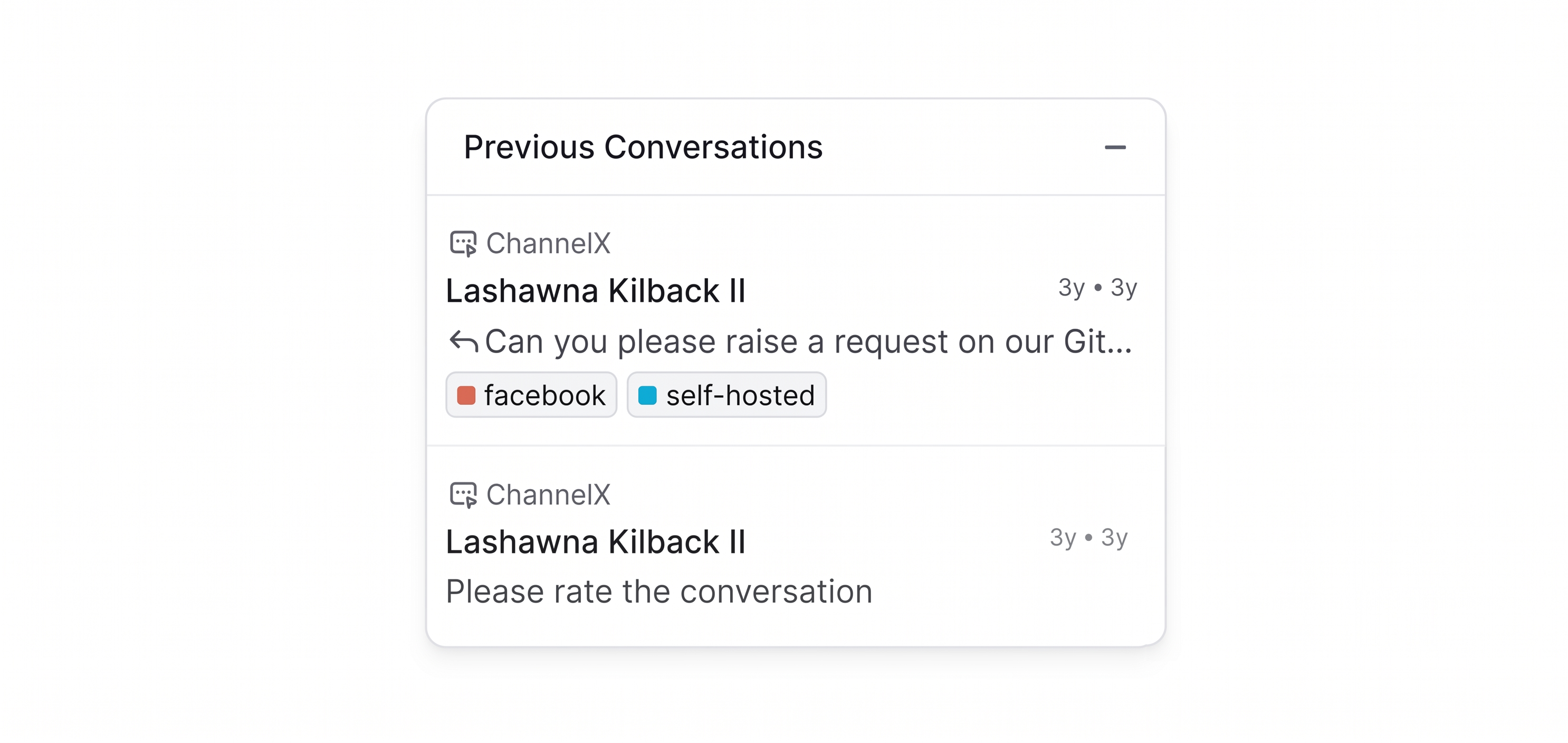
Inside any conversation, the right sidebar has a Previous Conversations section listing every prior thread with this contact, regardless of channel.
Customers don't think in conversation IDs — they think "I told you about this last month." Pulling up that thread in one click saves everyone the frustration of re-explaining. Skim resolved threads' subject lines and labels for patterns rather than reading every word.
3. Custom Attributes
A custom attribute is a field you define on contacts or conversations to track something specific to your business — subscription plan, signup date, account ID, customer tier, order number, bug severity.
- Contact custom attributes — facts about the person (e.g. Plan, Signup Date).
- Conversation custom attributes — facts about the conversation (e.g. Order Number, Refund Amount).
Set one up: go to Settings → Custom Attributes → Add Custom Attribute, choose Applies To (Contact or Conversation), pick a type (Text, Number, Link, Date, List, or Checkbox), name it, and save. It then appears in the right sidebar of every relevant contact or conversation.
Custom attributes make you faster because they populate canned response variables ({{contact.custom_attribute.plan}} auto-fills the plan), power filters ("all open conversations from Enterprise customers"), and drive automation rules ("auto-assign Enterprise customers to the senior team").
4. Bulk Actions
Some days you come back from lunch to forty new conversations from the same outage. Bulk actions let you process them at scale.
In the conversation list, hover over a conversation and a checkbox appears on the left. Tick one and a selection bar appears at the top; tick more, or use Select all, to act on the whole batch. You can bulk assign an agent or team, add or remove labels, and change status.
5. Saved filters — folders and segments
Folders are saved conversation filters. They always reflect current data. Build one via Conversations → Custom view → New filter, add conditions (status, assignee, inbox, labels, custom attributes, dates — combinable with AND/OR), and Save filter.
Contact Segments are the same idea applied to your contacts directory — e.g. "all Enterprise contacts who wrote in this month." Build one via Contacts → All Contacts → Filter → Save filter as segment.
Tip
Folders compound. The ones you save in week one will still be saving you time in year two. Build them as you go.
6. Global search
Click the search input in the navigation from anywhere in the dashboard. It searches across Conversations (message text, subject, or ID), Contacts (name, email, phone, identifier), and Articles (your Help Center content).
Use search when you remember a specific phrase, name, or number; use filters/folders when you want a category of conversations. If you're typing the same query more than twice a week, that's a filter waiting to be saved as a folder.
Common questions
A contact has duplicate entries — why? Usually they wrote in from two channels before the system matched them. Open one record and use Merge contact to combine them; history from both is preserved.
Can I edit standard contact fields? Yes — click any field in the contact panel and edit inline. Changes save immediately.
Are bulk actions reversible? The action itself can't be undone, but the outcome is reversible (re-assign, remove a label, etc.). The history of the previous action remains in the activity log.
Next
Continue to Automation & Routing.