WhatsApp
Connect a WhatsApp Business number to ChannelX and your team can read and reply to WhatsApp conversations alongside every other channel. This page covers how to choose a setup method, connect through Meta's embedded signup or Twilio, work with message templates, run CSAT surveys, and fix the issues that come up most often.
Setup options
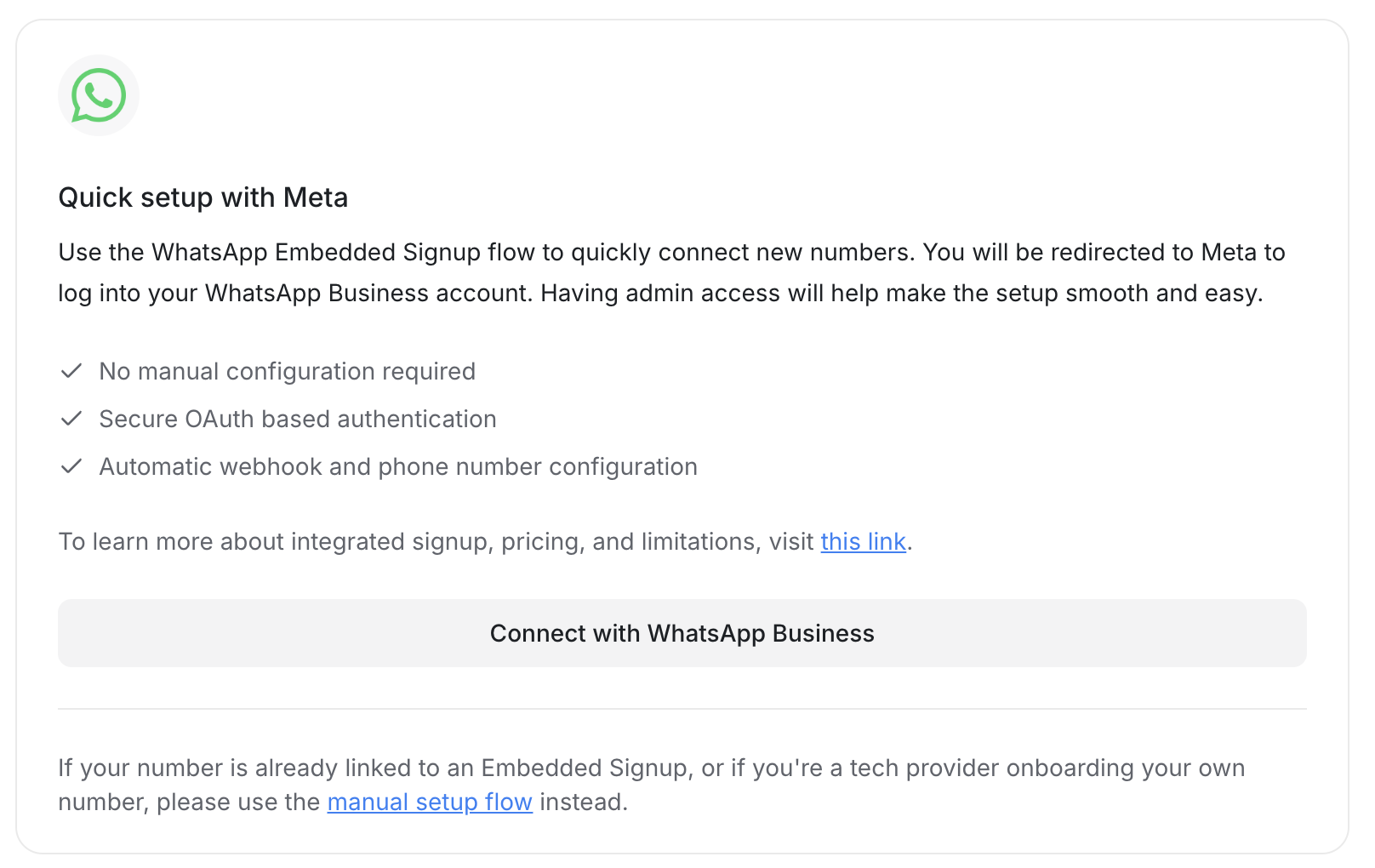
ChannelX connects to WhatsApp through two providers:
- WhatsApp Cloud API — the recommended provider. It connects directly to Meta and supports approved message templates.
- Twilio — a good fit if you already route WhatsApp traffic through a Twilio account.
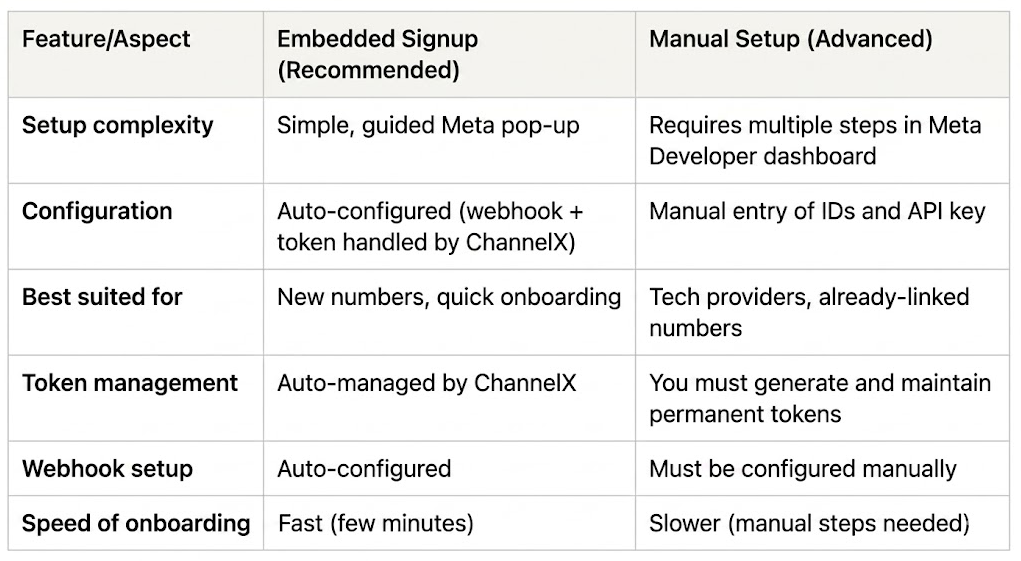
When you add a WhatsApp inbox with the Cloud API, you choose one of two onboarding paths:
| Path | Best for |
|---|---|
| Embedded signup | New numbers and the fastest, no-configuration setup |
| Manual setup | Tech providers onboarding their own number, reusing a number already tied to embedded signup, or anyone comfortable in the Meta Developer Console |
To begin, go to Settings → Inboxes → Add Inbox and choose WhatsApp.
Prerequisites
- A Meta (Facebook) developer or business account.
- A valid phone number that is not already tied to another WhatsApp embedded signup flow (unless you are migrating it).
- A ChannelX workspace with WhatsApp enabled.
Embedded signup
Embedded signup is a browser-based flow provided by Meta. It authenticates a Facebook user, creates or links a WhatsApp Business Account (WABA), adds your phone number, and returns the production credentials automatically. ChannelX captures the webhook, tokens, and phone number configuration for you, so there is nothing to copy and paste.
To use it:
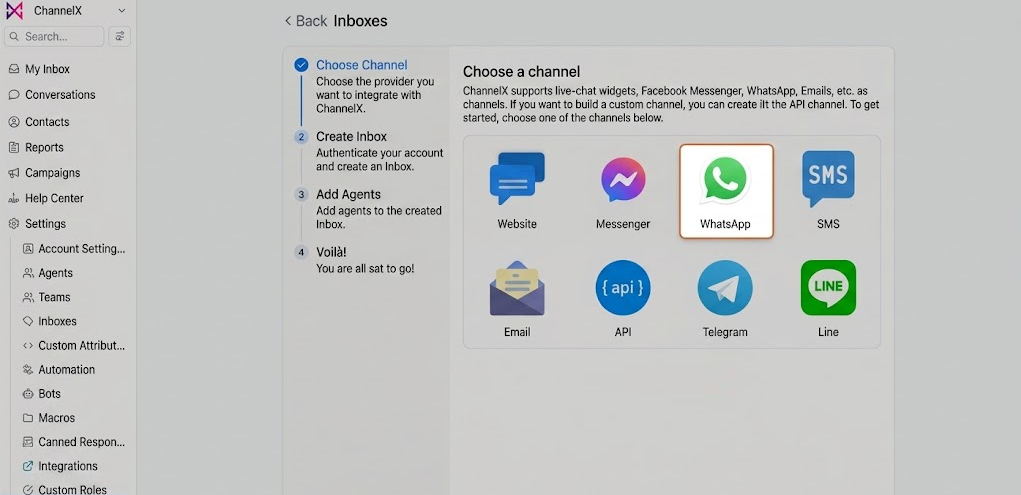
- Go to Settings → Inboxes → Add Inbox and select WhatsApp.
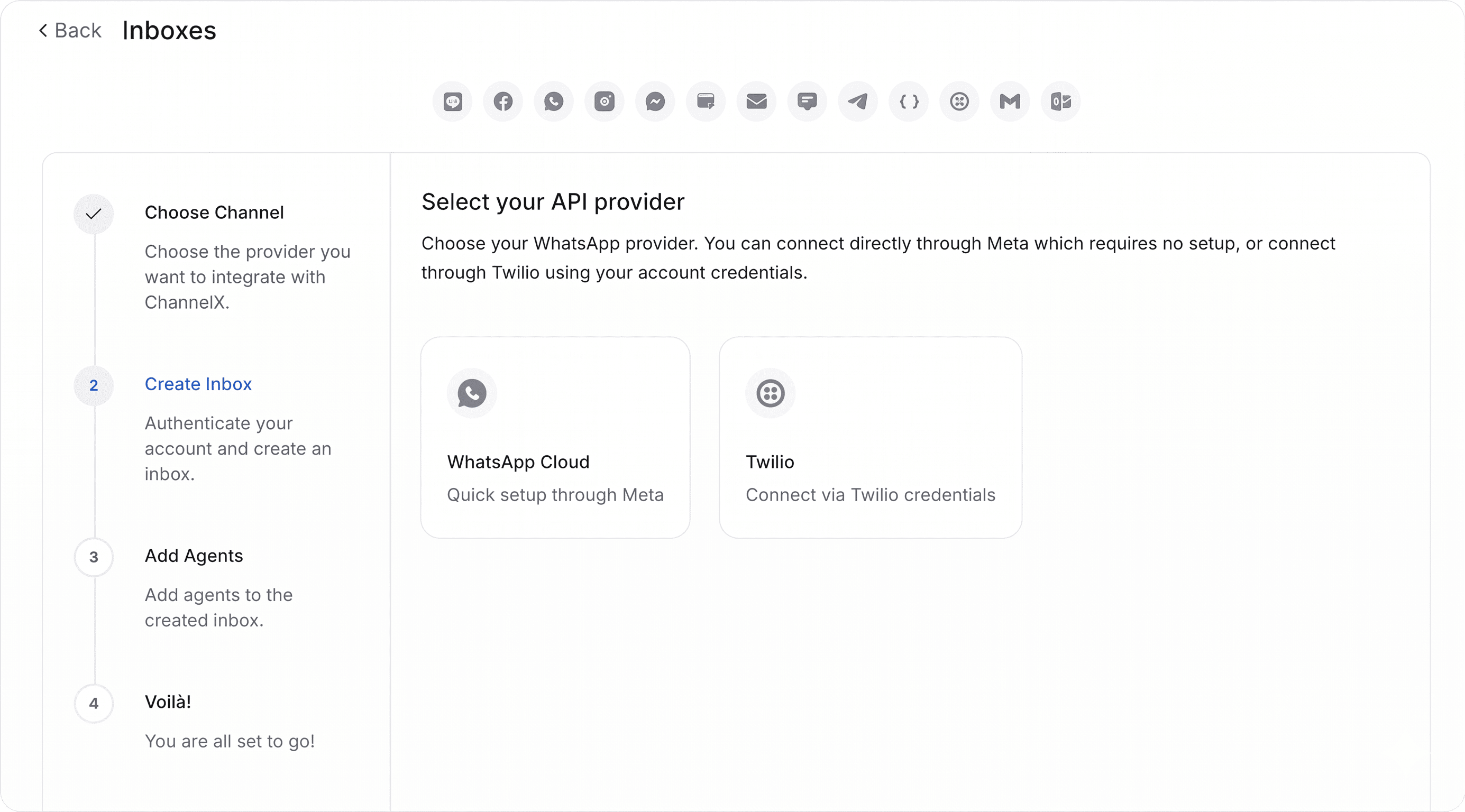
- Click Connect with WhatsApp Business.
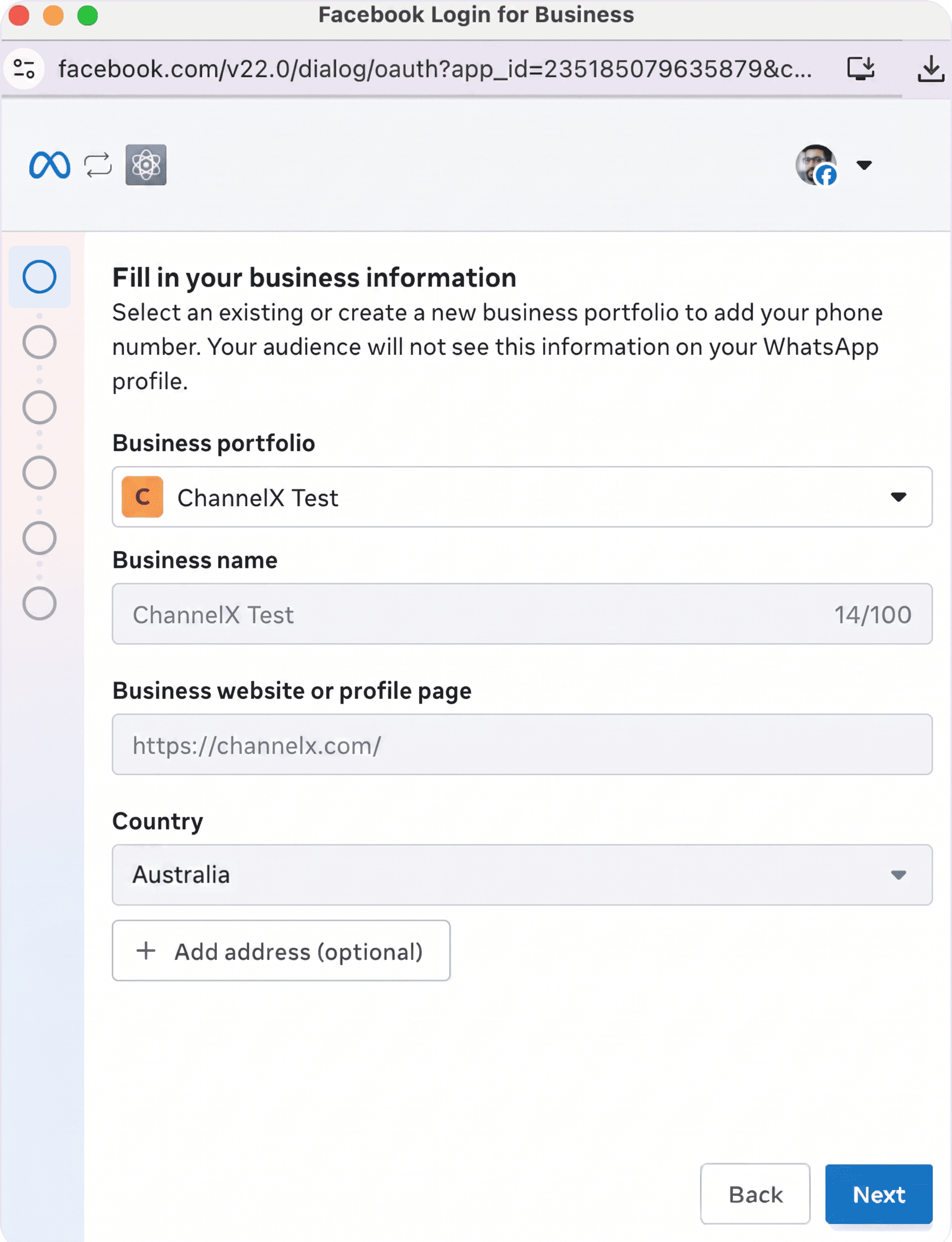
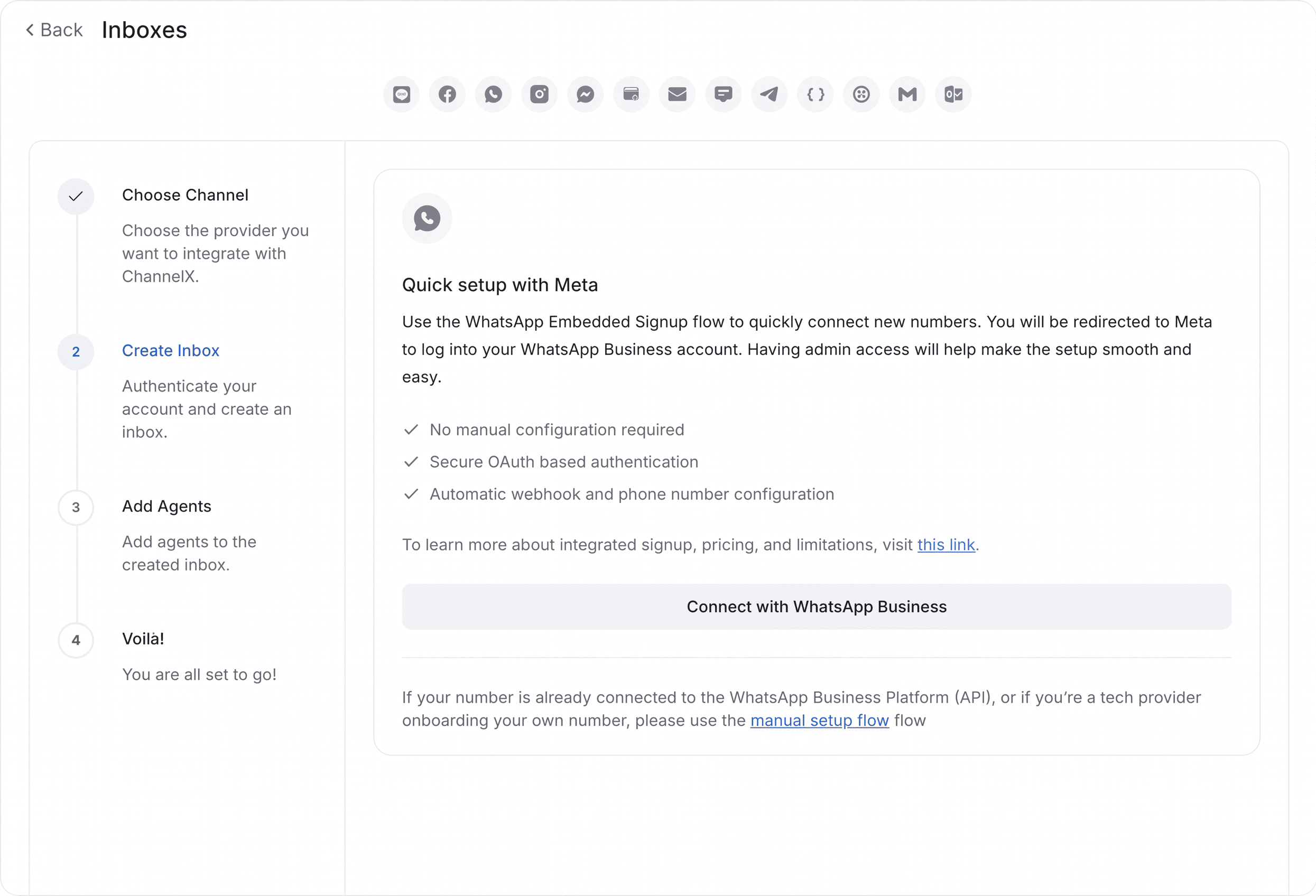 3. Log in with the Facebook account that will manage the WABA. Provide your business details or pick an existing portfolio, then choose an existing WABA or create a new one. Add your phone number when prompted.
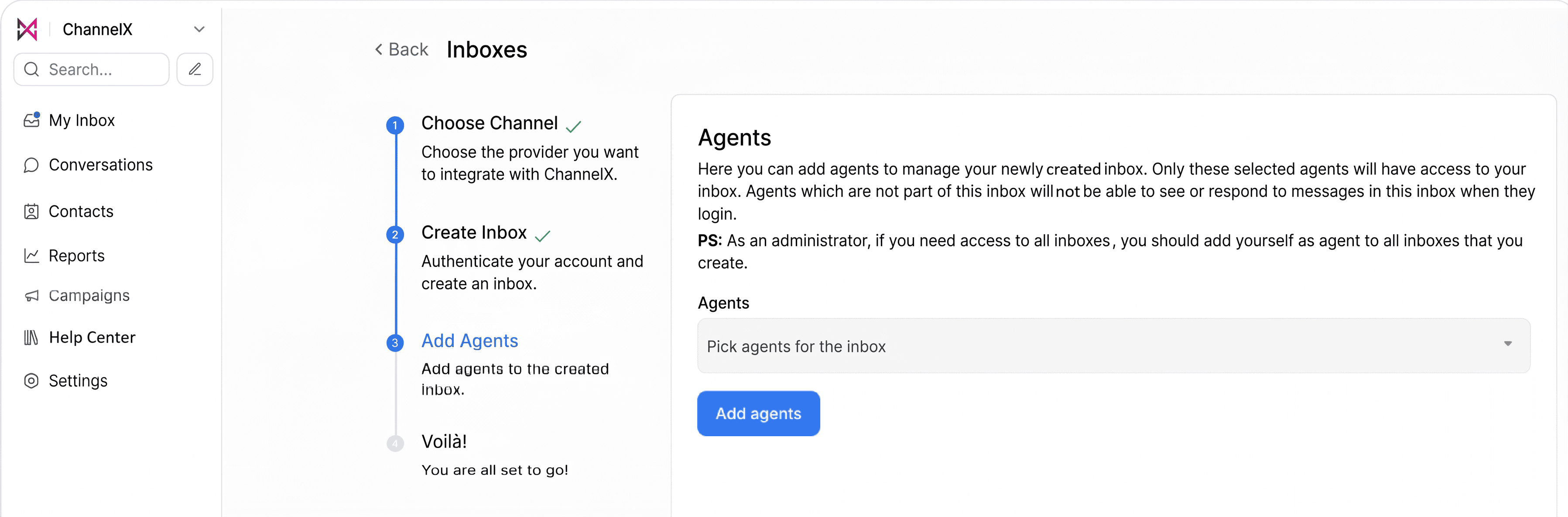
 4. Add agents to the new inbox.
Tip
Run the flow in a dedicated browser tab and disable ad-blockers. Meta's OAuth windows depend on third-party cookies and may fail silently if those are blocked.
Compliance checkpoints:
- Business verification — Upload your legal documents if Meta asks during or after signup.
- Display name review — Make sure your WhatsApp display name matches your branding so it is not rejected.
Twilio
There are two ways to connect Twilio: the standard setup, and a setup that uses a Twilio Messaging Service.
Standard setup (no Messaging Service)
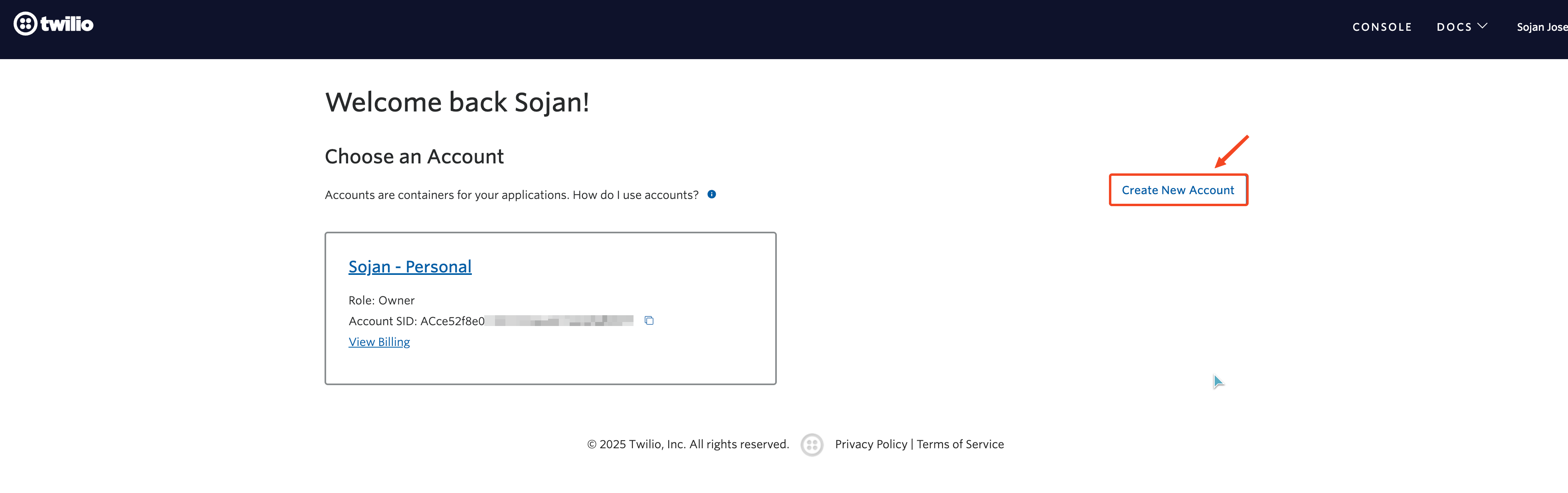
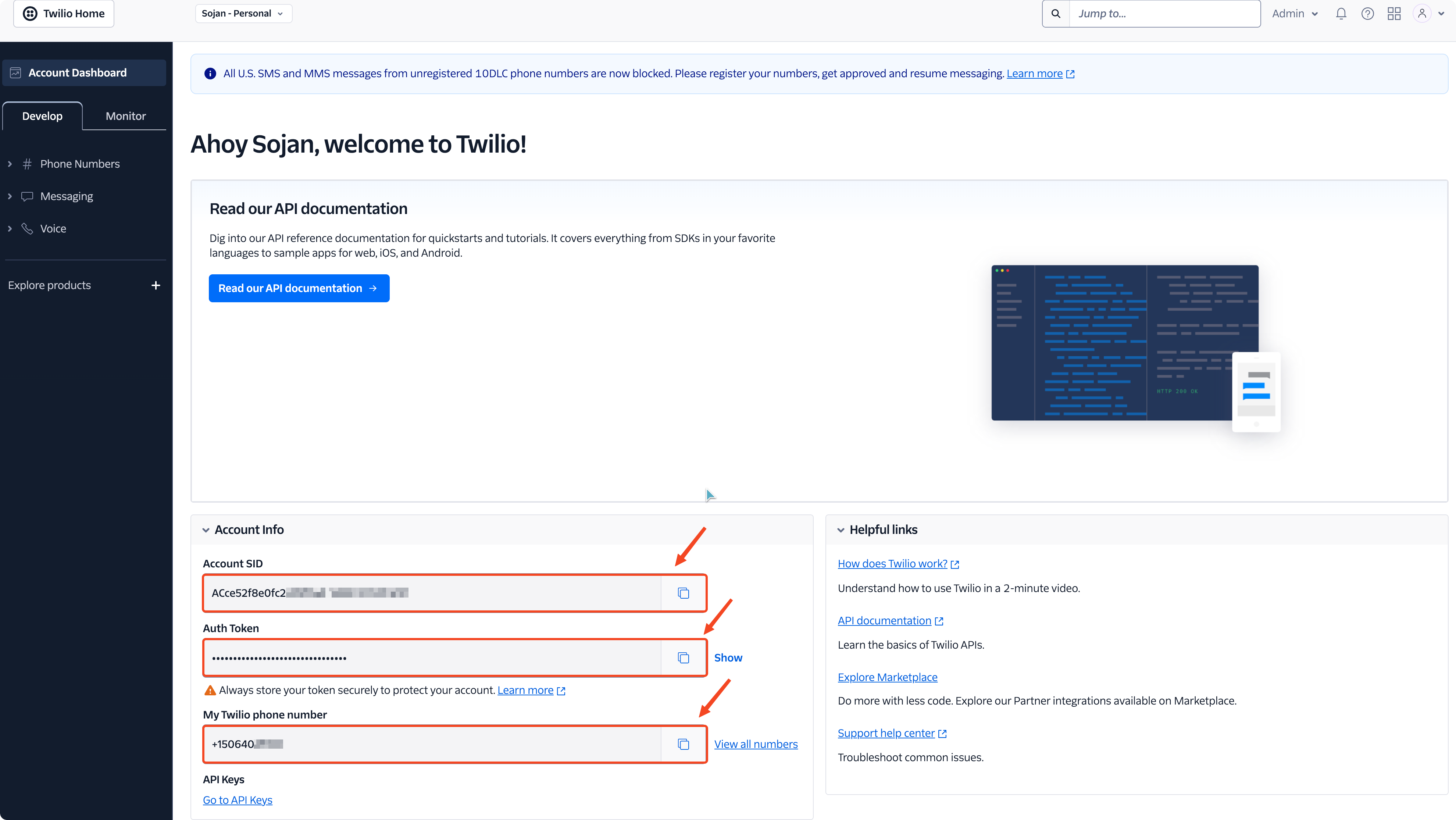
- In Twilio, create or open your account and add a phone number if you have not already.
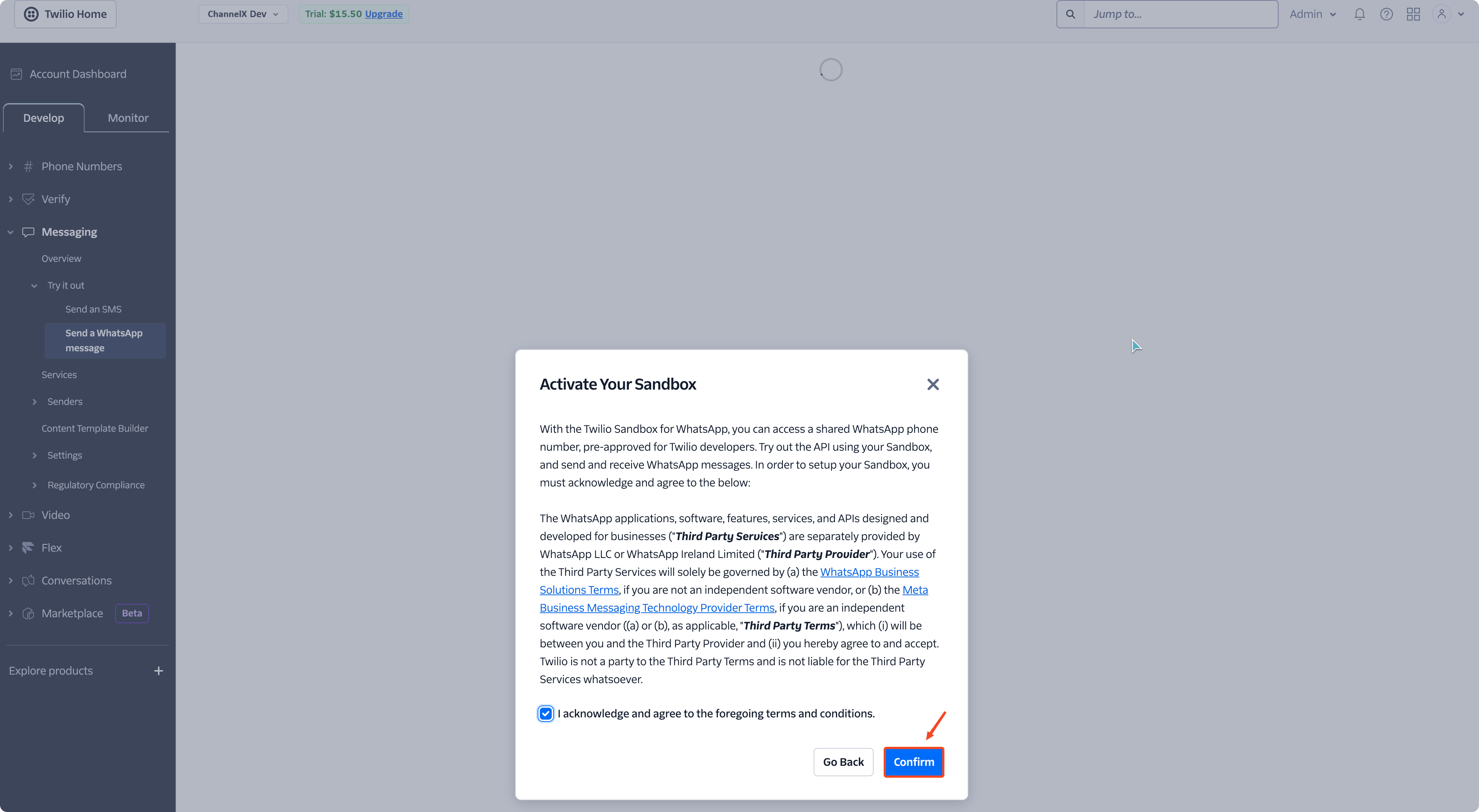 2. Copy your Account SID, Auth Token, and WhatsApp number.
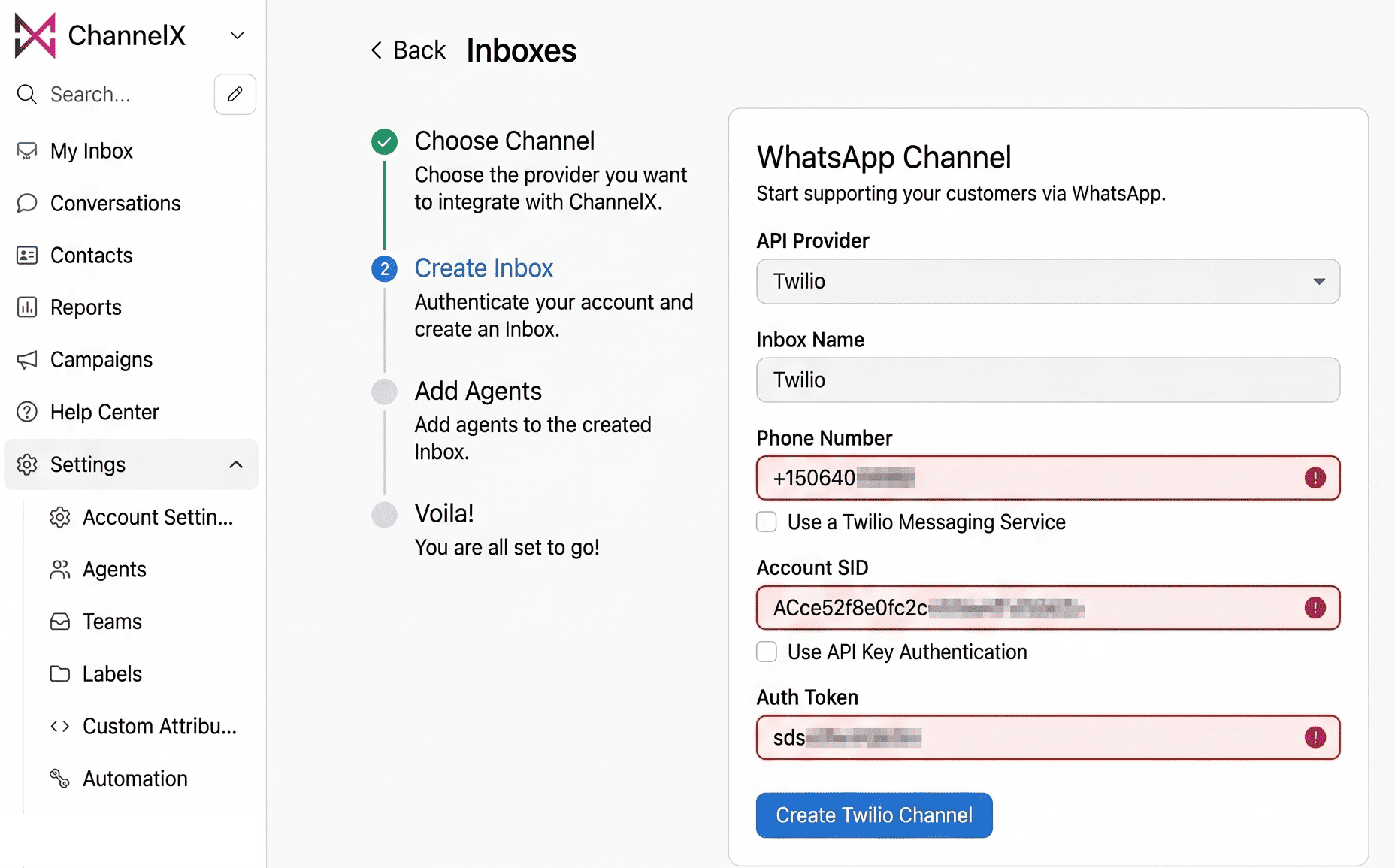
 3. In ChannelX, go to Settings → Inboxes → Add Inbox, choose WhatsApp, and enter the Account SID, Auth Token, and number.
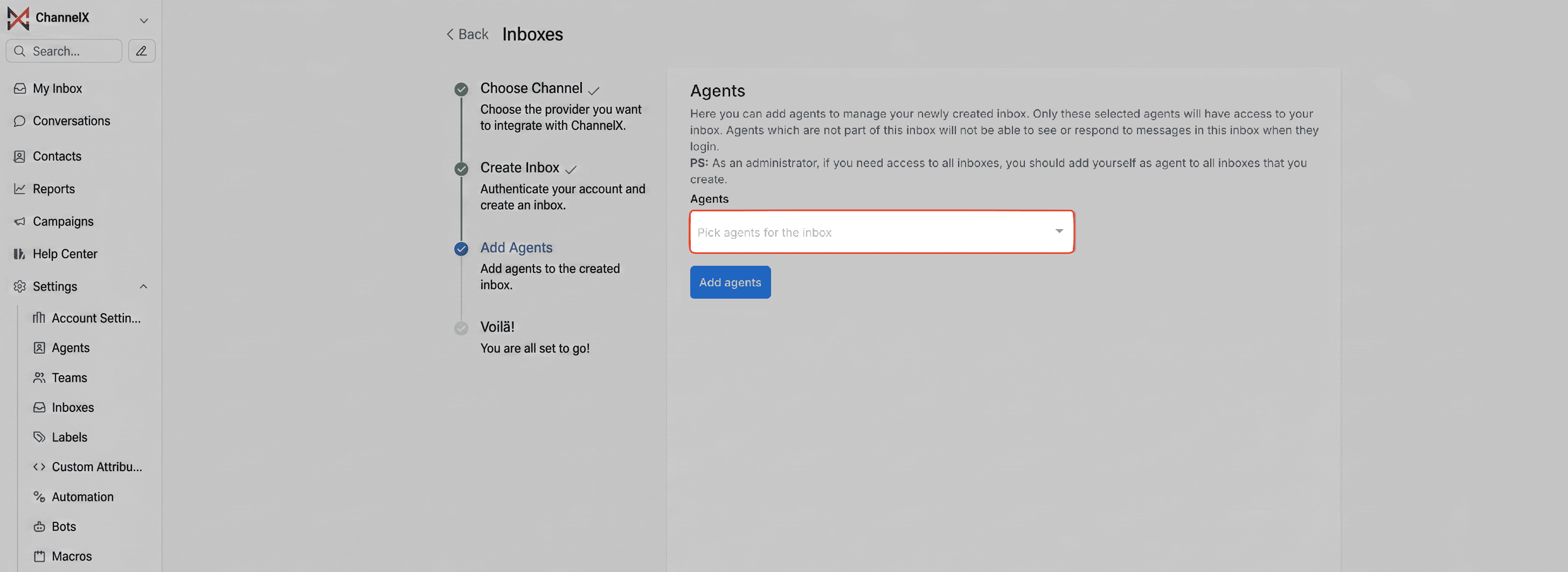
 4. Add agents to the inbox.
- Open the inbox Configuration tab and copy the webhook URL.
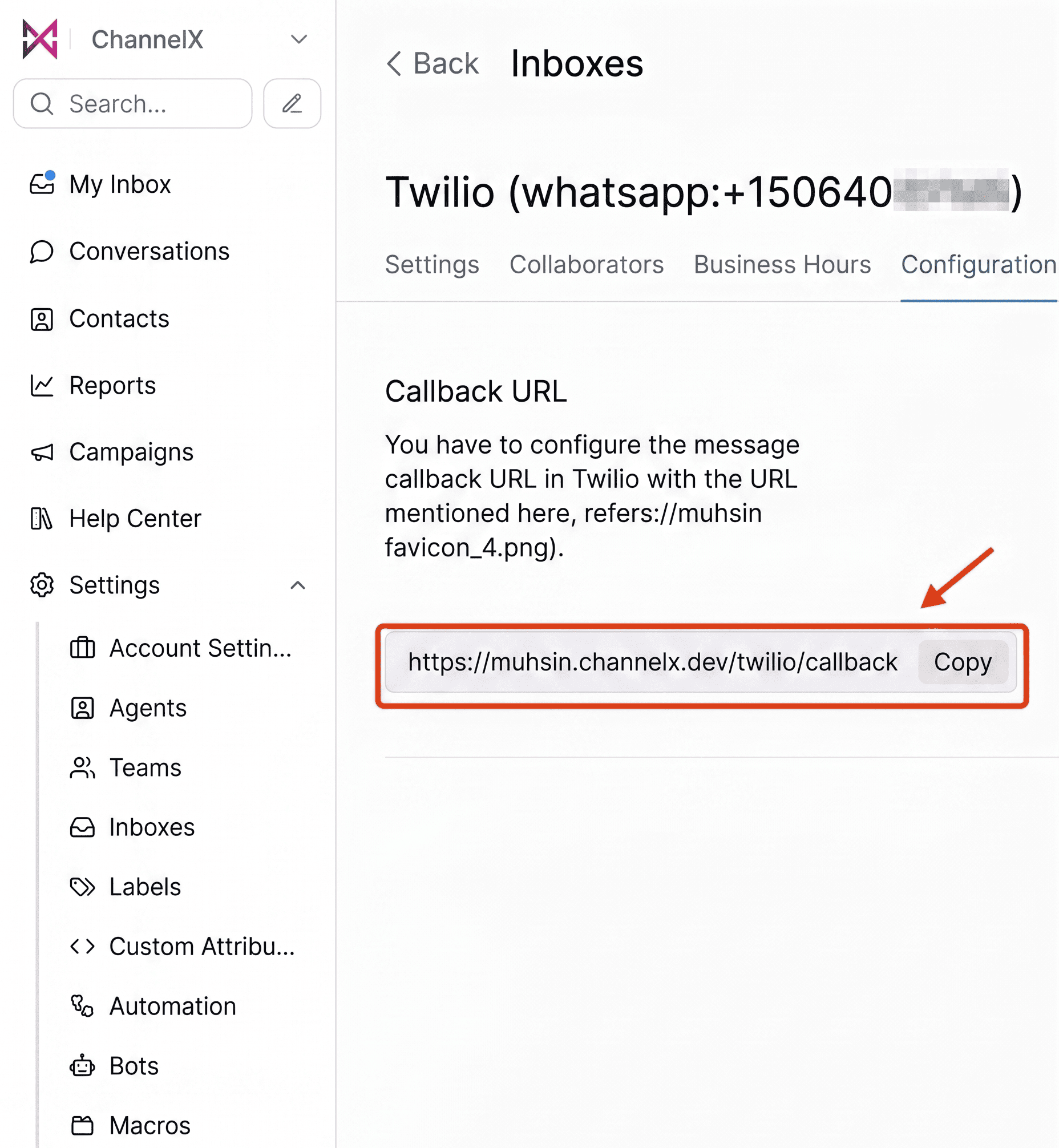
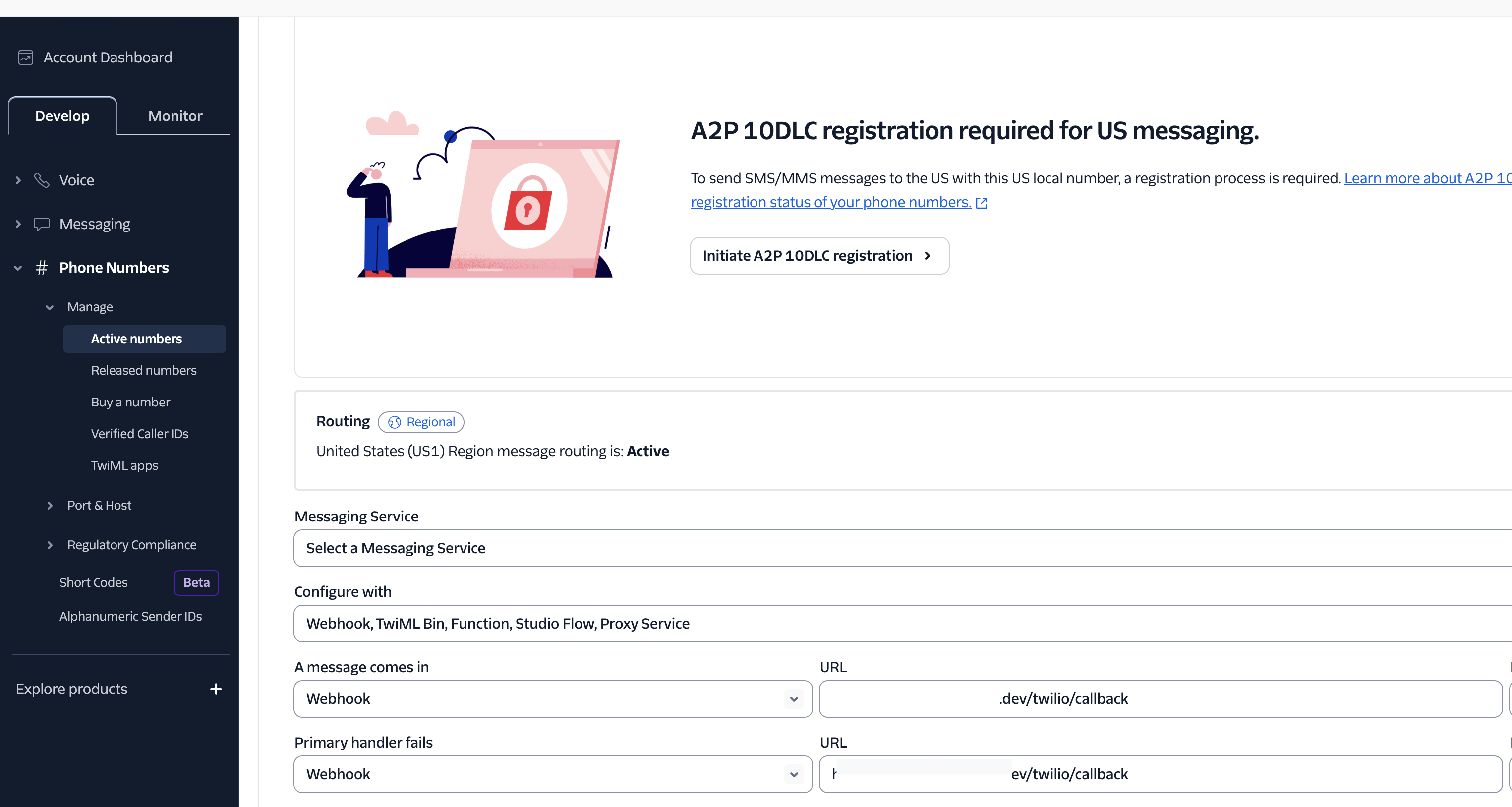
- In the Twilio Console, go to Phone Numbers → Manage → Active Numbers, open your WhatsApp number, click Configure, and under Messaging paste the ChannelX webhook URL
Setup with a Messaging Service
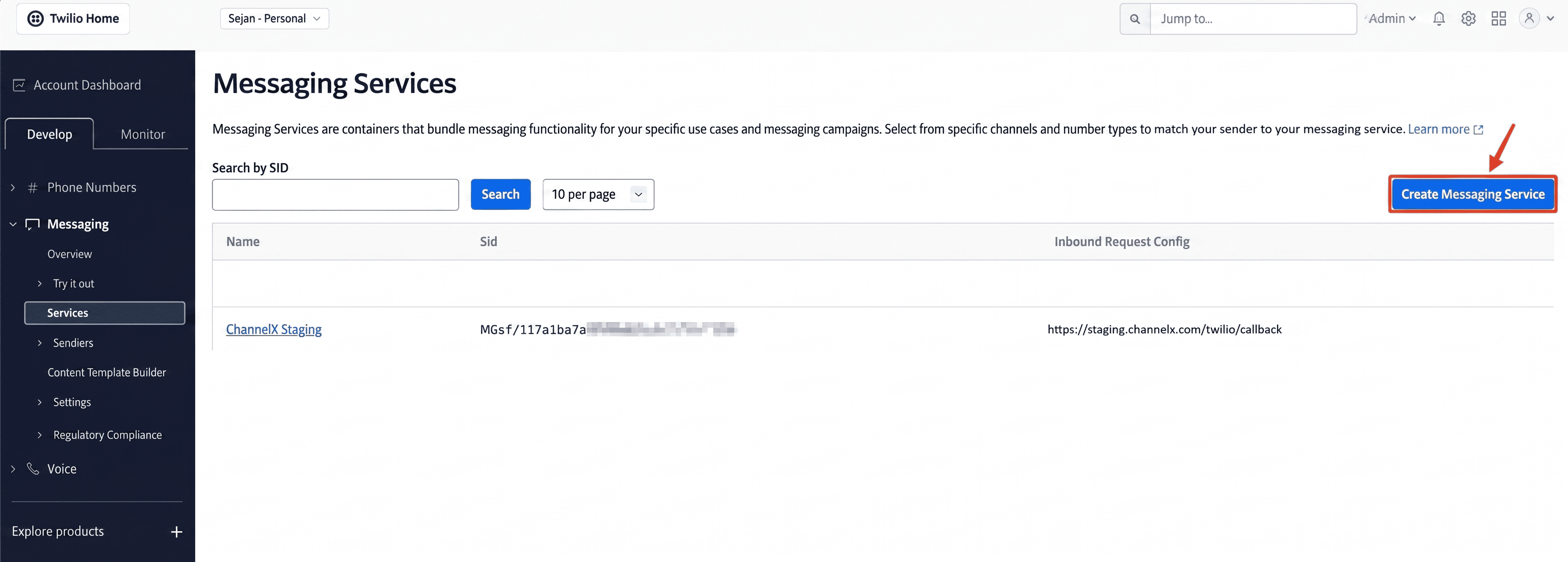
- In Twilio, go to Messaging → Services and click Create Messaging Service. Complete the steps and copy your Messaging Service ID.
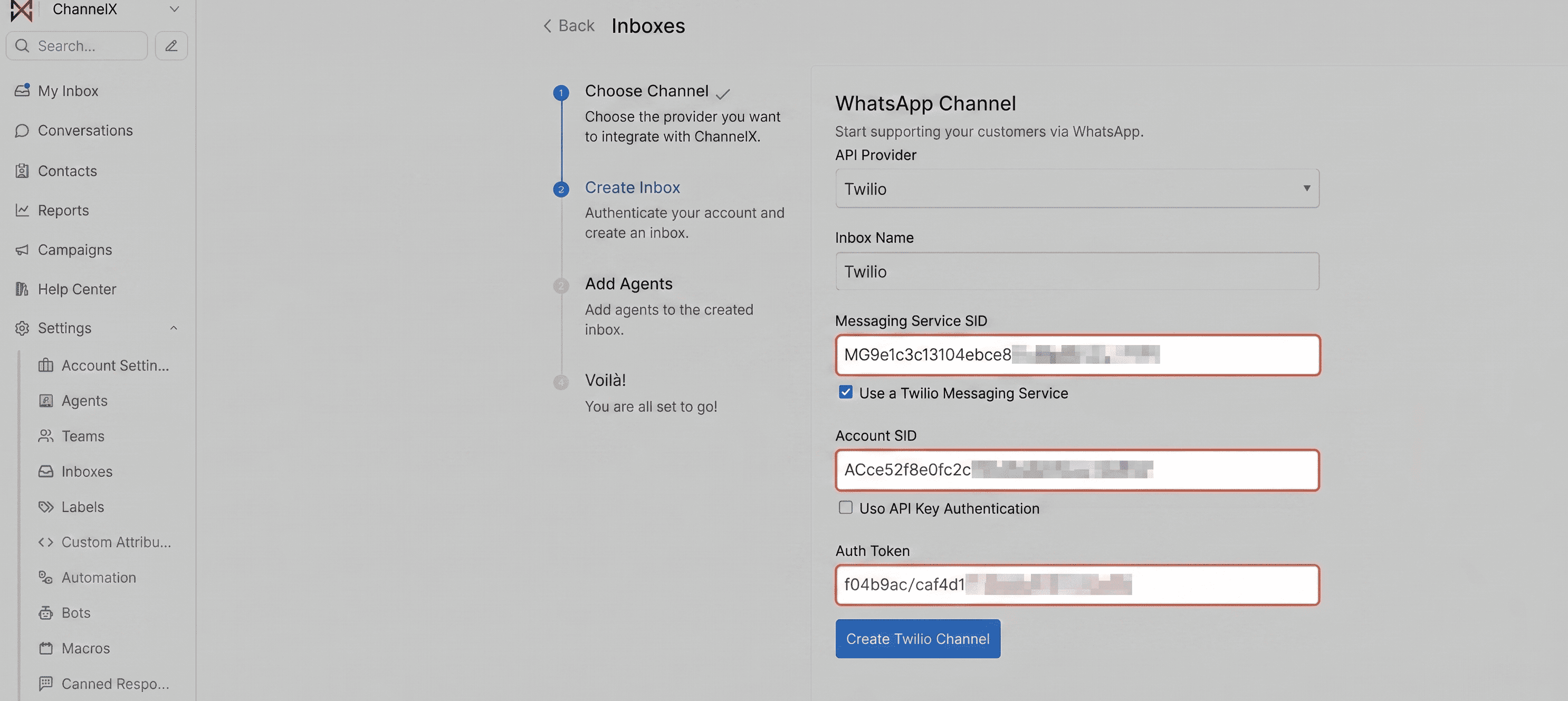
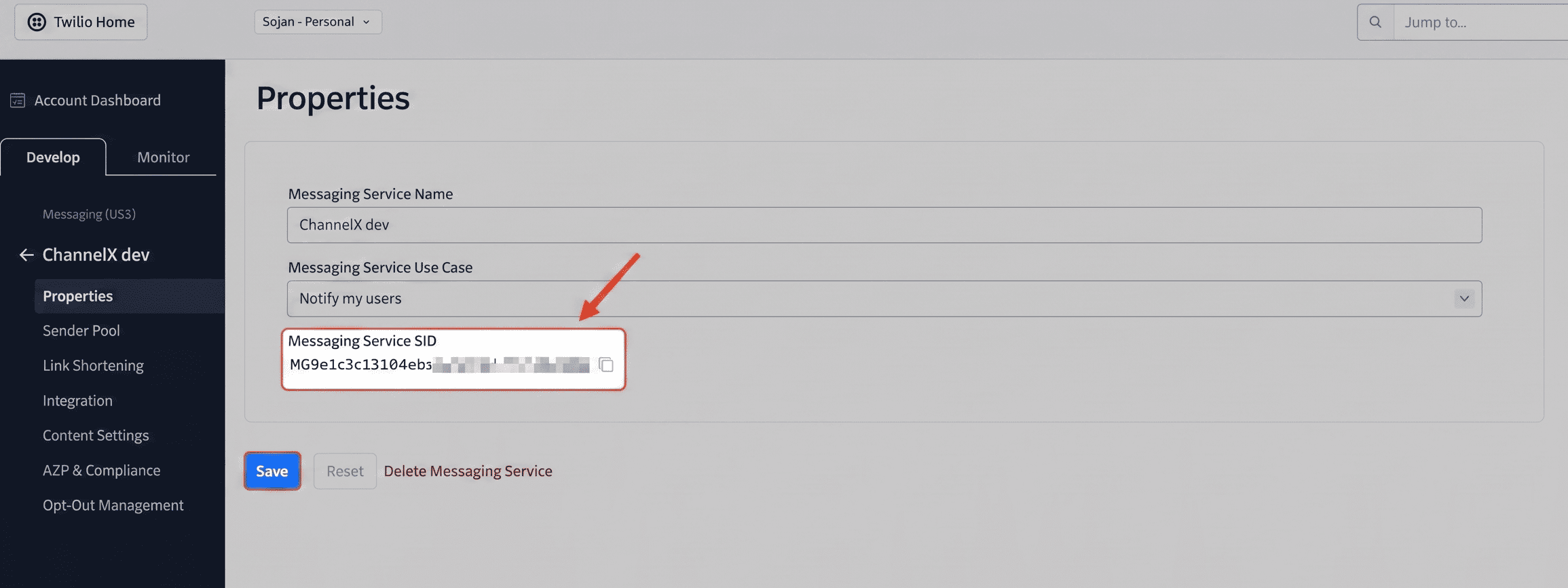 2. In ChannelX, while creating the inbox, tick Use Twilio Message Service, then enter your Account SID, Messaging Service ID, and Auth Token.
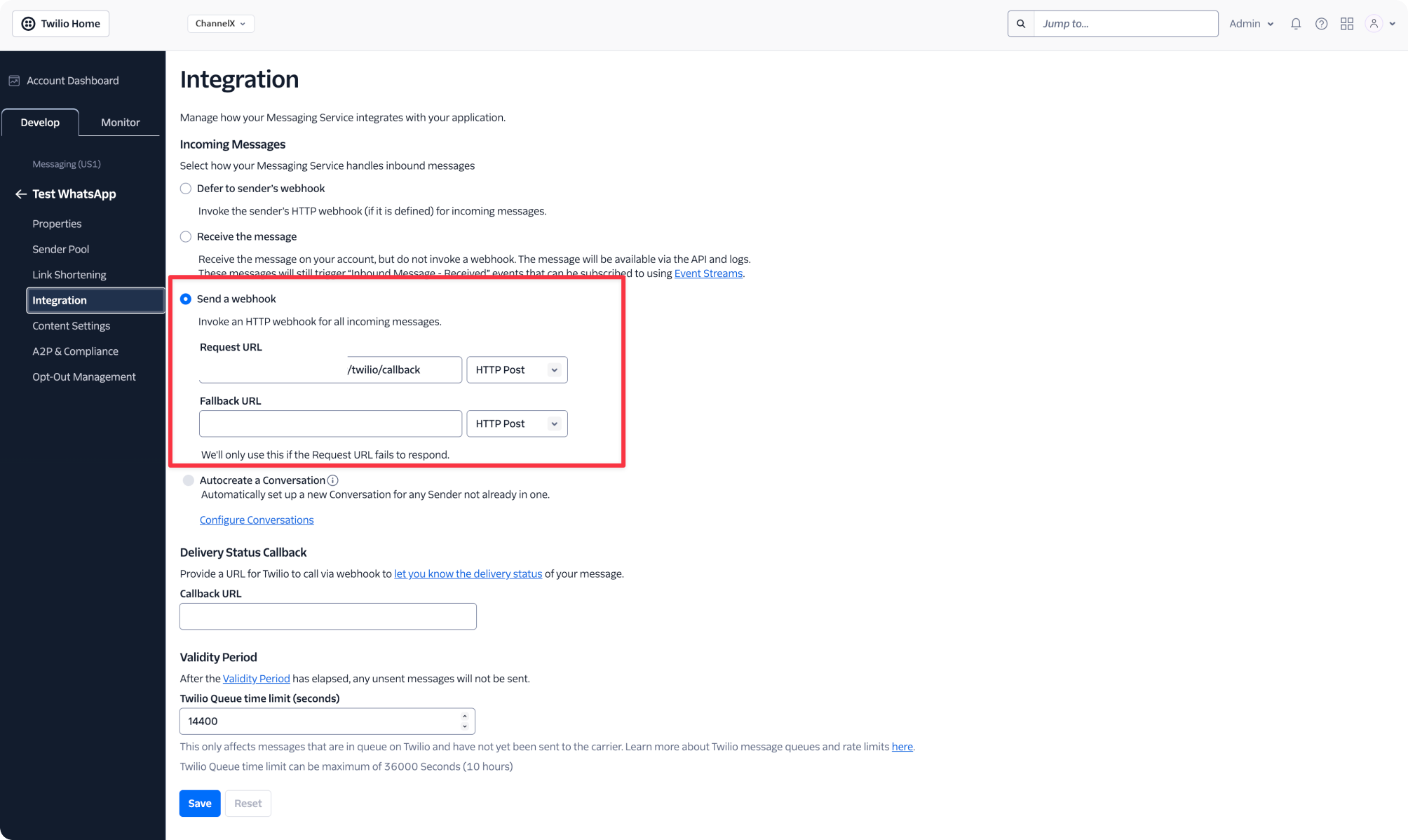
 3. In Twilio, go to Messaging → Services → Select Service → Integration and paste the ChannelX webhook URL.
Using Twilio Studio
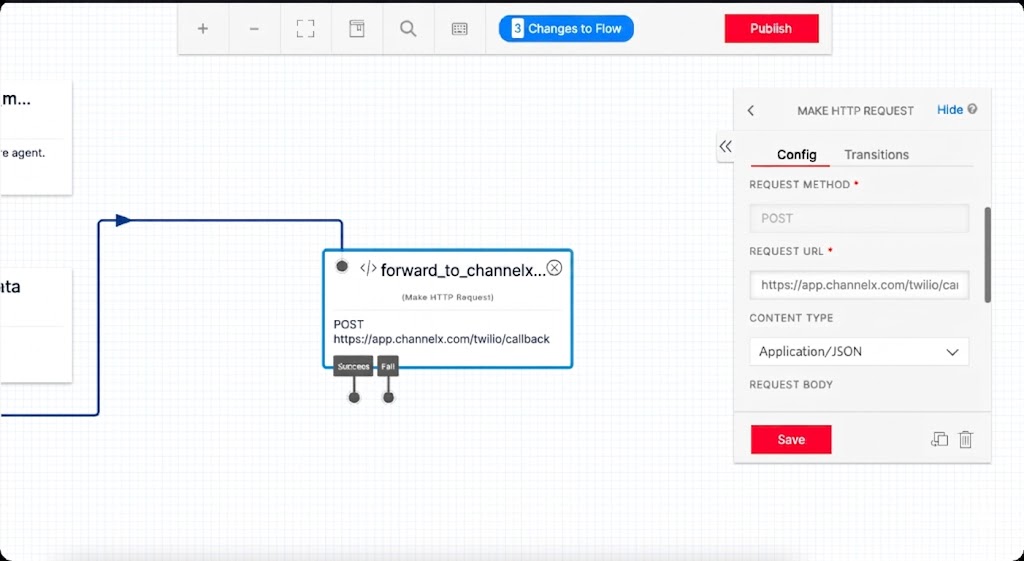
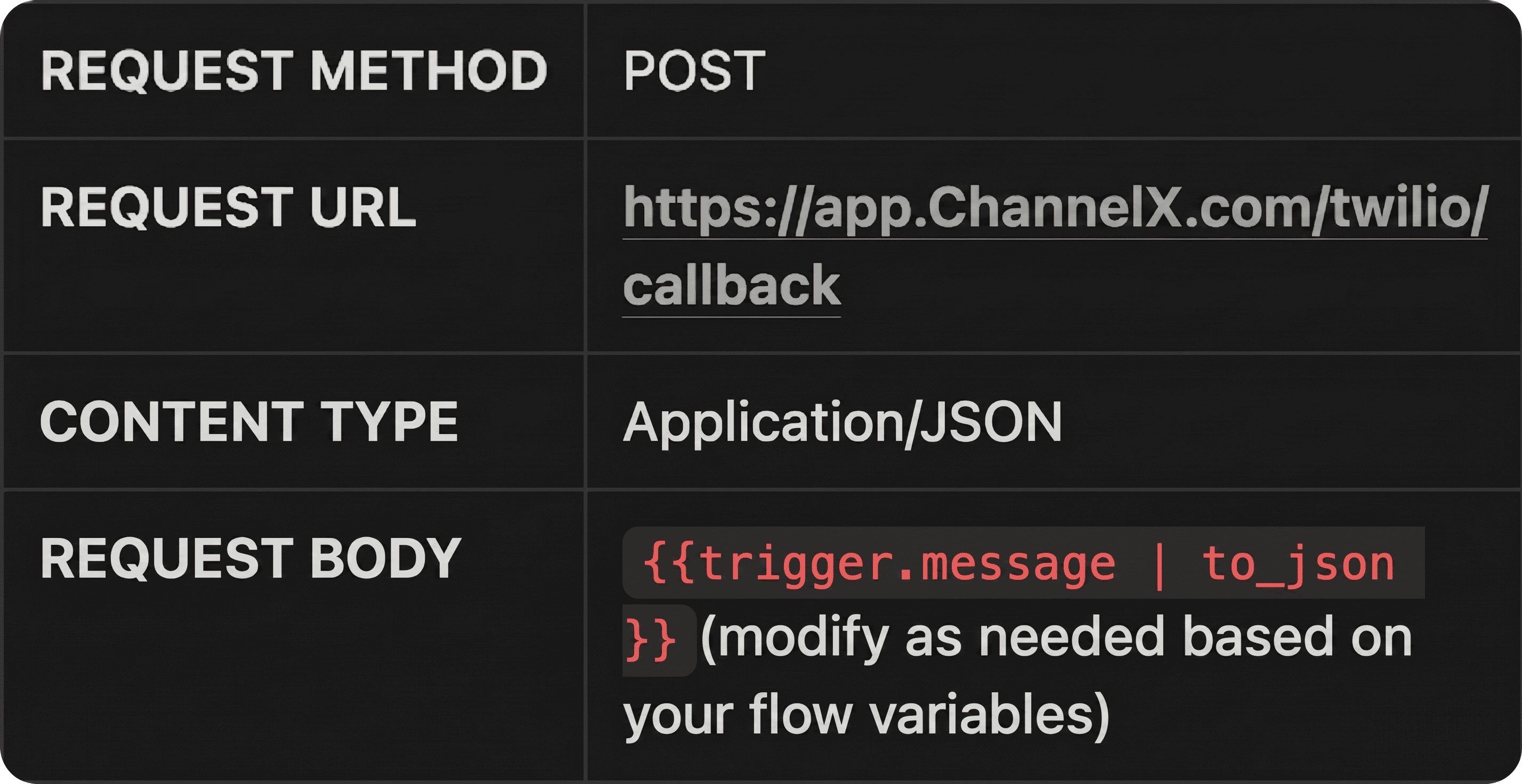
If you run a custom conversation flow in Twilio Studio, overwriting the webhook URL will break it. Instead, add a Make HTTP Request widget at the point in your flow where you want to hand off to an agent, point it at the ChannelX webhook, and make sure your flow can handle the agent's replies.
Templates
WhatsApp templates are pre-approved message formats that let you start a conversation with a customer, for example for order updates, shipping notices, or support follow-ups. They keep your outbound messaging compliant with WhatsApp's policies.
Note
Templates are supported on WhatsApp Cloud inboxes. (Twilio templates are covered below.)
Categories
WhatsApp groups templates by purpose, such as Utility (transactional messages like order confirmations), Marketing (promotions and offers), Shipping update, Ticket update, and Issue resolution.
What templates can contain
- Text with personalized variables (
{{1}},{{2}}, and so on). - Images, videos, or documents as a header.
- Quick-reply and call-to-action buttons (such as URL or click-to-call buttons).
Some advanced template types are not supported, including authentication/OTP templates, list and product/catalog templates, call-permission requests, location headers, carousels, forms, payment, and flow templates.
Creating templates
Templates are created in WhatsApp Business Manager:
- Go to
business.facebook.com. - Under Account tools, open Message templates.
- Click Create template and choose the type.
- Add the header, body, footer, and buttons you need.
- Submit for approval — review can take up to 24 hours.
- Once approved, the template syncs to ChannelX automatically, or you can sync manually from the inbox settings.
Sending templates
You can send templates in two ways:
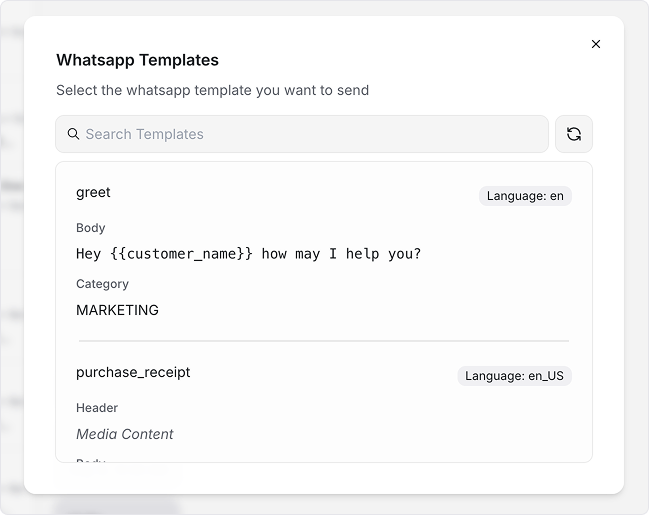
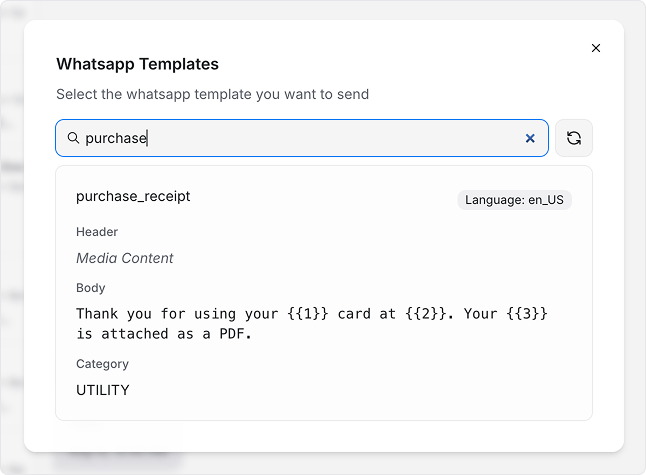
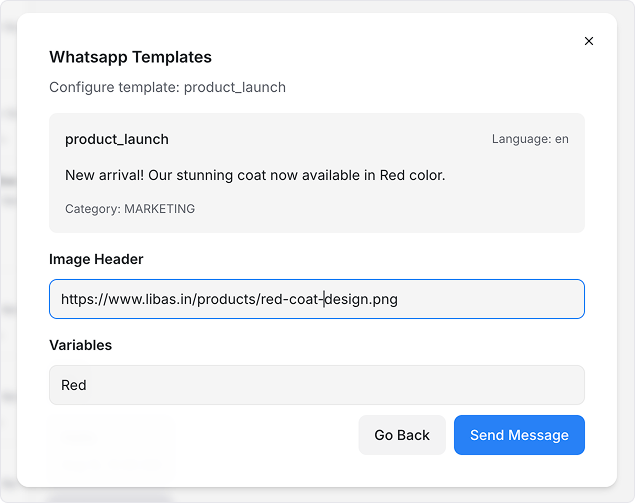
- In a conversation — Open a WhatsApp conversation, click the template icon in the composer, choose WhatsApp Templates, pick a template, fill in any variables or media URLs, preview, and send.
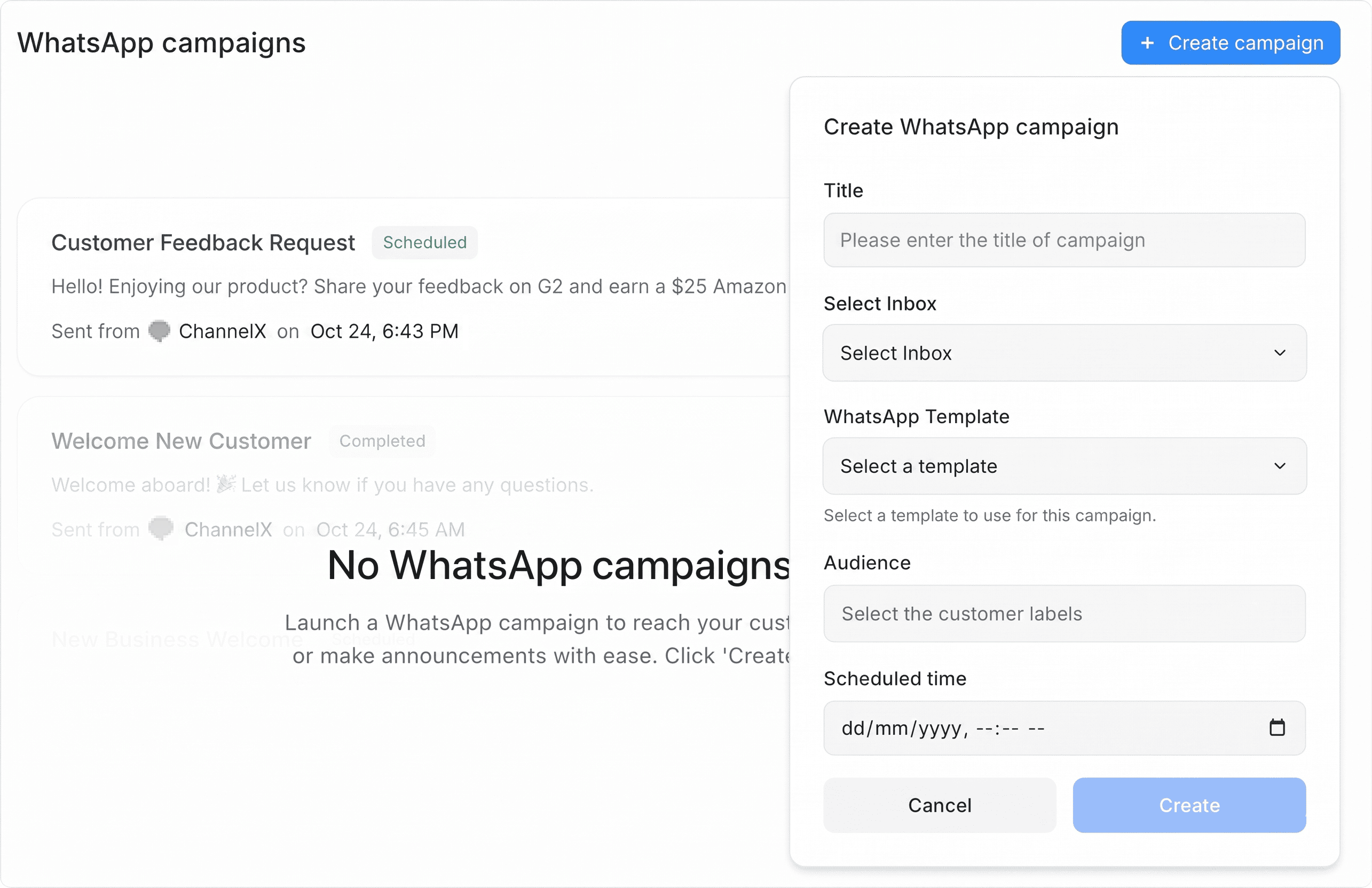
 - In a campaign — Create a campaign, choose WhatsApp as the channel, select the template, and configure your audience and parameters to reach many contacts at once.
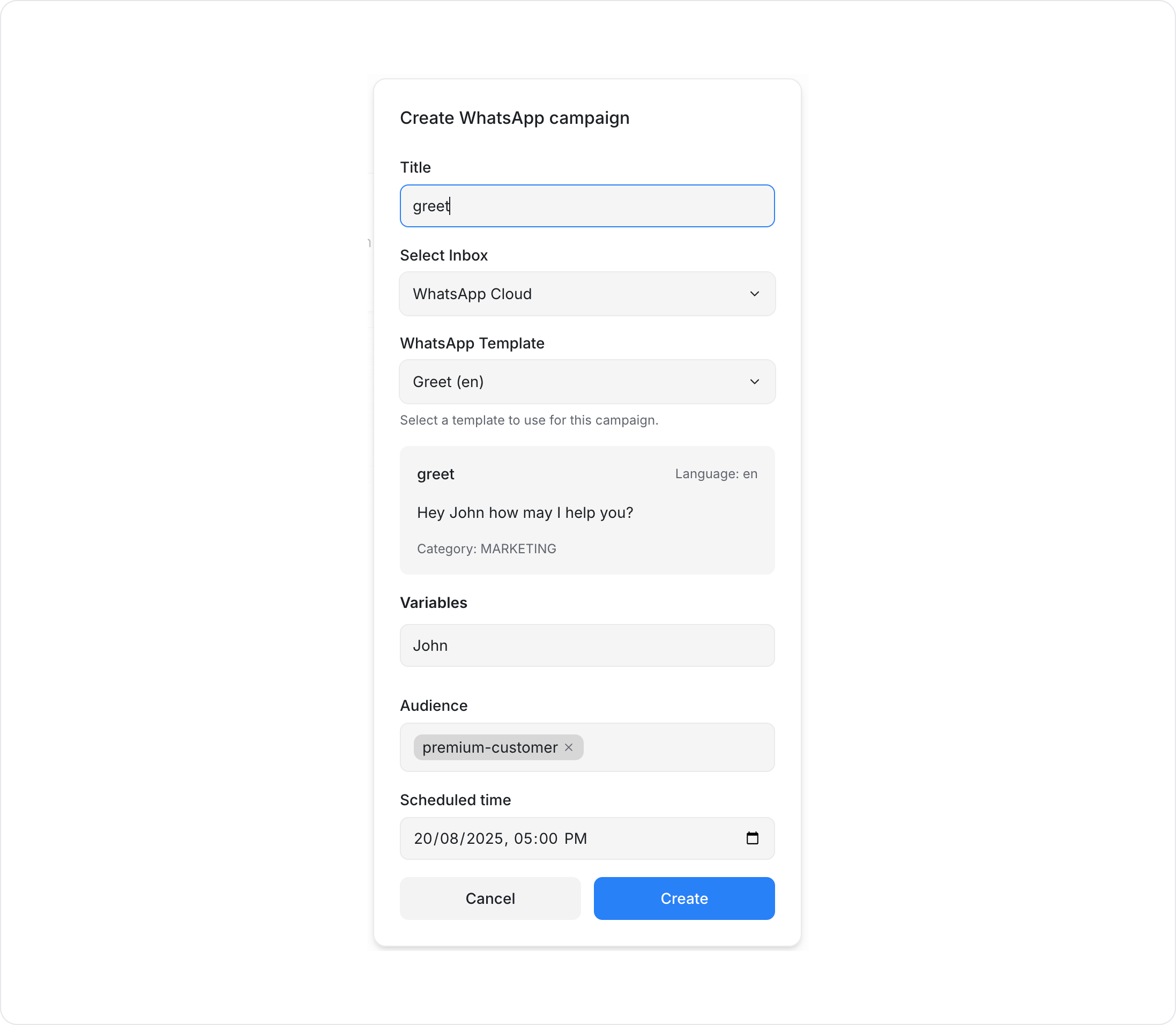
For media templates, the image, video, or document must be hosted at a publicly accessible URL (no login required).
Common template questions
- Why don't all my templates show up? Only templates that WhatsApp has approved and that ChannelX supports appear. Unsupported types are filtered out.
- Can I edit a template in ChannelX? No. Create and edit templates in WhatsApp Business Manager; ChannelX is used to send approved templates.
- My template won't send. Check that all variables are filled, media URLs work and are public, files are within WhatsApp's size limits, and the template is approved.
- Supported media limits — Images (JPEG/PNG) under 5 MB, videos (MP4/3GPP) under 16 MB, and documents (PDF, Office formats, TXT) under 100 MB.
Twilio content templates
Twilio content templates let you send pre-approved WhatsApp message templates through your Twilio WhatsApp Business channels in ChannelX. They let you initiate conversations and send structured messages that comply with WhatsApp's policies.
Note
Content templates apply to Twilio WhatsApp channels. They are created and approved in the Twilio Console, then synced into ChannelX.
Supported template types
- Text — Simple messages with optional variables in
{{1}},{{2}}format (up to 100 variables, multi-language). - Media — Image (JPEG/PNG, max 5 MB), video (MP4/3GPP, max 16 MB), or document (PDF/Office, max 100 MB) headers, with support for dynamic media URLs.
- Quick reply — Interactive button responses handled by WhatsApp.
- Call-to-action — URL button templates, with variables supported in both the message text and button parameters.
Prerequisites
- An active Twilio account with WhatsApp Business API access.
- Templates created and approved in the Twilio Console.
- A Twilio WhatsApp channel configured in ChannelX.
- A verified WhatsApp Business profile.
Creating templates in Twilio
- In the Twilio Console, go to Messaging → Content Template Builder.
- Click Create new template and choose a type (text, media, or quick reply).
- Configure the template for its purpose and submit it for WhatsApp approval.
- Wait for approval (typically 5 minutes to 24 hours). Approved templates receive a ContentSid and are ready to use.
Syncing templates to ChannelX
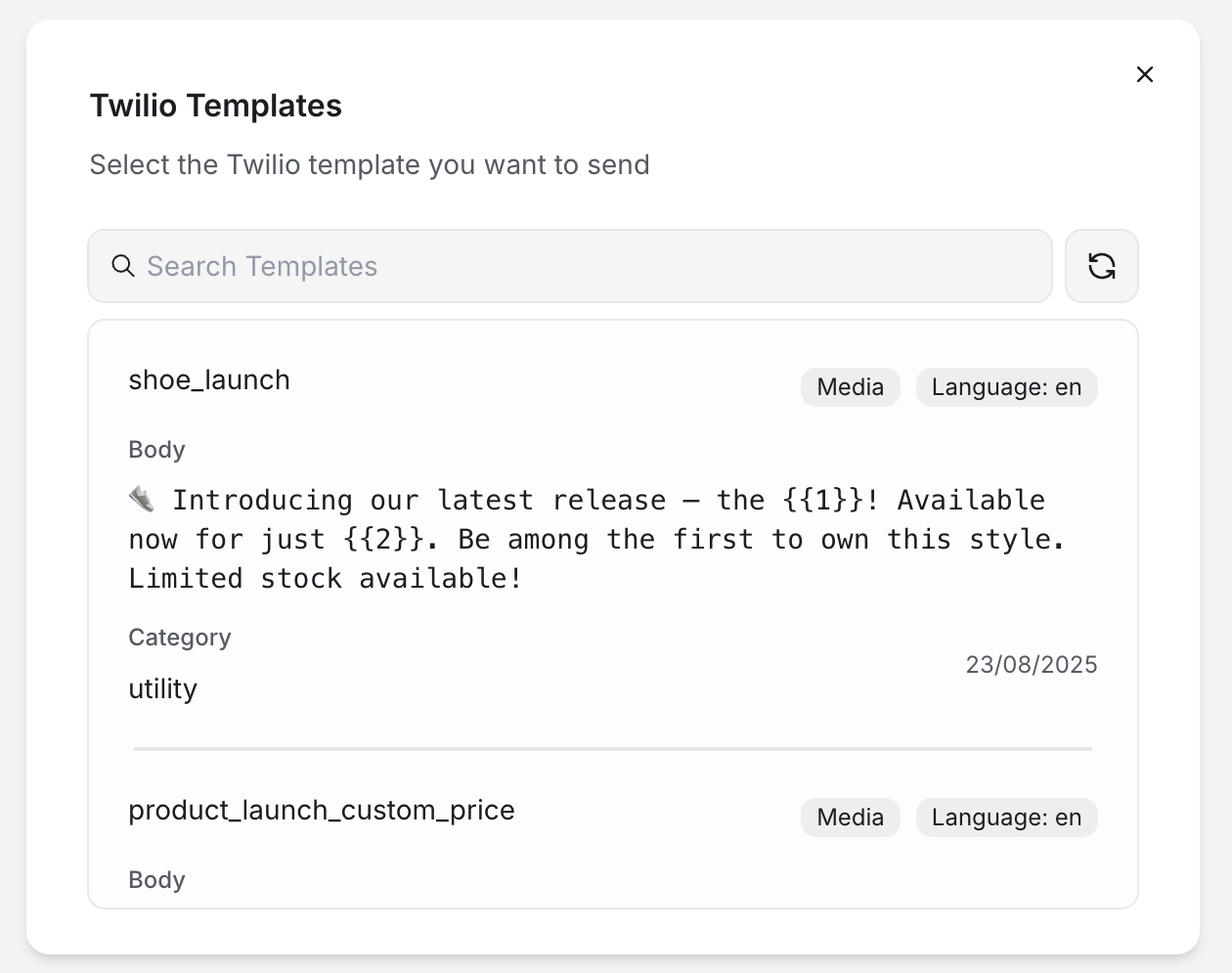
Templates sync automatically when you open the content templates modal in a conversation or start a new conversation on a Twilio WhatsApp channel. To sync manually, go to Settings → Inboxes, select your Twilio WhatsApp inbox, and click Sync Templates.
Using templates in conversations
- Open a conversation with a WhatsApp contact and click the template icon in the composer.
- Select WhatsApp Templates and pick a template (use search to find one quickly).
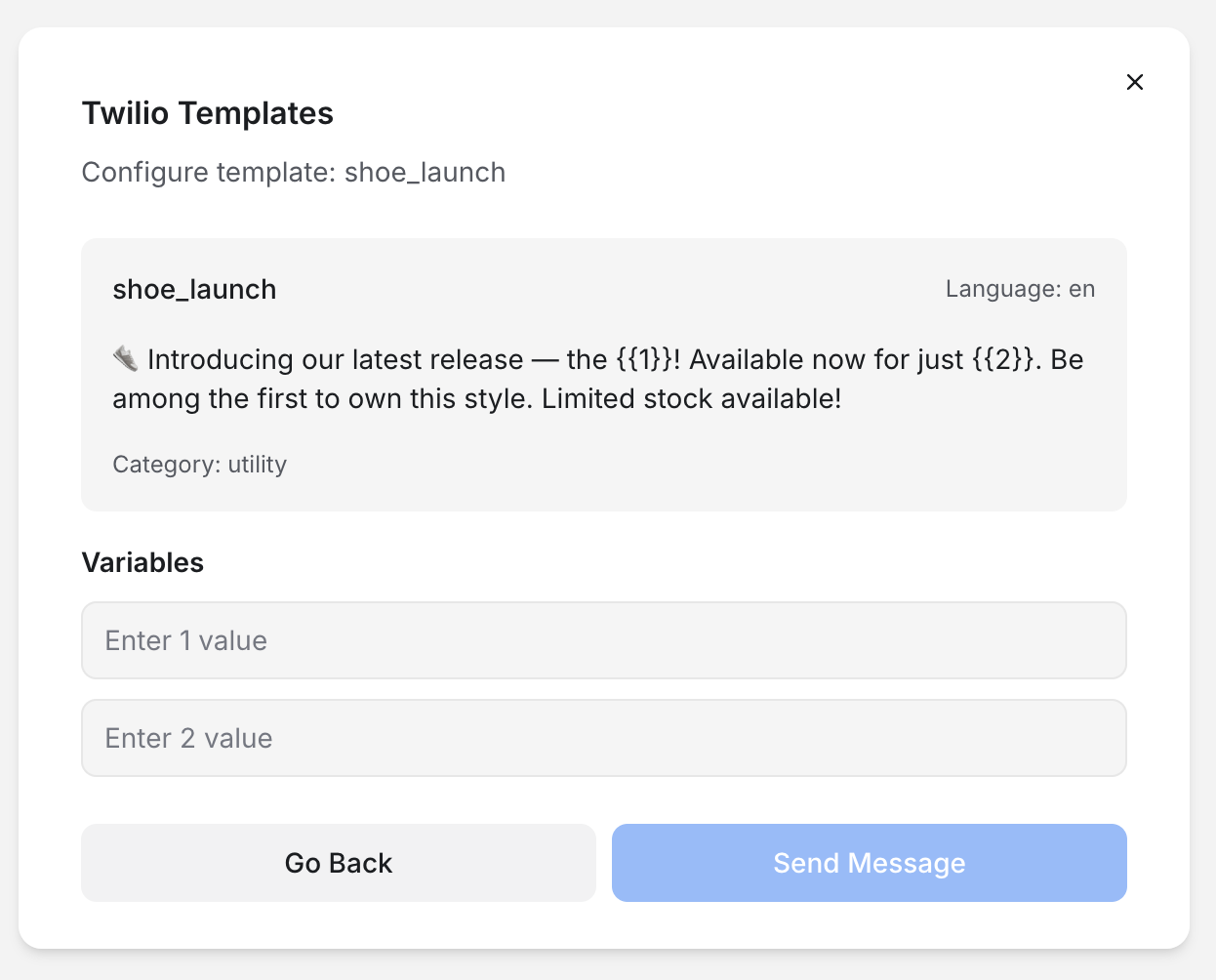
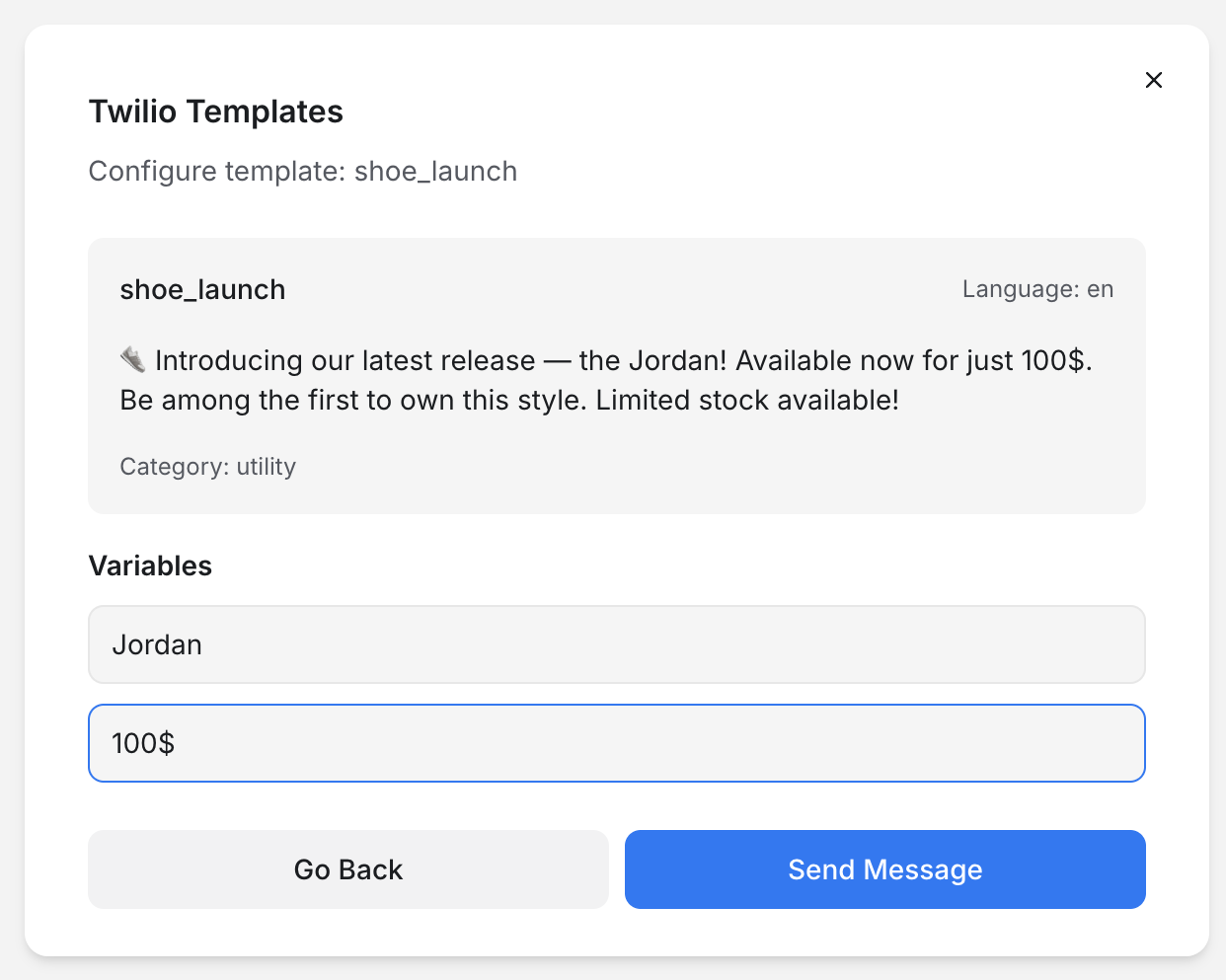
- Fill in any required variables or media, then send.
Best practices
- Keep messages concise and use variables for personalization (under 10 variables for best experience).
- Host media on reliable servers over HTTPS, and optimize file sizes.
- Follow WhatsApp Business Policy guidelines and respect user consent.
Troubleshooting
| Problem | Likely cause | Fix |
|---|---|---|
| Template not appearing | Not approved by WhatsApp, or not synced | Check approval status in the Twilio Console; run a manual sync |
| Template sync failed | API connection or invalid credentials | Verify your Twilio credentials and retry |
| Media not loading | URL not accessible or wrong format | Use a public HTTPS URL and check the format and size limits |
| Variables not working | Wrong format or missing values | Use {{1}}, {{2}} numbering and fill every required field |
Current limitations
Twilio content templates are not yet supported in campaigns. List picker, catalog, and carousel templates are not supported. Templates allow a maximum of 100 sequentially numbered variables, and media must be publicly accessible.
CSAT surveys
ChannelX can send a Customer Satisfaction (CSAT) survey on WhatsApp when a conversation is resolved. The survey is a short message with a button that opens the rating page, so the customer can rate their experience in a few taps.
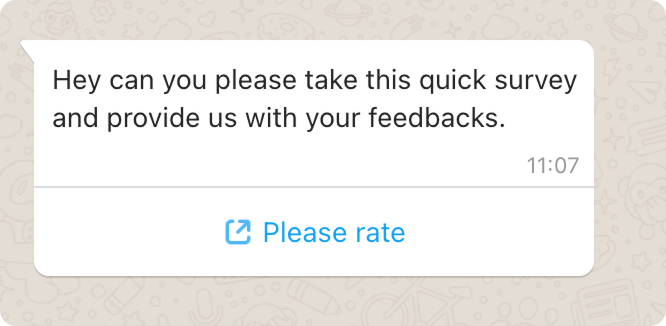
Because WhatsApp only allows free-form messages within 24 hours of the customer's last message — and surveys usually go out after the conversation ends — CSAT surveys are sent using an approved WhatsApp template. ChannelX creates this template, submits it for approval, and uses it automatically once approved. You do not manage the template yourself.
Note
WhatsApp CSAT surveys work on both WhatsApp Cloud and WhatsApp Twilio inboxes.
Enabling CSAT
- Go to Settings → Inboxes and select your WhatsApp inbox.
- Open the CSAT tab and turn on Enable CSAT.
- Fill in the survey message, the button text (for example "Rate now"), and the language for your audience. A live preview shows how it will look.
After saving, the template shows one of three statuses: Pending approval, Approved (surveys send automatically), or Rejected (update the message and try again).
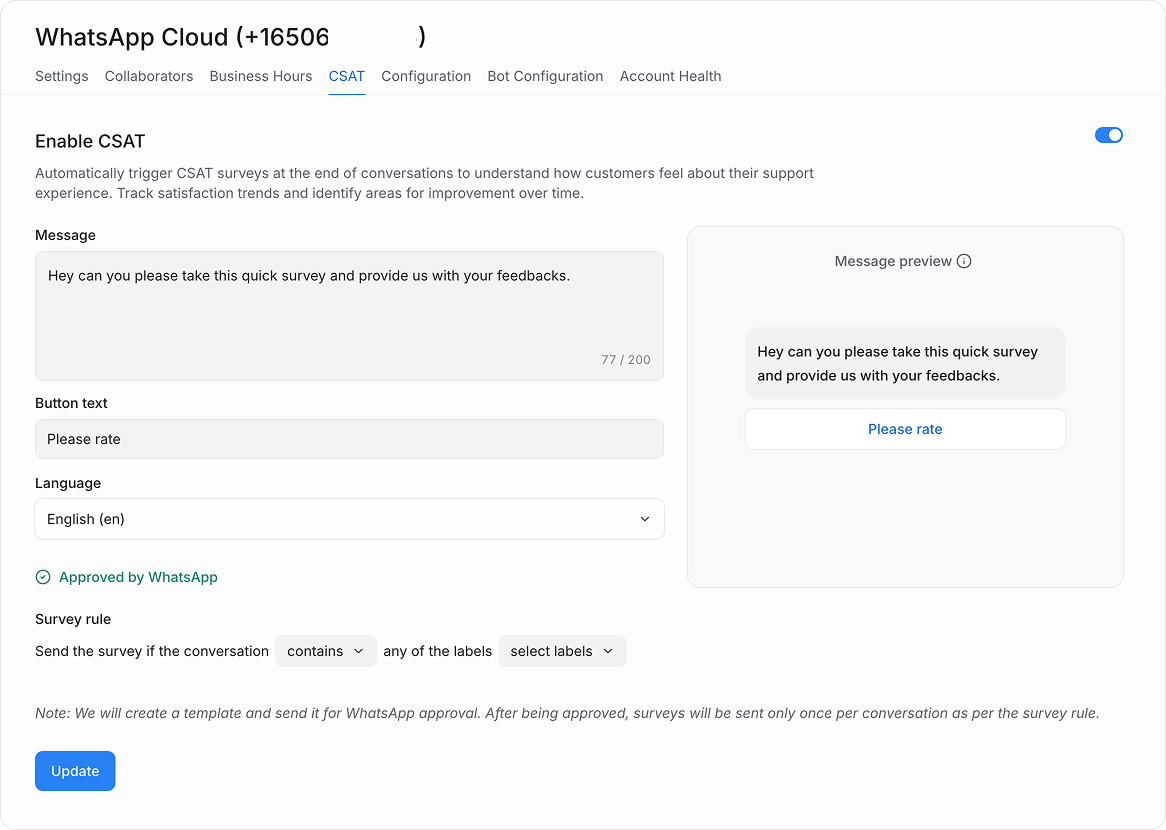
When a conversation is resolved, ChannelX checks your survey rules, sends the survey if they match, and records the customer's rating. Surveys are sent only once per conversation.
Tip
WhatsApp does not allow editing an approved template. If you change the message, button text, or language, ChannelX replaces the old template with a new one and resubmits it for approval. Keep messages short, use clear button labels, and avoid changing them too often to reduce approval delays.
Troubleshooting
Messages look connected but incoming messages don't arrive
If the channel shows as connected, the number status is Connected, the quality rating is green, and no errors appear — yet incoming messages never reach ChannelX — Meta may require the phone number to be registered again. This often follows a display name change, a business profile update, or an internal Meta sync issue, and it can happen silently with no visible error. Re-registering the number restores delivery. No plan, webhook, or verification changes are usually needed; contact Localcom support if you need help.
Display name pending, rejected, or not approved
Your display name is the business name customers see on WhatsApp, and Meta reviews it before it goes live. A name is commonly rejected when it does not match the business name in Meta Business Manager, uses generic words like "Support" or "Official", includes emojis or all caps, or conflicts with your website or domain. Use your official brand name, match it across your website and Meta Business Manager, and keep it simple. After a display name is approved, Meta may still require the number to be re-registered for the change to take effect.
Error 131049 — user has not accepted WhatsApp's Terms of Service
This error comes from WhatsApp, not ChannelX, and is specific to the recipient's phone number. WhatsApp blocks delivery to a user who has not accepted the latest Terms of Service. It cannot be fixed from ChannelX or your WhatsApp Business account — the customer must open their WhatsApp app and accept the updated terms. Once they do, messages deliver automatically with no retry or configuration change needed.