Teams
A team is a group of agents organized around a shared responsibility — for example Support, Billing, Sales, or Customer Service. Teams are an account-level concept: they span every inbox, and a single agent can belong to as many teams as makes sense.
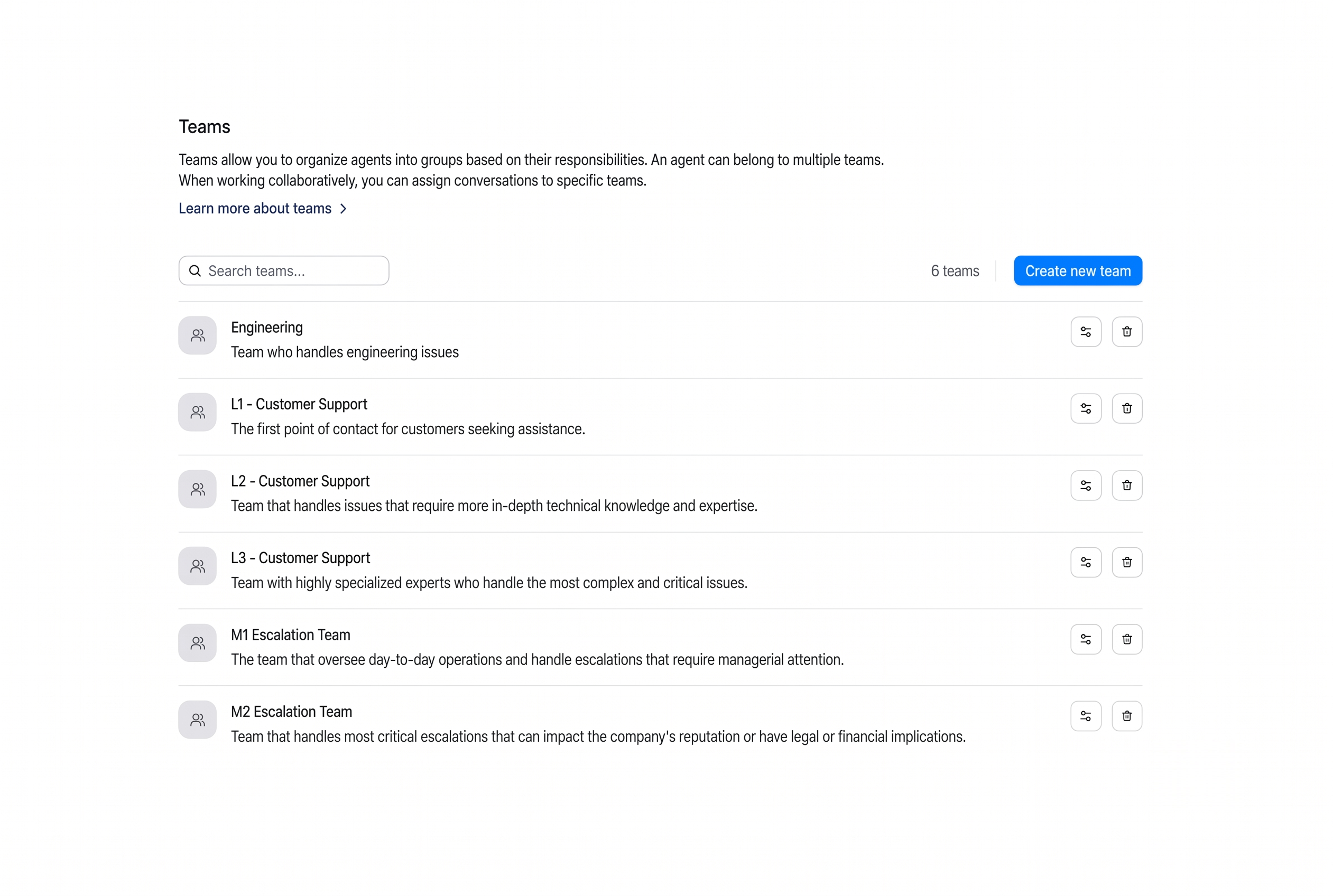
You use teams when you want to route a conversation to a group of agents rather than one named person, so anyone on the right team can take it. Typical patterns:
- Send all billing questions to the Billing team.
- Route anything from high-value customers to a Senior Support team.
- Send bug reports to Engineering.
A team has three properties:
- A name (required, and unique within your account).
- An optional description.
- An auto-assign toggle that controls whether conversations sent to the team are distributed to a member automatically, or left for someone to claim.
A conversation can carry both a team and an individual assignee. The team scopes who is eligible; the assignee is the one agent currently responsible for the reply. A conversation can have either, both, or neither at any time.
Who can manage teams
Only administrators can create, edit, or delete teams. Regular agents can see the team list and work the conversations assigned to teams they belong to, but cannot manage teams.
Creating a team
Step 1 — Open the create flow. Go to Settings → Teams and click Create new team in the top-right.
Step 2 — Set the basics. Fill in the form:
| Field | What it's for |
|---|---|
| Team Name | A short, recognizable name such as Sales, Support, or Billing. Required and unique. |
| Team Description | A one-line summary of what the team handles. |
| Allow auto assign for this team | When ticked, conversations sent to the team are distributed to its agents automatically. When unticked, they wait in the team's queue until someone picks them up. |
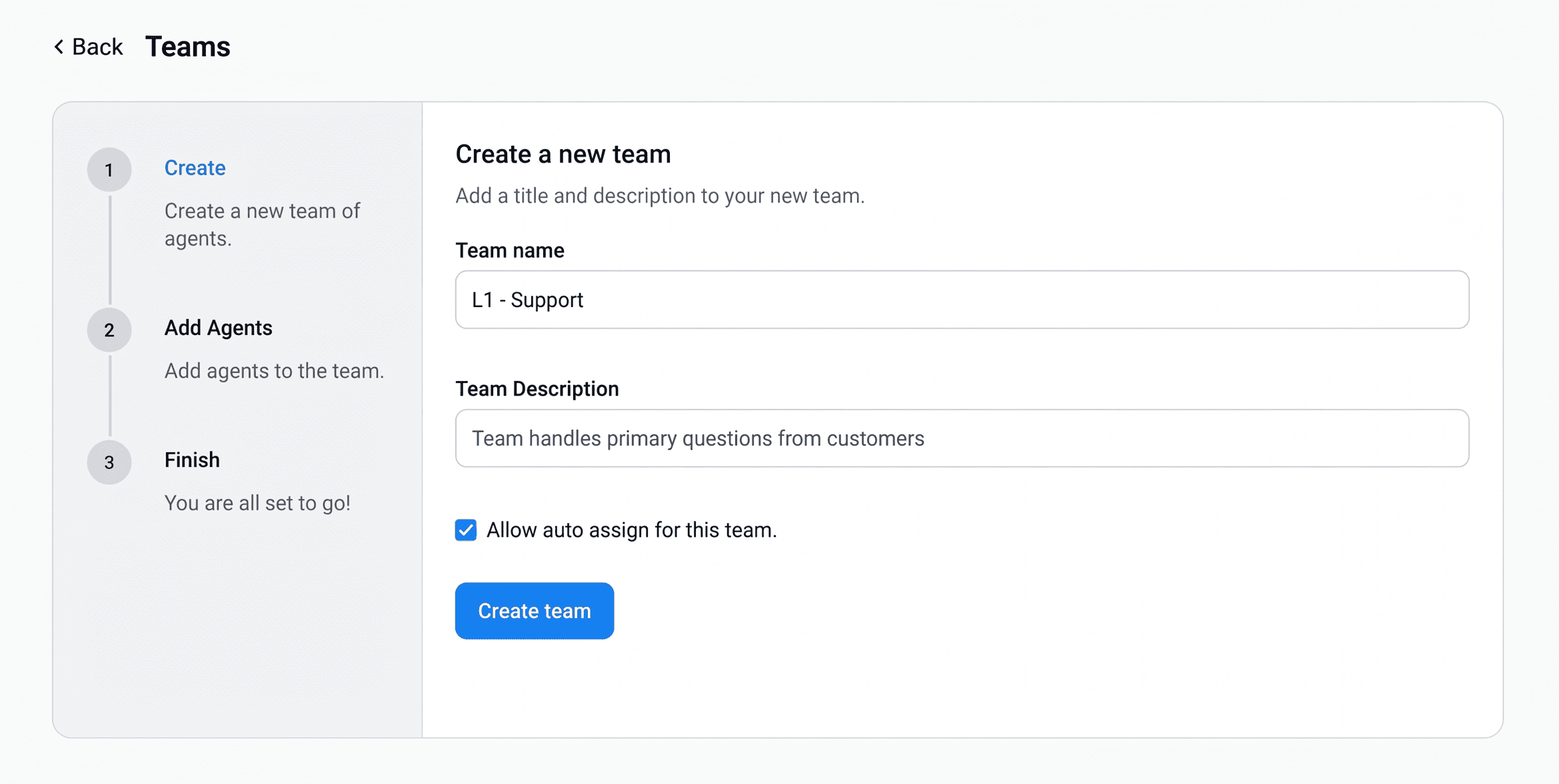
Click Create team.
Step 3 — Add agents. Tick the checkbox next to each agent who should be a member, then click Add agents. Only agents added here see the team's conversations or become eligible for auto-assignment from it.
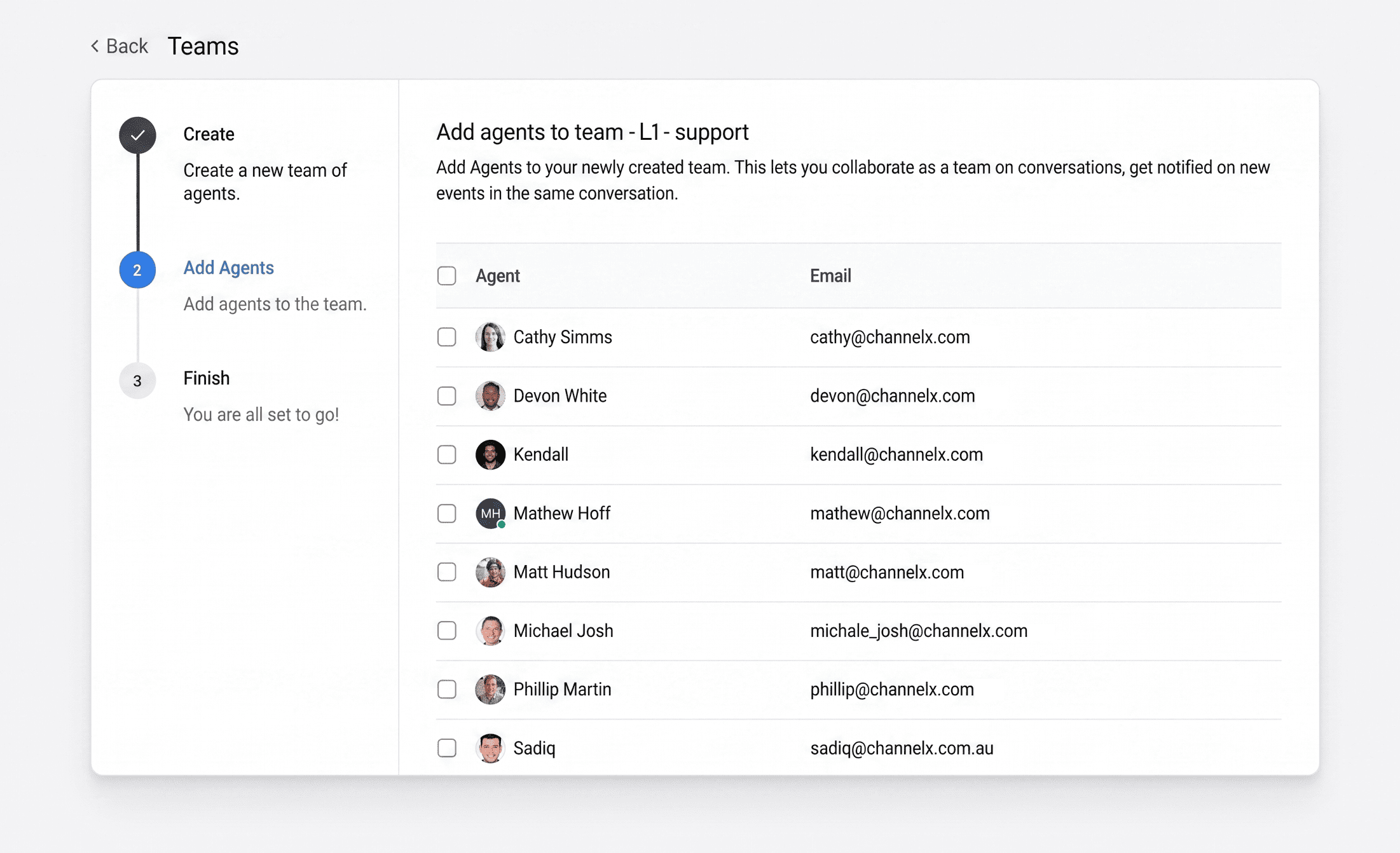
Step 4 — Finish. Confirm on the final screen. Your new team appears under Settings → Teams.
Editing a team
- Go to Settings → Teams.
- Find the team and click the edit icon (two horizontal sliders) next to it.
- Move through the same multi-step flow used at creation: change the name, description, or auto-assign setting and click Update team; add or remove members and click Update agents in team; then confirm.
To discard changes mid-flow, use the Back button at the top-left.
Deleting a team
- Go to Settings → Teams.
- Click the trash icon next to the team you want to remove.
- A confirmation modal appears. Type the team's name into the field to enable the delete button, then confirm.
When you delete a team, the conversations themselves are not deleted — but their team assignment is cleared. Each affected conversation simply has no team going forward; individual assignees and other attributes are untouched. If you want those conversations re-routed elsewhere, do that before deleting.
Deletion is permanent
A deleted team cannot be recovered. The conversations survive with their team field cleared, but the team record is gone. Re-creating it with the same name produces a brand-new team. There is no requirement that a team be empty before deletion — removed agents simply lose their membership; their user accounts stay intact.
How to use teams
Once a team exists, it becomes available wherever conversations get routed, filtered, or analyzed.
Assign a conversation to a team
Open any conversation, find the Team field in the actions panel on the right, and pick a team.
- If the team has auto-assign enabled, a member is chosen automatically and becomes the assignee.
- If the current assignee is not a member of the new team, the assignee is cleared so a valid one can be chosen.
- If auto-assign is off, the conversation stays unassigned but scoped to the team for anyone to pick up.
Assign teams in bulk
In the conversation list, select multiple conversations with the checkboxes and use the bulk action bar to assign a team to all of them at once — useful during incidents.
Filter conversations by team
Use the Team filter in the conversation list, or save a folder with a team condition for one-click access. Useful saved folders include:
- My team's open queue — Team = Support, Status = Open
- Unassigned in my team — Team = Support, Assignee = None
Use teams in automation rules
Automation rules work with teams as a condition ("if team is Engineering, do X") and as an action ("assign team Engineering" or "remove assigned team"). This is how you wire rules like "any conversation containing the word invoice → assign team Billing."
Use teams in macros
When building a macro, the action picker offers Assign Team and Remove Assigned Team, so a single macro can assign a team, set priority, add a label, and send a templated reply in one click.
Scope reports by team
Under Reports → Team you get a dedicated team report covering the core metrics — conversations created, incoming and outgoing messages, average first-response and resolution times, and resolution counts — scoped to one team. CSAT and SLA reports also accept a team filter.
Teams, inboxes, and assignees
It's easy to confuse these three concepts. The difference matters:
| Concept | Scope | What it controls |
|---|---|---|
| Inbox | Per channel | Which agents can see and reply on that channel |
| Team | Account-wide | Which agents should handle a conversation, used for routing and reporting |
| Assignee | Per conversation | Which one agent is currently responsible for replying |
Common questions
Can an agent be in multiple teams? Yes — as many as you want. An agent can be in Support, Sales, and a VIP response team at the same time.
Can a conversation belong to multiple teams? No. A conversation has at most one team. For multi-team awareness, use labels alongside the team.
If I remove an agent from a team, what happens to their conversations? Conversations they were already assigned to stay with them. New auto-assignments in that team will skip them.
Why does the assignee disappear when I switch a conversation's team? If the current assignee isn't a member of the new team, ChannelX clears the assignee so auto-assignment can pick a valid team member, preventing conversations from being stuck with someone who no longer belongs.
Is there a limit on how many teams I can create? There's no hard cap. Practically, keep the count small enough that the team list fits on one screen — if you have twenty teams, you've probably split too finely.