SMS
Connect your SMS provider to ChannelX, so text messages appear as conversations in your shared inbox. Once connected, your team can send and receive SMS messages directly from ChannelX alongside all your other customer conversations.
Supported SMS Providers
ChannelX supports SMS via API integration with the following providers:
- Twilio
- Bandwidth
- ClickSend
- Sinch MessageMedia
- Esendex
- Mobile Message
- GoFax
- Kudosity (formerly Burst SMS)
If your preferred provider isn't listed, please contact the Localcom team. Additional SMS providers can often be integrated using their available APIs.
API Documentation
- Twilio - https://www.twilio.com/docs/messaging/api
- Bandwidth - https://dev.bandwidth.com/docs/messaging/
- ClickSend - https://developers.clicksend.com/docs
- Sinch MessageMedia - https://support.messagemedia.com/hc/en-us/articles/4413635760527-Messaging-API
- Esendex - https://developers.esendex.com/api-reference/
- Mobile Message - https://mobilemessage.com.au/api-documentation
- GoFax - https://restful-api.gofax.com.au/swagger/index.html?url=/swagger/v1/swagger.json
- Kudosity (formerly Burst SMS) - https://developers.kudosity.com/reference/about-our-apis
Create an SMS Inbox
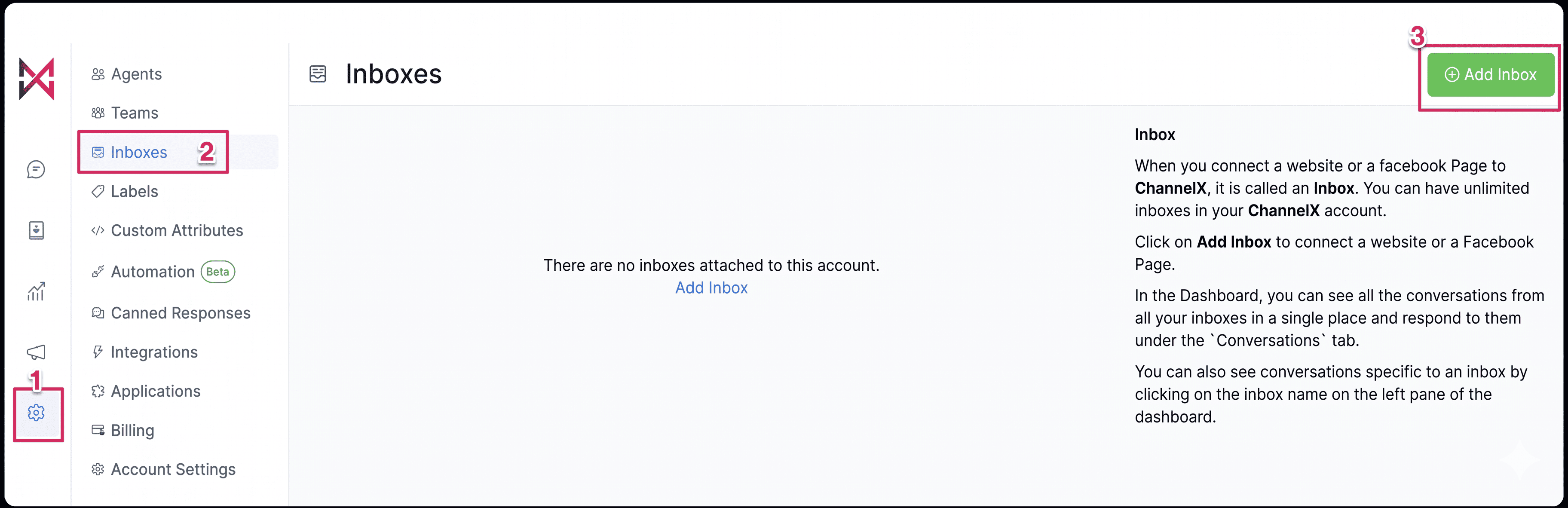
- Go to Settings → Inboxes → Add Inbox.
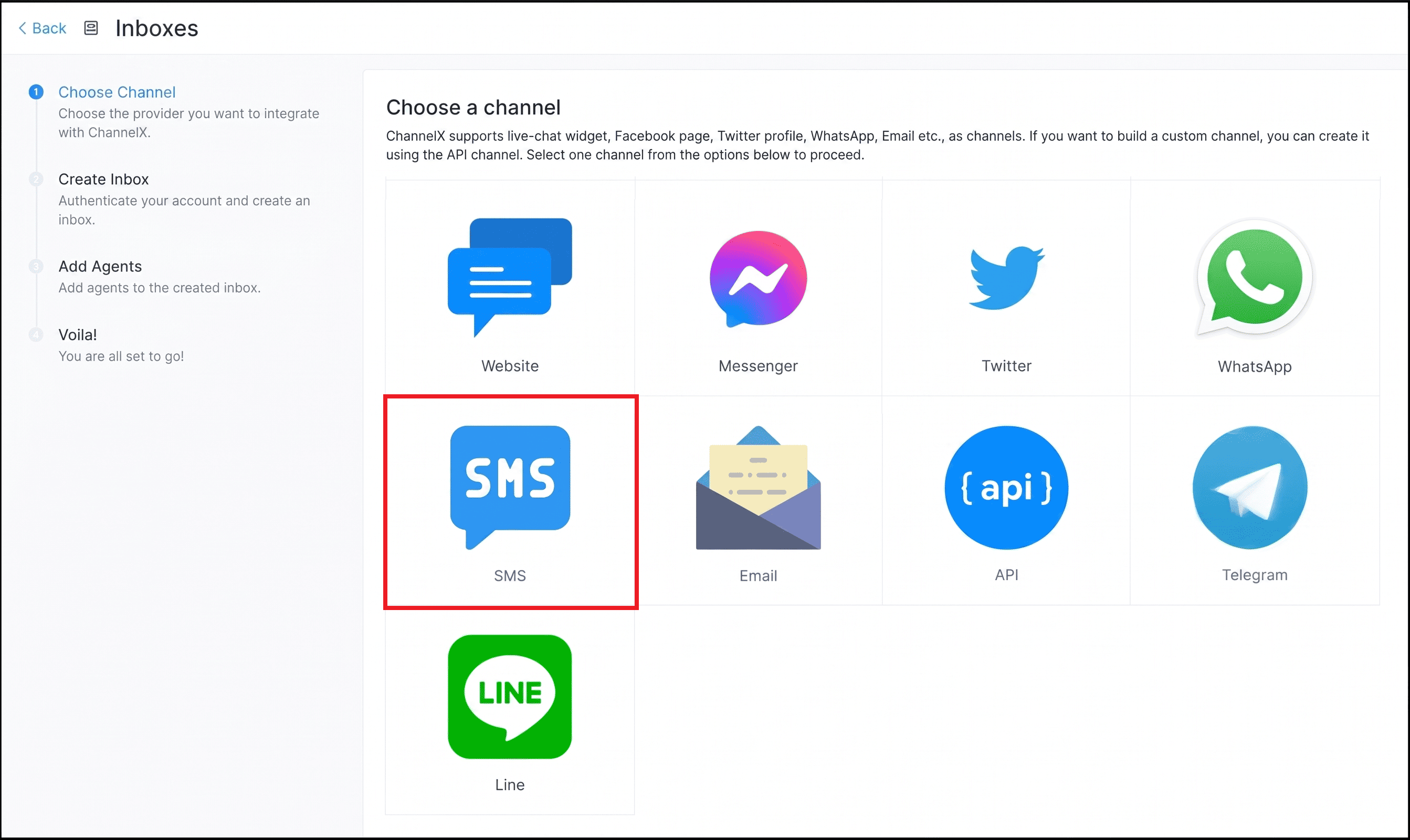
2. Select SMS
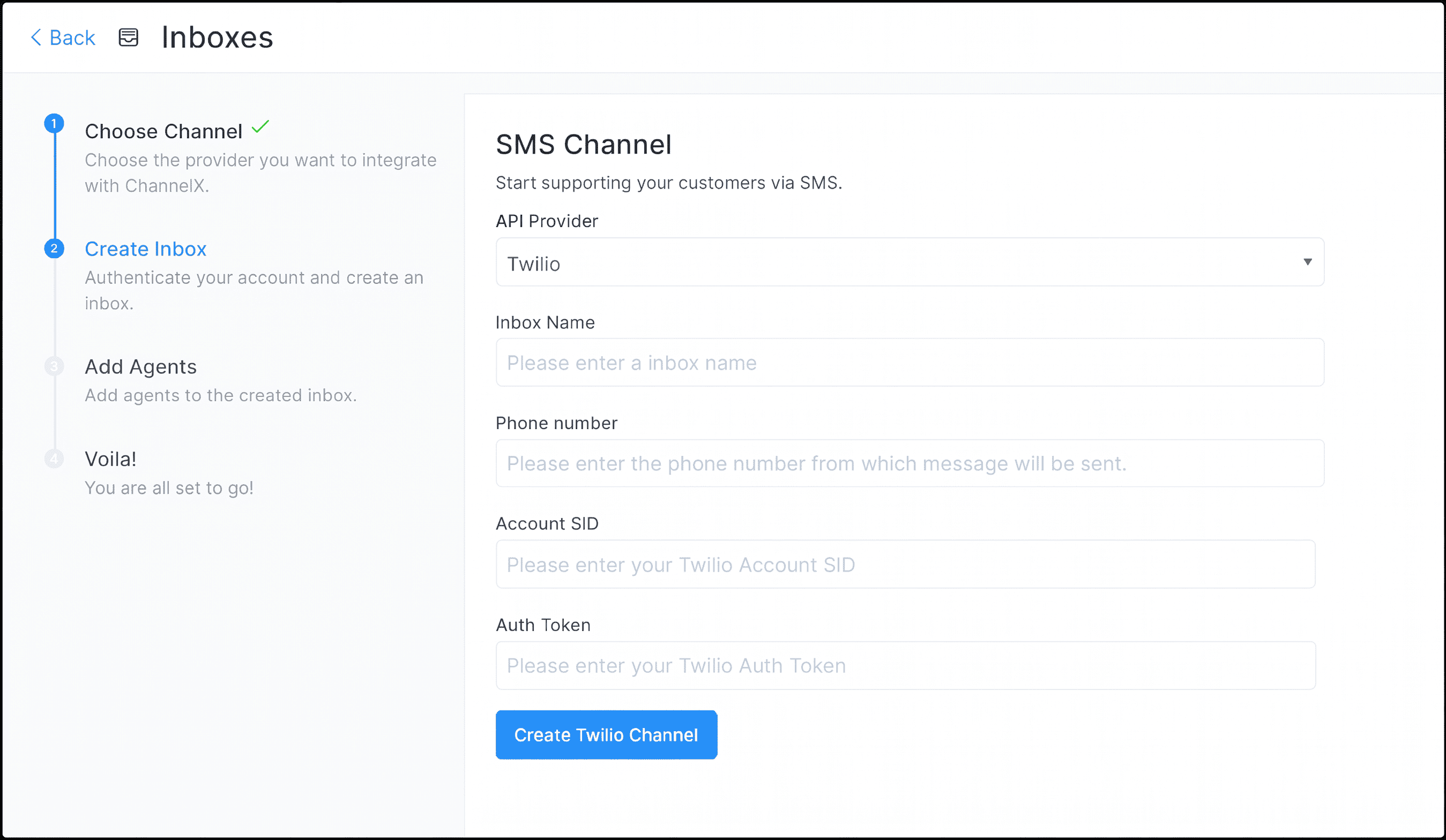
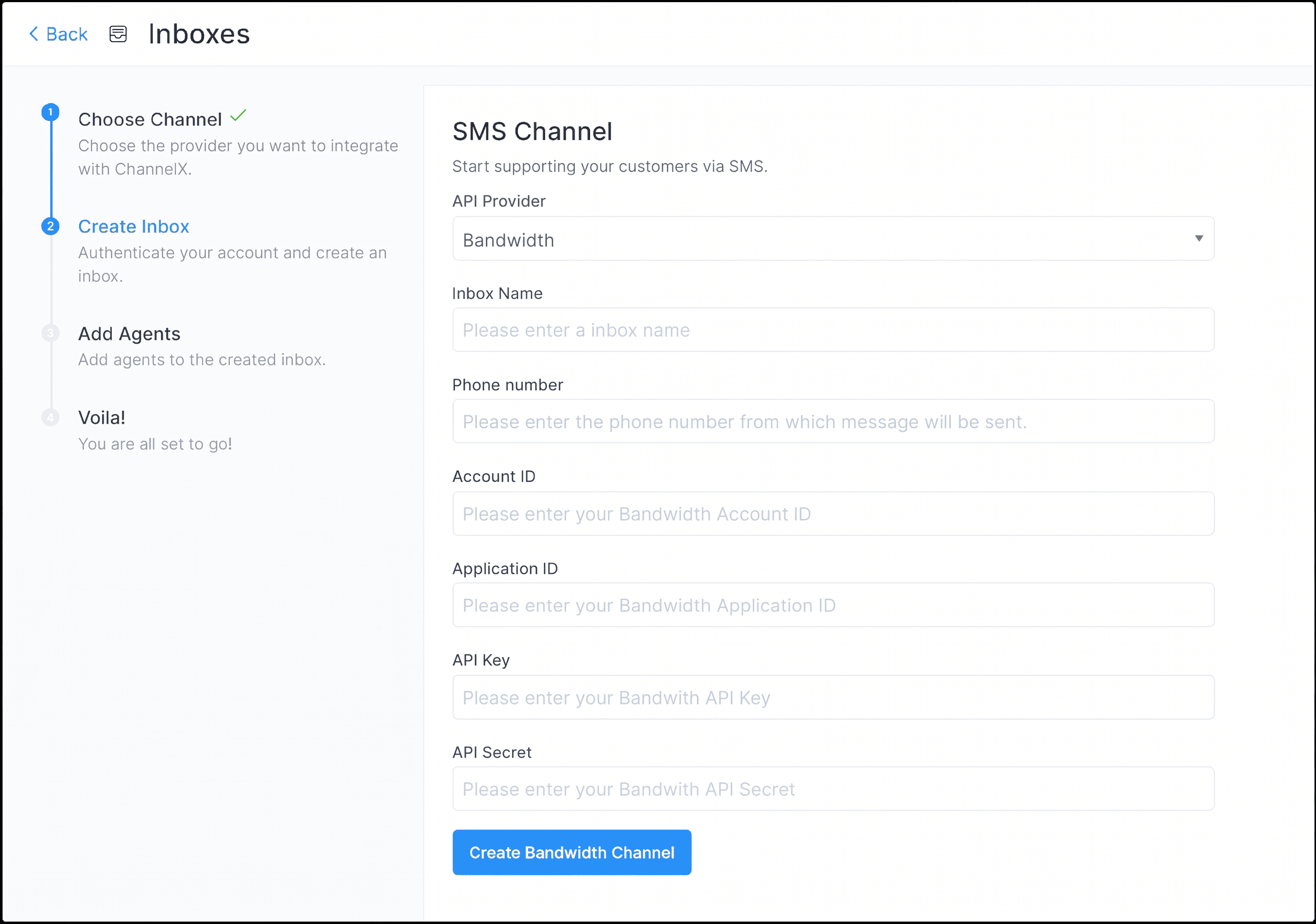
3. Choose your SMS provider
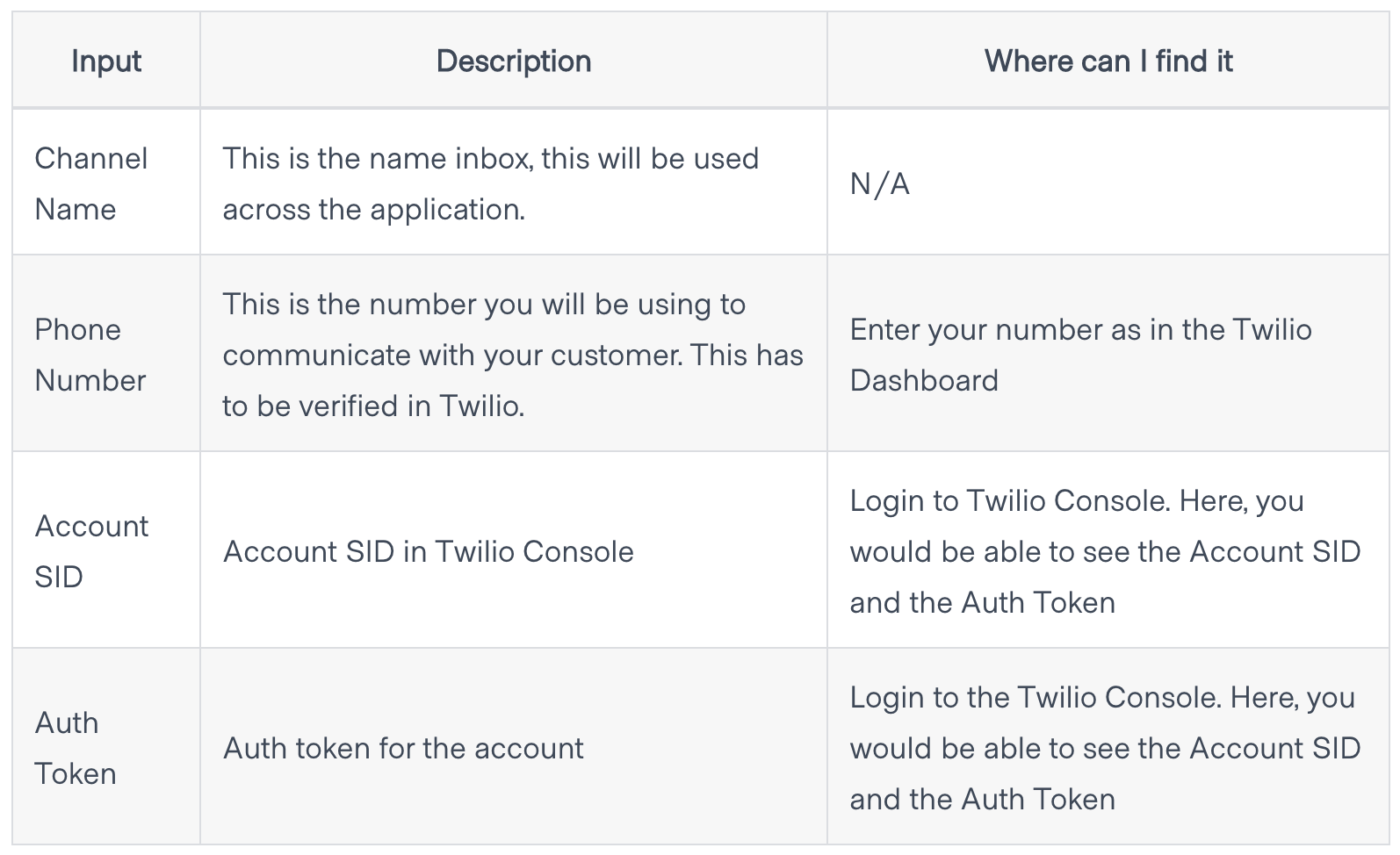
4. Enter the API credentials supplied by your SMS provider
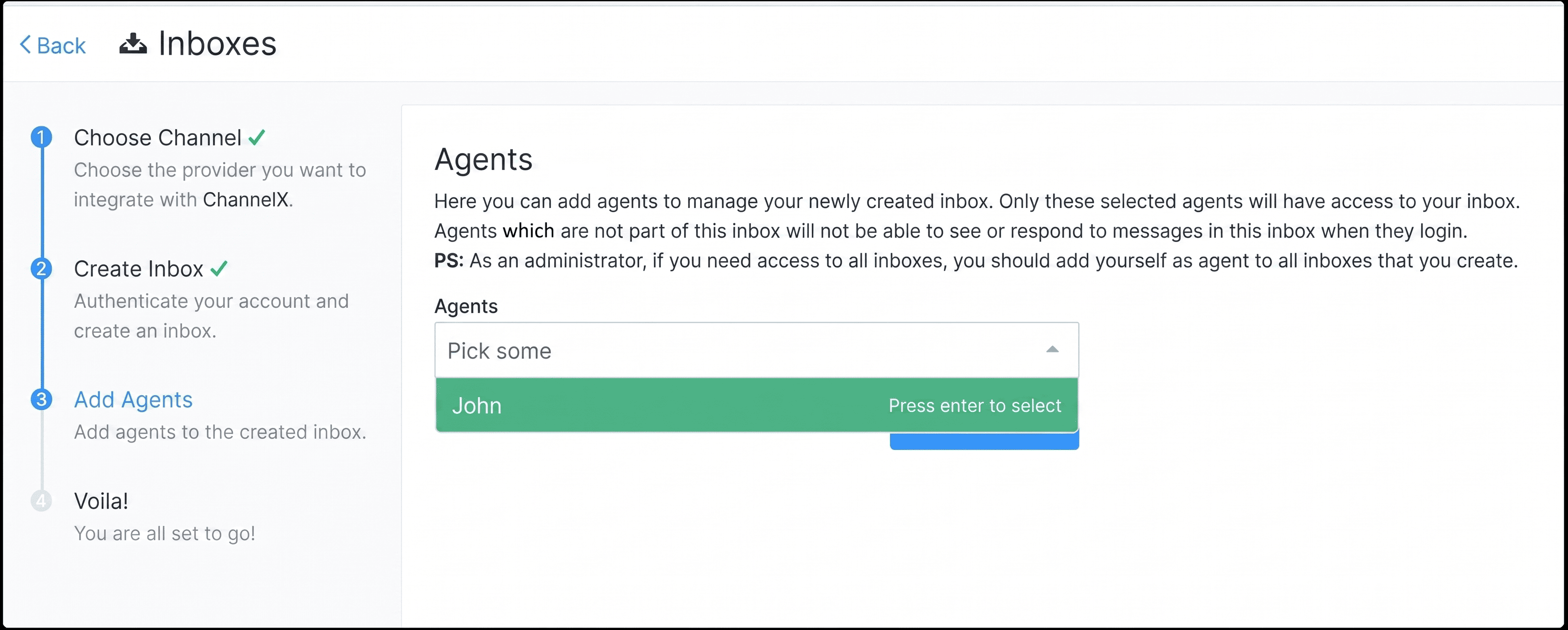
 5. Add the agents who should have access to the inbox.
6. Save the inbox.
Once configured, incoming SMS messages will begin appearing in your ChannelX inbox.
Provider Requirements
Each SMS provider requires its own API credentials for authentication. These credentials are typically available from your provider's developer portal or account settings, or even the API documentation.
The exact information required will vary depending on the provider you choose.
Using Localcom SMS Gateway
Localcom SMS Gateway is our fully managed SMS service, allowing you to start using SMS in ChannelX without managing your own SMS infrastructure.
With Localcom SMS Gateway:
- Localcom provisions your SMS-enabled phone number.
- We configure the SMS channel for you.
- Ongoing support is provided by the Localcom team.
This is the recommended option for customers who want the quickest and simplest setup.
Using Other SMS Providers
If you're already using another SMS provider, you can continue using your existing service, provided it offers API integration compatible with ChannelX.
If you're unsure whether your provider is supported or requires assistance connecting it, please contact your Localcom Account Manager. We'll help determine the best integration method and guide you through the setup process.
If you prefer, you can also migrate to the Localcom SMS Gateway, where we can provision and manage your SMS service on your behalf.