Agents & Roles
An agent is anyone on your team who has access to ChannelX to handle customer conversations. Every person who logs into your account is an agent — there's no separate "user" concept beyond agents and the role each one holds.
Each agent has a name and email (used to log in and shown on customer-facing replies), a role (what they can see and do), and an availability state (Online, Busy, or Offline).
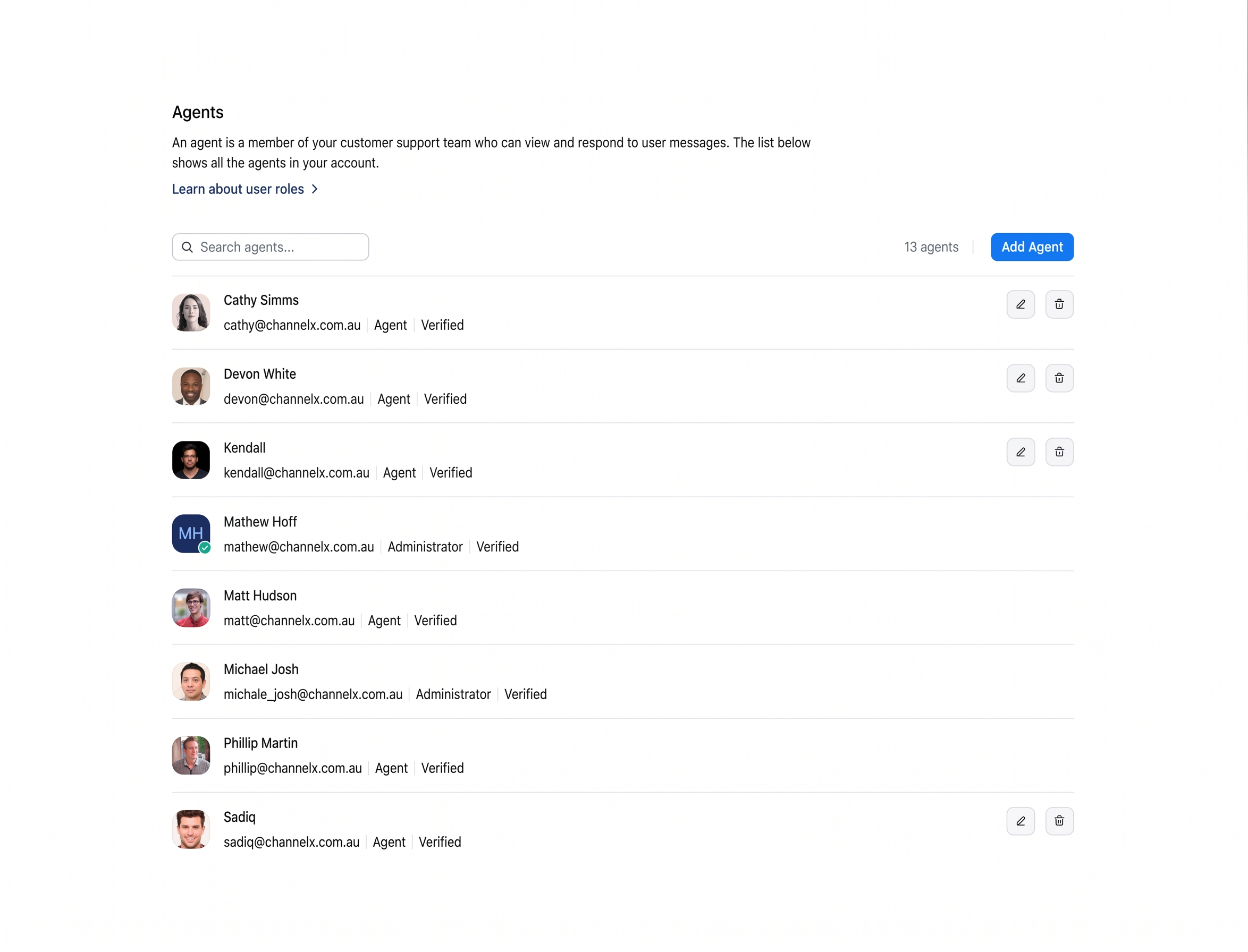
The two built-in roles
| Role | What they can do |
|---|---|
| Administrator | Full access. Can change account settings, manage agents, configure inboxes, build automations, and view all conversations. |
| Agent | Standard support role. Can handle conversations on inboxes they're a member of, but cannot change account settings or manage other agents. |
If you need finer control — for example "this person can manage contacts and view reports, but can't see other agents' conversations" — you can define your own roles via the Custom Roles feature. Custom roles appear in the same role dropdown wherever you'd otherwise pick Administrator or Agent.
Permissions
Only administrators can invite, edit, or delete agents. Regular agents can see who's on the team but cannot manage the team list.
Inviting a new agent
Adding an agent is a single-screen modal, and the agent isn't fully active until they accept the invite by email and set a password.
Step 1 — Open the invite modal. Go to Settings → Agents and click Add Agent at the top right.
Step 2 — Fill in the agent's details.
| Field | What it's for |
|---|---|
| Agent Name | The full name customers see on outgoing replies. |
| Role | A dropdown of Administrator, Agent, and any custom roles you've defined. |
| Email Address | The email the invite is sent to and that the agent logs in with. |
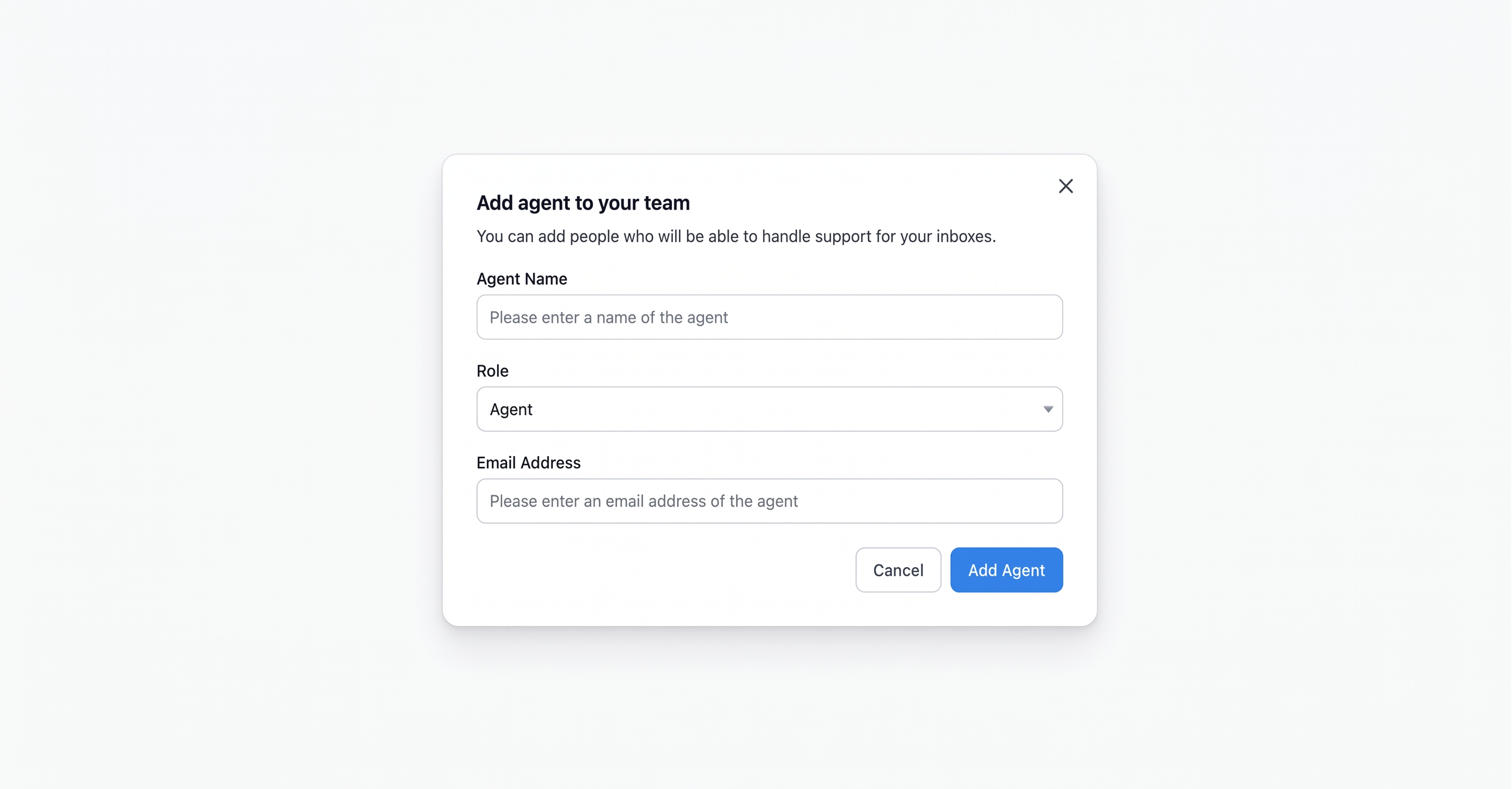
Click Add Agent to submit.
Step 3 — The agent confirms via email. ChannelX creates the account in an unconfirmed state and emails a confirmation link. Until the agent clicks it and sets a password, they show a Verification Pending badge; once confirmed it changes to Verified.
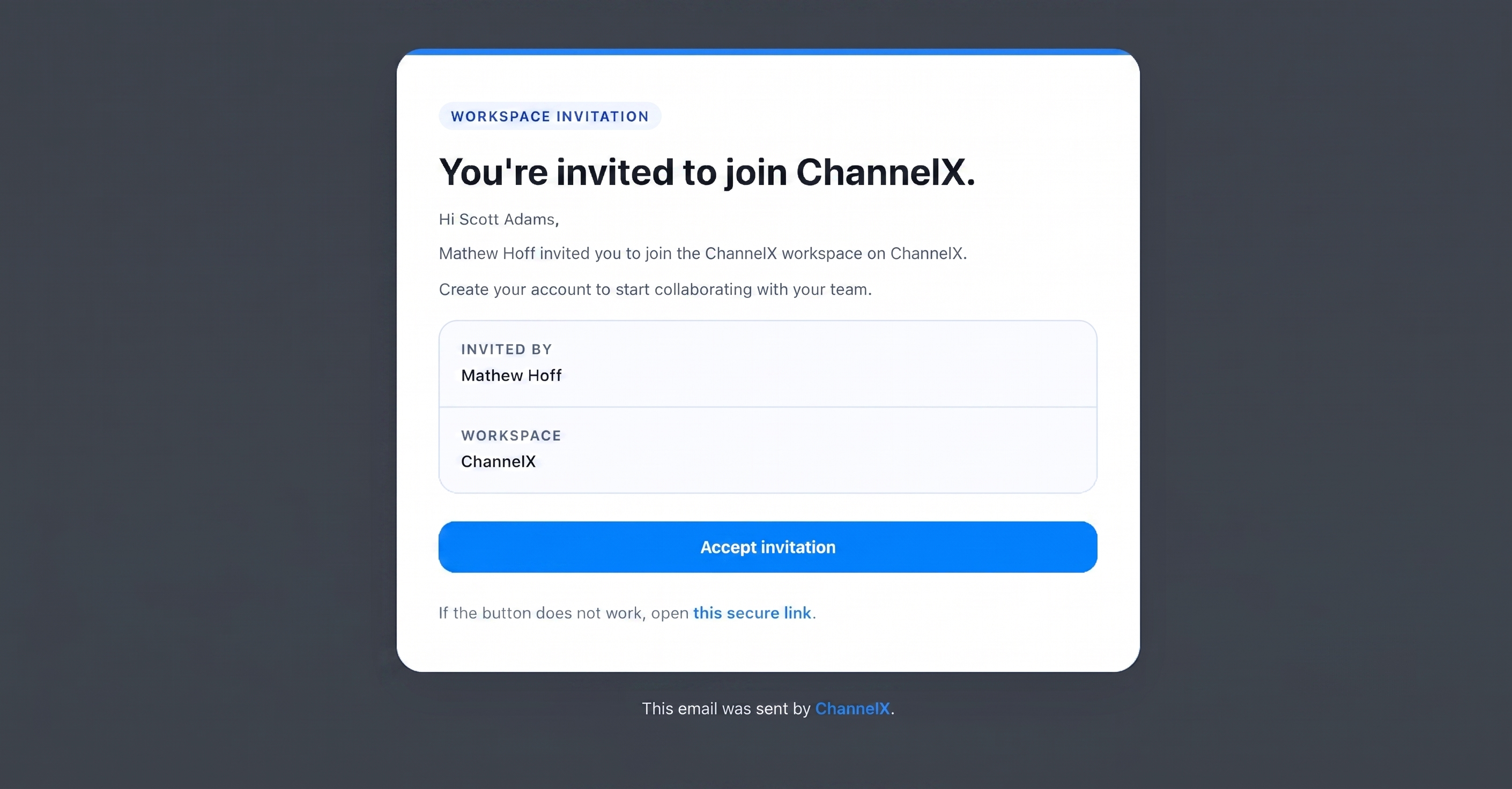
Tip
If a teammate didn't get the invite, check their spam folder first, then have an admin open their row, click Edit, and re-save to resend — or use Reset Password to send a fresh login link.
Editing an agent
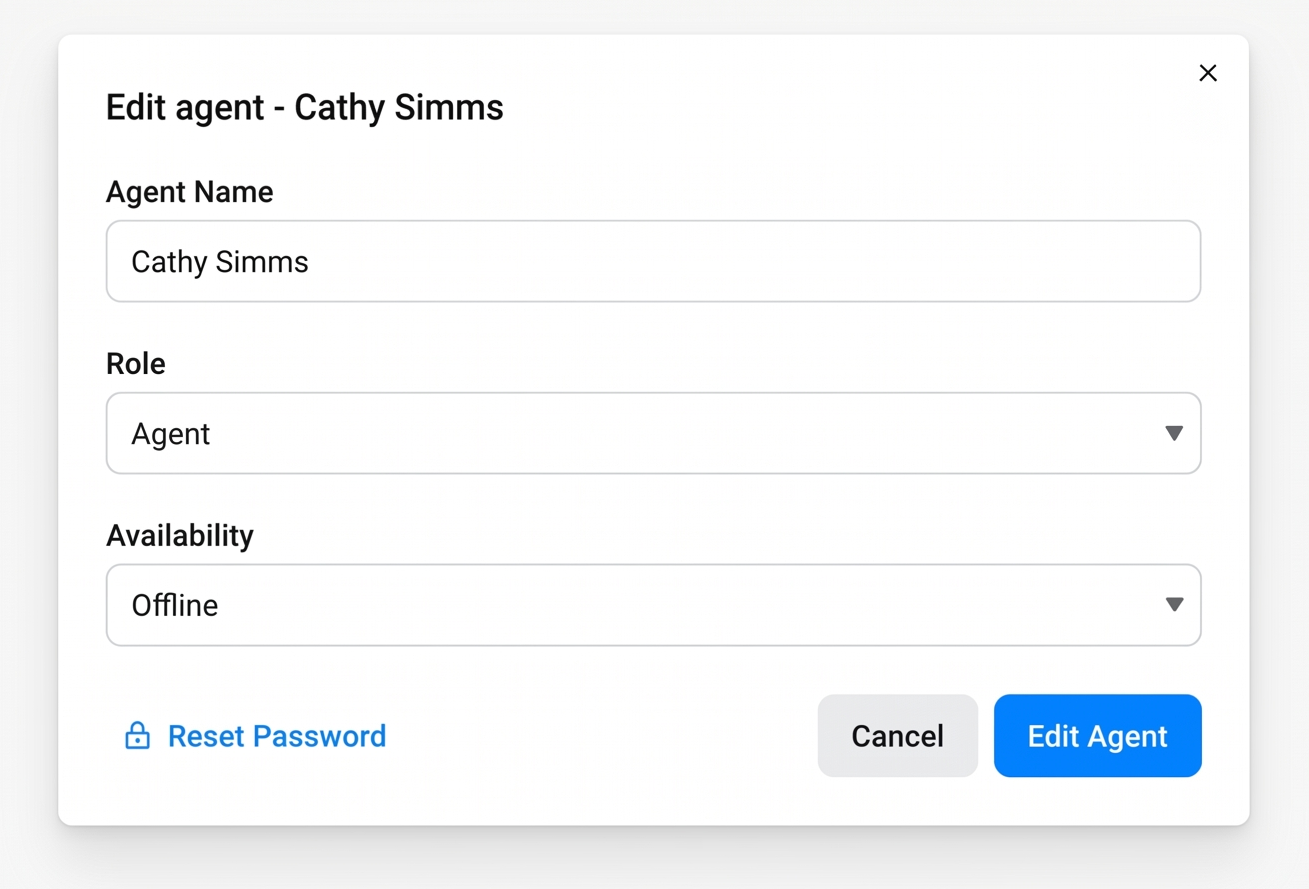
Go to Settings → Agents, click the edit (pencil) icon next to the agent's row, and the Edit agent modal opens. You can change the Agent Name, Role, and Availability (Online / Busy / Offline). Click Update to save.
There's also a Reset Password button inside the modal to email the agent a reset link (hidden for accounts that use SAML / SSO).
Note
Changing an agent's role is instant. If you demote an admin while they're logged in, their access to settings disappears on their next page navigation.
Removing an agent
Go to Settings → Agents, click the delete (trash bin) icon next to the agent's row, and confirm.
You can't delete yourself, or the last verified administrator (ChannelX always keeps at least one admin).
When an agent is deleted, a background job removes them from every team and inbox, and unassigns every conversation they owned. Those conversations are not deleted or re-routed automatically — they sit in the unassigned queue until someone (or auto-assignment) picks them up.
Warning
If a high-volume agent is leaving, reassign their open conversations before deleting them so nothing slips through the unassigned queue.
Agent availability
| State | Meaning |
|---|---|
| Online | Available — auto-assignment routes new conversations to them. |
| Busy | At the desk but heads-down — auto-assignment skips them. |
| Offline | Done for the day — auto-assignment doesn't pick them. |
Agents set their own availability from the avatar dropdown in the bottom-left of the dashboard. Admins can change anyone's availability from the Edit agent modal.
Where agents are used
Once an agent exists, they become available wherever a person can be selected, mentioned, or filtered:
- Inbox membership (Settings → Inboxes → [inbox] → Collaborators) — only inbox members can see and reply to that inbox. Adding someone to the account does not automatically grant inbox access.
- Team membership (Settings → Teams) — makes them eligible for team-scoped auto-assignment.
- Conversation assignee — the one person responsible for replying.
- Conversation participants — follow along and chime in without taking ownership.
- @-mentions in private notes.
- Macros — the Assign Agent action.
- Automation rules — both as a condition and as an action.
- Reports — Agent, CSAT, and SLA reports all accept an agent filter.
Frequently asked questions
What's the practical difference between Administrator and Agent? Administrators manage settings, agents, inboxes, and automations and see every conversation. Agents handle conversations on their inboxes and edit their own profile, but can't manage account-level settings or other people.
Does Busy stop me getting conversations? Yes — like Offline, Busy takes you out of the auto-assignment pool.
Safest deletion order when someone leaves? 1) Reassign their open conversations. 2) Remove them from teams where their absence would confuse auto-assignment. 3) Delete the agent.
Section complete
You've configured your profile, notifications, account settings, and team. From here, explore connecting communication channels and building out your inboxes.