Notifications
ChannelX can alert you to new activity through three notification channels: audio, email, and browser push. To configure them, open Profile settings from the avatar menu in the bottom-left of the dashboard and find the notification section.
Note
These settings apply to your profile only and don't change anything globally.
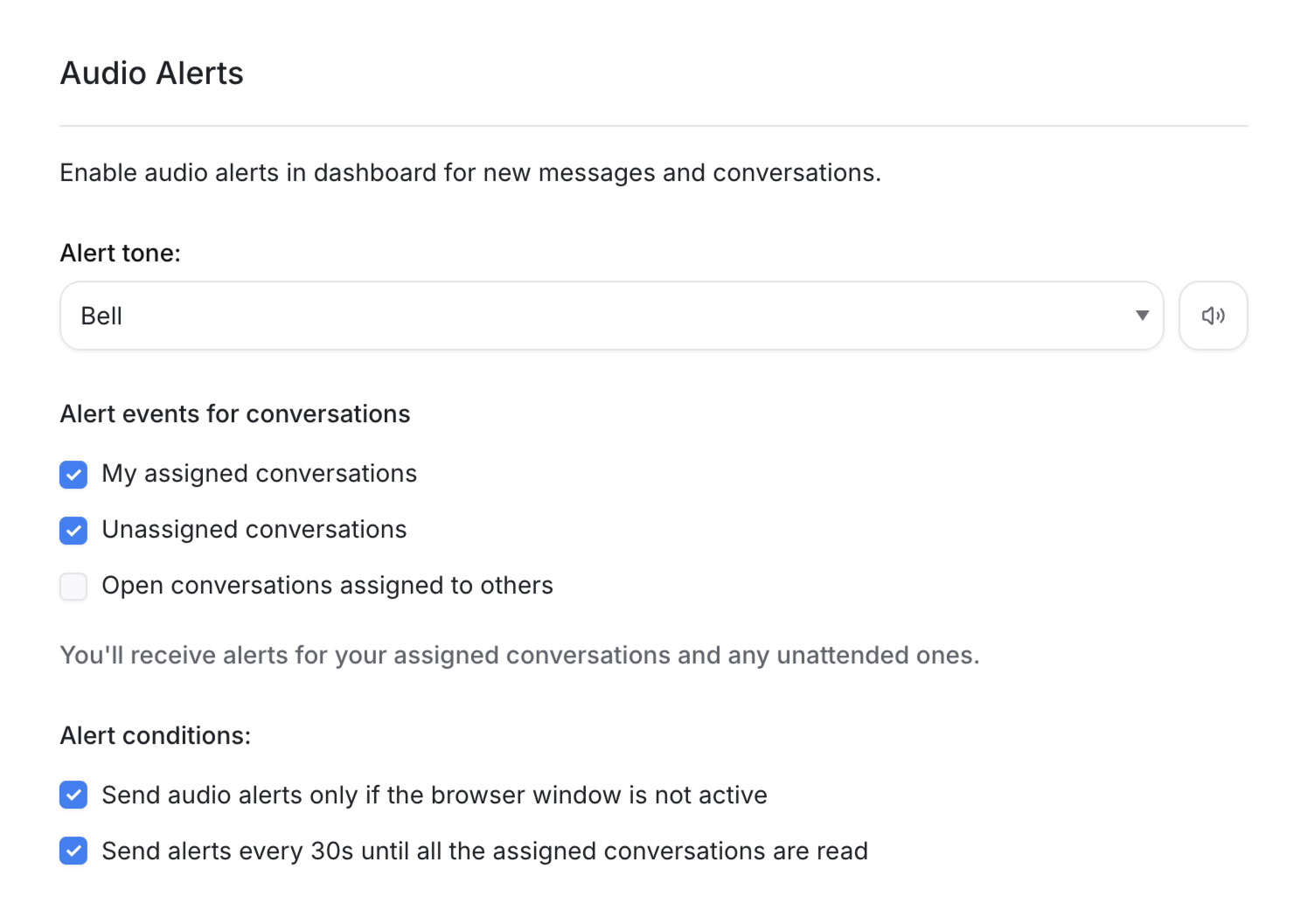
Audio notifications
Audio notifications play while you have ChannelX open in the browser, immediately, based on your settings.
Alert tone. Several tones are available — preview each with the play button and pick your preference.
Alert events for conversations. Choose which conversations trigger a sound:
- My assigned conversations — alerts only for conversations assigned to you.
- Unassigned conversations — alerts for conversations with no assignee.
- Open conversations assigned to others — alerts for peers' conversations (excludes unassigned).
For agents, enabling alerts for assigned conversations only keeps you on top of important messages while reducing distractions. Managers often choose assigned + unassigned to also watch the queue waiting to be picked up.
Alert conditions. Control when the alert actually fires:
- Only if the browser window is not active — minimizes distractions while you're working.
- Every 30s until all assigned conversations are read — for teams with strict SLAs, keeps notifying until nothing is unread.
By default neither is selected. We recommend enabling the first option.
Tip
Audio notifications only work when ChannelX is open in the browser. To be notified even when the app is closed, enable push notifications below.
Push and email notifications
ChannelX can notify you about new events via browser push (and the mobile app) and email, based on your preferences. A good starting point is to enable notifications for assigned and mentioned events.
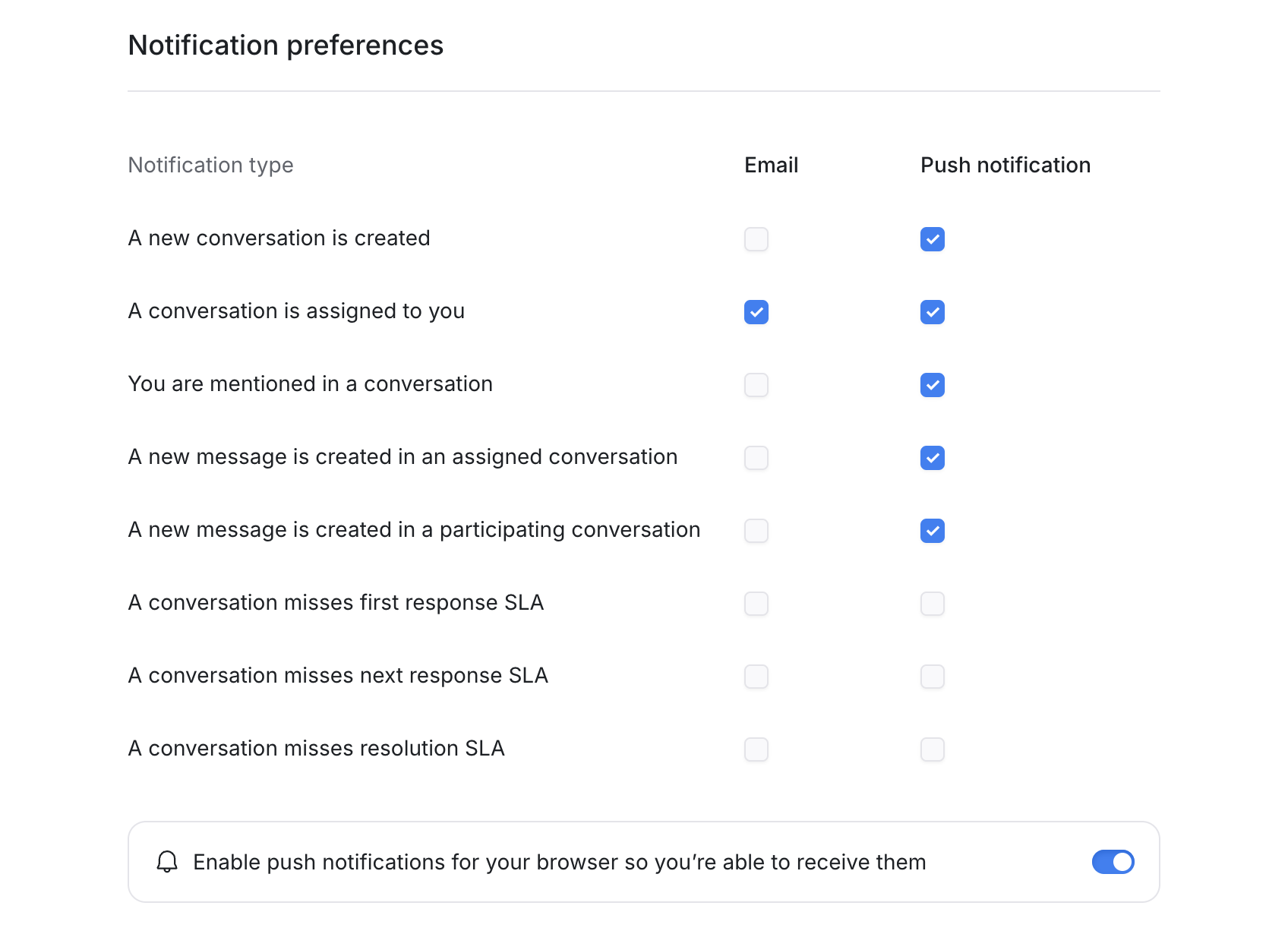
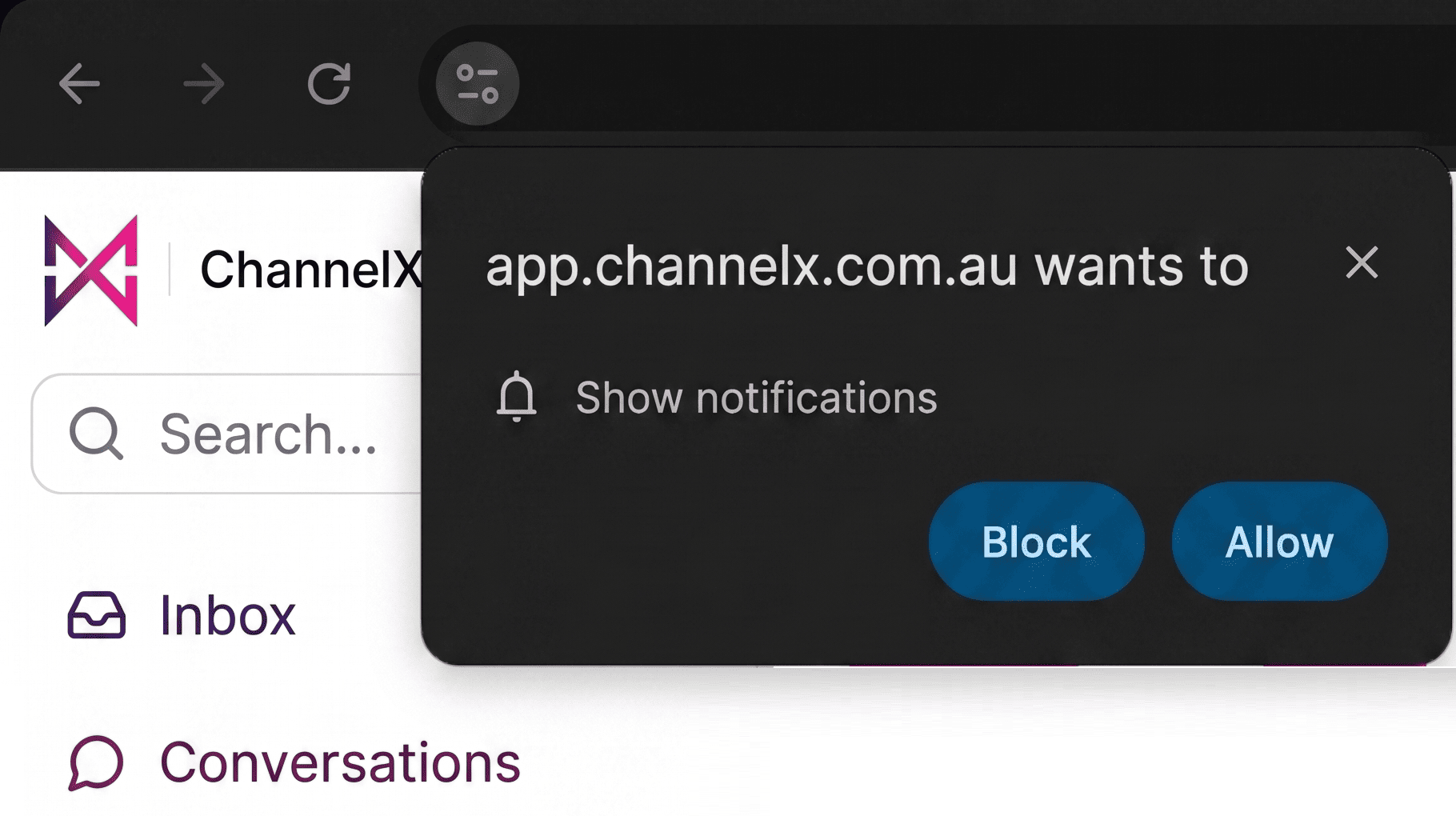
Enabling push in the browser. For push to work, your browser must grant permission. Toggle "Enable push notifications for your browser" and approve the prompt. If no prompt appears, permission may already be blocked or disabled by default — check your browser's notification settings for this site and allow them, then toggle push on again.
Next
Continue to Account Settings.