Reports & Metrics
Reports turn the firehose of conversations into numbers you can act on — how fast you reply, where conversations get stuck, who's handling what, and whether customers are happy.
Where reports live
Click Reports in the navigation. Most reports share the same layout: a time-range picker, a Group by option (day, week, month, year), a Business hours toggle, an entity filter (which agent, inbox, label, etc.), the chart itself, and a CSV download on most reports. Learn the layout once and every report behaves the same way.
The core metrics
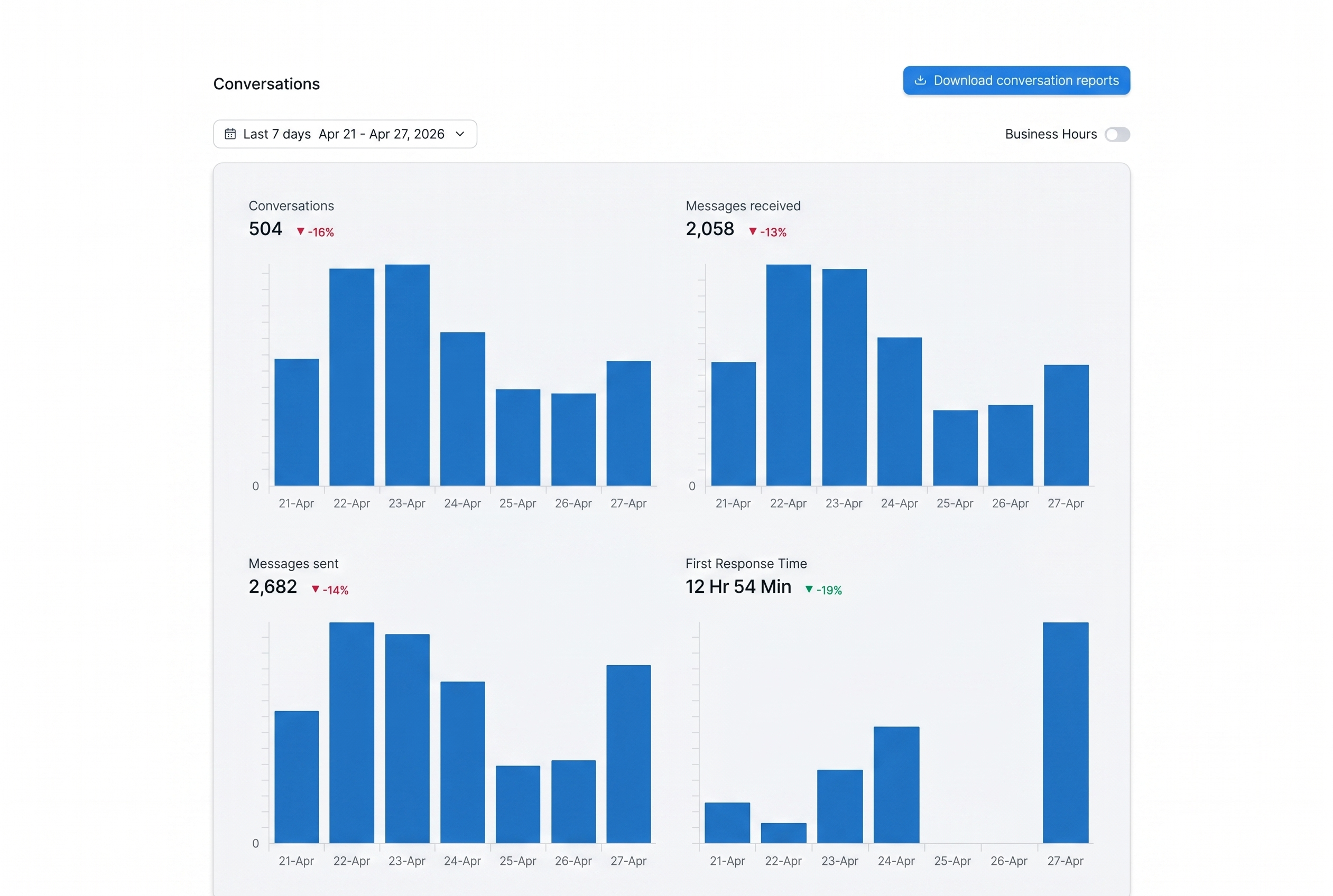
Several reports — Conversation, Agent, Inbox, Team, and Label — show the same metrics, just sliced differently:
| Metric | What it measures |
|---|---|
| Conversations Created | Total new conversations in the window. |
| Incoming Messages | Messages sent by customers. |
| Outgoing Messages | Messages sent by your team. |
| Avg First Response Time | Average time from a customer's first message to your team's first reply. |
| Avg Resolution Time | Average time from a conversation being created to being resolved. |
| Resolutions Count | How many conversations reached Resolved. |
| Avg Reply Time | Average time between a customer message and the next agent reply, across the whole conversation. |
Avg first response time is one number per conversation; avg reply time averages across every exchange — a better measure of ongoing responsiveness, not just opening speed.
The reports, one by one
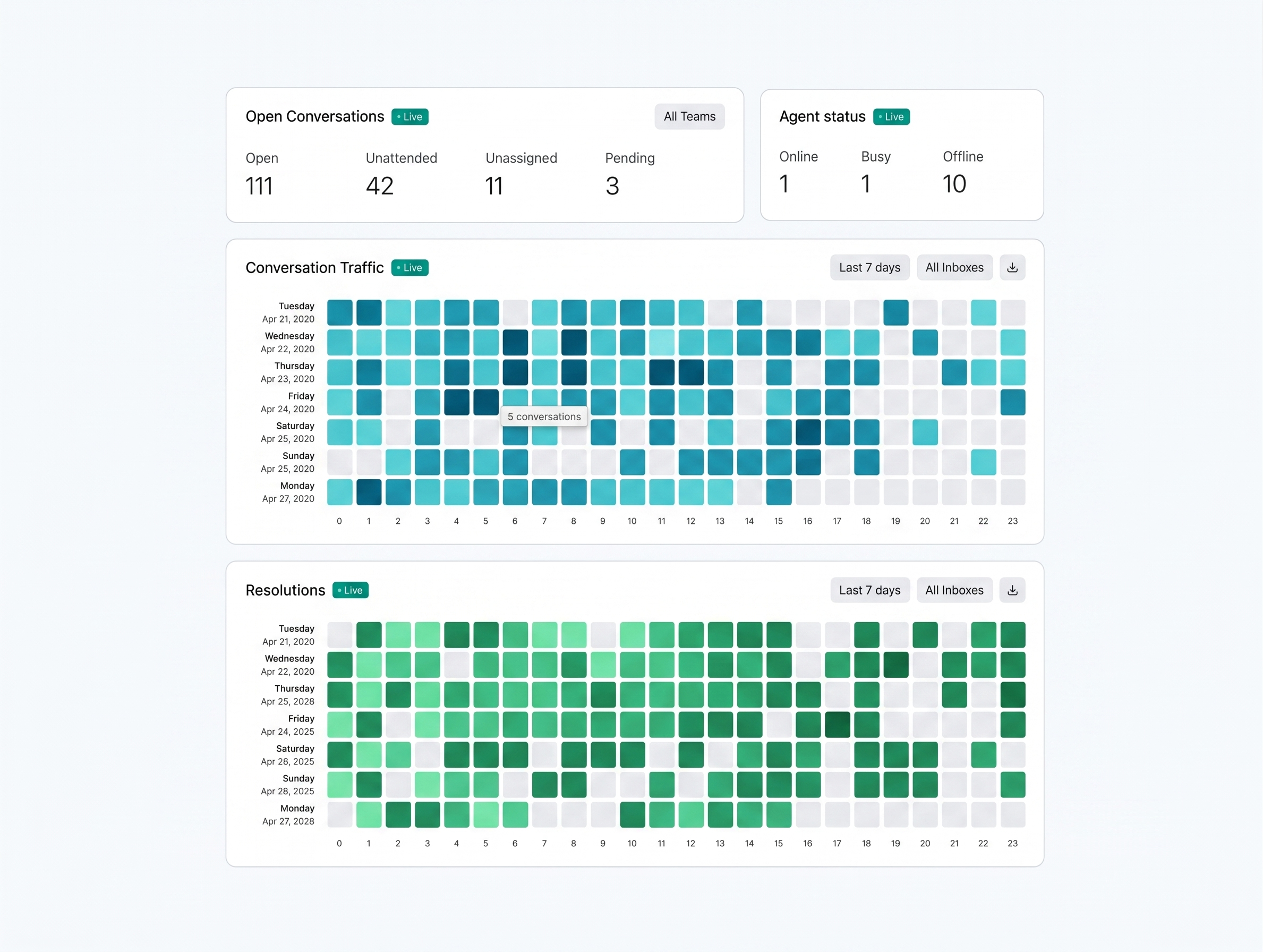
1. Overview (Live). The only real-time report — "what's happening right now?" Shows Open / Unattended / Unassigned / Pending counts, agent status distribution, a conversation-traffic heatmap (day-of-week × hour), a resolution heatmap, and team-level counts. Great on a wall display; use the heatmap for shift planning.
2. Conversation Reports. Account-wide totals for the core metrics over time — "how is the whole operation trending?" Check it weekly to spot climbing reply times, growing volume, or dropping resolution counts.
3. Agent Reports. The same metrics scoped to one agent. A caution: agent metrics measure workload-weighted output, not effort — read them alongside CSAT and context, never as a standalone score.
4. Inbox Reports. The same metrics scoped to one inbox — "which channel needs more love?" Compare voice vs live chat vs WhatsApp on response time and volume.
5. Team Reports. The same metrics scoped to one team — useful when teams own different conversation types.
6. Label Reports. The same metrics scoped to one label — find which kinds of conversations take the longest. Only as good as your label hygiene.
7. CSAT Reports. "Are customers actually happy?" CSAT surveys go out when a conversation is resolved (if enabled). Shows total responses, satisfaction score (% of 4–5 star ratings), response rate, rating distribution, and individual responses. Filterable by agent, inbox, team, or rating.
8. SLA Reports. "Are we keeping the promises we made?" Shows hit rate, breach count, total conversations in scope, and a per-conversation table with hit/breach status and timestamps. The breach list is where you investigate — sort by oldest and read the top ten; patterns jump out.
9. Bot Reports. "Is the bot actually helping?" Shows bot resolutions (handled without a human) and bot handoffs (escalated to an agent). A healthy ratio depends on your strategy.
Common questions
Why does my agent report show zero conversations even though I've been replying? Agent metrics attribute conversations to the assignee at resolution time. If you replied but the conversation was assigned to someone else, it doesn't roll up to you.
Can I schedule reports to be emailed weekly? Not natively — use the CSV export with a scheduler of your choice.
What's the difference between "Resolutions Count" and "Conversations Created"? Created counts conversations that started in the window; Resolutions counts conversations resolved in the window (they may have been created weeks earlier). A big gap signals a growing or shrinking backlog.
You've finished Getting Started
You've now covered the full operating loop: handle, automate, augment, measure. Next, head to Account Setup & User Management to configure your profile and invite your team.