Automation Rules
Automation rules let ChannelX react to what happens in your inboxes without anyone lifting a finger.
A rule watches for an event, checks whether your conditions are met, and runs the actions you defined, labelling conversations, assigning them to the right team, routing them to a particular agent, and more. The result is a faster, more consistent workflow where agents focus on conversations instead of housekeeping.
How a rule is structured
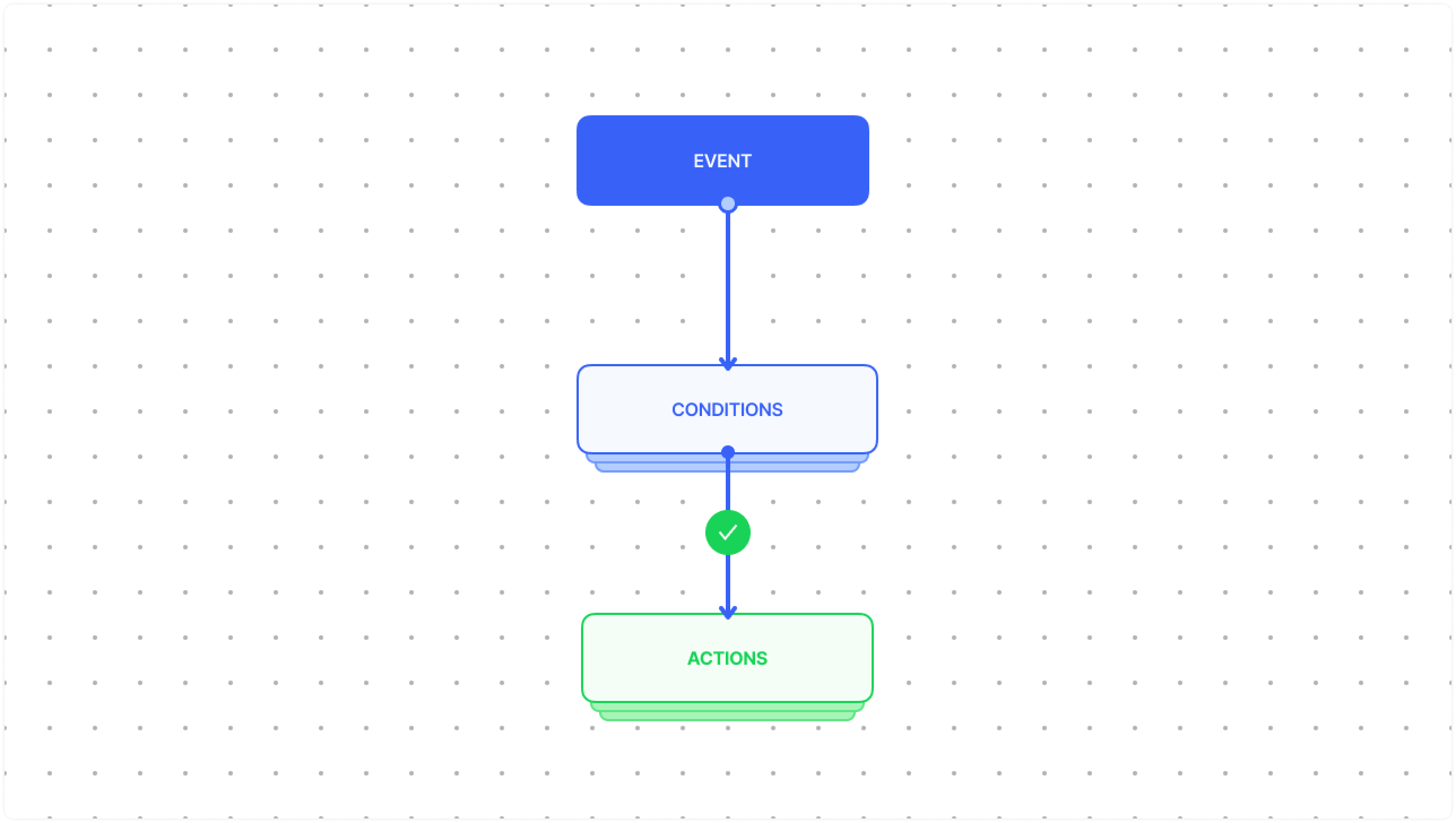
Every automation rule is built from three parts:
- Event — the trigger that starts the rule.
- Conditions — criteria that must be true before anything happens. They are checked in the order you define them.
- Actions — the tasks ChannelX runs when the conditions pass.
Events
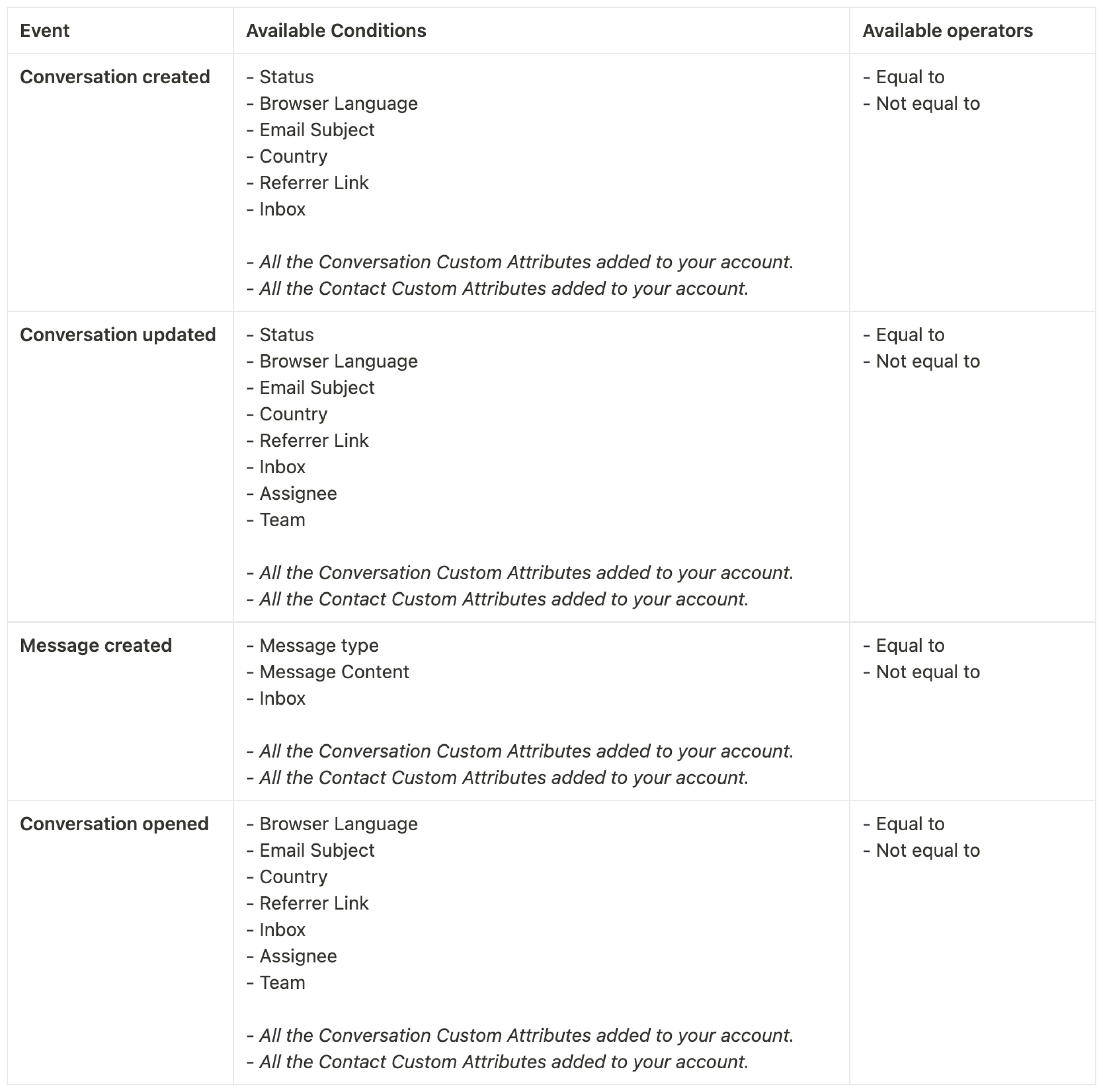
An event is what kicks off a rule. ChannelX offers these triggers:
| Event | Fires when |
|---|---|
| Conversation created | A new conversation starts on any channel. |
| Conversation updated | An existing conversation changes. |
| Message created | A new message is added to a conversation. |
| Conversation opened | A snoozed, resolved, or pending conversation is reopened. |
Conditions
Conditions are the filters that decide whether a rule should act. The available conditions depend on which event you chose, conversation status, channel, priority, browser language, assigned team, custom attributes, and so on. You can chain several together with AND / OR operators to be as precise as you need.
Actions
Actions are what the rule does once its conditions are satisfied. These are available regardless of the event or conditions you pick:
- Assign to an agent
- Assign to a team
- Add a label
- Send an email to a team
- Send an email transcript
- Mute the conversation
- Snooze the conversation
- Resolve the conversation
- Send a webhook event
- Send an attachment
- Send a message
Creating a rule
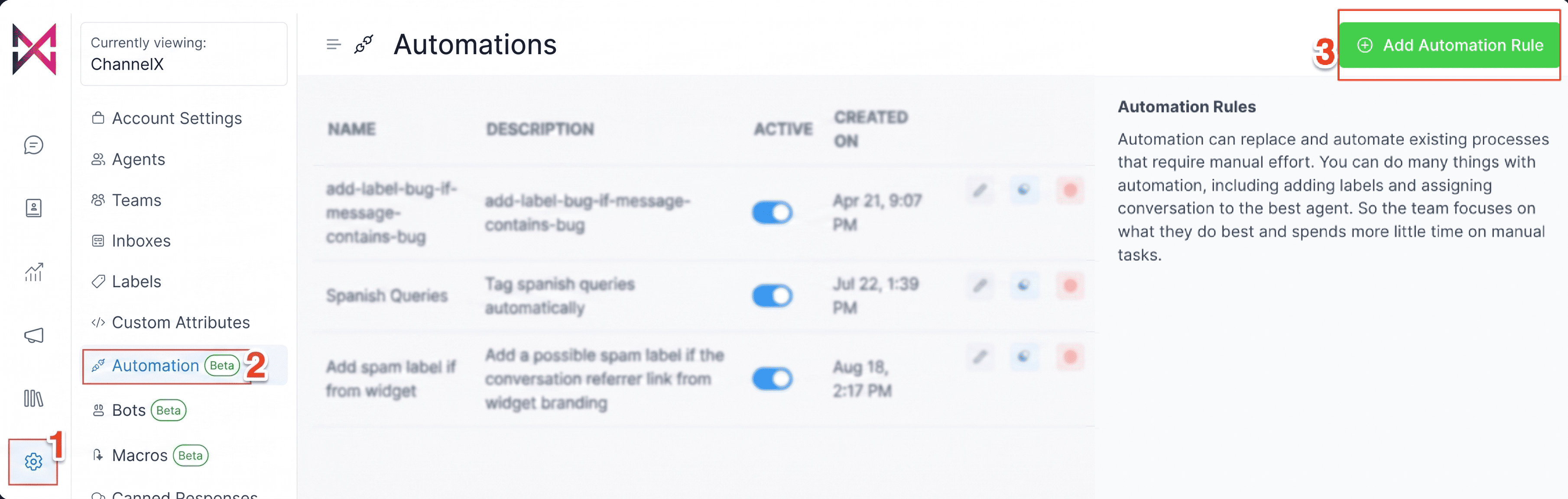
- Go to Settings → Automation and click Add Automation Rule.
 2. In the dialog, fill in the fields:
- Give the rule a name so you can recognise it later.
2. In the dialog, fill in the fields:
- Give the rule a name so you can recognise it later.
- Add an optional description.
- Pick an event from the dropdown.
- Add one or more conditions, joined with AND / OR.
- Add one or more actions.
3. Save the rule to create it.
Worked example
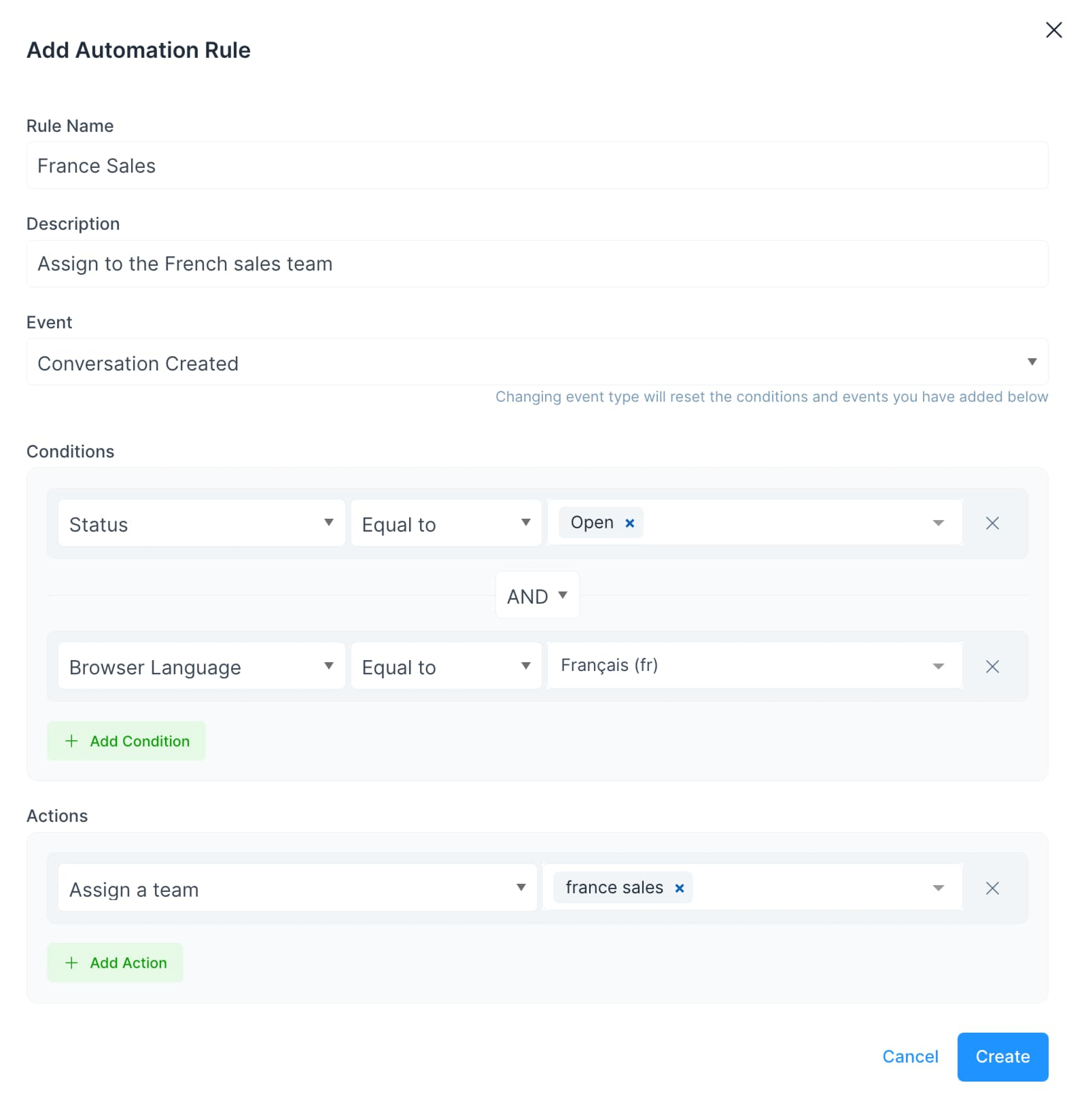
Say you want every new French-language conversation routed to your France sales team. The rule looks like this:
- Name and description — something like "Route French chats to France Sales".
- Event —
Conversation Created. - Conditions — two, joined with AND:
Conversation StatusisOpen, andBrowser LanguageisFrancais (fr). - Action —
Assign a team, then select France sales from the dropdown.
Note
Actions that reference a team or agent require that team or agent to exist first. Create them under Settings before building the rule.
Managing your rules
All your rules are listed under Settings → Automation, each with a row of quick actions:
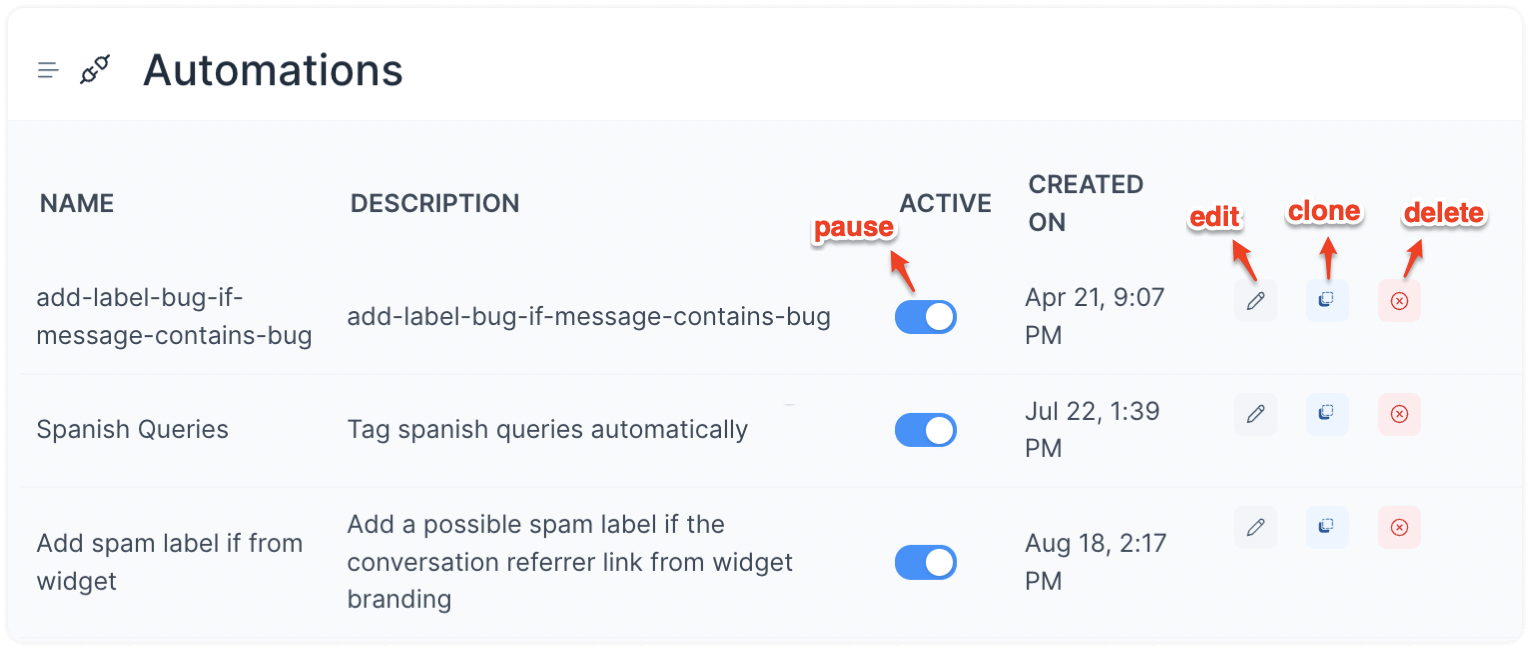
| To do this | Use this |
|---|---|
| Pause a rule | Toggle the switch off in the Active column. |
| Edit a rule | Click the pencil icon. |
| Clone a rule | Click the copy icon. |
| Delete a rule | Click the red cross icon. |
Tip
Cloning is the safest way to experiment. Duplicate a working rule, tweak the copy, and test it before pausing the original, so you always have a known-good version to fall back to.
Common questions
In what order do conditions evaluate? Top to bottom, in the sequence you arrange them. Put the most restrictive conditions first so the rule short-circuits quickly on non-matching conversations.
Can one event trigger several rules? Yes. Multiple rules can listen for the same event; each evaluates its own conditions independently. Keep an eye out for rules that might conflict, two rules assigning the same conversation to different teams, for instance.