Core Features
These are the tools that turn ten minutes of typing into a thirty-second action — the features good agents use on every conversation without thinking about it: private notes, canned responses, labels, macros, conversation actions, and participants.
1. Private Notes — your team's sidebar
A private note is a message inside a conversation that only your team can see. The customer never sees it, never gets notified, and it never leaves ChannelX.
Use it for things like "Looping you in — this looks like a billing edge case" or "FYI, I already refunded their last order, don't double up."
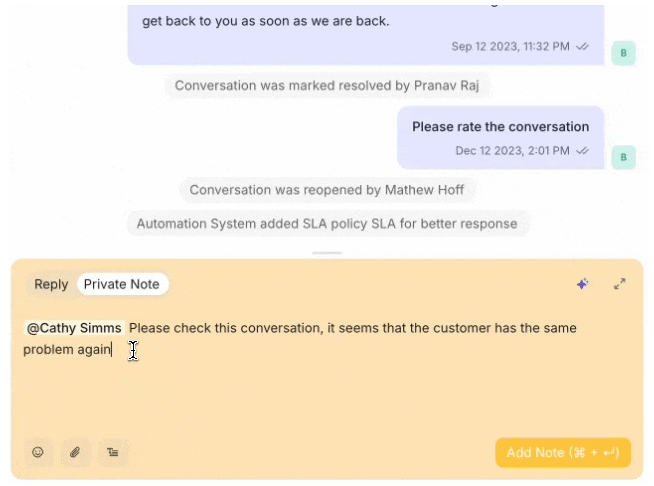
How to send one: open a conversation, switch the composer tab from Reply to Private Note, type your note (the composer turns yellow so you don't mix it up with a public reply), and send.
@mentions inside notes: type @ and start typing a teammate's or team's name. The person gets a notification and the conversation appears in their Mentions view.
Rule of thumb
If you'd otherwise message a teammate about a conversation, write a private note instead. The context stays attached to the conversation.
2. Canned Responses — your reply shortcuts
A canned response is a saved reply template you trigger with a short code. Instead of retyping the same message thirty times a day, save it once and trigger it with two characters.
Set one up: go to Settings → Canned Responses → Add Canned Response, then fill in a Short Code (e.g. email-ask) and the Content (Markdown works).
Use one: in the reply box, type / followed by the short code (/email-ask). A picker pops up — press Enter and the full template fills in. Edit if needed, then send.
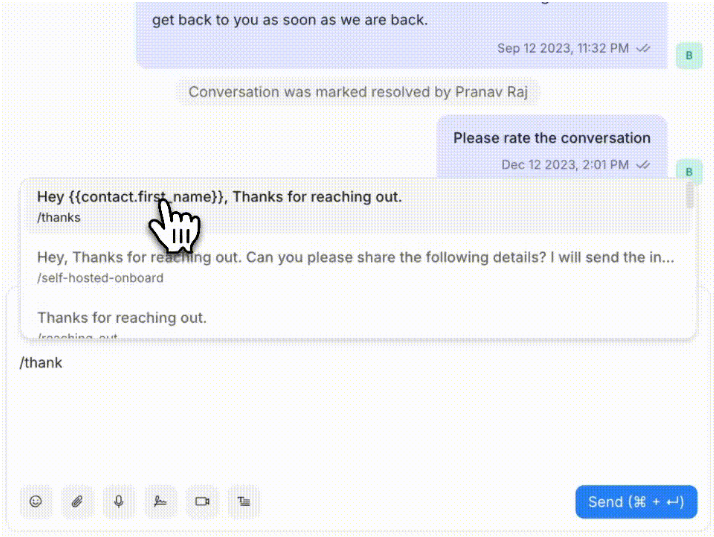
Five canned responses worth creating first: a friendly opener, a request for an account or order number, a "we're looking into this" holding reply, a closing line, and a link to your most-shared help article.
Note
Canned responses are templates, not robots. Personalize the first sentence — using the customer's name and one detail from their message — before sending.
3. Labels — the digital sticky notes
A label is a tag you attach to a conversation. Labels are account-wide and reusable. Used well, they reveal patterns ("we got 12 billing-bug reports this week") and power saved folders ("all open vip conversations").
Add a label from the conversation actions panel on the right, or via the command bar (Cmd+K / Ctrl+K).
Keep your label list short and consistent. Three categories cover most teams:
| Category | Example labels | Why |
|---|---|---|
| Topic | billing, bug-report, feature-request, onboarding |
What the conversation is about. |
| Customer signal | vip, at-risk, enterprise |
Who you're talking to. |
| Workflow | needs-engineering, needs-followup, escalated |
What needs to happen next. |
Anti-pattern
Ten labels that mean almost the same thing (bug, bugs, bug-report, defect, issue). Pick one and delete the rest. Run a label cleanup once a quarter.
4. Macros — chained actions in one click
A macro is a saved sequence of actions. Where a canned response is just text, a macro can do several things at once: send a reply, add a label, assign a team, snooze — all in a single click.
For example, a "Refund issued" macro might: send a confirmation message, add a refund-issued label, assign the Finance team, and resolve the conversation.
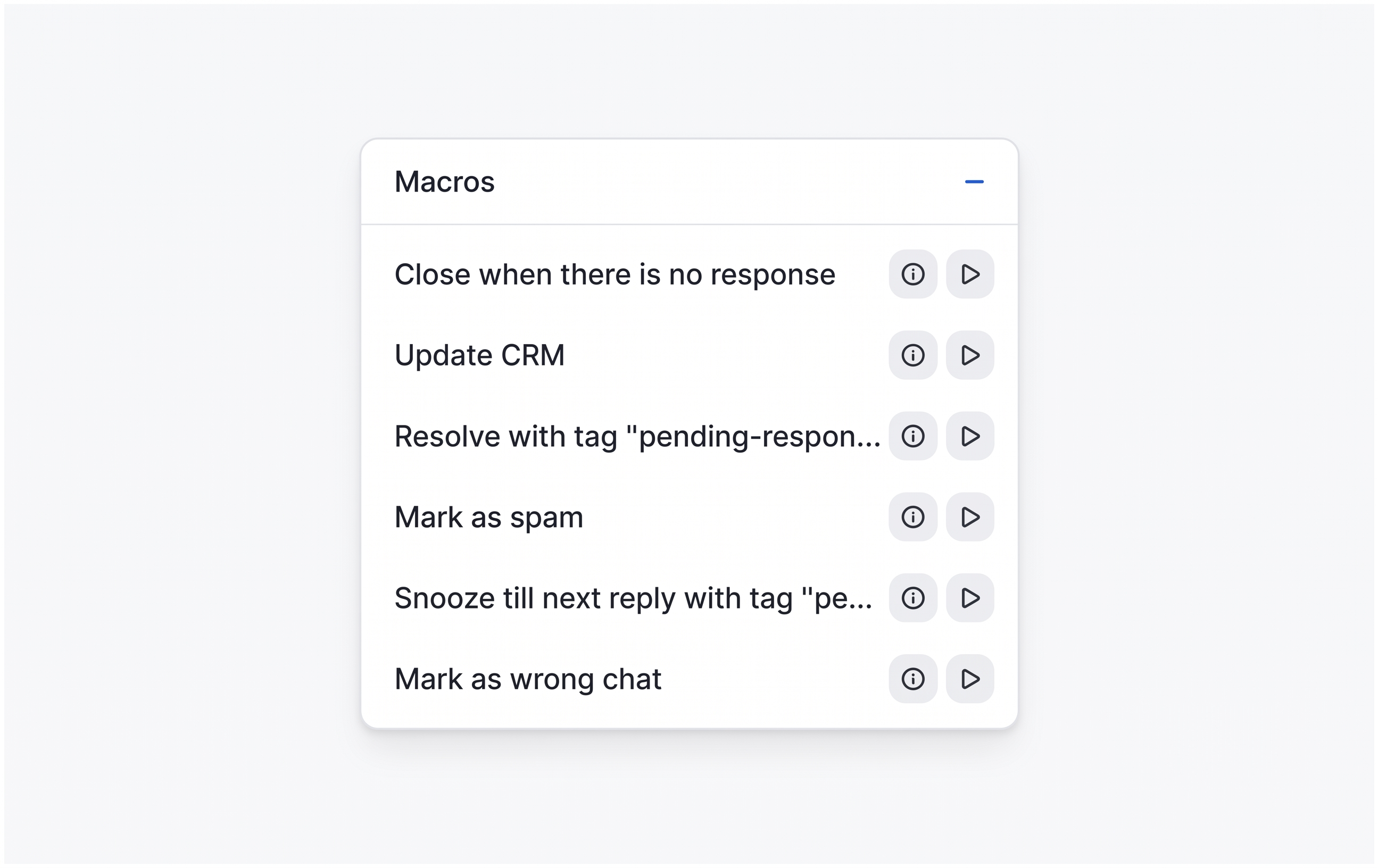
Set one up: go to Settings → Macros → Add a new Macro, name it, add actions in order (the picker includes Send Message, Assign Team, Add Label, Resolve Conversation, and more), and set visibility to Private (just you) or Public (the whole team).
Run one: open any conversation, scroll the right sidebar to Macros, pick yours, and click Run.
When to write a macro
Any time you do the same three or four actions back to back more than a few times a week. Five minutes of setup saves hours over a quarter.
5. Conversation Actions — the right sidebar in detail
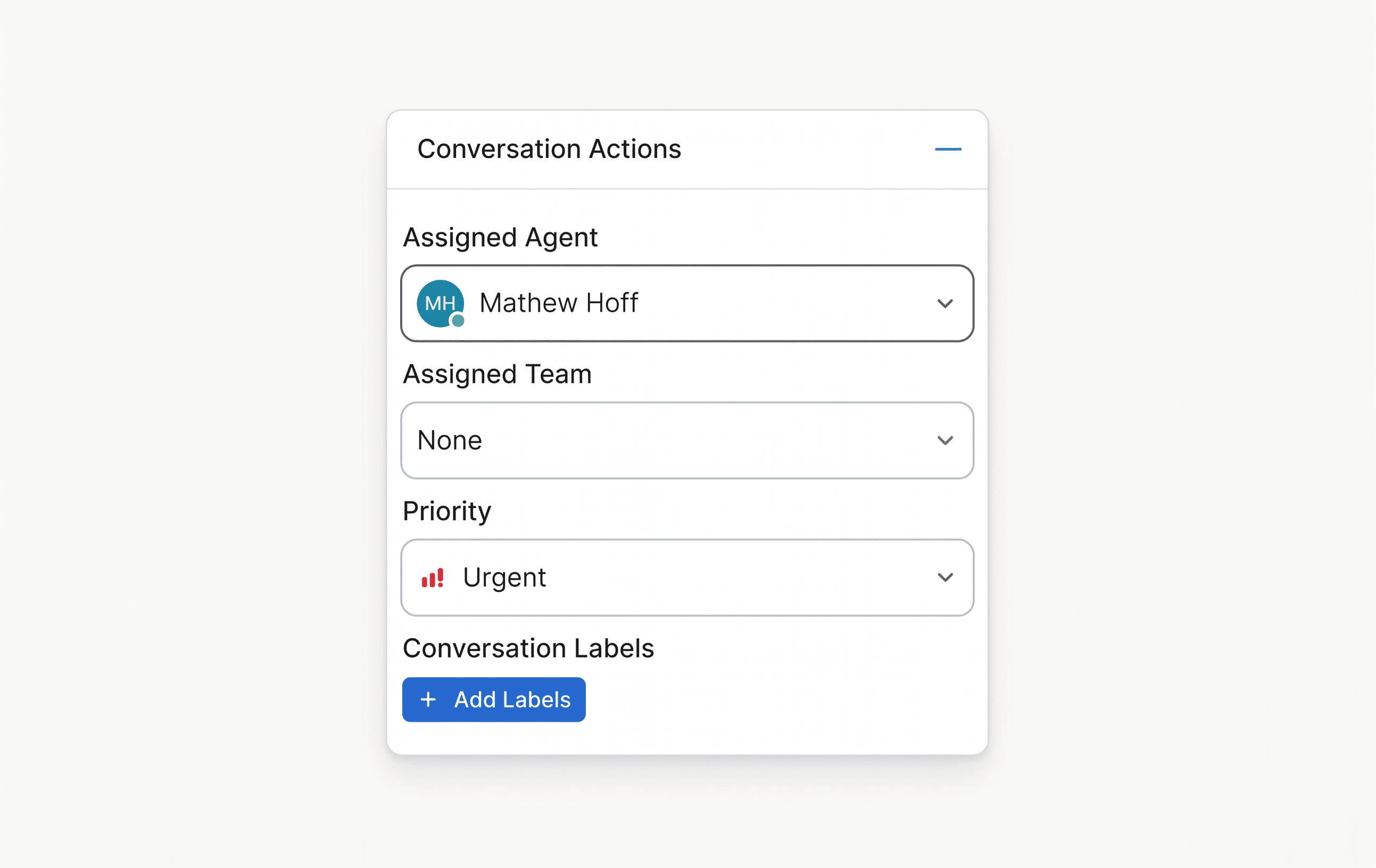
The conversation actions panel (top of the right sidebar) is where you change a conversation's state:
| Action | Use it for |
|---|---|
| Assignee | Hand the conversation to a specific agent. |
| Team | Route to a group (Engineering, Billing, Sales) so any member can pick it up. |
| Conversation Status | Open / Pending / Resolved / Snoozed. |
| Priority | Low / Medium / High / Urgent — shows up in queue sorting and SLA calculations. |
| Add Label | Apply one or more labels. |
Status vs assignee
Changing assignee moves who's responsible; changing status moves where the conversation sits in the workflow. They're independent.
6. Conversation Participants — collaborate without handing off
Sometimes you need a teammate's eyes on a conversation without giving it to them. That's what participants are for.
- Assignee = the one person responsible for replying.
- Participant = anyone else watching, who can chime in.
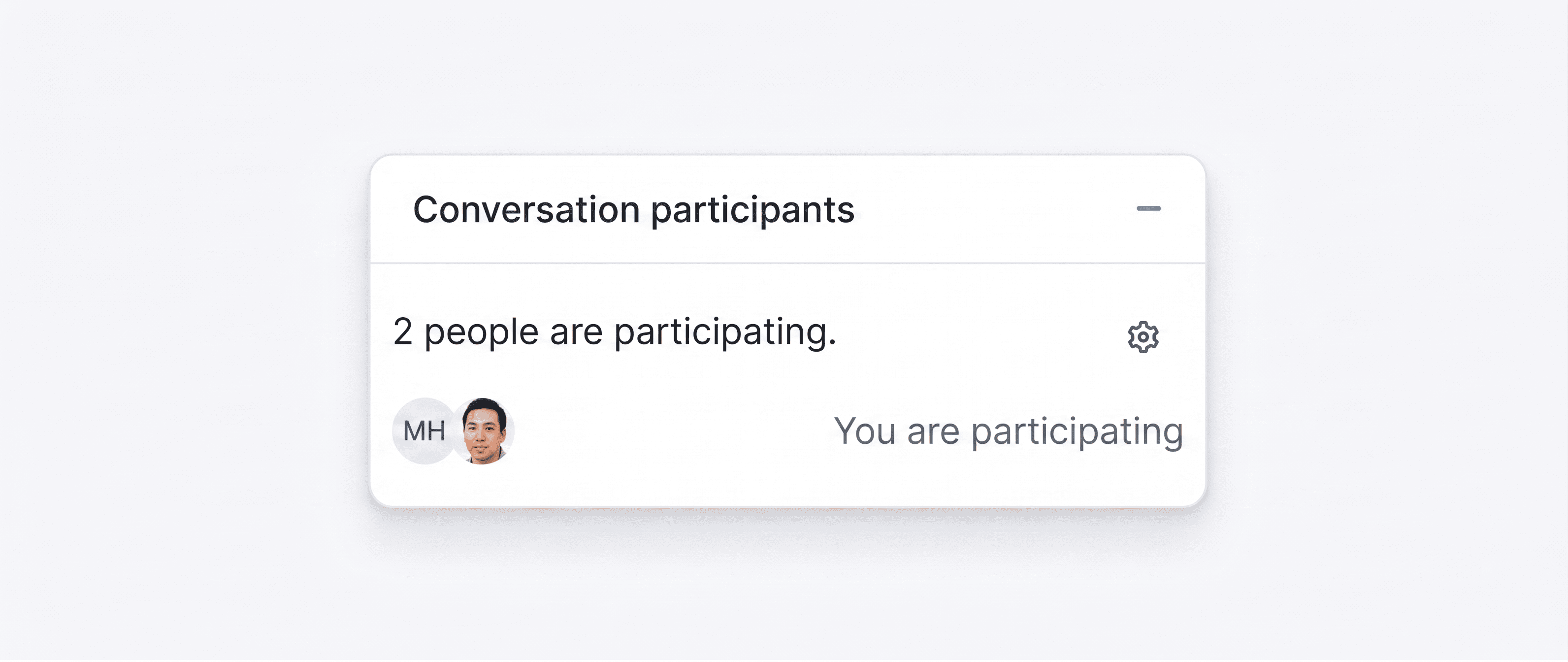
Add one from the conversation actions panel via Participants → Add. Participants get notifications for new activity and see the conversation in their Participating view. Good for shadowing, escalations, or looping in a subject-matter expert.
Warning
Don't add the whole team as participants — that's notification spam. Two or three people max, with a reason.
Common questions
Can the customer ever see private notes or macro internals? No. Only macro actions of type Send Message reach the customer, and those look like normal replies.
What's the difference between assigning a team vs an agent? Assigning an agent says "this is yours specifically." Assigning a team says "anyone on this team can pick it up."
Do macros run automatically? No — macros are manual. For something that runs automatically on a trigger, you want an Automation Rule, covered next.
Next
Continue to Working with Customer Context.