Installation Guides
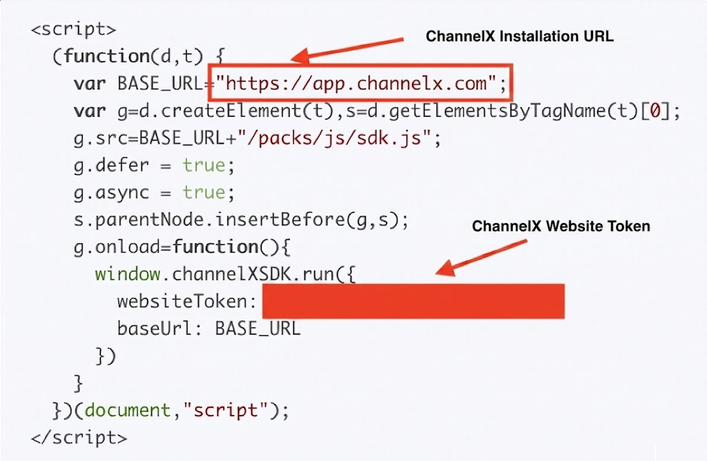
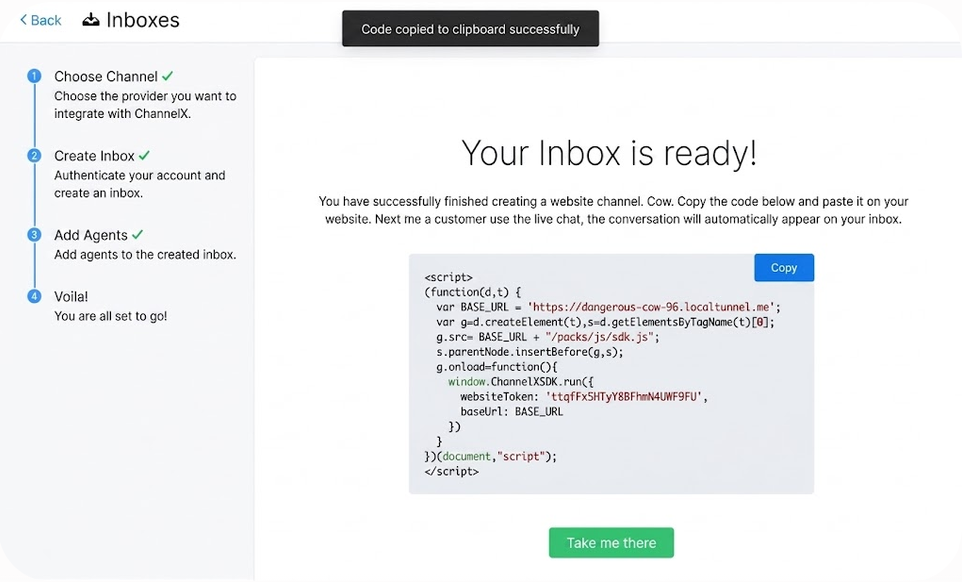
Every installation method needs the same two values from your Website inbox: the website token and your ChannelX installation URL (the base URL of your Localcom deployment). Find both under Settings → Inboxes → your website inbox → Configuration, where ChannelX shows the ready-made script. If you haven't created a website inbox yet, do that first — see Live Chat Settings.
The standard snippet looks like this. Swap in your own values wherever you see the placeholders:
<script>
  (function (d, t) {
    var BASE_URL = "<your-installation-url>";
    var g = d.createElement(t),
      s = d.getElementsByTagName(t)[0];
    g.src = BASE_URL + "/packs/js/sdk.js";
    g.defer = true;
    g.async = true;
    s.parentNode.insertBefore(g, s);
    g.onload = function () {
      window.channelxSDK.run({
        websiteToken: "<your-website-token>",
        baseUrl: BASE_URL,
      });
    };
  })(document, "script");
</script>
The subsections below cover platform-specific ways to deploy that script.
Google Tag Manager
If your site already runs Google Tag Manager, you can deploy the widget as a tag.
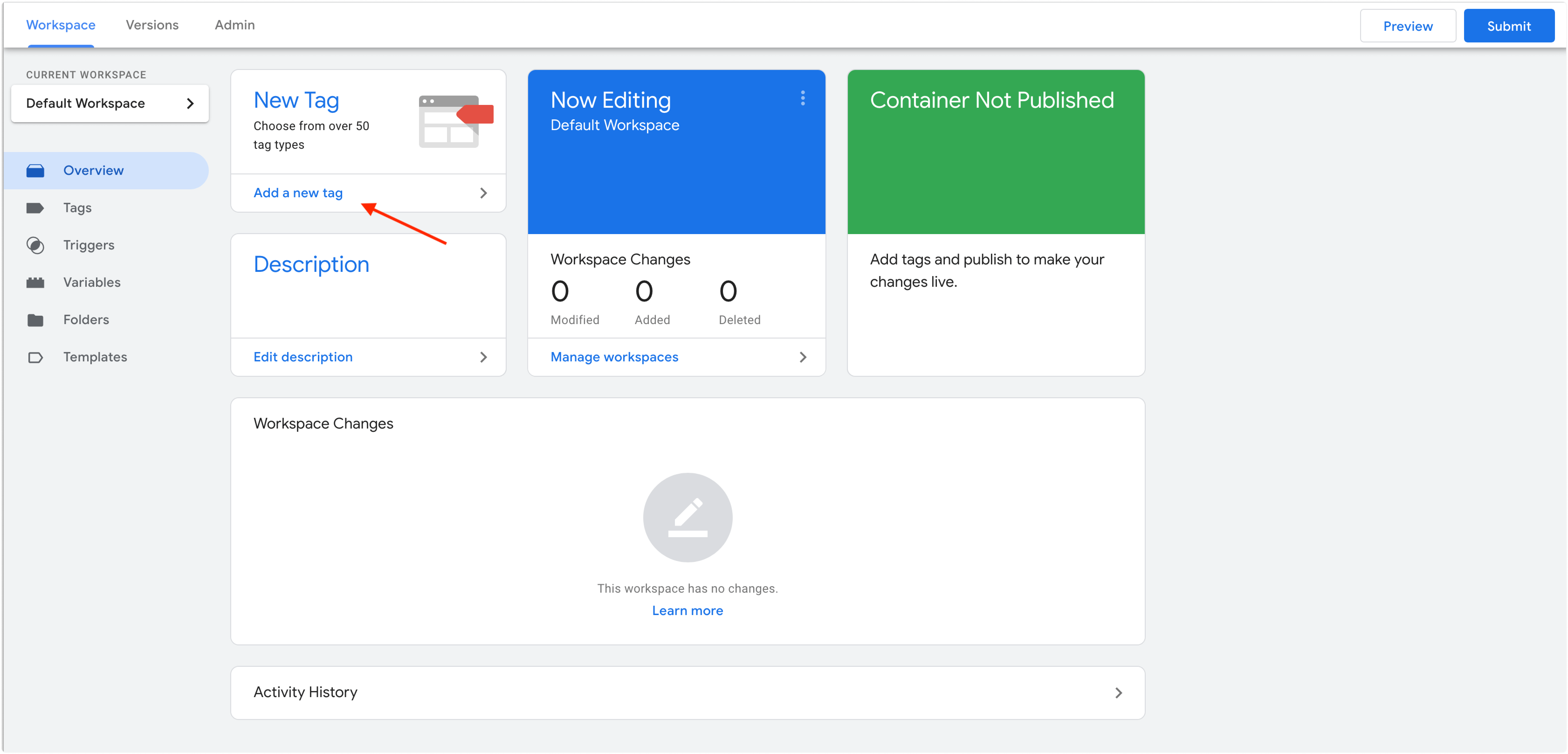
- Sign in to your Tag Manager workspace and click Add a new tag.
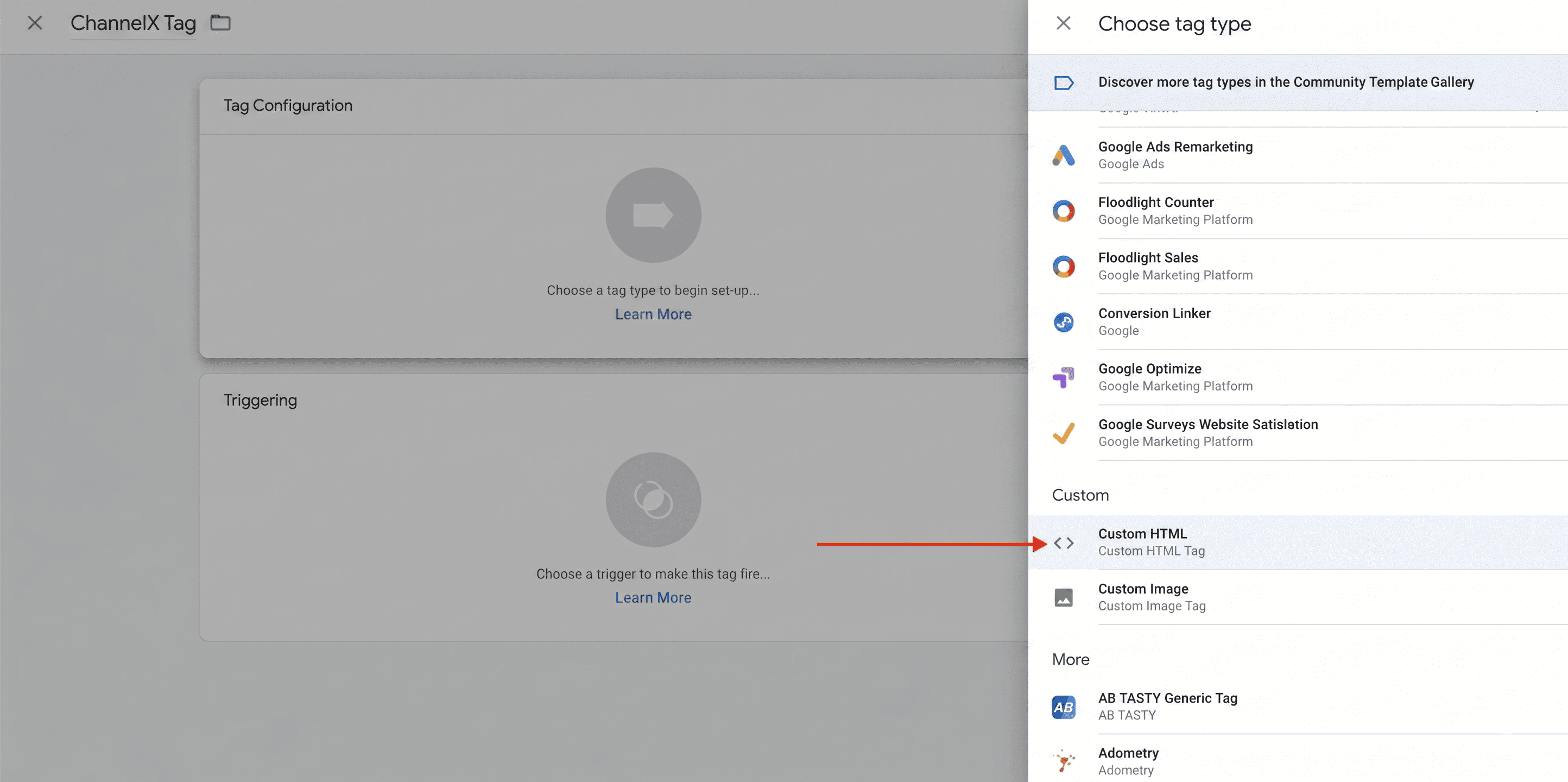
 2. Rename the tag (for example, ChannelX), open Tag Configuration, and choose the Custom HTML type.
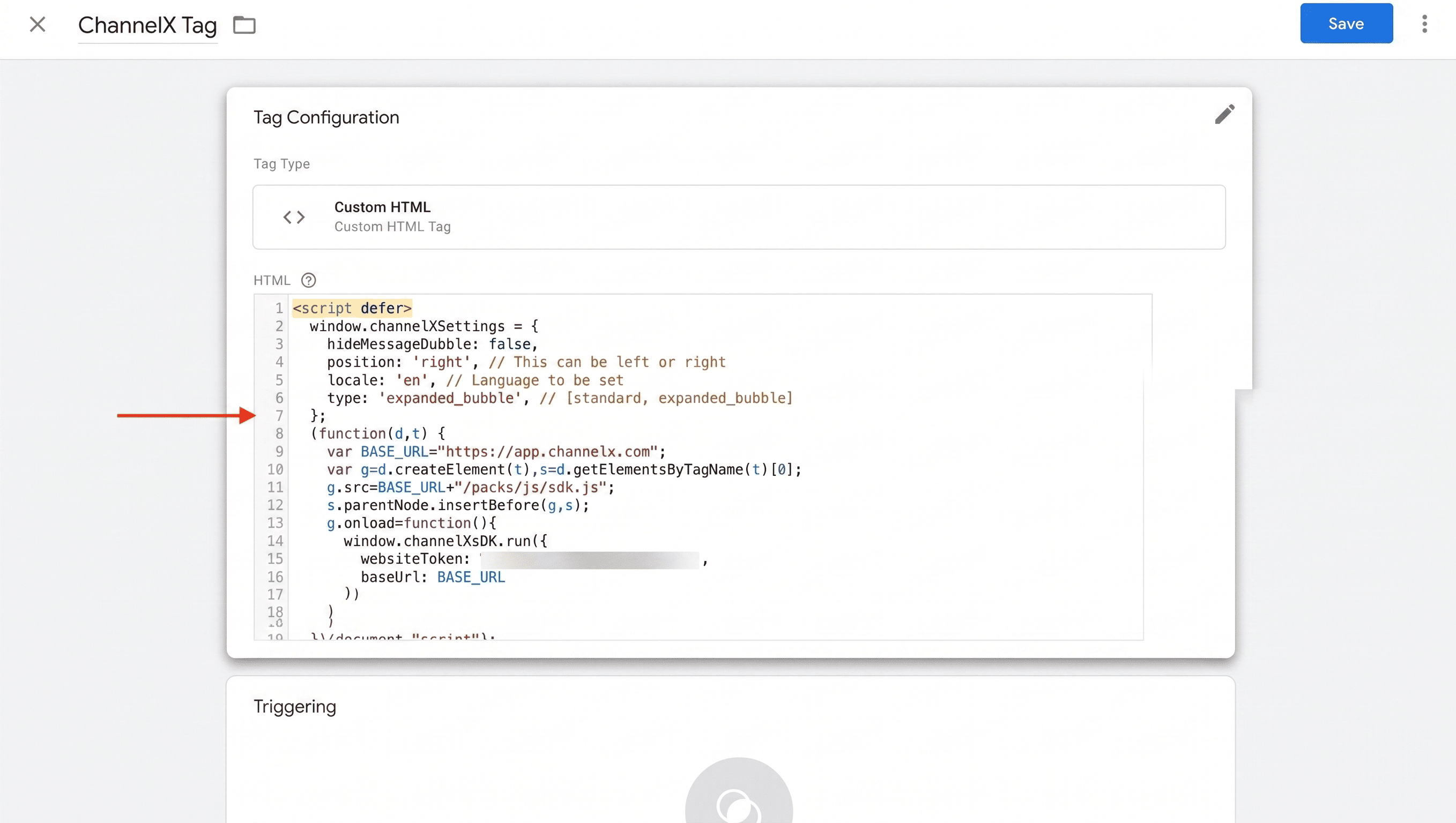
 3. Paste the script from your inbox's Configuration tab into the HTML field, and tick Support document.write.
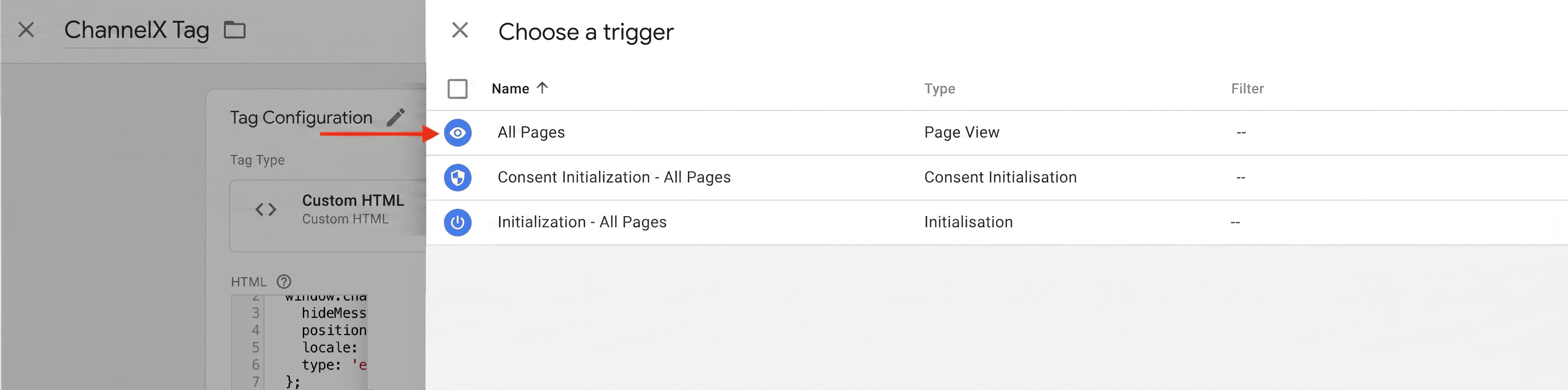
 4. Under Triggering, choose All Pages.
 5. Save, then Submit and Publish to deploy.
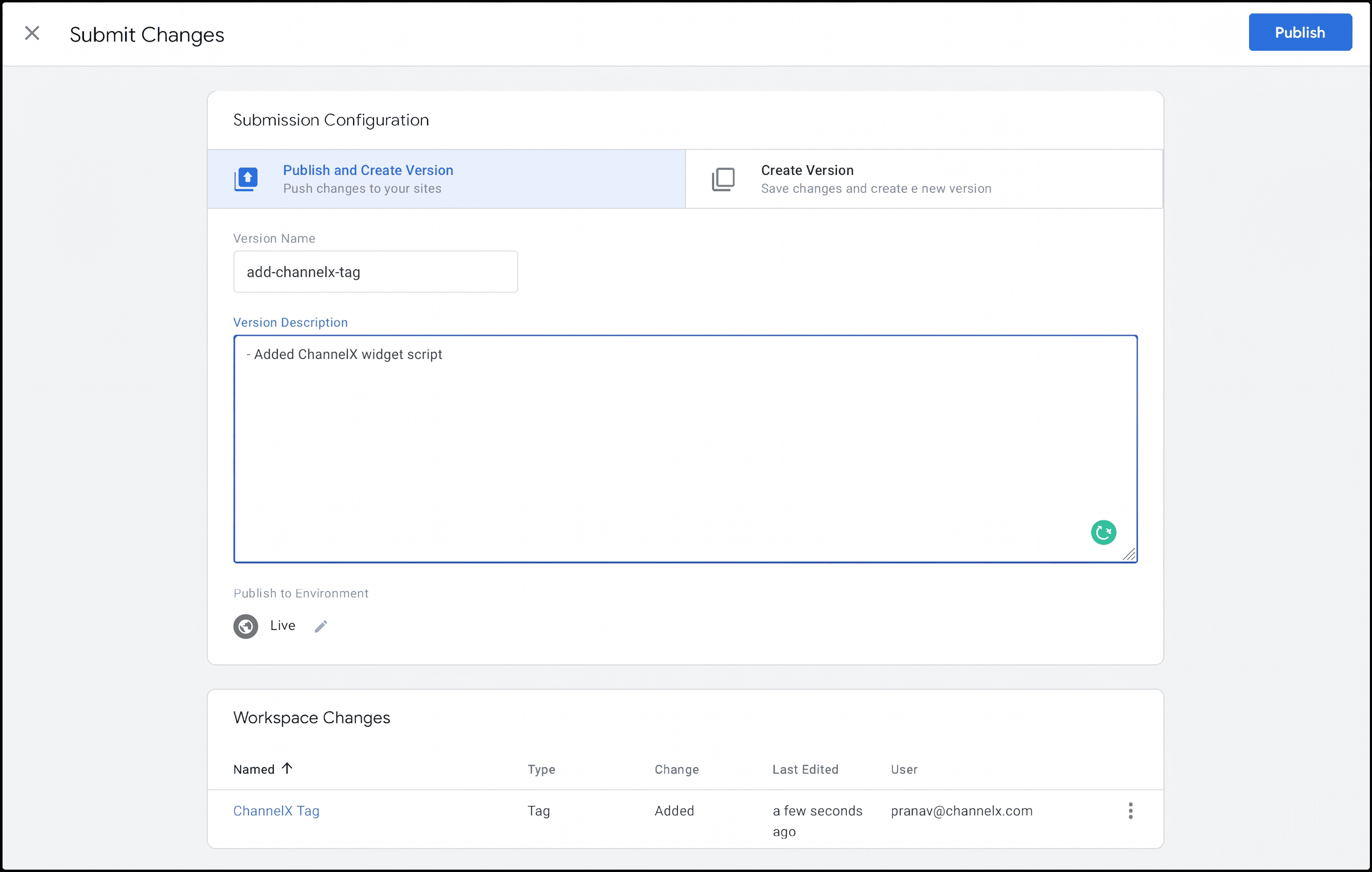
Refresh your website and the widget appears on every page.
WordPress
For a WordPress site, ChannelX provides a plugin.
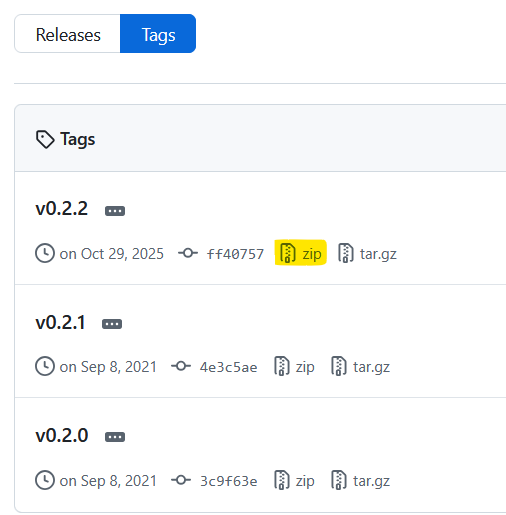
1. Download the latest ChannelX WordPress plugin ZIP from its release page.
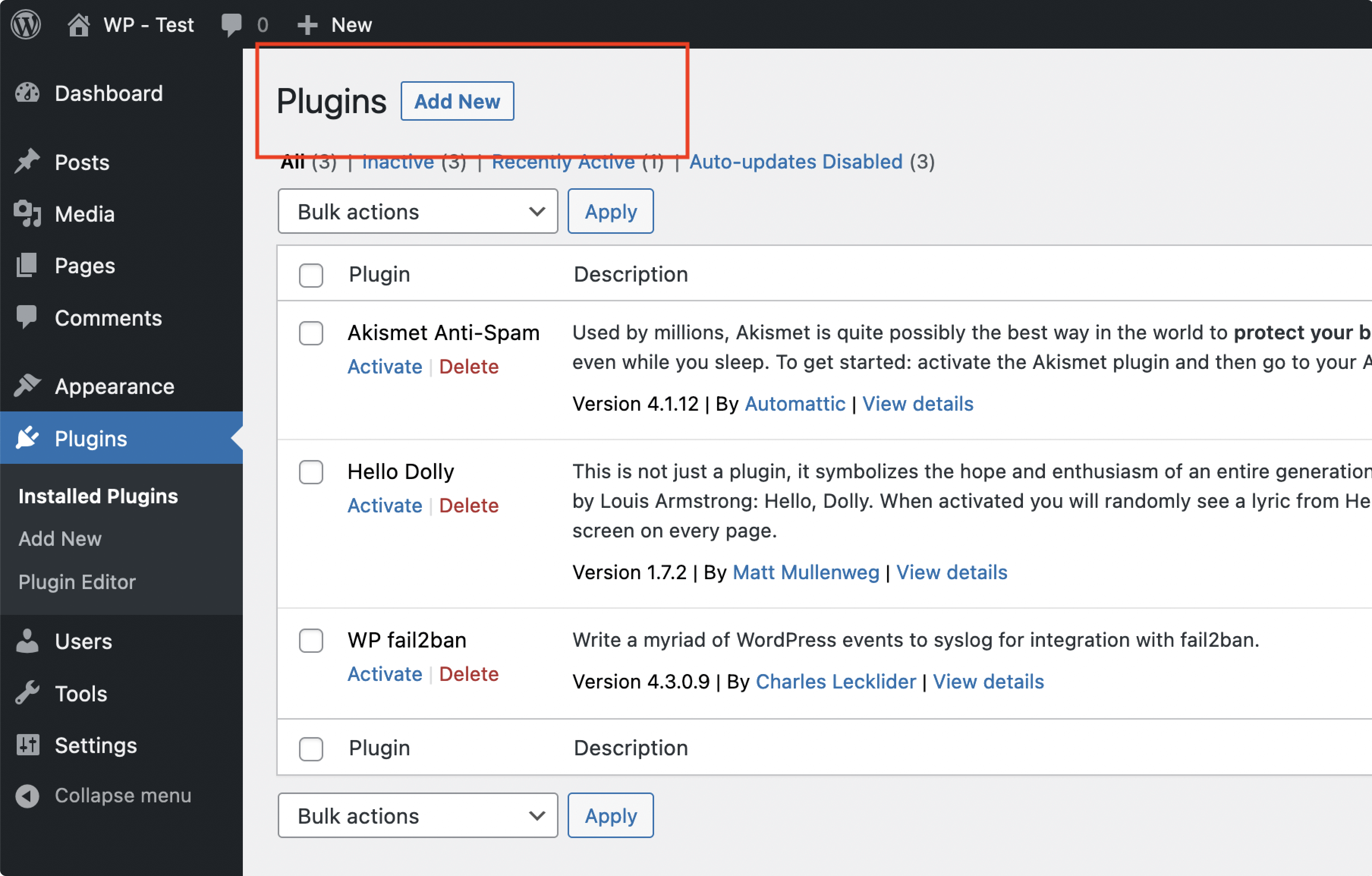
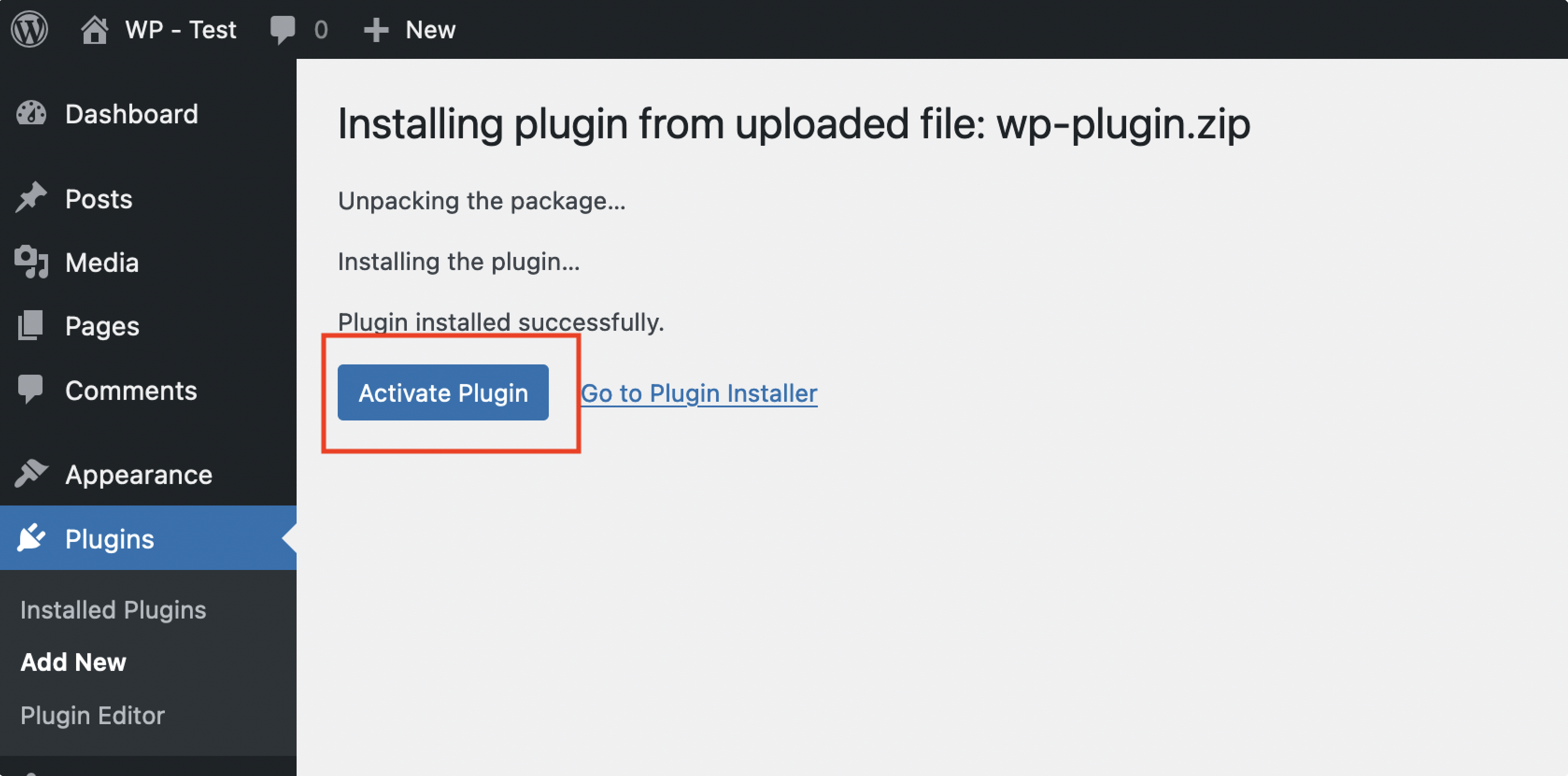
2. In your WordPress admin, go to Plugins → Add New → Upload Plugin, choose the ZIP, and install it.
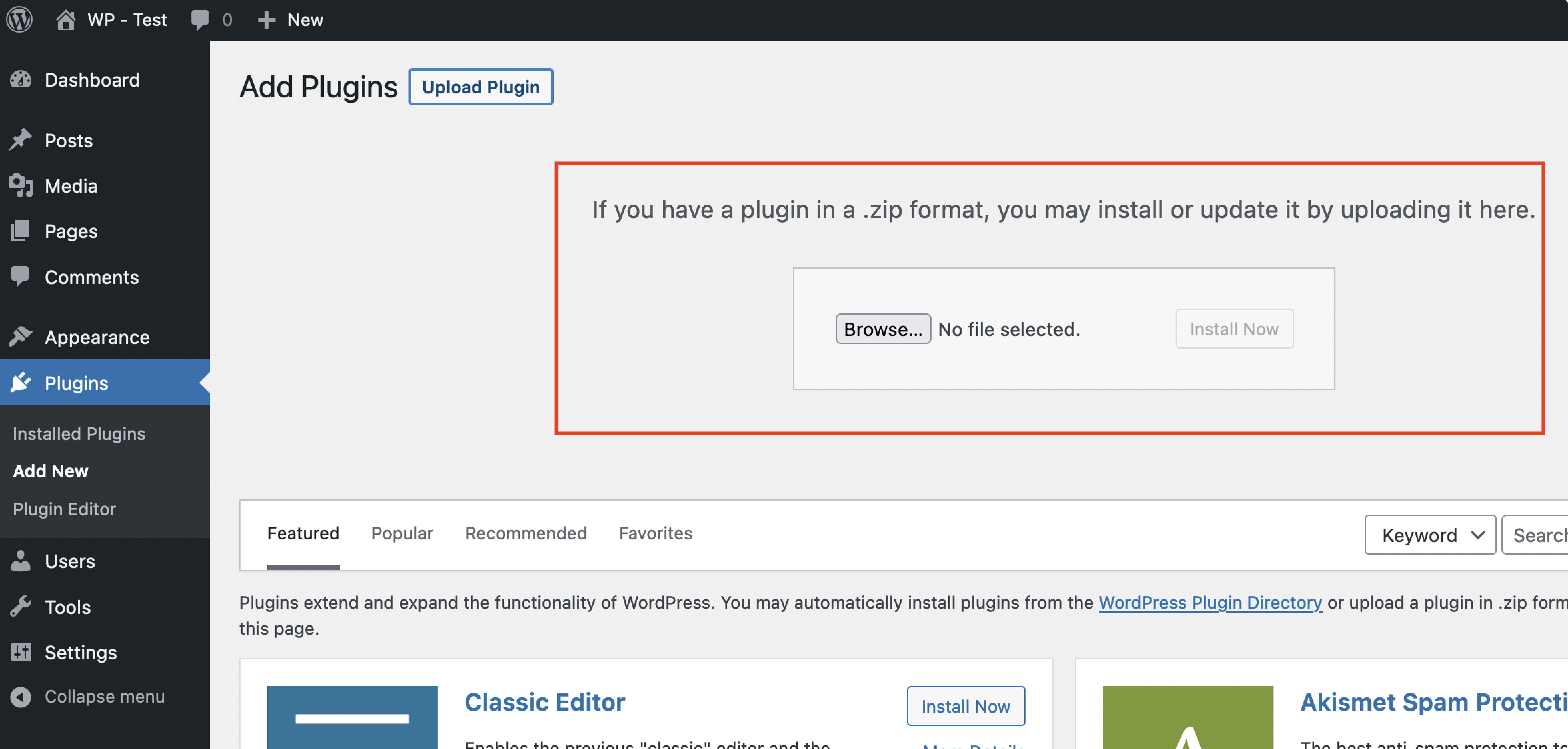
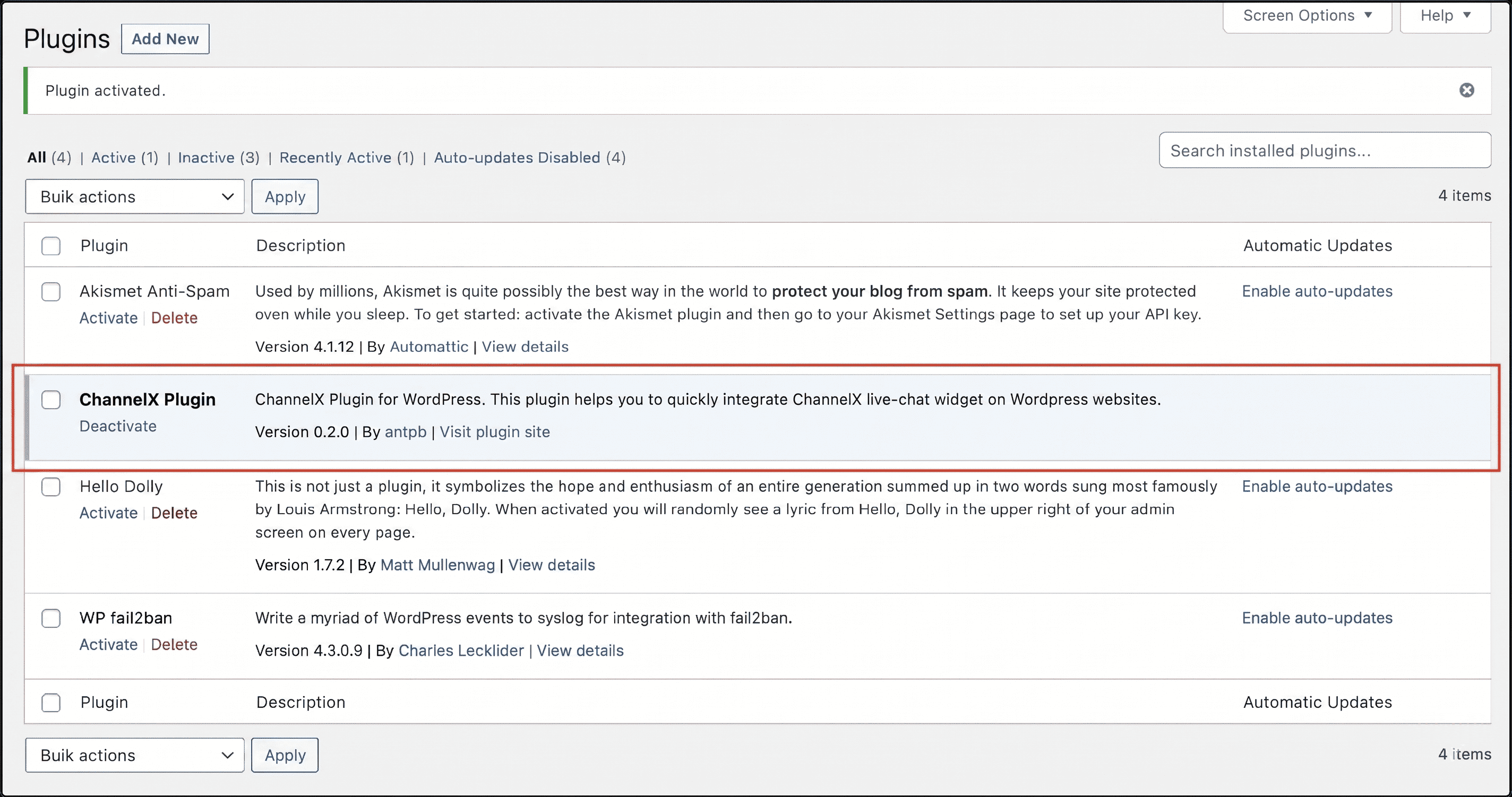
3. Click Activate Plugin.
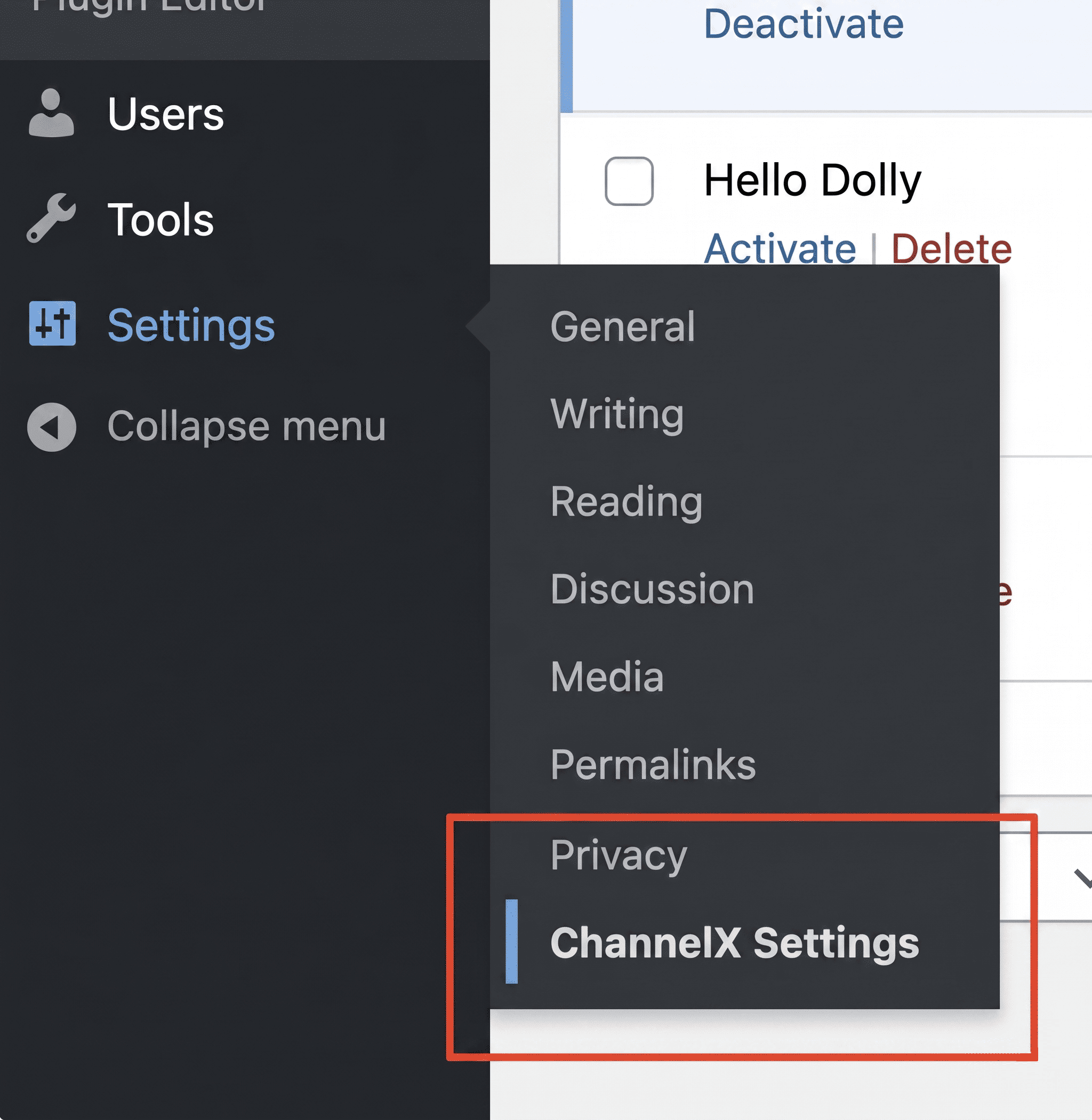
4. Open Settings → ChannelX Settings and configure:
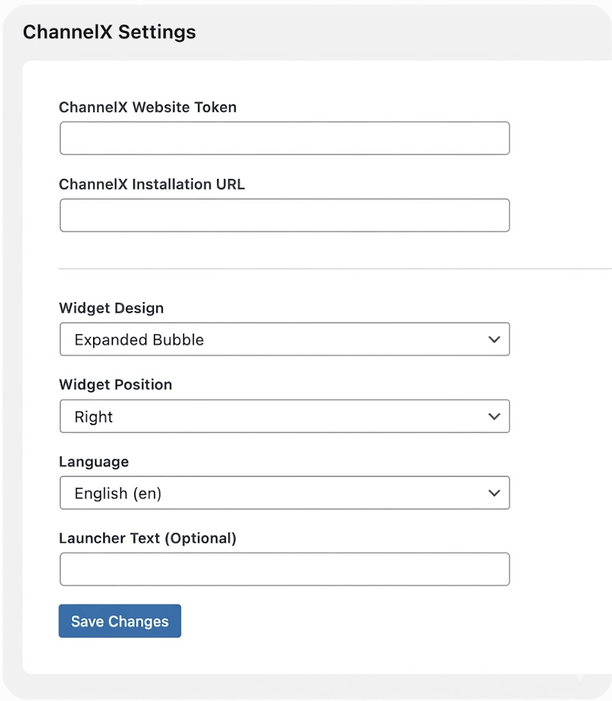
- Website Token and Installation URL — copied from your website inbox's Configuration tab.
- Widget Design — Standard or Expanded Bubble.
- Widget Position — Left or Right.
- Language — defaults to English.
- Launcher text — optional text for the expanded bubble.
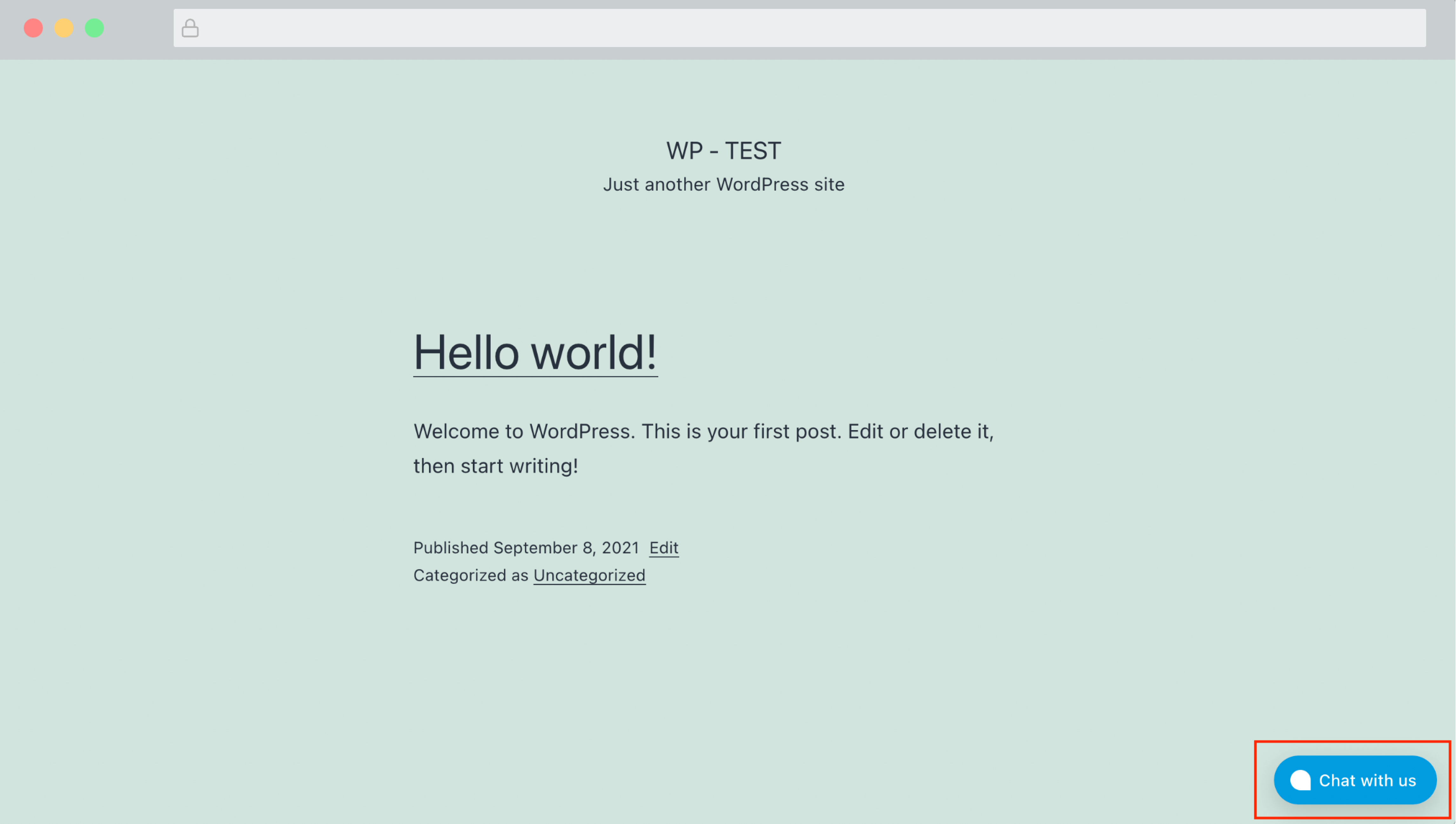
5. Click Save changes, then visit your site to confirm the widget appears.
Webflow
- Create a website inbox in ChannelX and copy its script.
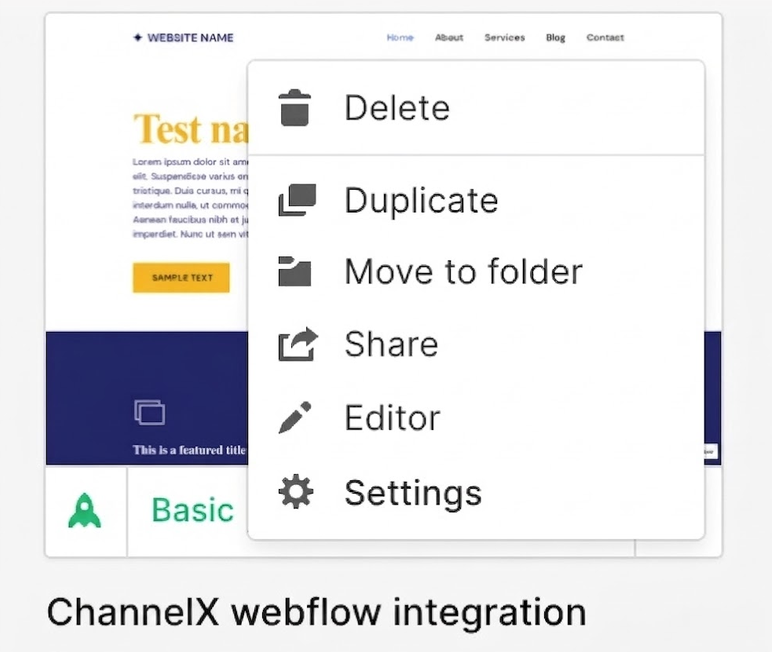
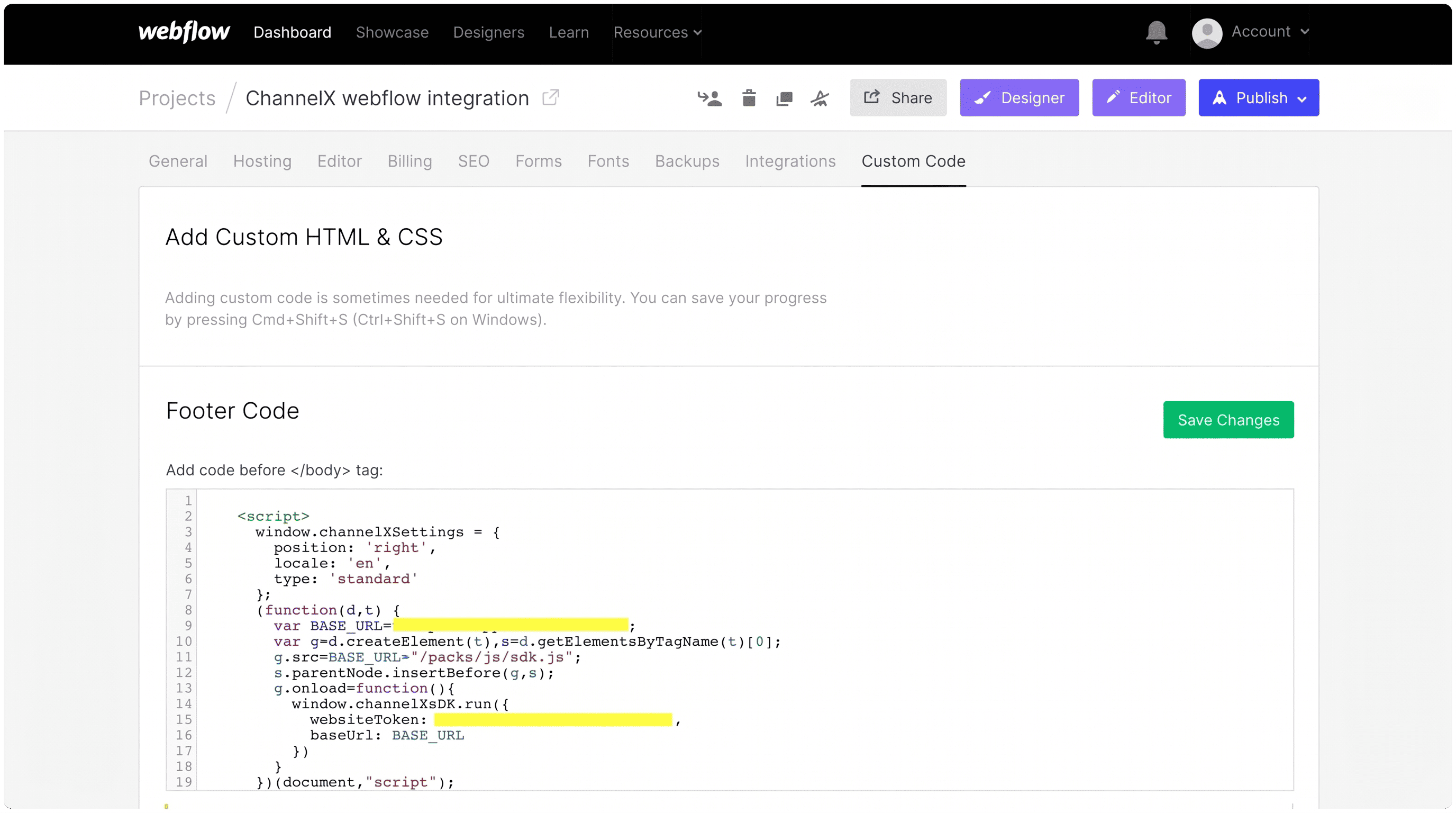
- In Webflow, open your site's Settings → Custom Code, and paste the script into the Footer Code field. Save.
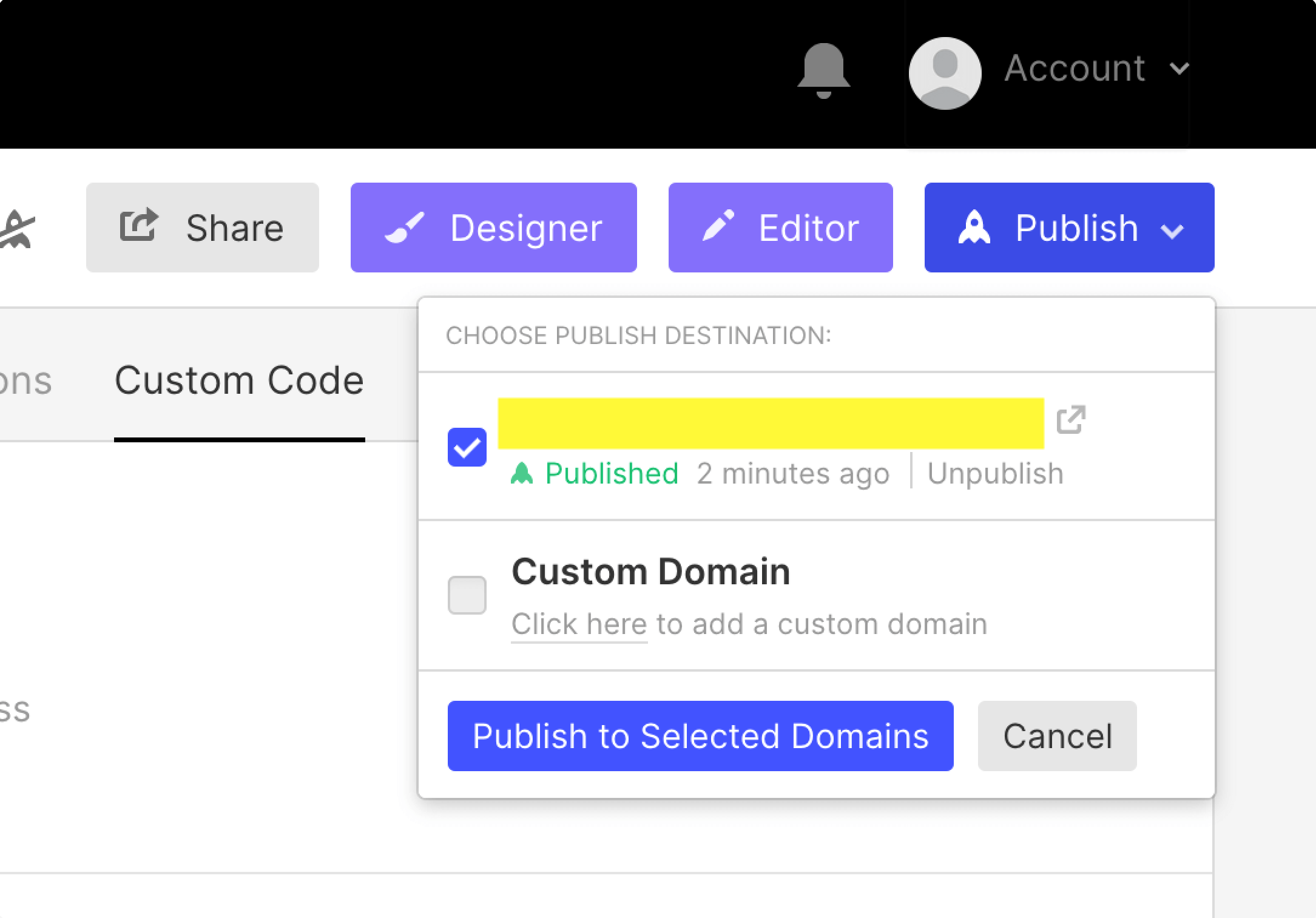
 3. Publish the site to your domain.
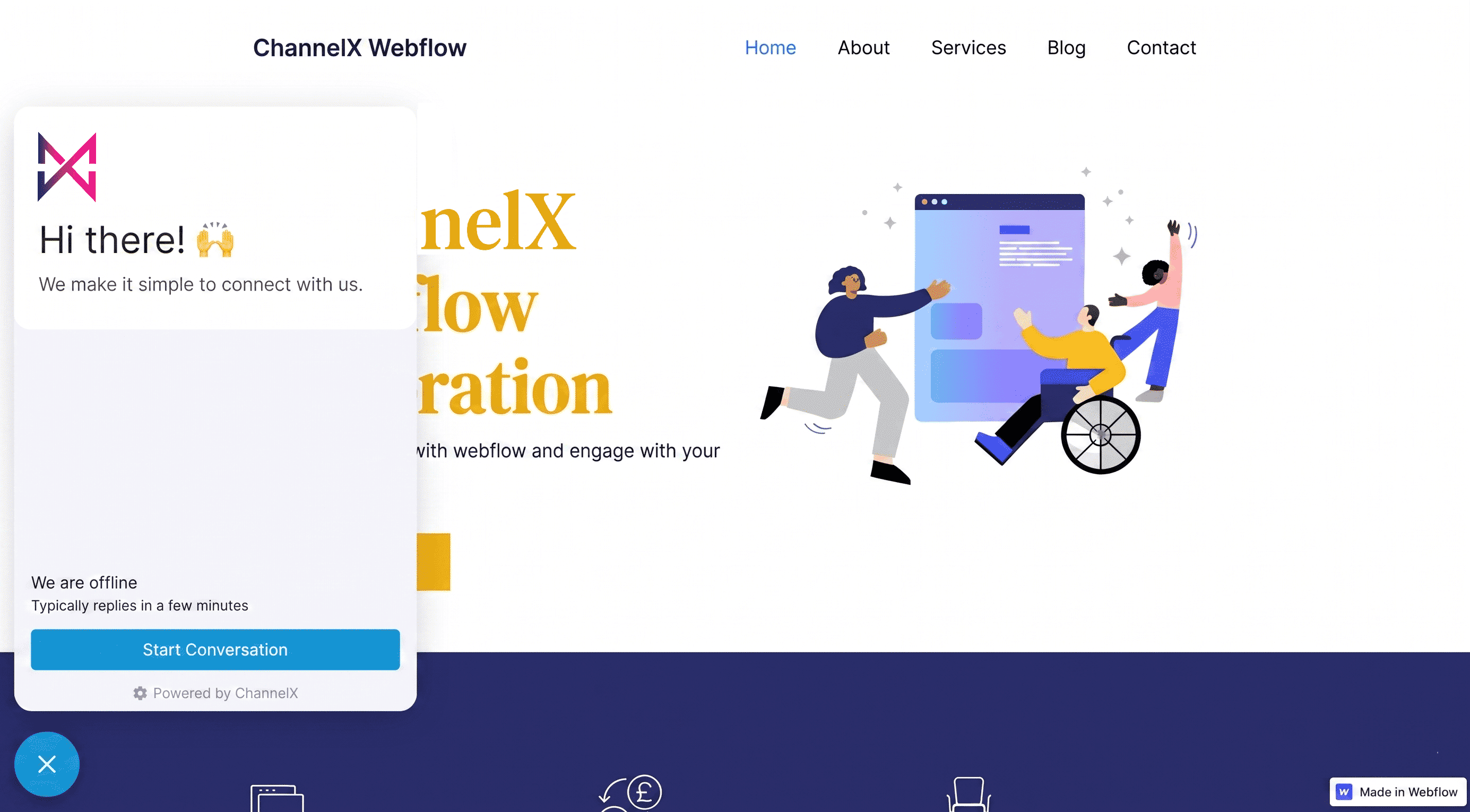
 4. Visit your site to confirm the widget appears.
Gatsby
Use the Gatsby plugin for a Gatsby site.
- Install the plugin:
npm install --save gatsby-plugin-channelx
# or
yarn add gatsby-plugin-channelx
- Register it in
gatsby-config.jswith your token and base URL:
plugins: [
  {
    resolve: `gatsby-plugin-channelx`,
    options: {
      baseUrl: "<your-installation-url>", // required
      websiteToken: "<your-website-token>", // required
      includeInDevelopment: false, // optional
      channelxSettings: {}, // optional
    },
  },
];
- Start your dev server — the widget now appears on the page.
Docusaurus
ChannelX integrates with Docusaurus through a plugin.
- Install it:
npm install @channelx/docusaurus-plugin --save
# or
yarn add @channelx/docusaurus-plugin
- Configure it in
docusaurus.config.js:
module.exports = {
  plugins: ["@channelx/docusaurus-plugin"],
  themeConfig: {
    channelx: {
      websiteToken: "<your-website-token>",
      baseURL: "<your-installation-url>", // optional
      enableInDevelopment: false, // optional
      channelxSettings: {
        hideMessageBubble: false,
        position: "left",
        locale: "en",
        useBrowserLanguage: false,
        darkMode: "auto",
        type: "expanded_bubble",
        launcherTitle: "Chat with us",
      },
    },
  },
};
React Native
For a React Native app, use the React Native widget package.
- Create a website inbox in ChannelX.
- Install the package (it depends on
react-native-webviewandasync-storage, so follow their setup docs too):
npm install --save @channelx/react-native-widget
# or
yarn add @channelx/react-native-widget
On iOS with React Native 60+, run cd ios && pod install.
- Render the widget, replacing
websiteTokenandbaseUrl:
import React, { useState } from "react";
import { SafeAreaView, TouchableOpacity, Text, View } from "react-native";
import ChannelXWidget from "@channelx/react-native-widget";

const App = () => {
  const [showWidget, toggleWidget] = useState(false);
  const user = {
    identifier: "jane@example.com",
    name: "Jane Doe",
    avatar_url: "",
    email: "jane@example.com",
    identifier_hash: "",
  };
  const customAttributes = { accountId: 1, pricingPlan: "paid", status: "active" };
  const websiteToken = "<your-website-token>";
  const baseUrl = "<your-installation-url>";
  const locale = "en";

  return (
    <SafeAreaView>
      <View>
        <TouchableOpacity onPress={() => toggleWidget(true)}>
          <Text>Open widget</Text>
        </TouchableOpacity>
      </View>
      {showWidget && (
        <ChannelXWidget
          websiteToken={websiteToken}
          locale={locale}
          baseUrl={baseUrl}
          closeModal={() => toggleWidget(false)}
          isModalVisible={showWidget}
          user={user}
          customAttributes={customAttributes}
        />
      )}
    </SafeAreaView>
  );
};

export default App;
Next.js
Load the widget through a small component that injects the script after mount.
- Create
components/ChannelXWidget.js:
import React from "react";

class ChannelXWidget extends React.Component {
  componentDidMount() {
    window.channelxSettings = {
      hideMessageBubble: false,
      position: "right",
      locale: "en",
      type: "standard",
    };

    (function (d, t) {
      var BASE_URL = "<your-installation-url>";
      var g = d.createElement(t),
        s = d.getElementsByTagName(t)[0];
      g.src = BASE_URL + "/packs/js/sdk.js";
      s.parentNode.insertBefore(g, s);
      g.async = !0;
      g.onload = function () {
        window.channelxSDK.run({
          websiteToken: "<your-website-token>",
          baseUrl: BASE_URL,
        });
      };
    })(document, "script");
  }

  render() {
    return null;
  }
}

export default ChannelXWidget;
- Import and render it in a page or layout:
import ChannelXWidget from "../components/ChannelXWidget";

const Page = () => (
  <>
    <ChannelXWidget />
    {/* your page content */}
  </>
);

export default Page;
The widget now appears on the page.
Vue.js
For a Vue app, paste the widget script directly into index.html, just before the closing </body> tag:
<body>
  <div id="app"></div>

  <!-- ChannelX widget -->
  <script>
    (function (d, t) {
      var BASE_URL = "<your-installation-url>";
      var g = d.createElement(t),
        s = d.getElementsByTagName(t)[0];
      g.src = BASE_URL + "/packs/js/sdk.js";
      g.defer = true;
      g.async = true;
      s.parentNode.insertBefore(g, s);
      g.onload = function () {
        window.channelxSDK.run({
          websiteToken: "<your-website-token>",
          baseUrl: BASE_URL,
        });
      };
    })(document, "script");
  </script>
</body>
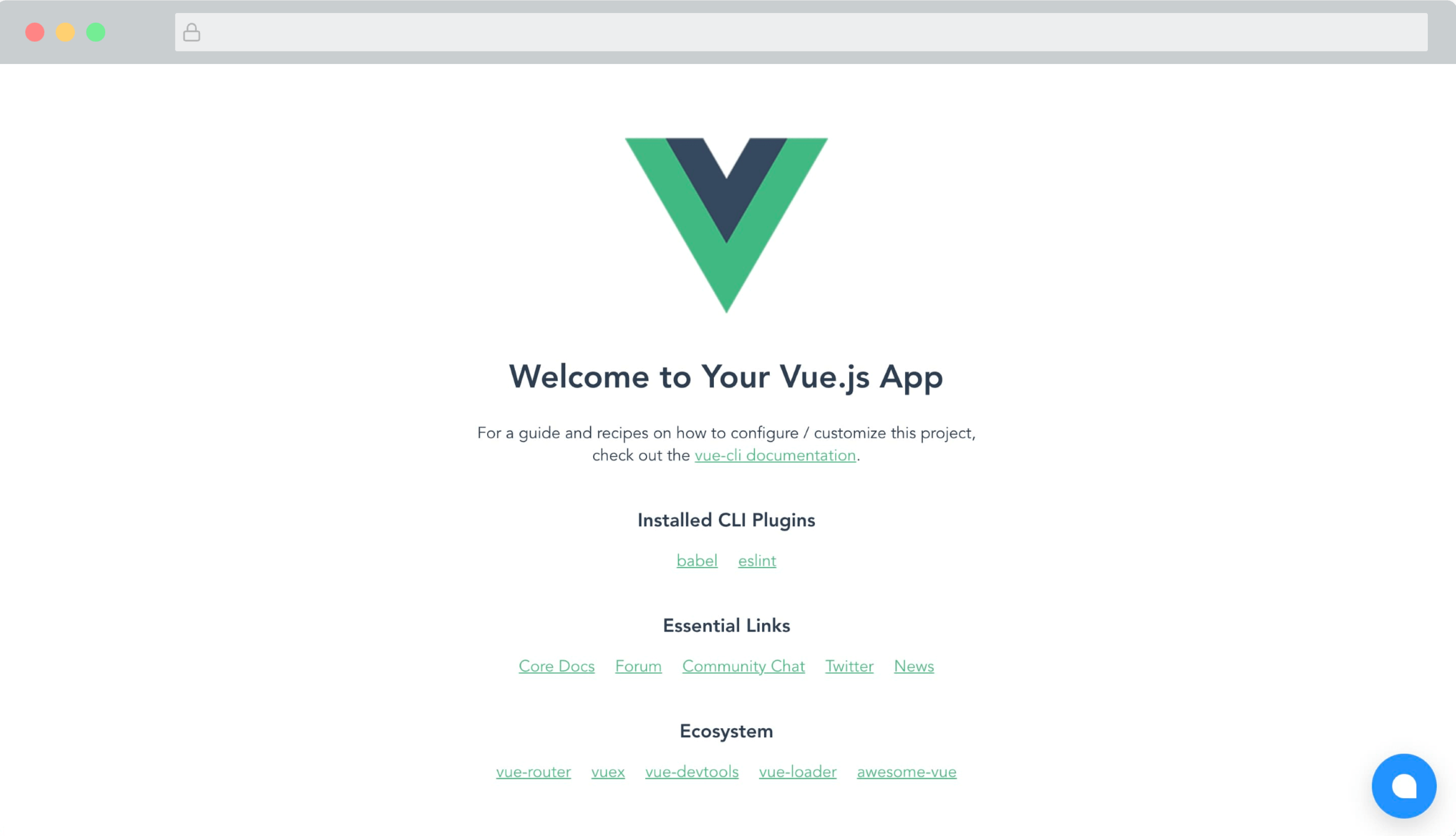
Run the app and the widget appears on the page. Community-maintained modules for Vue 3 and Nuxt 3 are also available if you prefer a packaged integration.
Common questions
Where do I find my website token and installation URL? Both are in the script under Settings → Inboxes → your website inbox → Configuration.
The widget doesn't appear after I install it. Confirm the token and base URL are correct, that the script loads on the page (check your browser console), and that you've published or redeployed your site so the change is live.
Can I customize the widget's behavior during installation?
Yes. Set a channelxSettings object before the SDK runs, or pass options through the relevant plugin's configuration. See SDK & User Tracking for the full list of options.