Segments
A segment is a saved contact filter. Whenever you build a useful filter, instead of recreating it every time, you can store it as a segment and pull it up with a single click from the sidebar. Segments are how you keep recurring groups of customers, trial users, enterprise accounts, contacts in a particular city, close at hand.
Creating a segment
- Open Contacts from the sidebar and click Filter.
- In the dialog, choose a filter field, an operator (equal to, not equal to, contains, does not contain), and a value. Join several conditions together if you need a more specific group.
- Click Submit to apply the filter.
- With the filtered list showing, click Save filter in the page header.
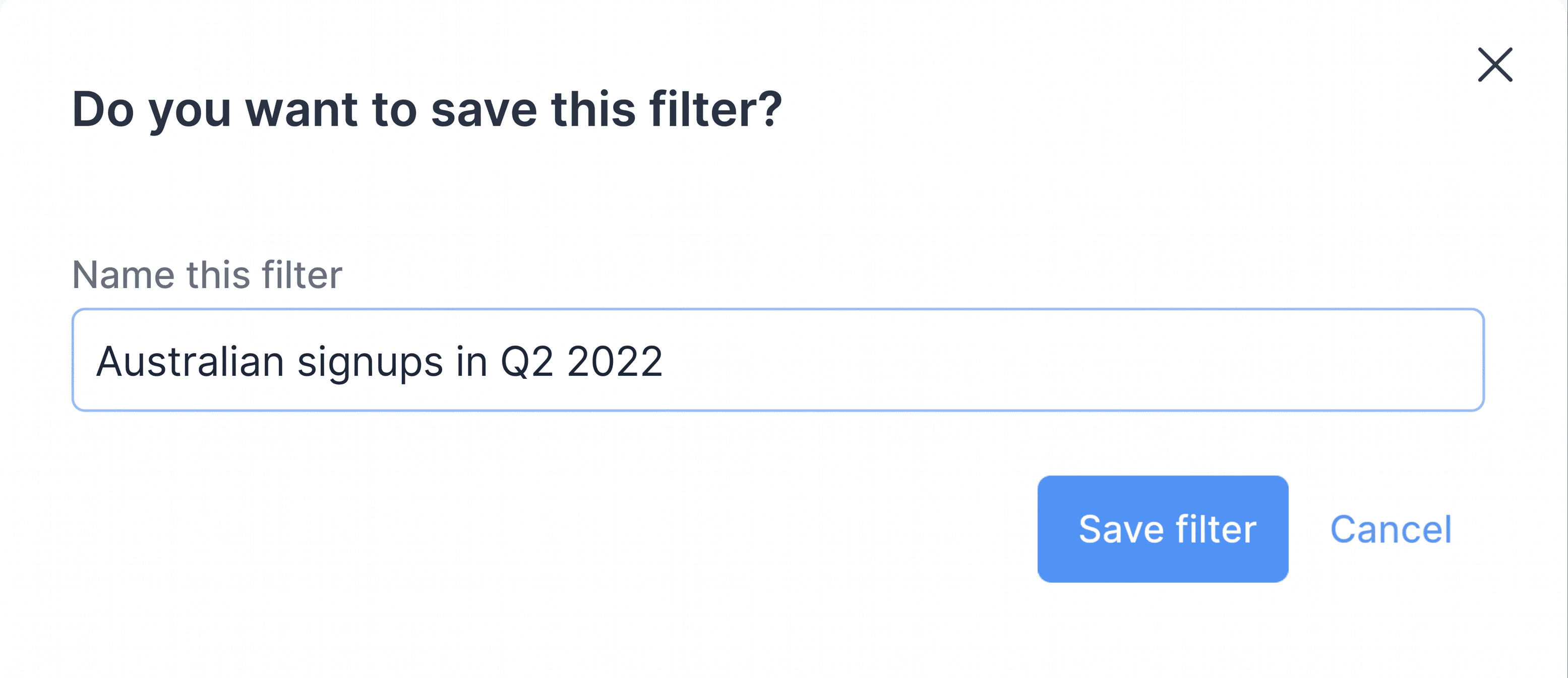 5. Give the segment a name and click Save filter again.
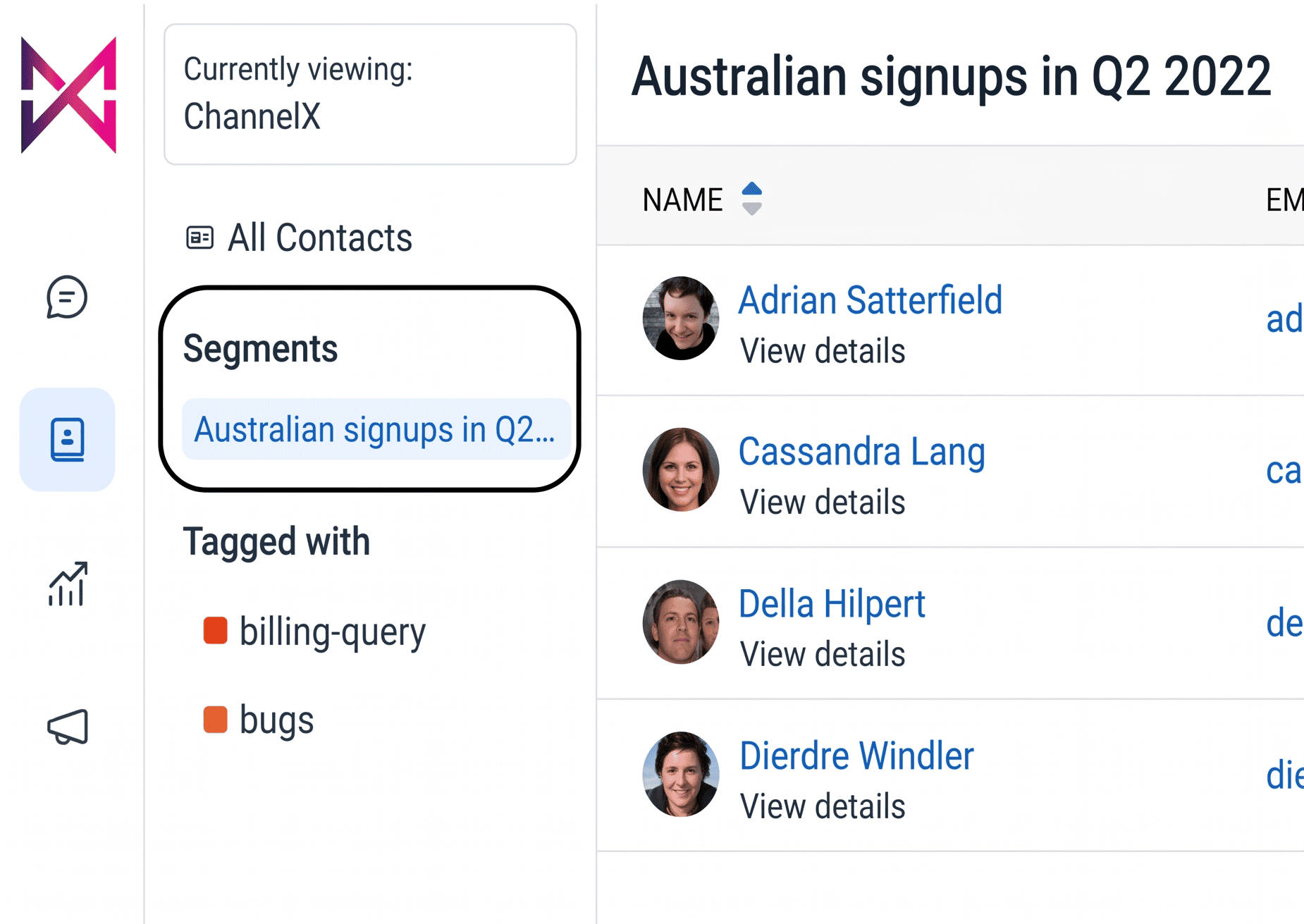
Your segment is now created and ready to reuse.
Tip
Name segments for the audience, not the criteria, "VIP customers" reads better at a glance than "plan = enterprise AND country = AU".
Viewing a saved segment
Saved segments appear in the secondary sidebar of the Contacts area. Click any segment to instantly load that group of contacts, no need to rebuild the filter.
Deleting a segment
When a segment is no longer useful:
- Open the segment from the sidebar.
- Choose Delete Filter from the header.
- Confirm the deletion.
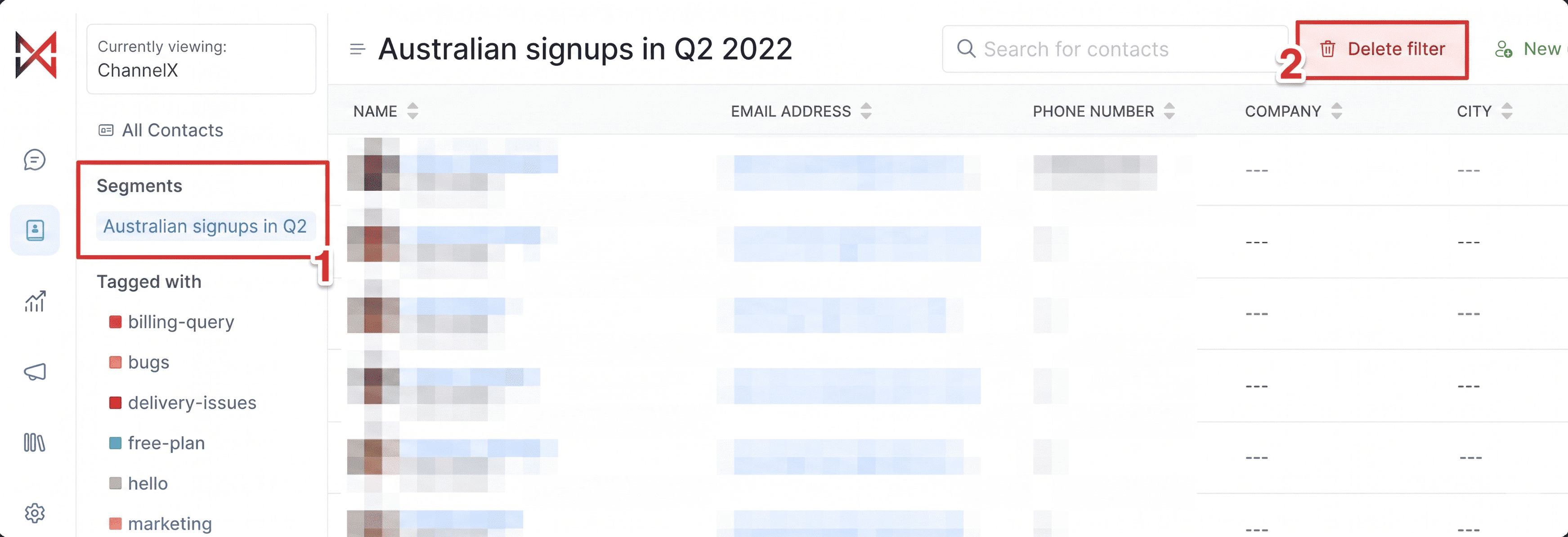
Deleting a segment only removes the saved filter. The contacts themselves are untouched.
Common questions
Do segments update automatically? Yes. A segment is a live filter, not a frozen snapshot. Each time you open it, ChannelX re-evaluates the conditions, so a contact who newly matches the criteria appears, and one who no longer qualifies drops out.
What's the difference between a segment and a label? A label is a tag you apply to a contact by hand. A segment is a rule that automatically gathers everyone matching its conditions, which can include labels among other fields.