Email
Turn a support mailbox into a ticketing inbox by creating an Email channel in ChannelX. Incoming mail becomes conversations, and replies your agents send go back out as email. This page covers the standard setup, the connection options (forwarding, IMAP, and SMTP), Gmail-specific notes, and how to connect a Microsoft mailbox with OAuth.
Handle mailbox credentials carefully
IMAP and SMTP setup involve storing mailbox credentials. Use app-specific passwords rather than your main account password wherever your provider supports them, and prefer OAuth (Microsoft) over password-based access when available.
Create an email inbox
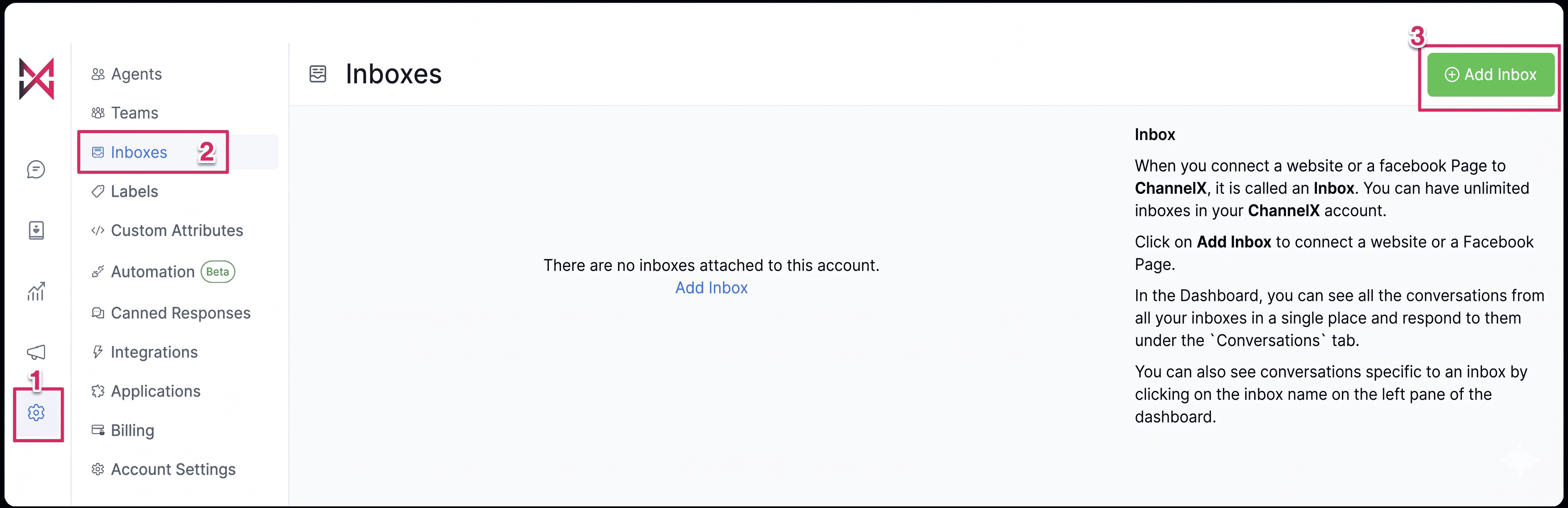
- Go to Settings → Inboxes → Add Inbox.
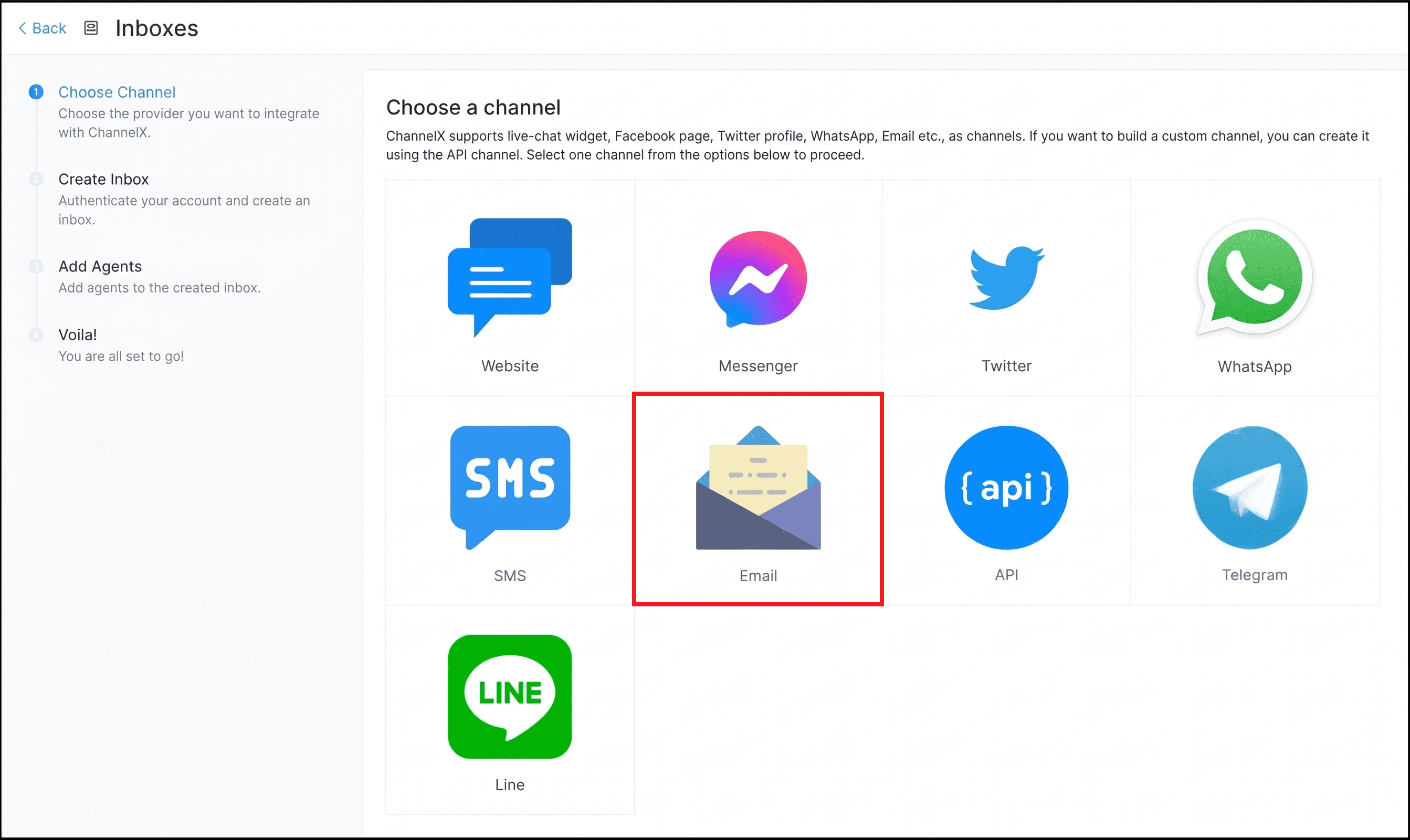
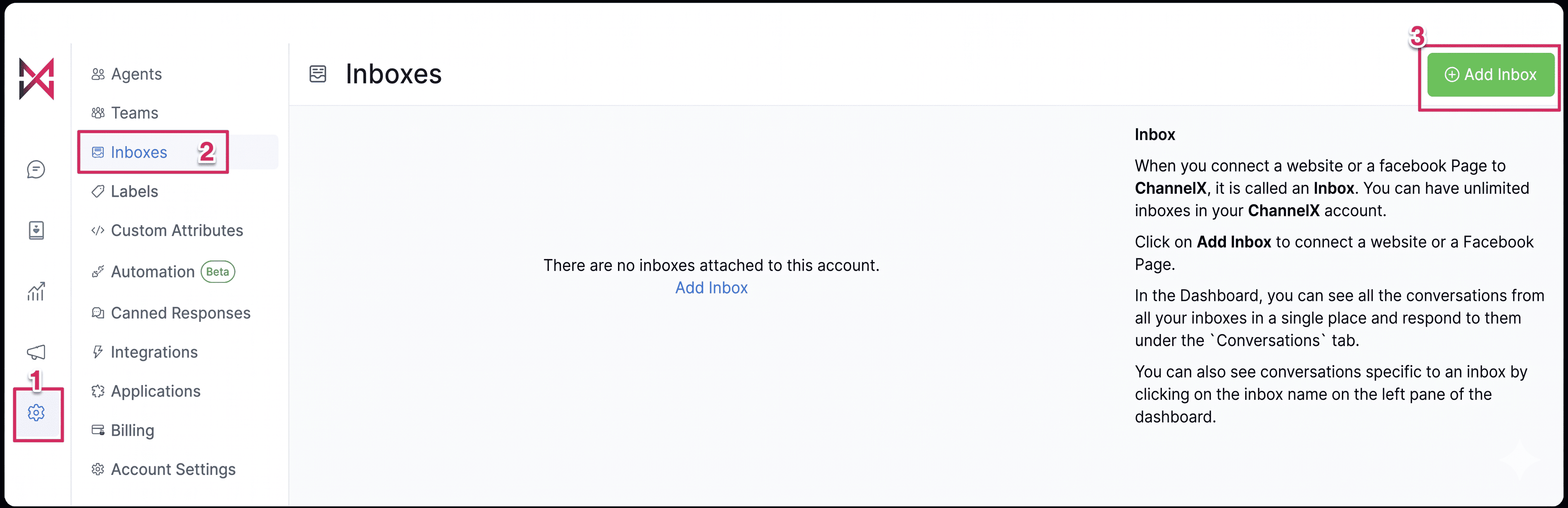 2. Click the Email icon.
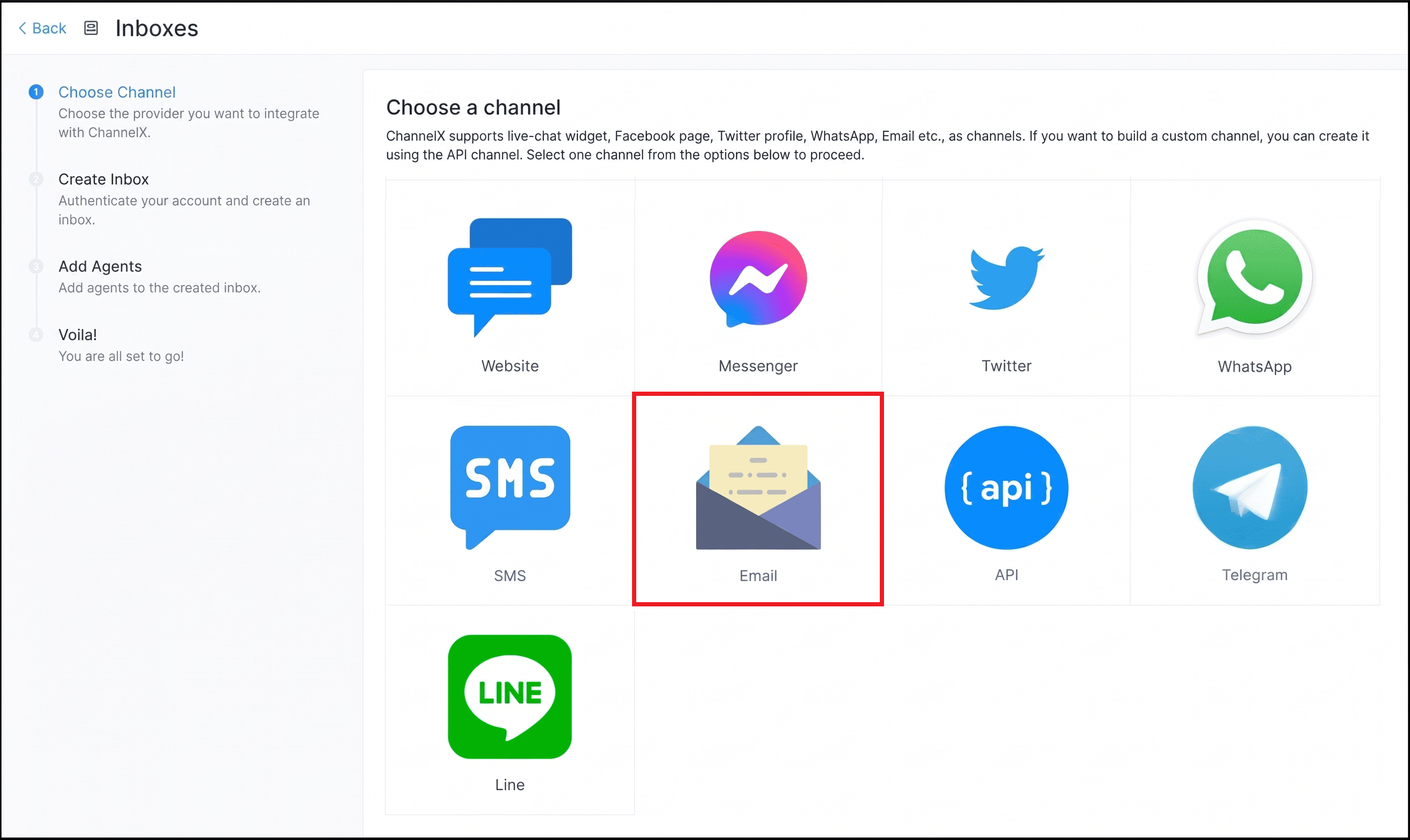 3. Enter a channel name (how you want to refer to this inbox) and your support email address, then click Create Email Channel.
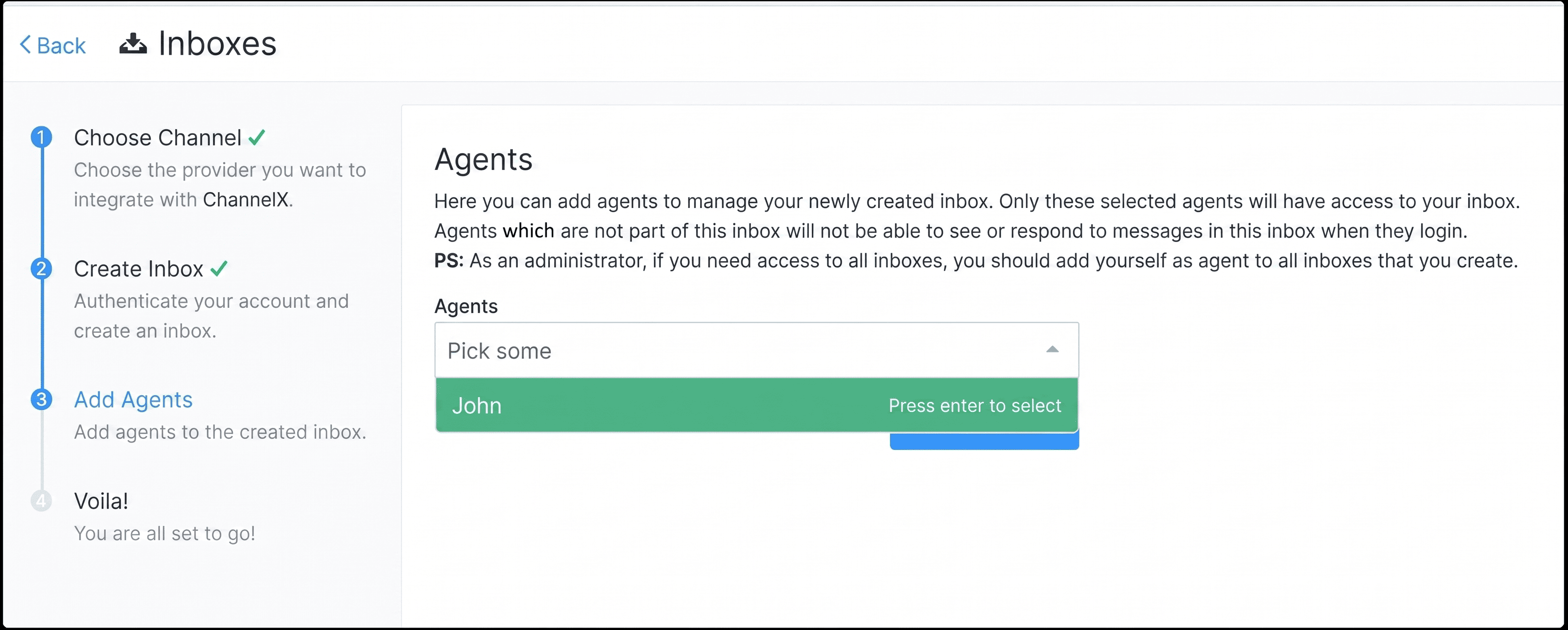
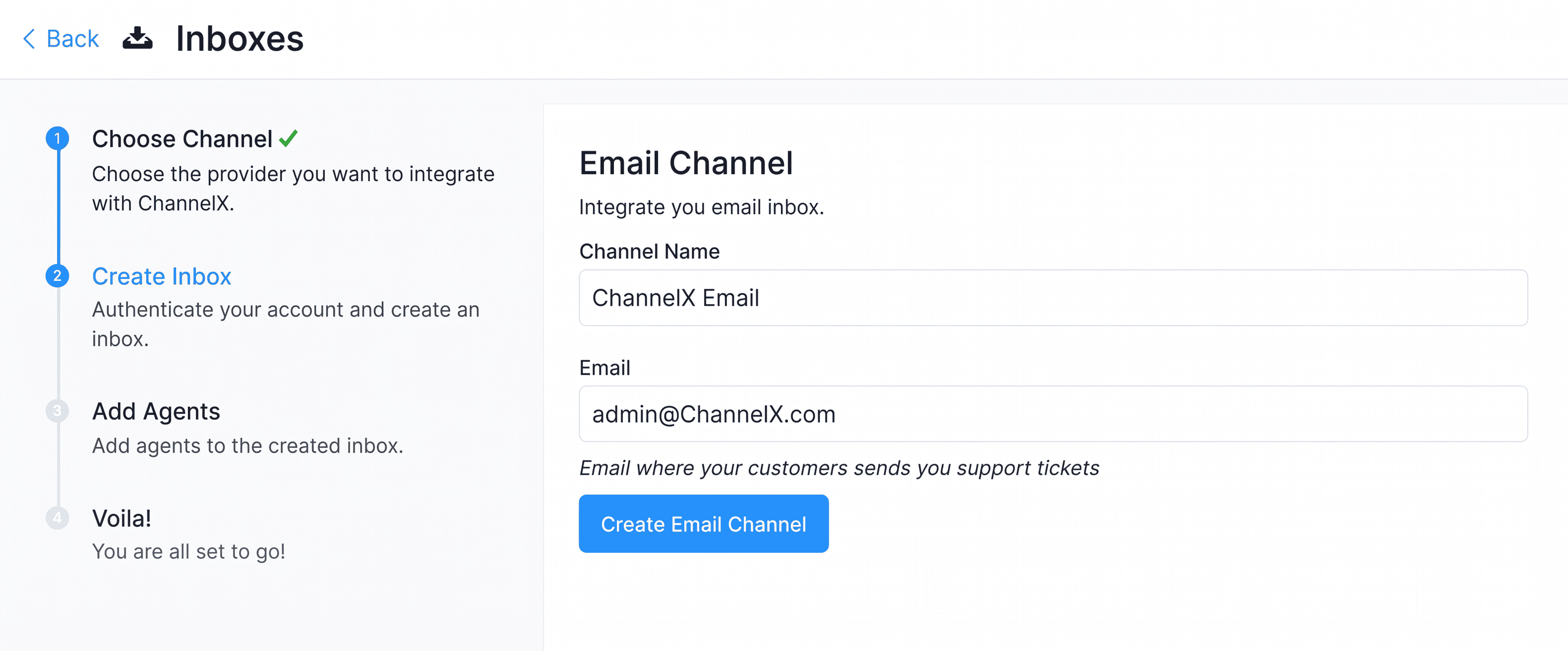 4. Add agents to the inbox.
Tip
If you use an Outlook or Microsoft mailbox, skip ahead to Connect a Microsoft mailbox and use the OAuth flow instead of entering IMAP/SMTP details manually.
Configure email delivery
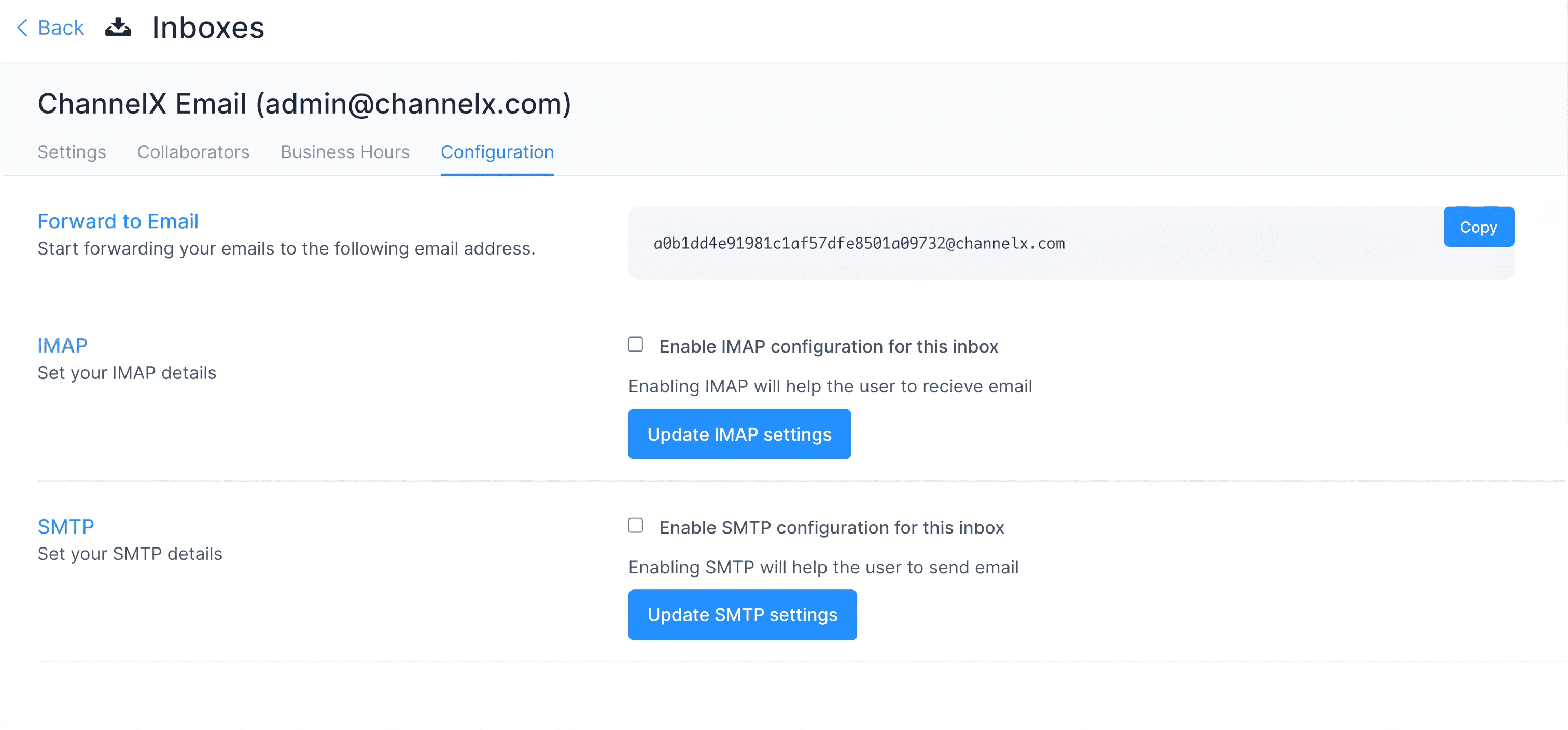
After creating the inbox, open Settings → Inboxes → Email Inbox settings → Configuration tab. You will see three options: Forward to Email, Configure IMAP, and Configure SMTP.
Forwarding
The simplest way to bring mail in is forwarding:
- Copy the Forward to email address from the Configuration tab.
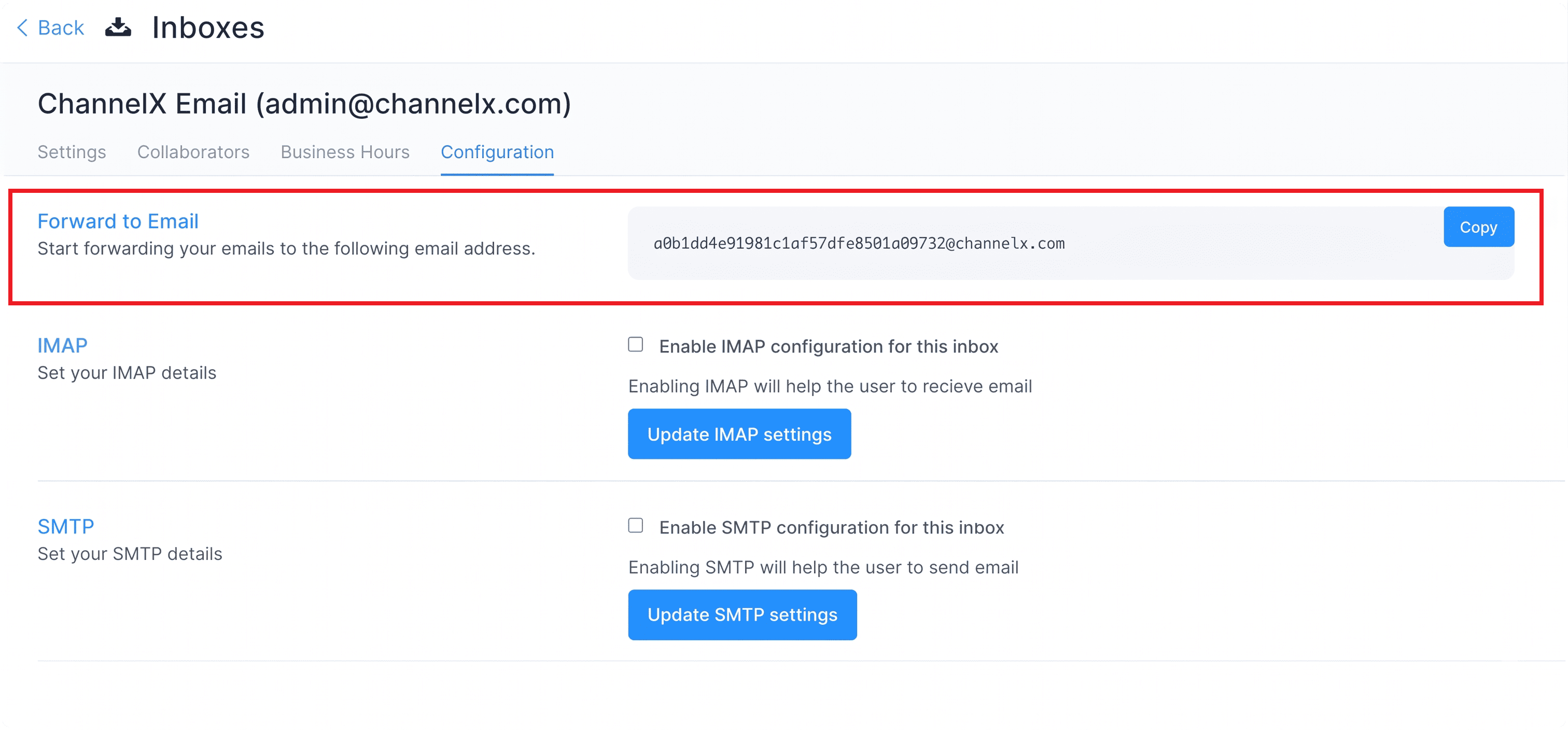 2. In your mail provider, set that address as a forwarding address.
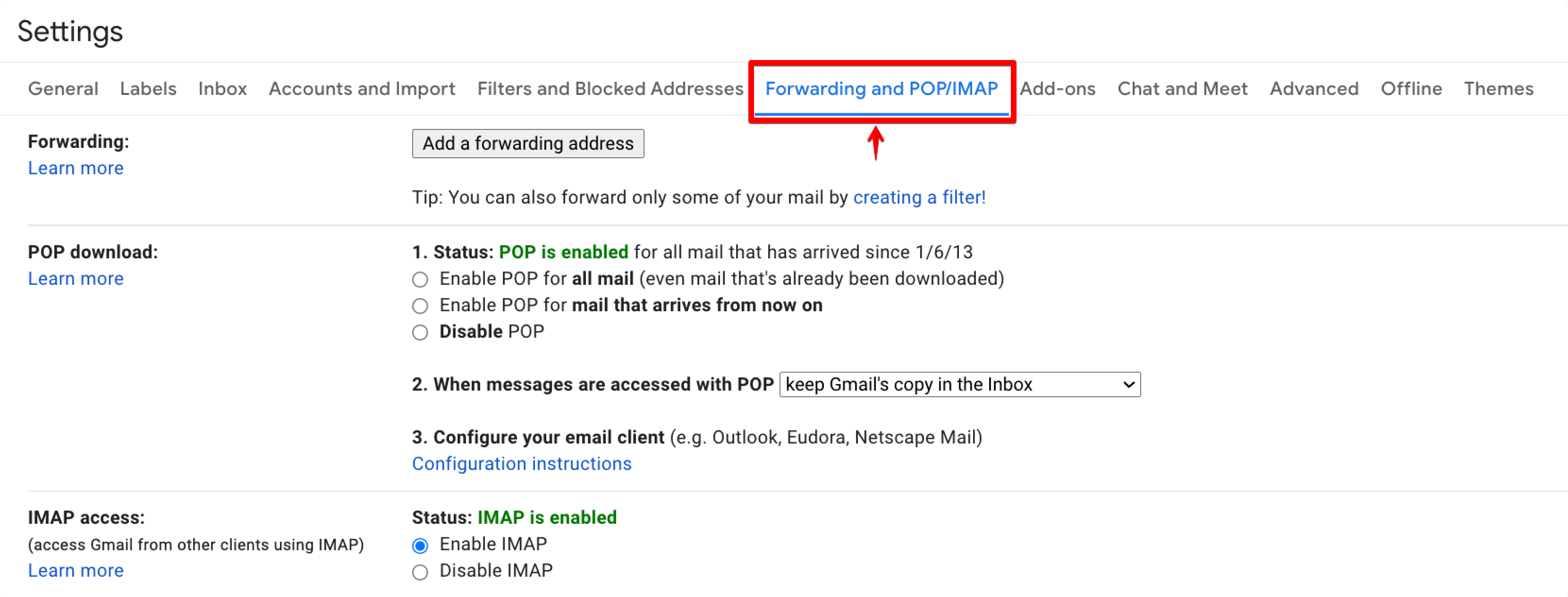 3. Send a test message and confirm it appears in the ChannelX inbox.
IMAP (receiving)
IMAP lets ChannelX fetch mail directly from your mailbox.
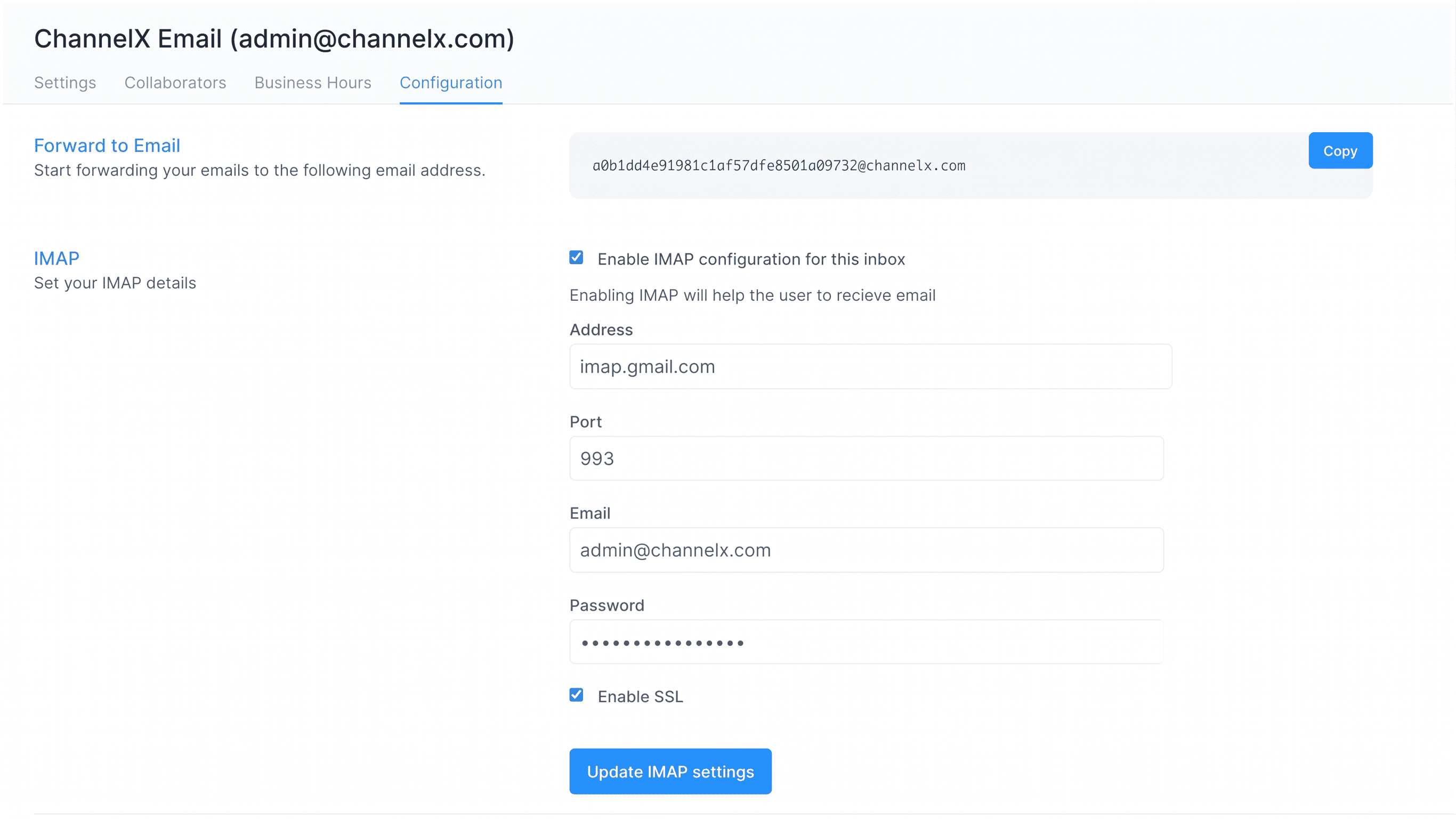
- On the Configuration tab, tick Enable IMAP configuration for this inbox.
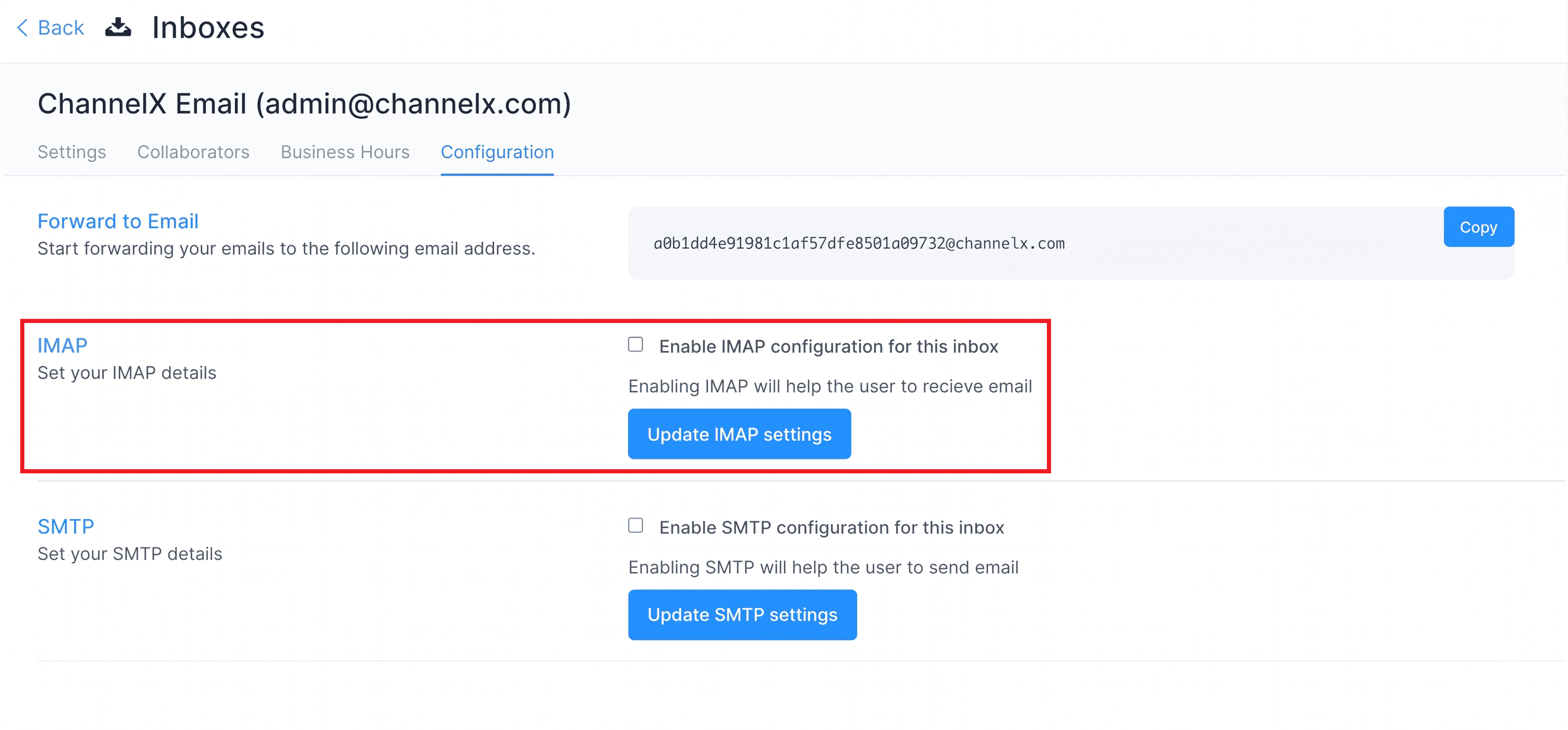 2. Fill in the Address, Port, Email, and Password.
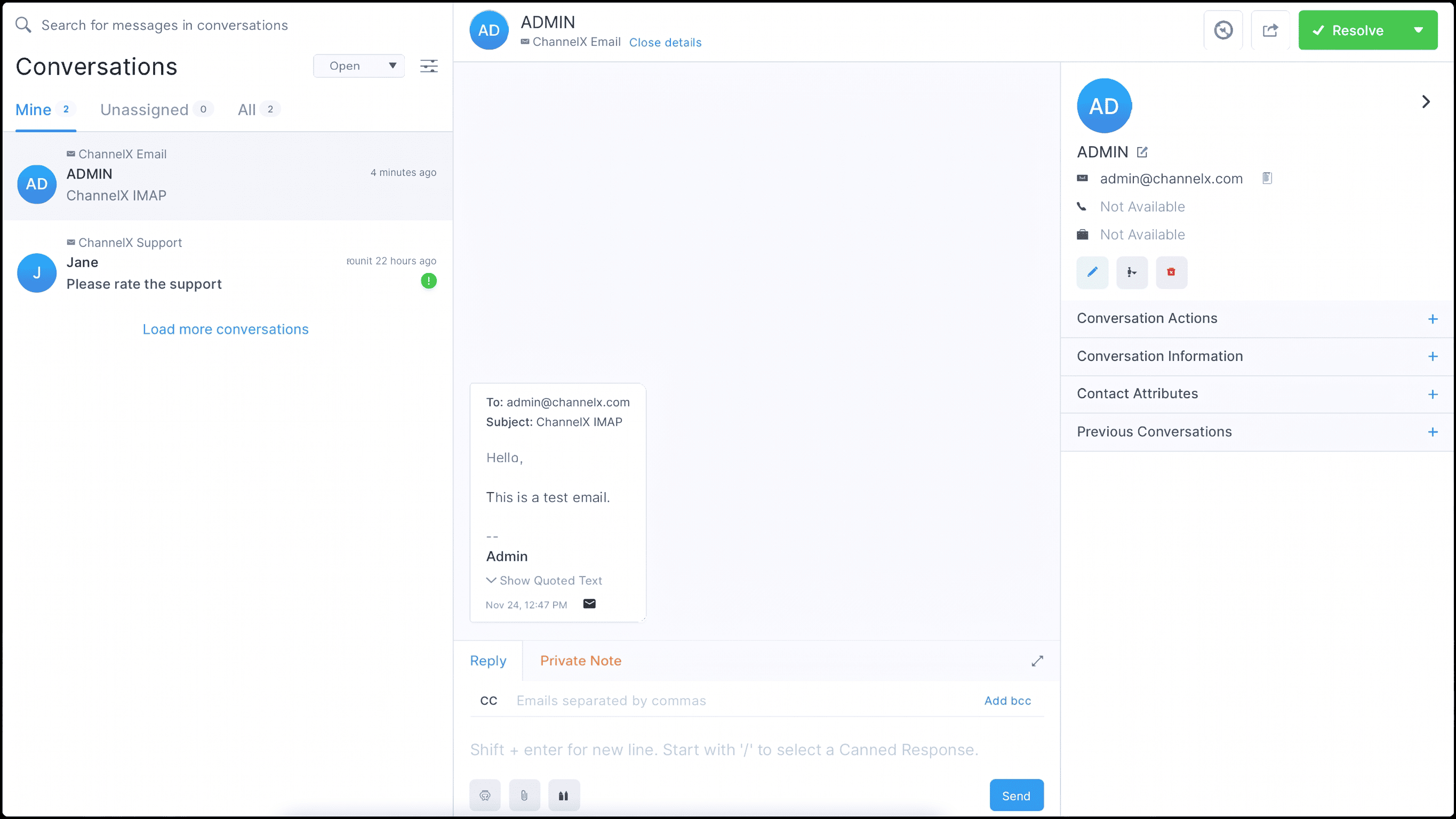
 3. Send a test email to the mailbox and confirm the conversation appears in ChannelX.
SMTP (sending)
SMTP lets ChannelX send replies through your mailbox.
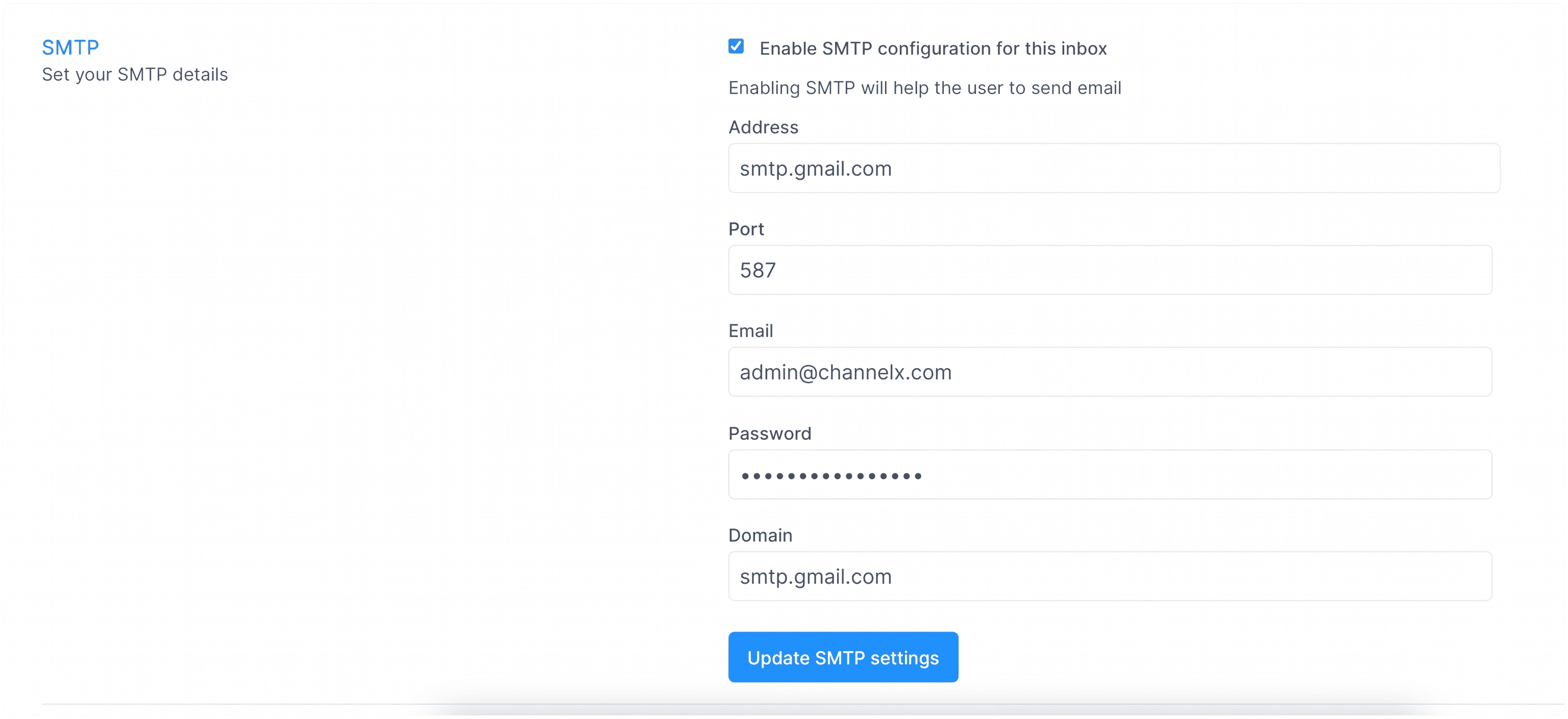
 1. On the Configuration tab, tick Enable SMTP configuration for this inbox.
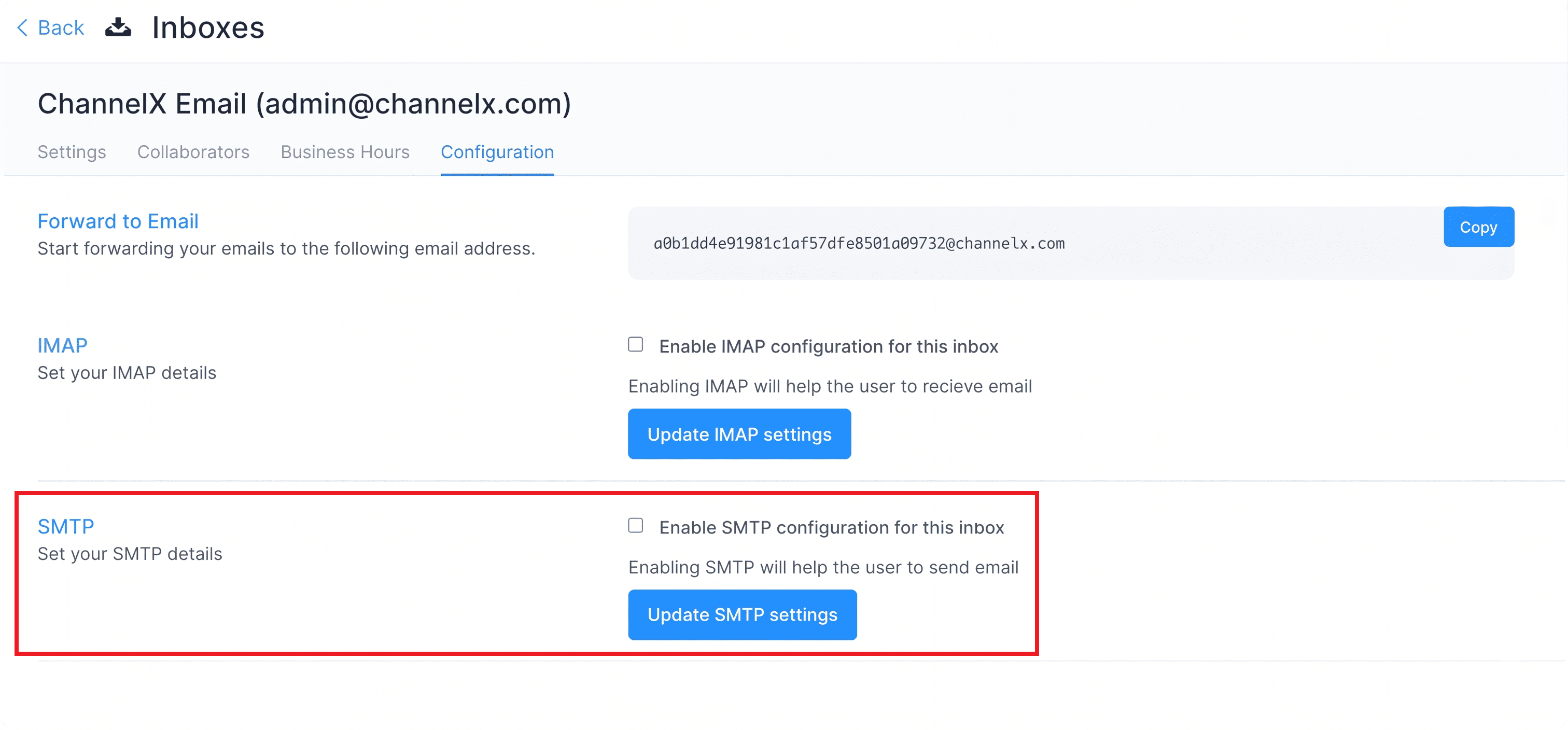 2. Fill in the Address, Port, Email, Password, and Domain, then click Update SMTP settings.
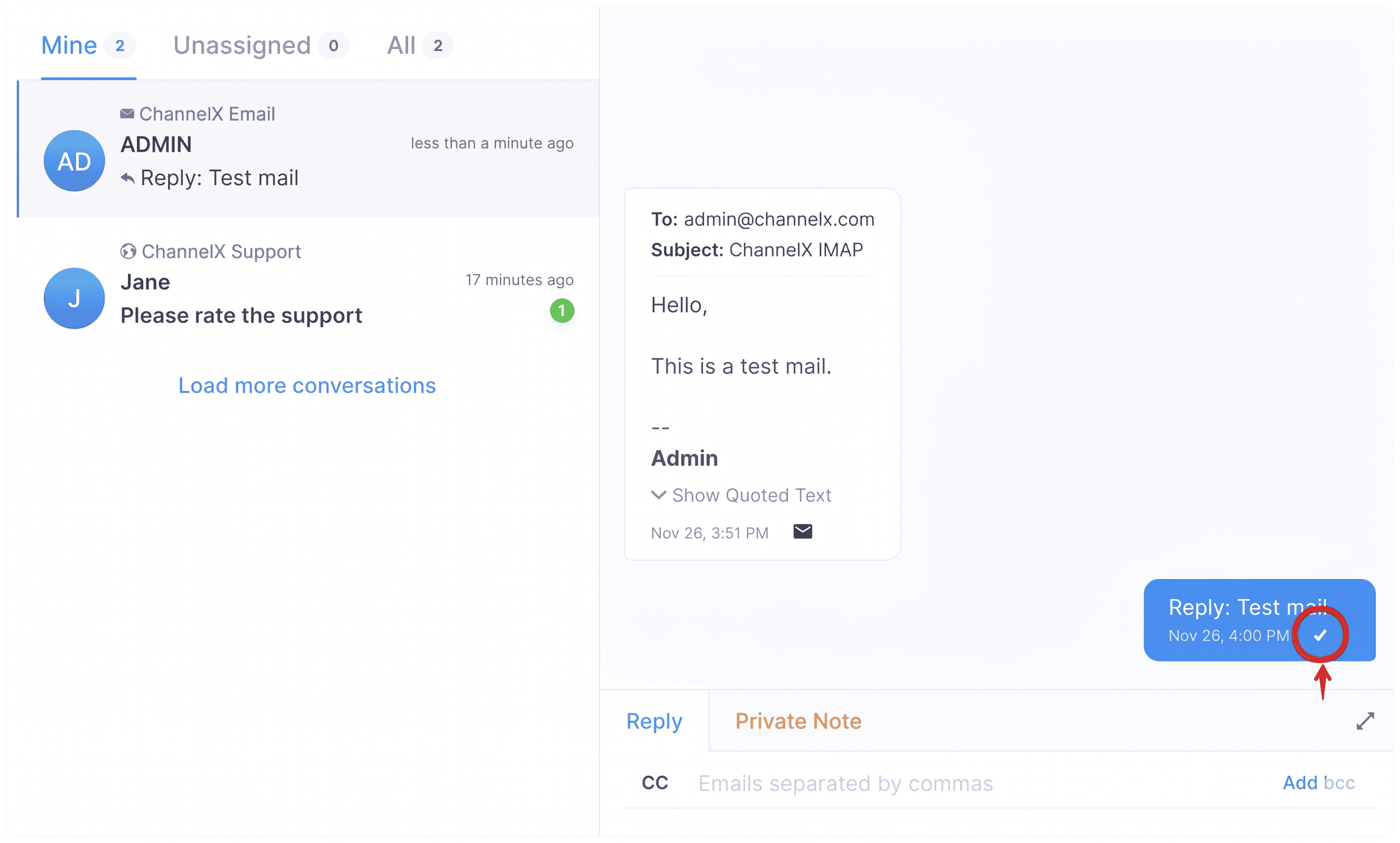
 3. Open an existing email conversation, send a reply, and confirm it was delivered.
Settings for Gmail users
Enable IMAP in Gmail
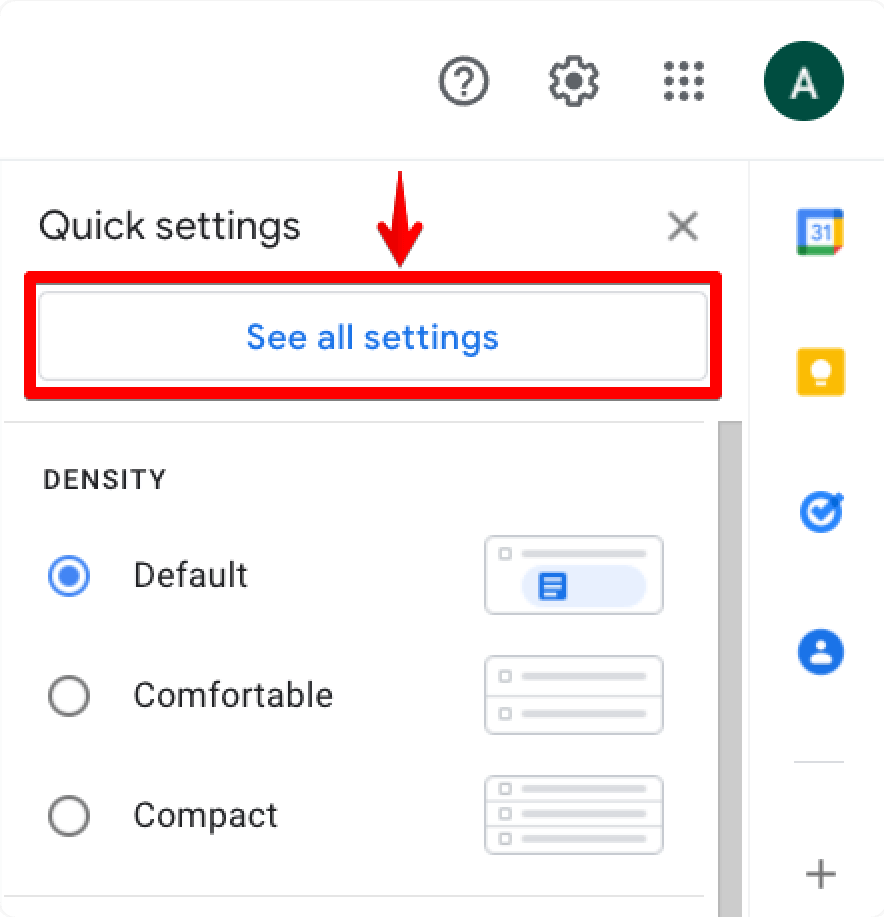
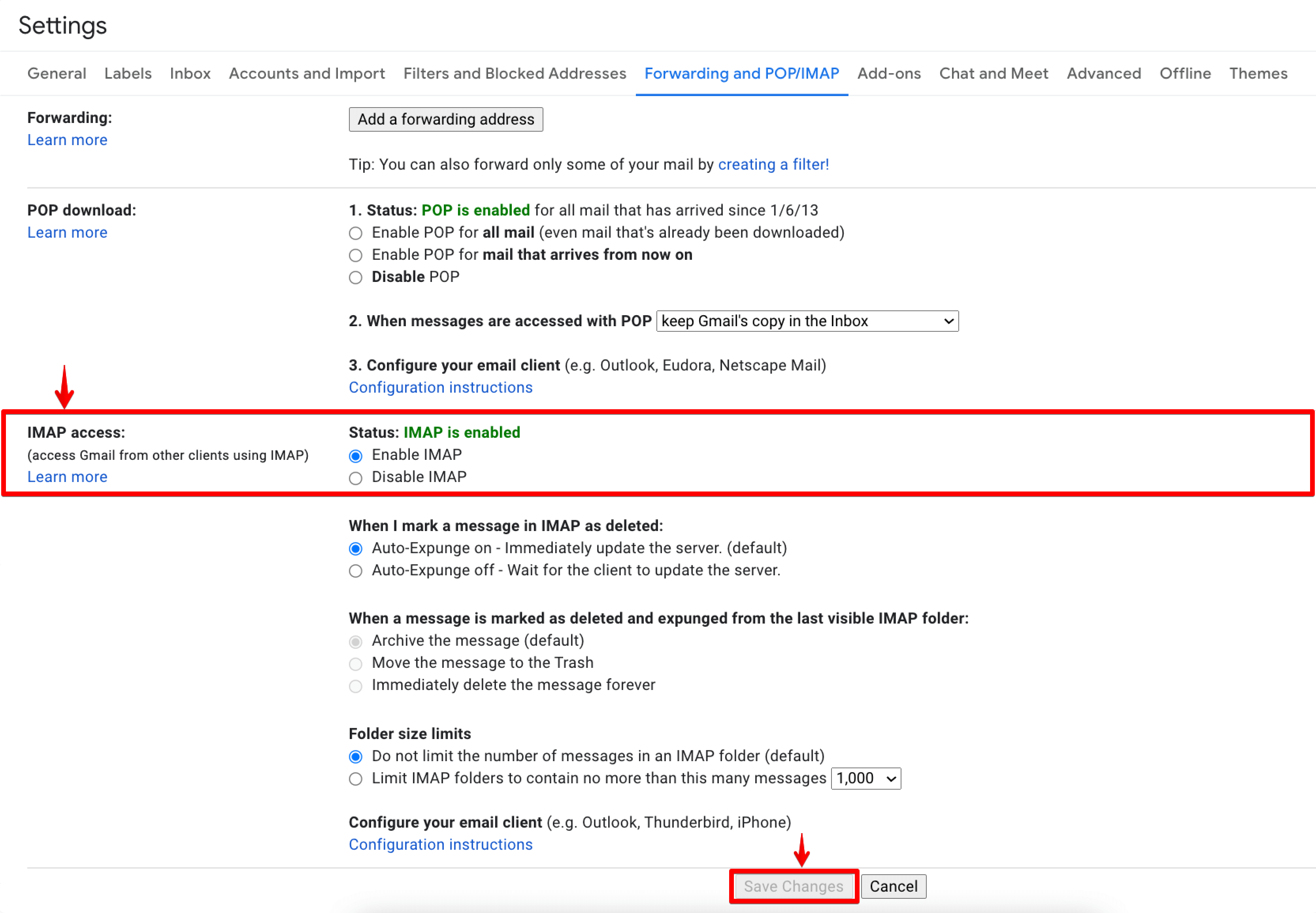
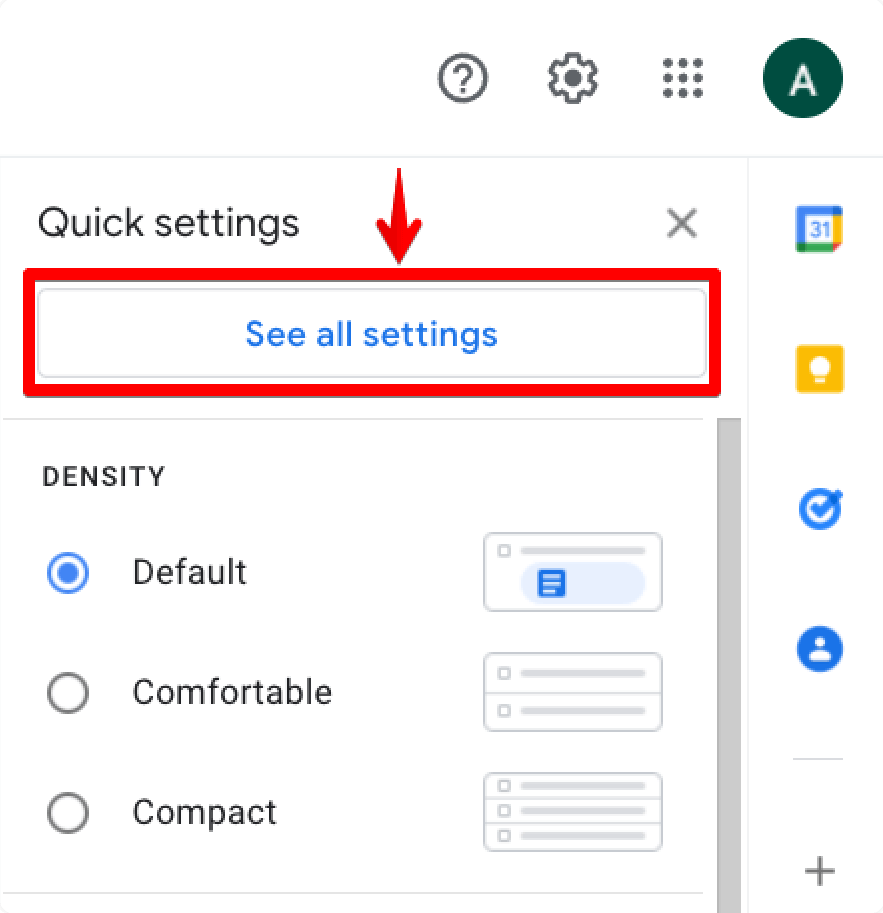
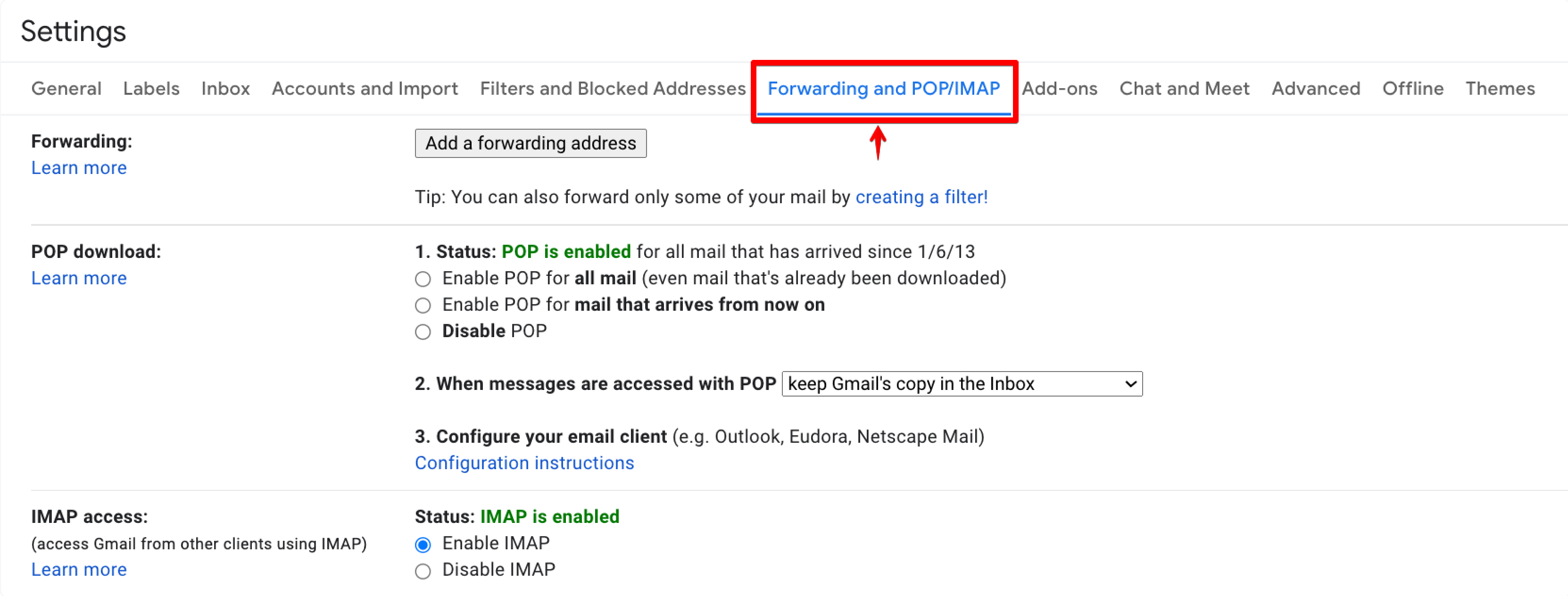
In Gmail, open Settings → See all settings → Forwarding and POP/IMAP, choose Enable IMAP, and save.
Authentication
How you authenticate depends on your account:
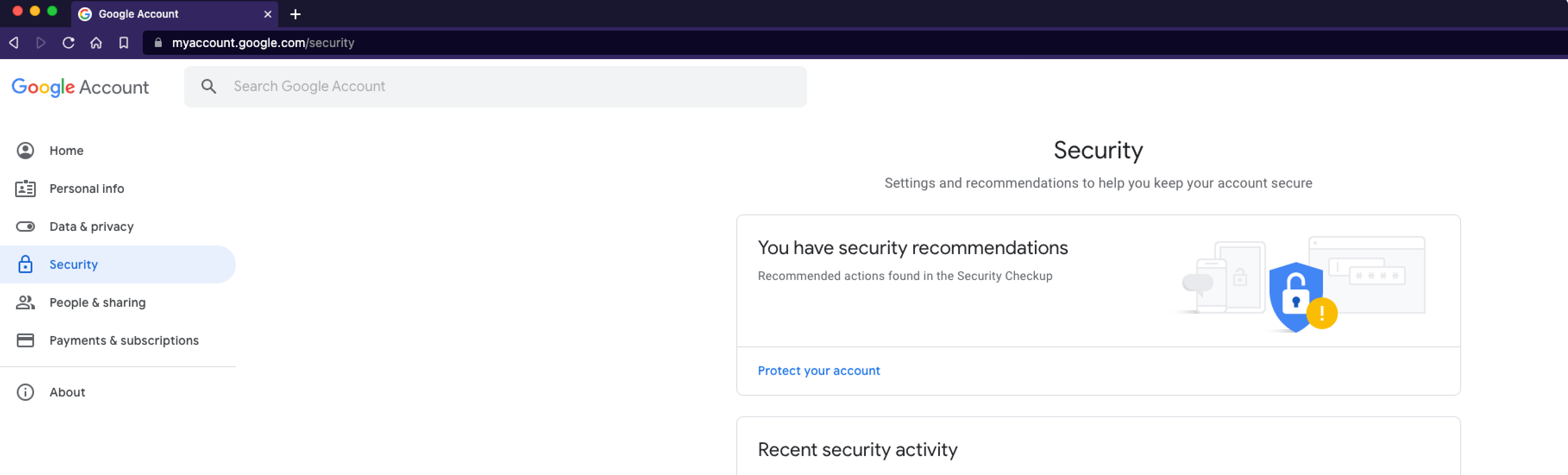
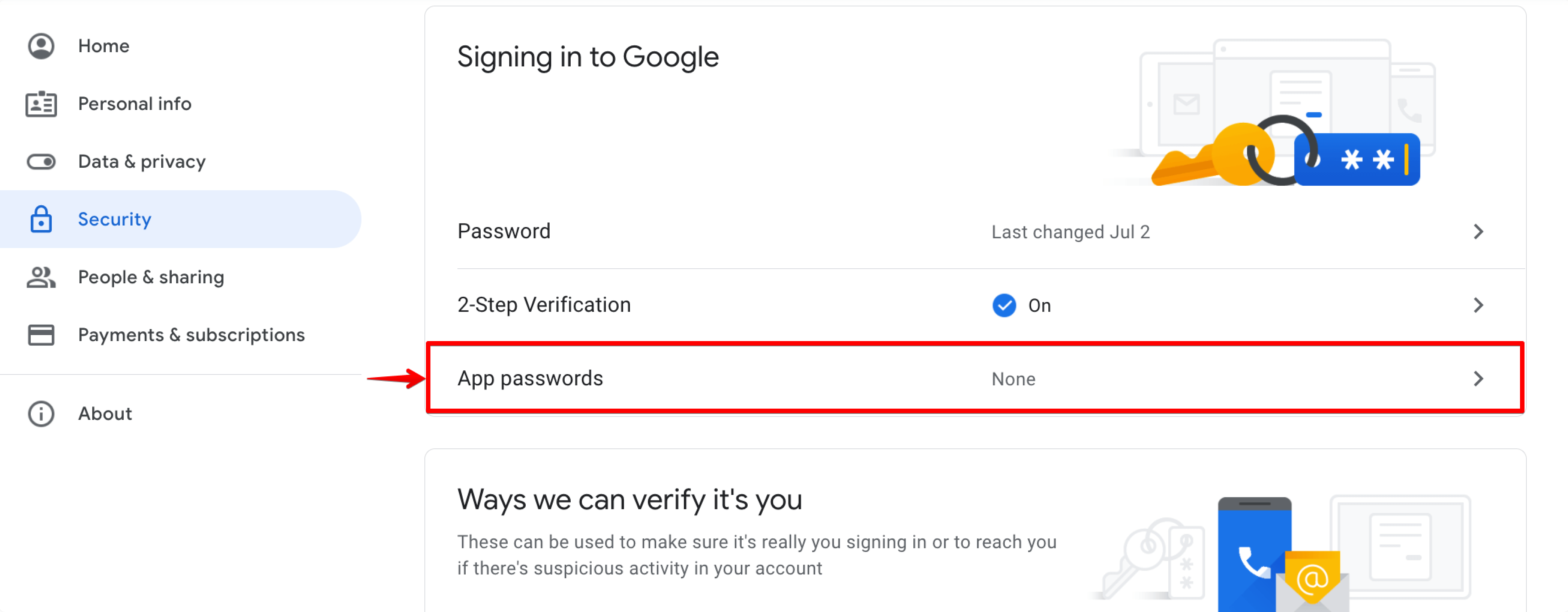
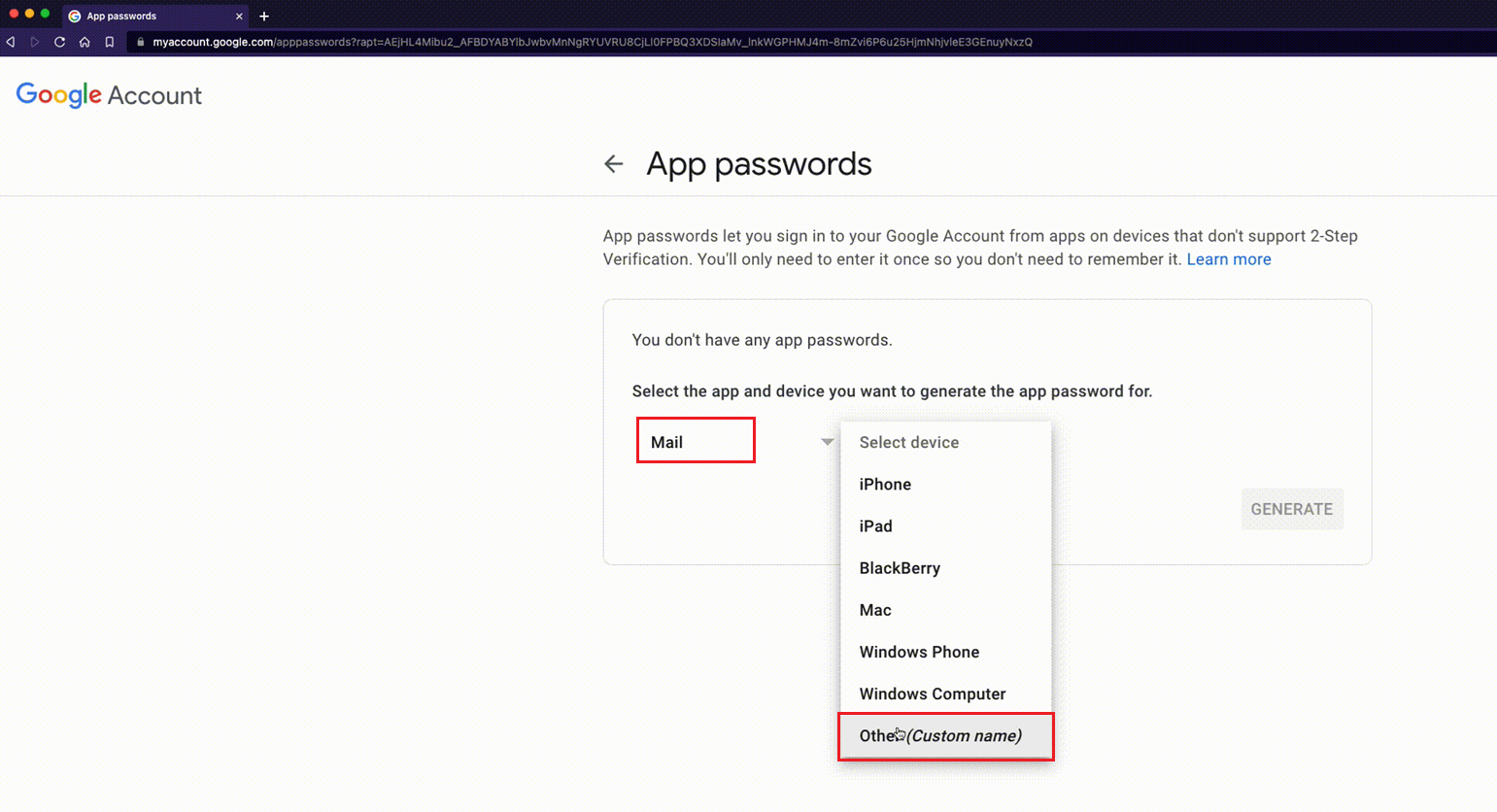
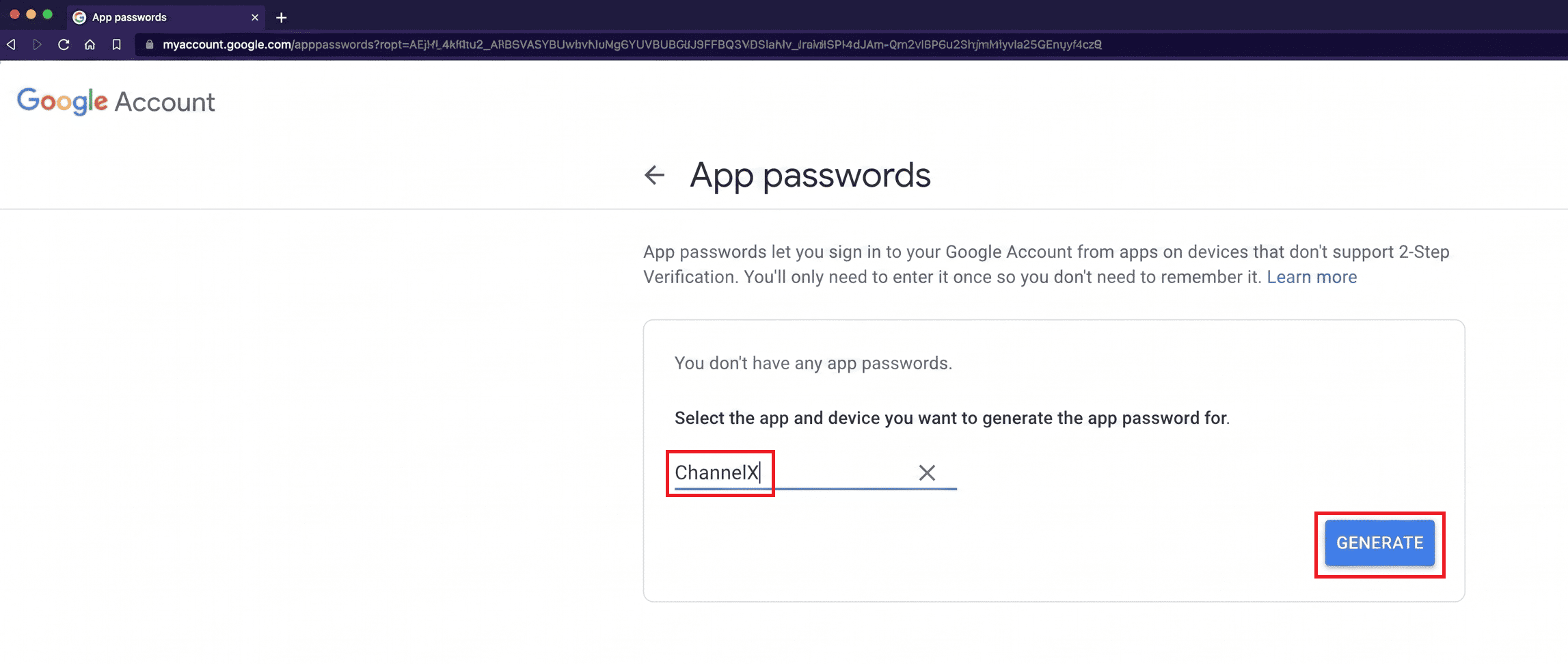
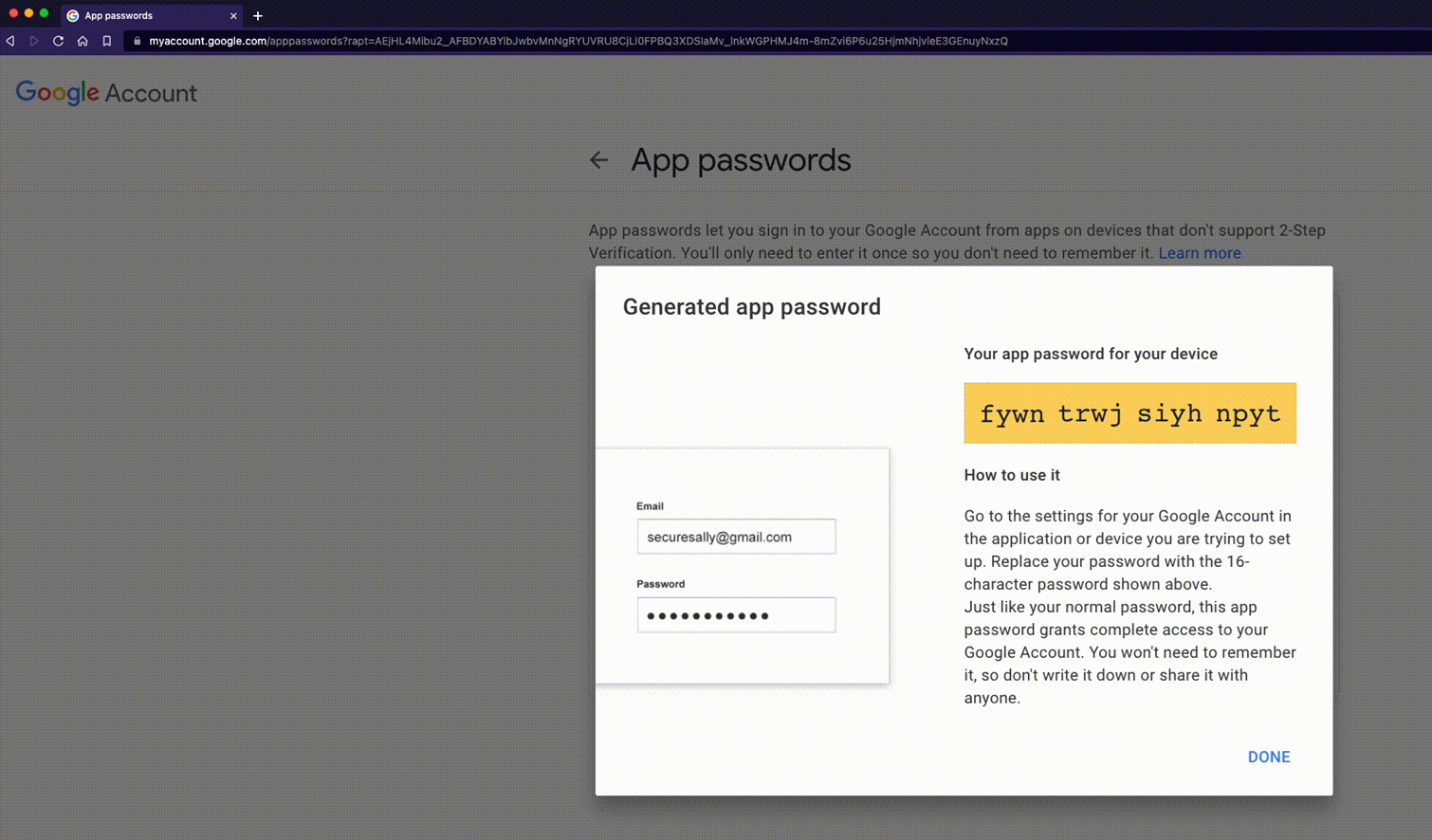
- 2-step verification enabled (or an organization-managed account) — Generate an app password. Go to your Google Account security settings, open App passwords, select the Mail app and a device, generate the password, and use it in the ChannelX IMAP/SMTP fields.
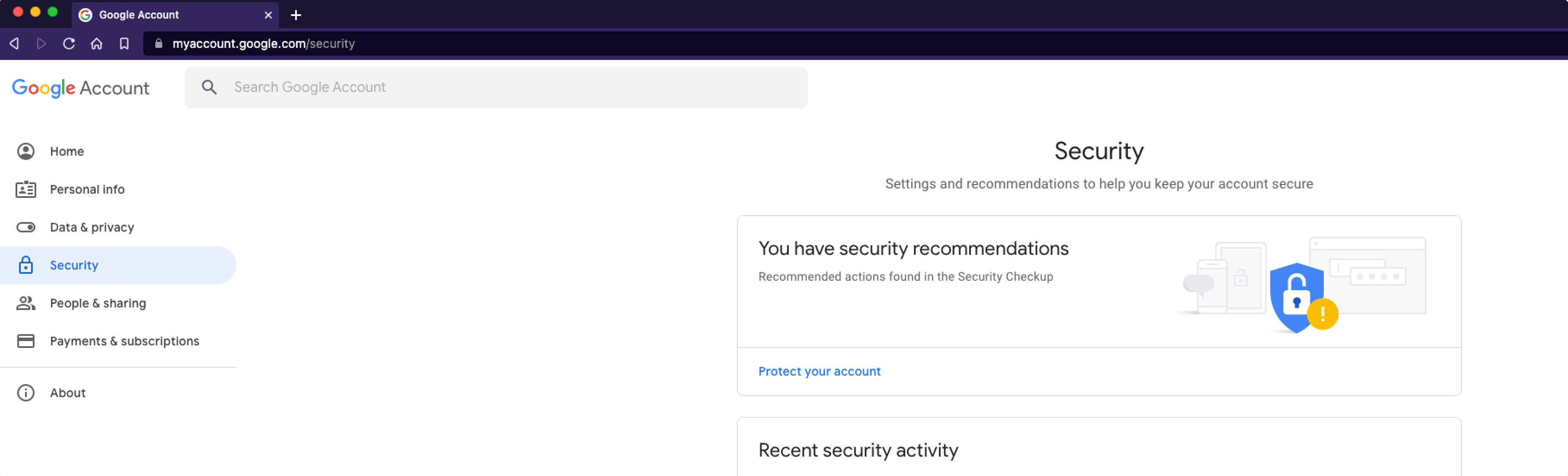
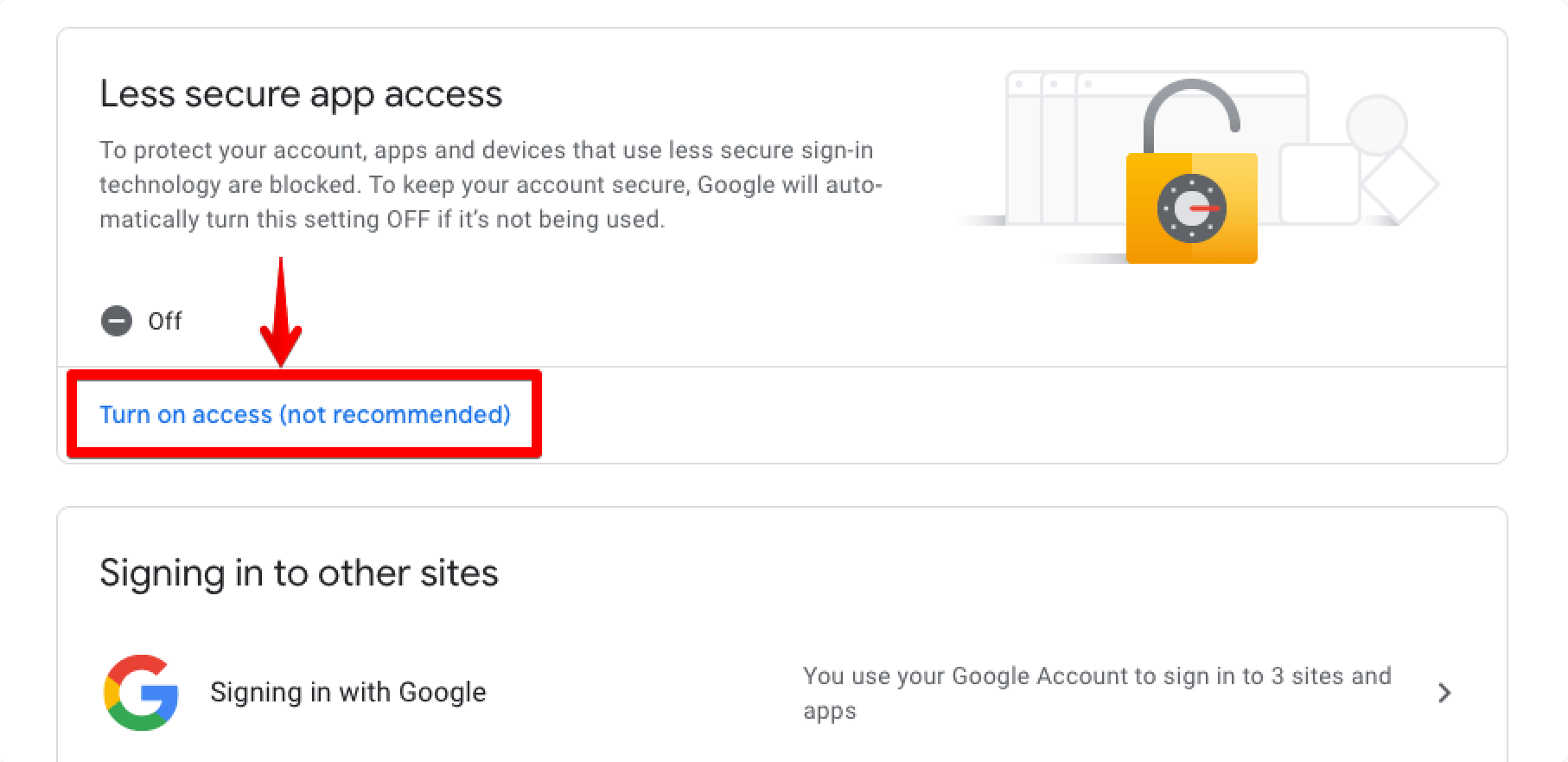
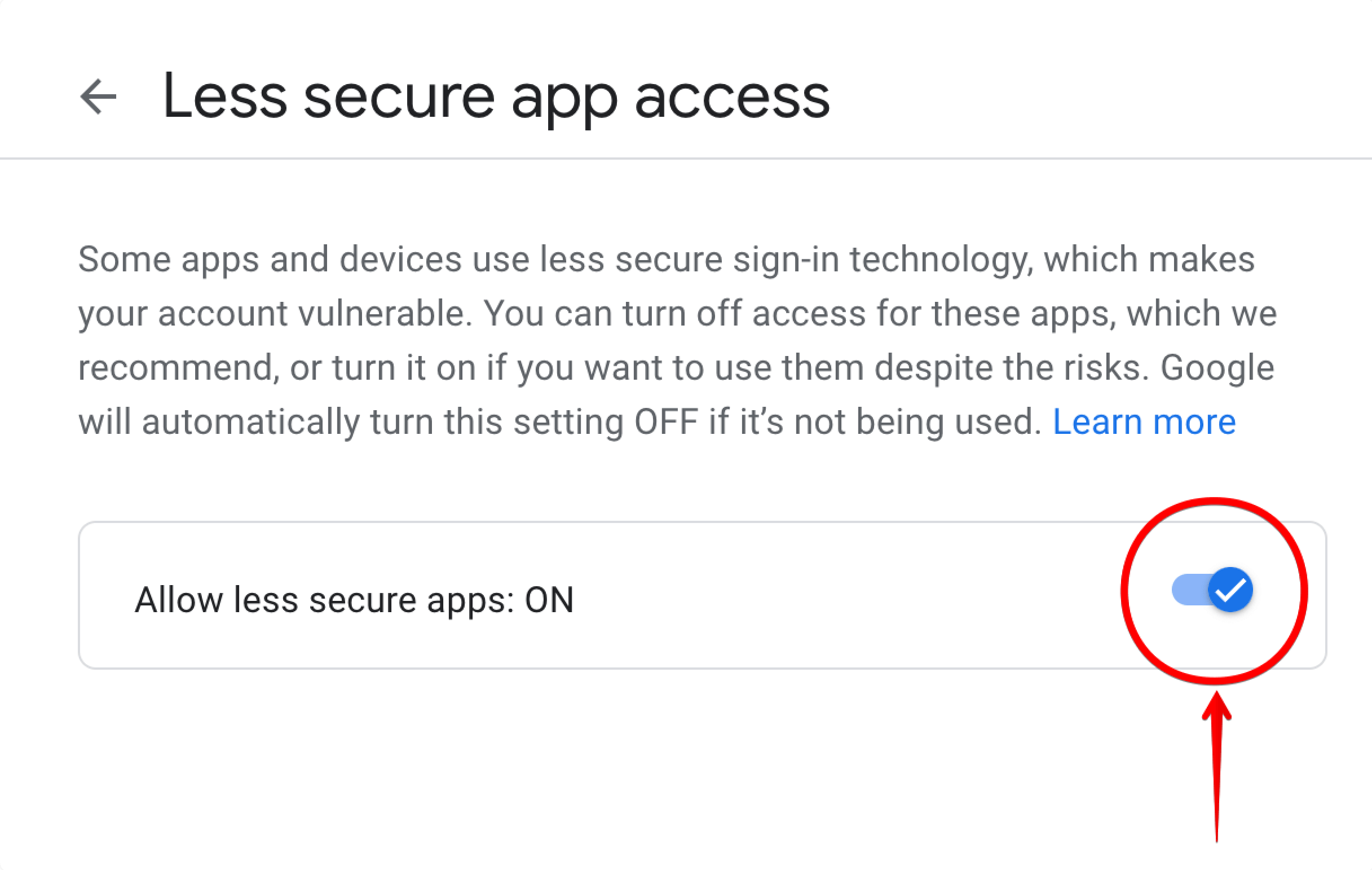
- Regular account without 2-step verification — You may need to allow less secure app access from your Google Account security settings before a plain password will work.
Tip
App passwords are the more secure and reliable choice. Where your account supports 2-step verification, prefer an app password over enabling less secure access.
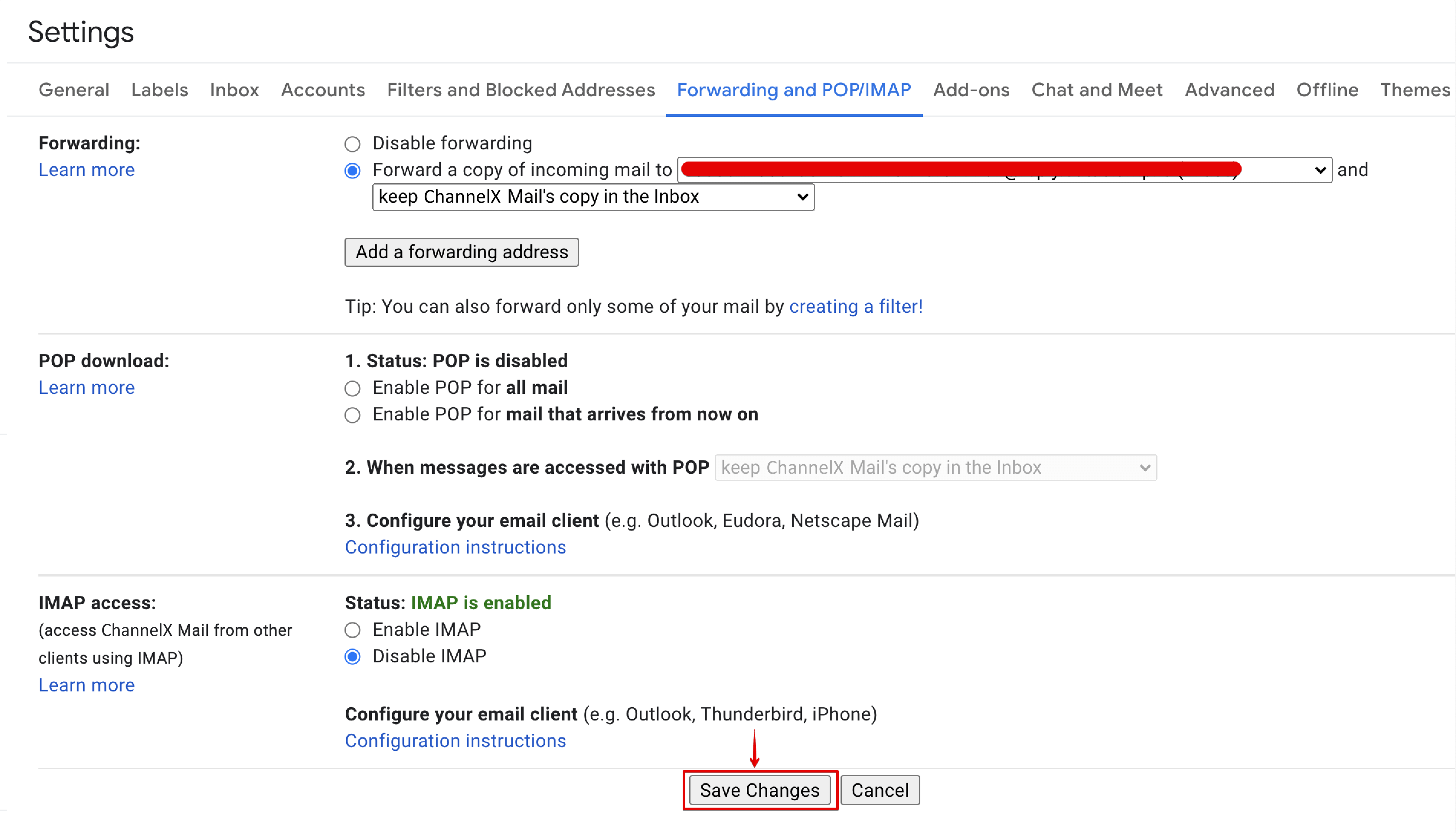
Add a forwarding address in Gmail
- Open Settings → See all settings → Forwarding and POP/IMAP.
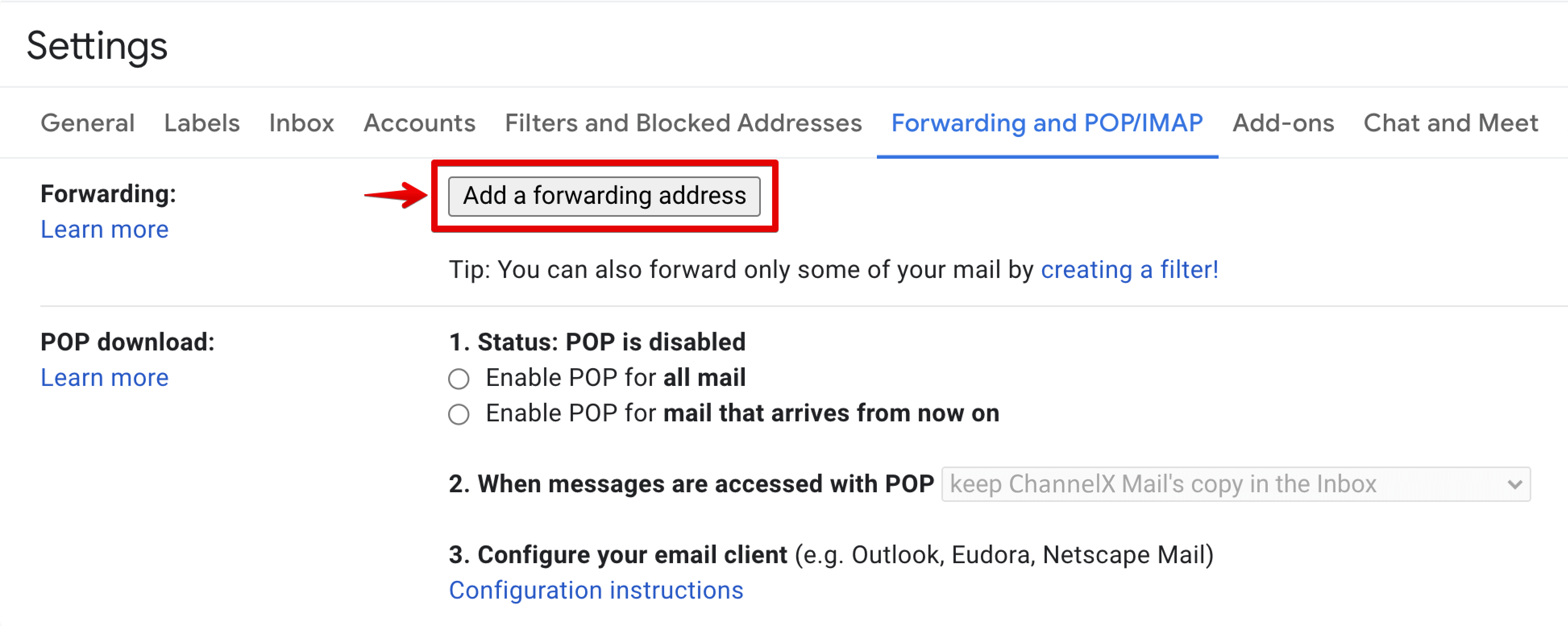
 2. Click Add a forwarding address, enter the ChannelX forwarding address, and click Next, then confirm.
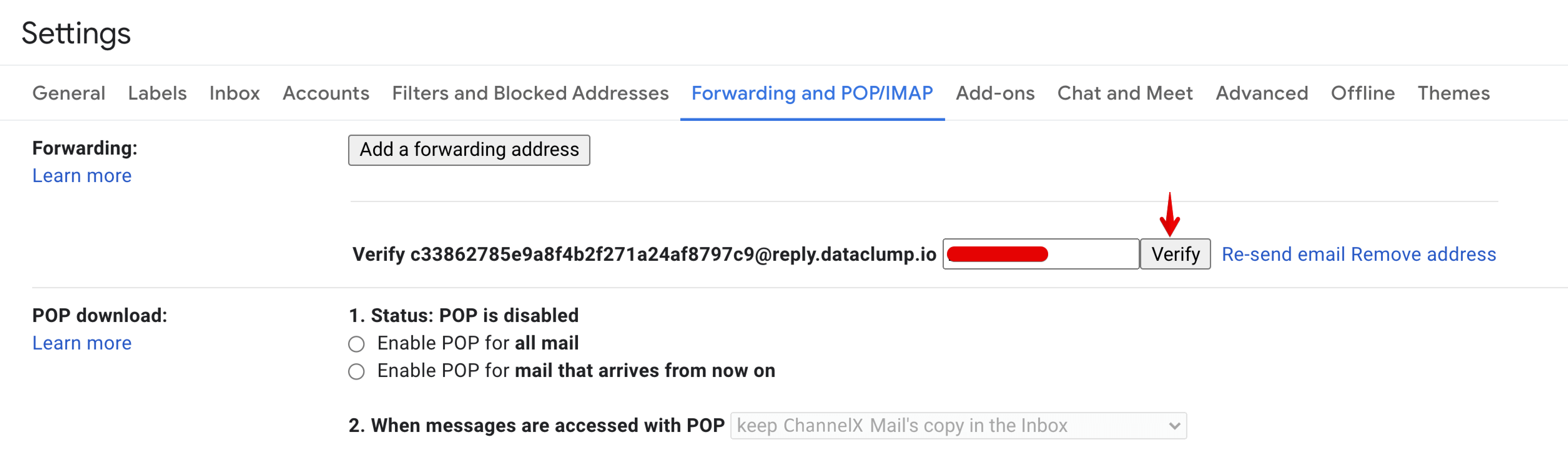
 3. ChannelX sends a verification code to that address. Copy the code from the ChannelX email inbox, paste it into Gmail, and click Verify.
 4. Select Forward a copy of incoming mail, choose what Gmail should do with the original, and save.
Connect a Microsoft mailbox
For Outlook or Microsoft accounts, use OAuth instead of manual IMAP/SMTP:
- Go to Settings → Inboxes → Add Inbox and click the Email icon.
-
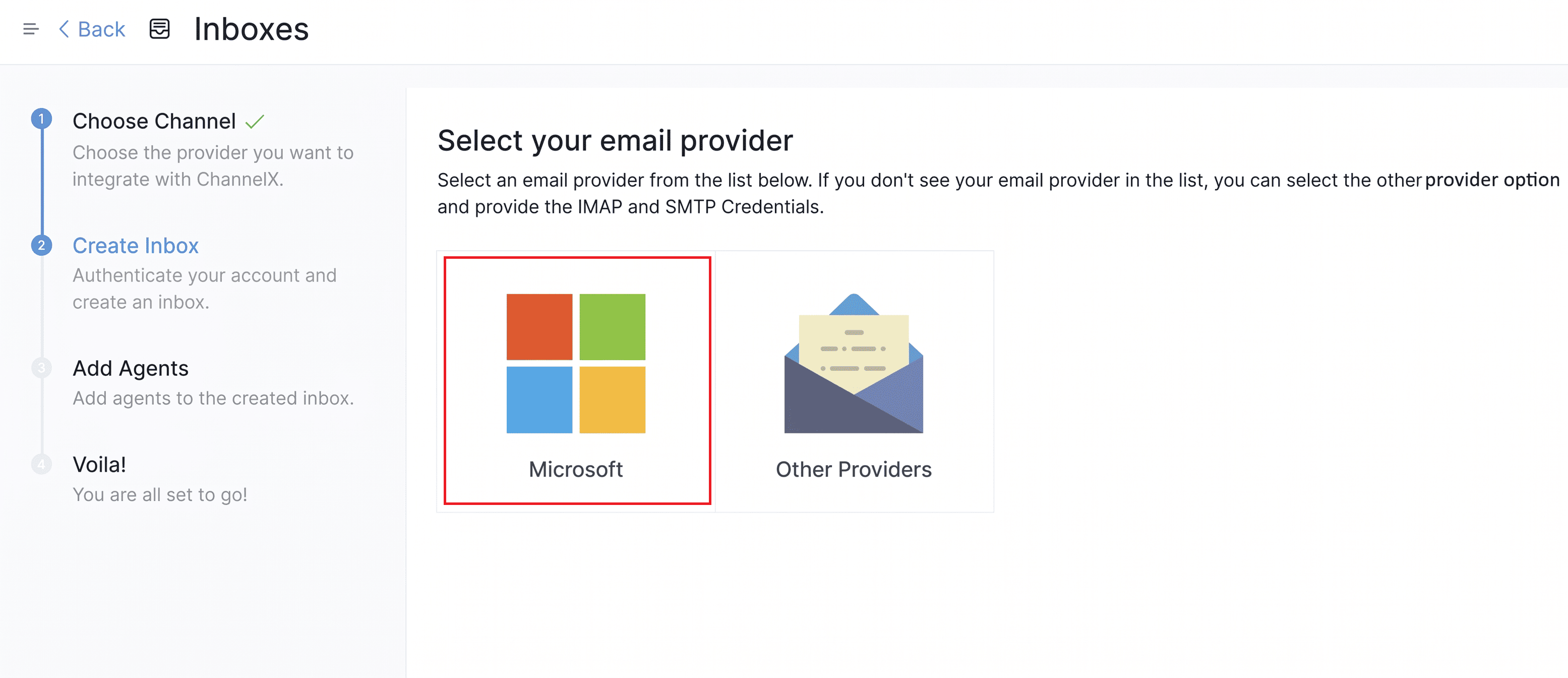
Click the Microsoft icon.
-
Enter your Outlook/Microsoft email address.
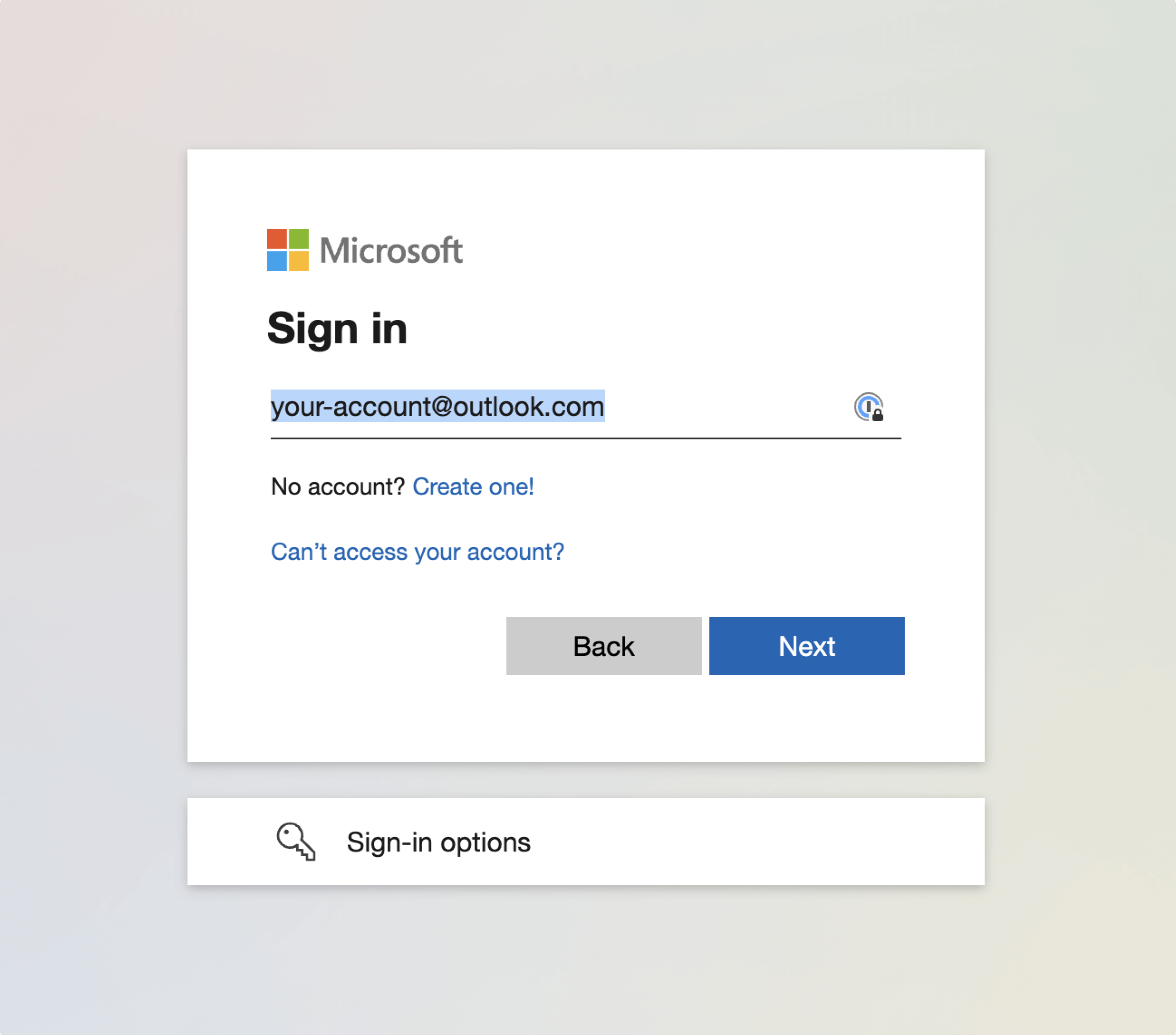
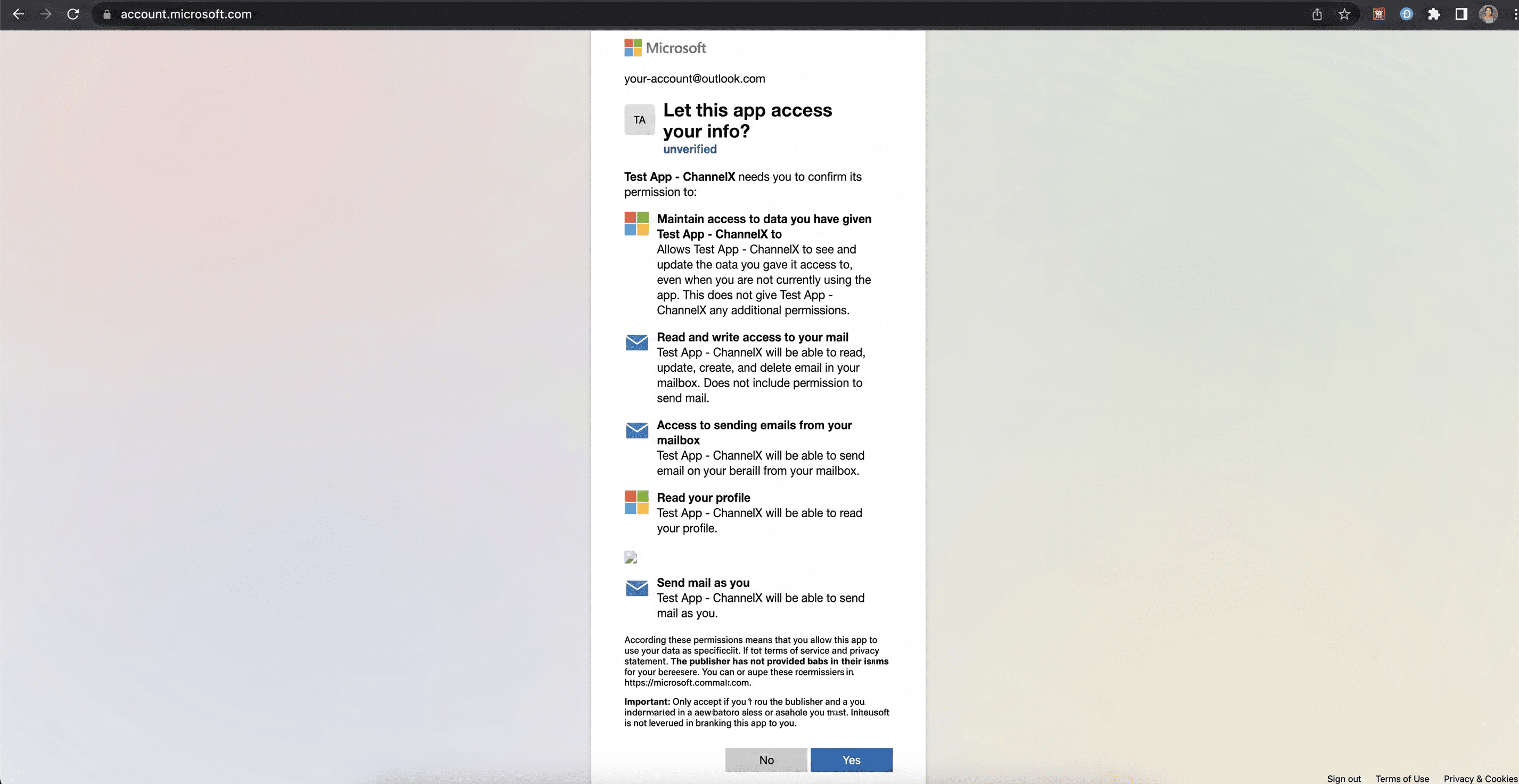
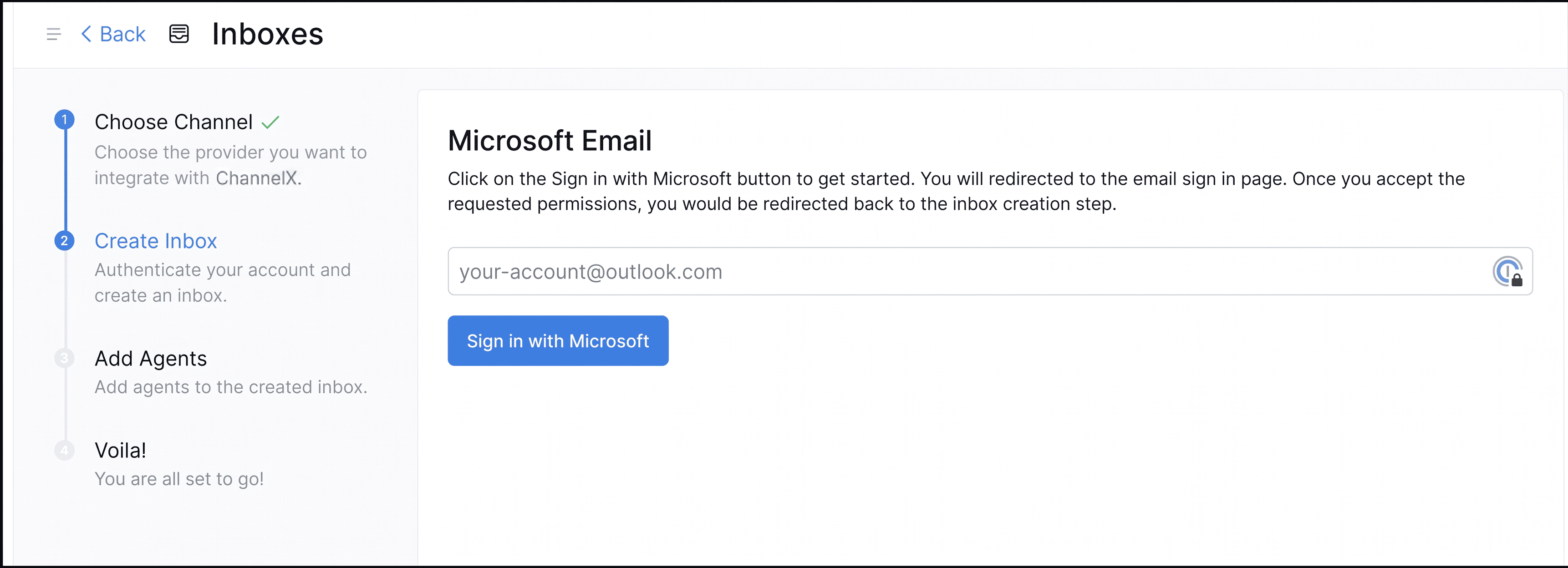 4. Sign in with your Microsoft credentials and allow ChannelX to read and reply to your email.
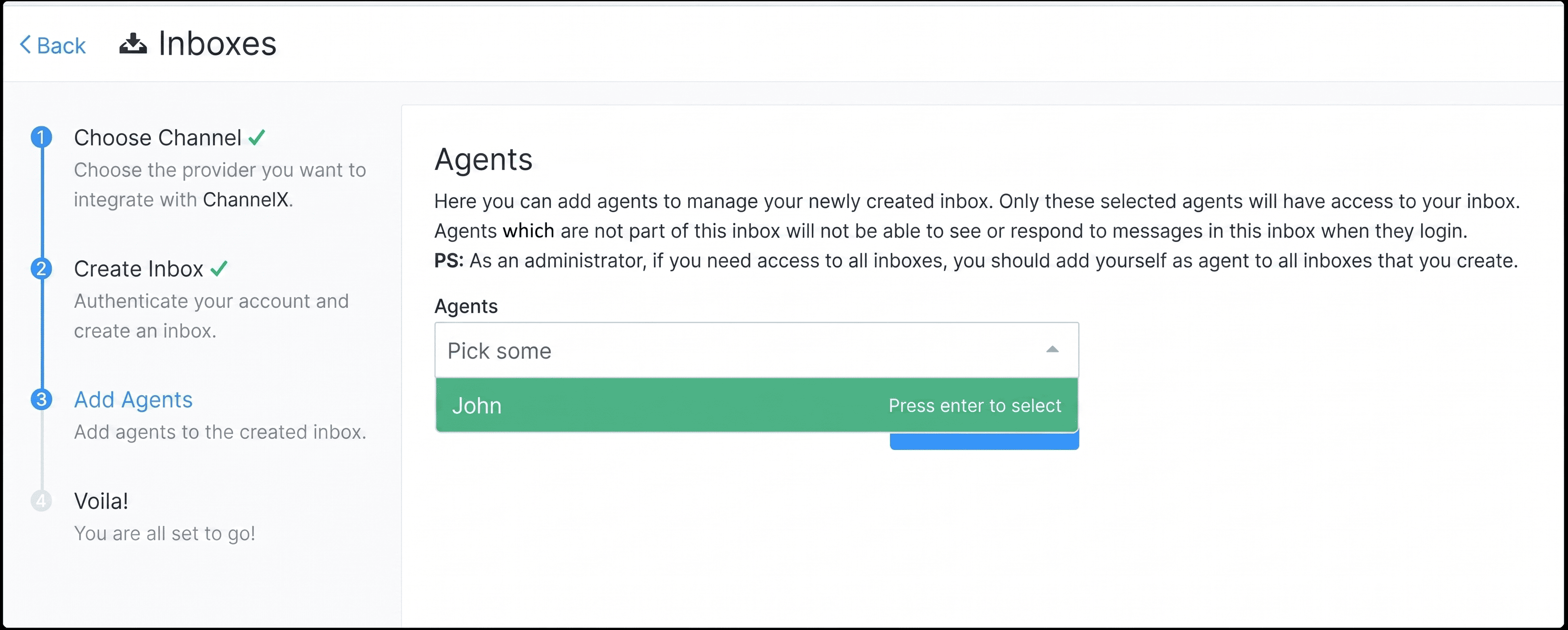
 5. Add agents to the inbox.
Note
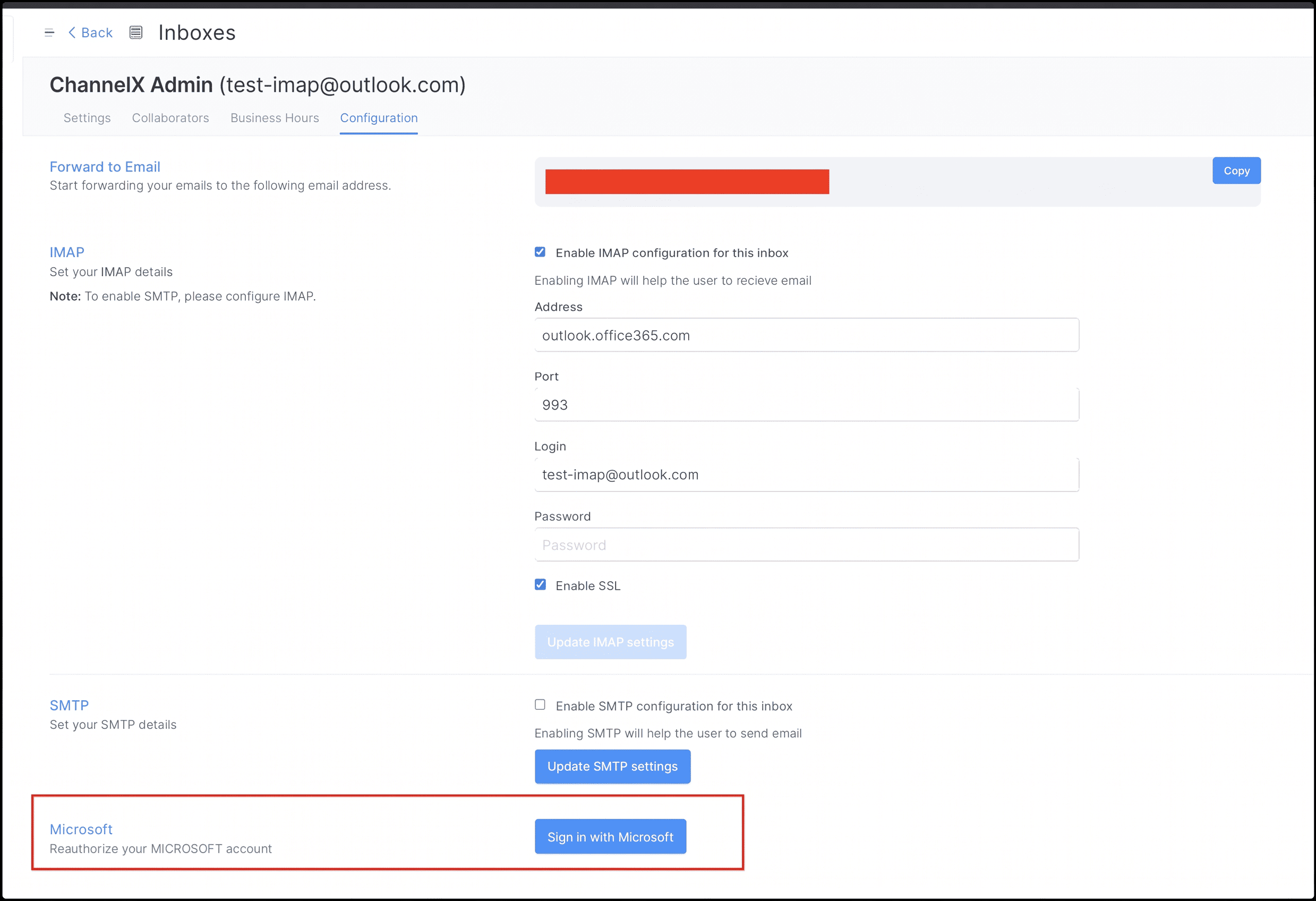
For Microsoft accounts, ChannelX uses default IMAP settings to fetch mail and SMTP to send. You do not need to change anything on the Configuration tab. If your access token expires, reauthorize the account from Settings → Configuration.