Understanding Contacts
The Contacts area in ChannelX is your customer database. It collects everyone who has reached out across your channels, along with the details you know about them. Open it from the Contacts tab in the left sidebar of your dashboard.
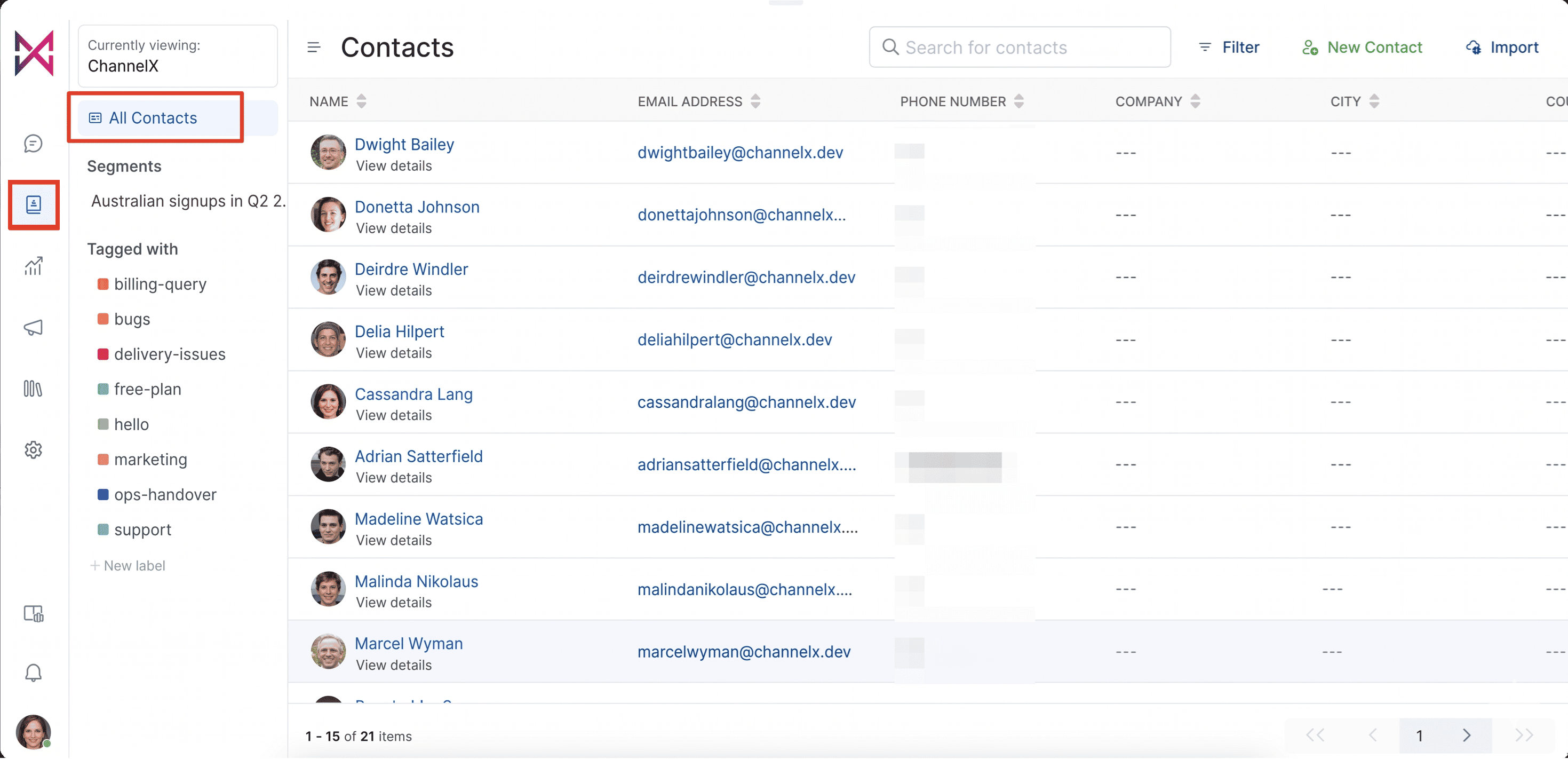
From here you can browse every person on record, drill into an individual profile, and take action without leaving the page.
How contacts get added
Contacts reach your database in a few different ways. Some you add yourself; others ChannelX captures automatically as people interact with you.
Add a single contact manually
Use this when you want to log someone you already know about, for example after a phone call or an offline meeting.
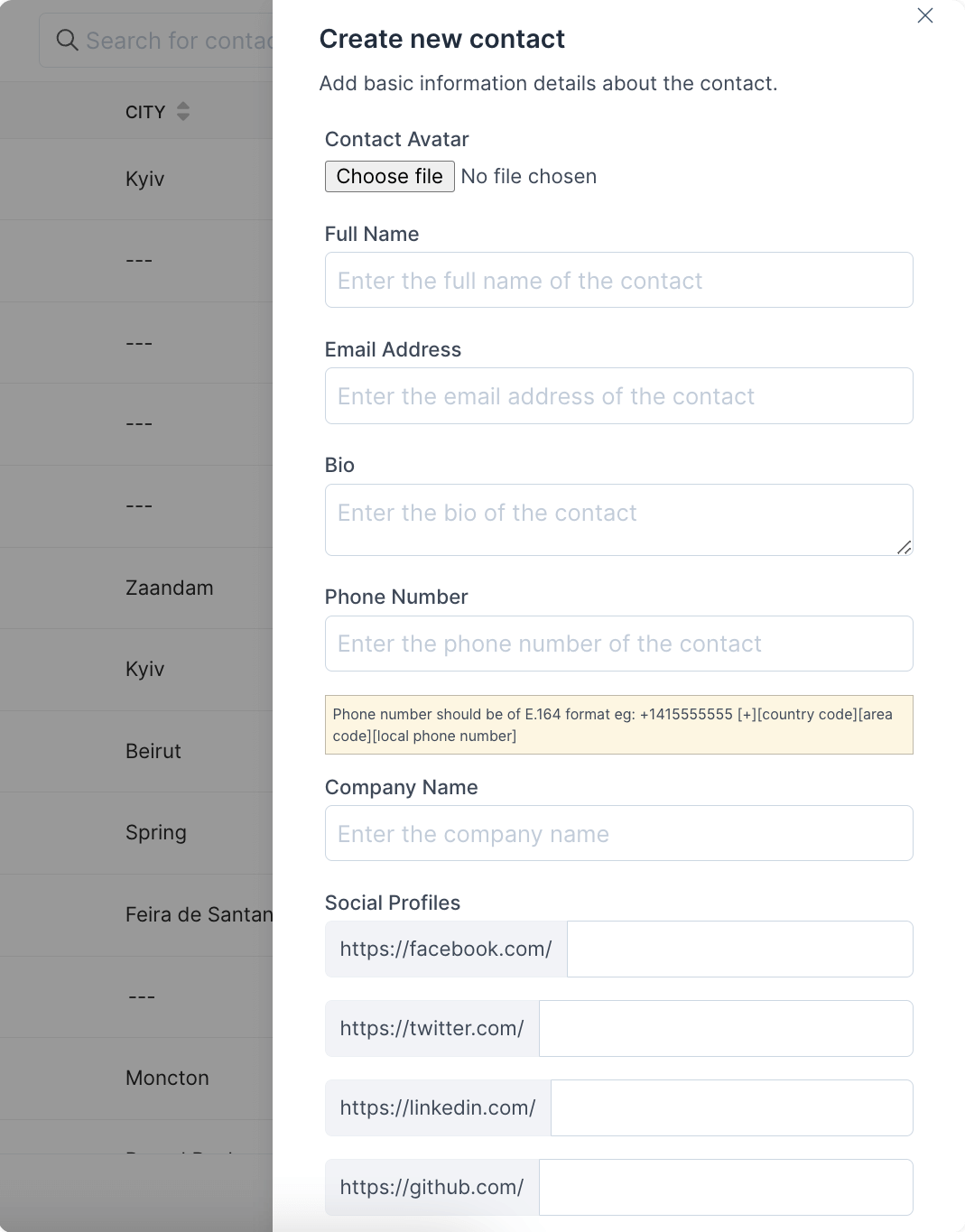
- On the Contacts screen, click New Contact in the top-right corner.
- Fill in whatever details you have, name, email, phone, and so on.
- Click Submit.
Import a list of contacts
If you are migrating from another system or have a spreadsheet of customers, import them in bulk.
-
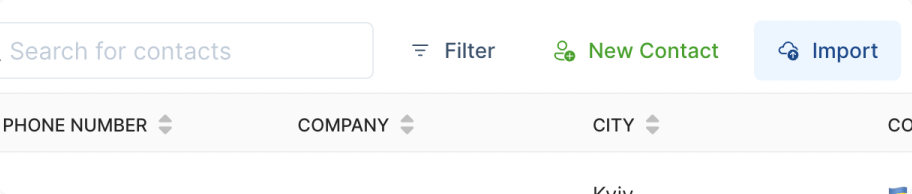
On the Contacts screen, click Import.
-
Choose a CSV file from your computer and upload it.
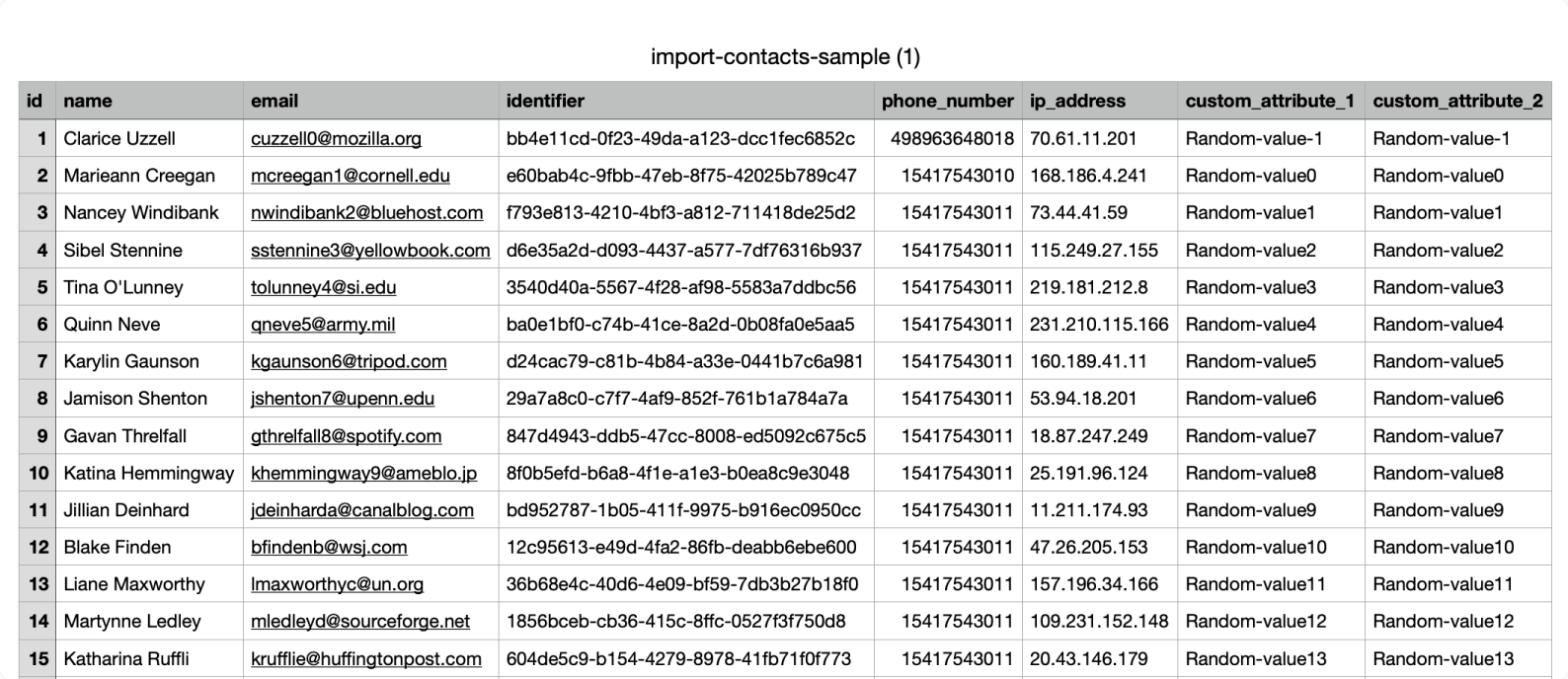
ChannelX maps the columns in your file to contact fields, so make sure your headers are clear before you upload.
Captured automatically
Two situations create contacts for you without any manual work:
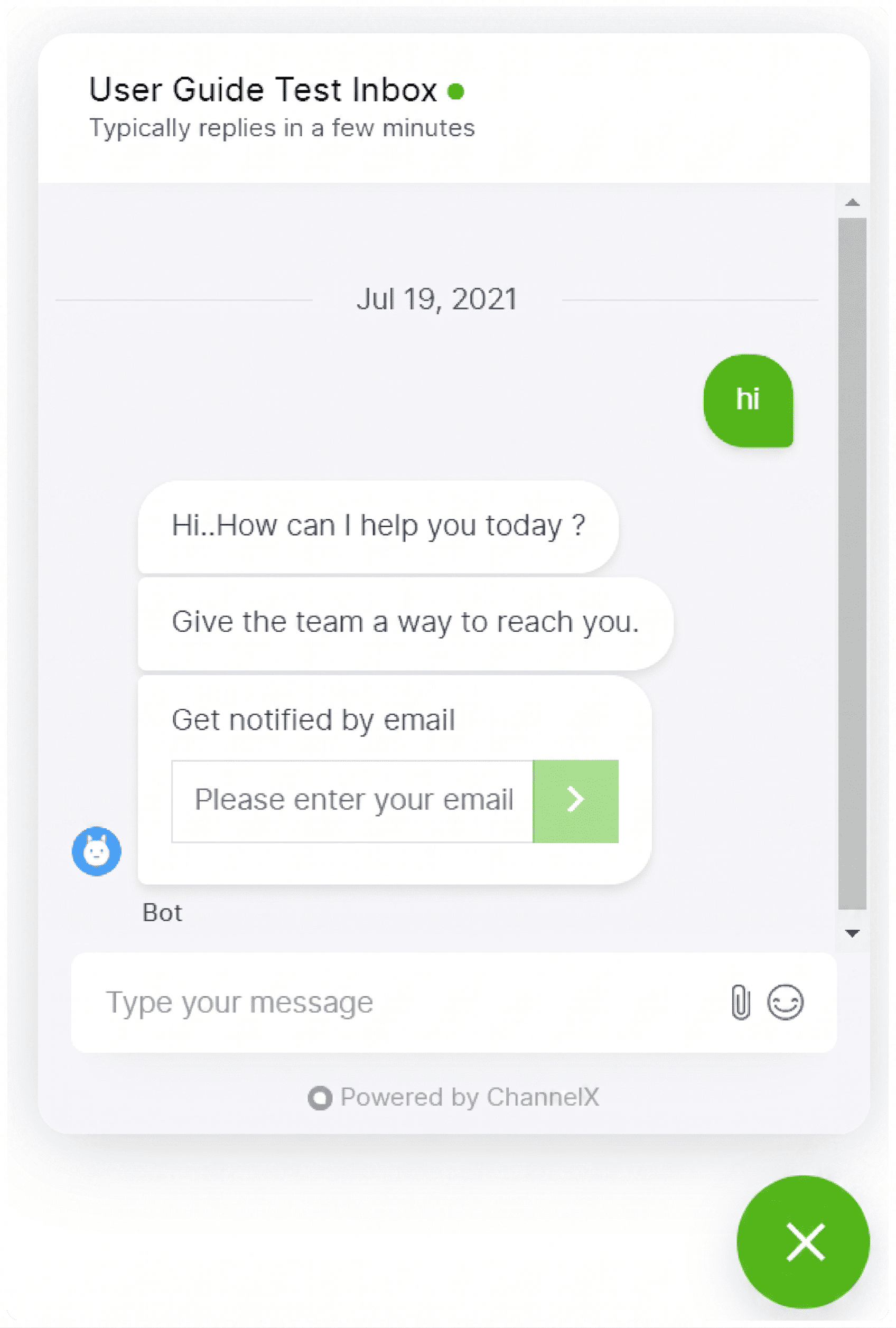
- Pre-chat forms — if an inbox asks visitors for their email and other details before starting a chat, each submission is saved as a new contact.
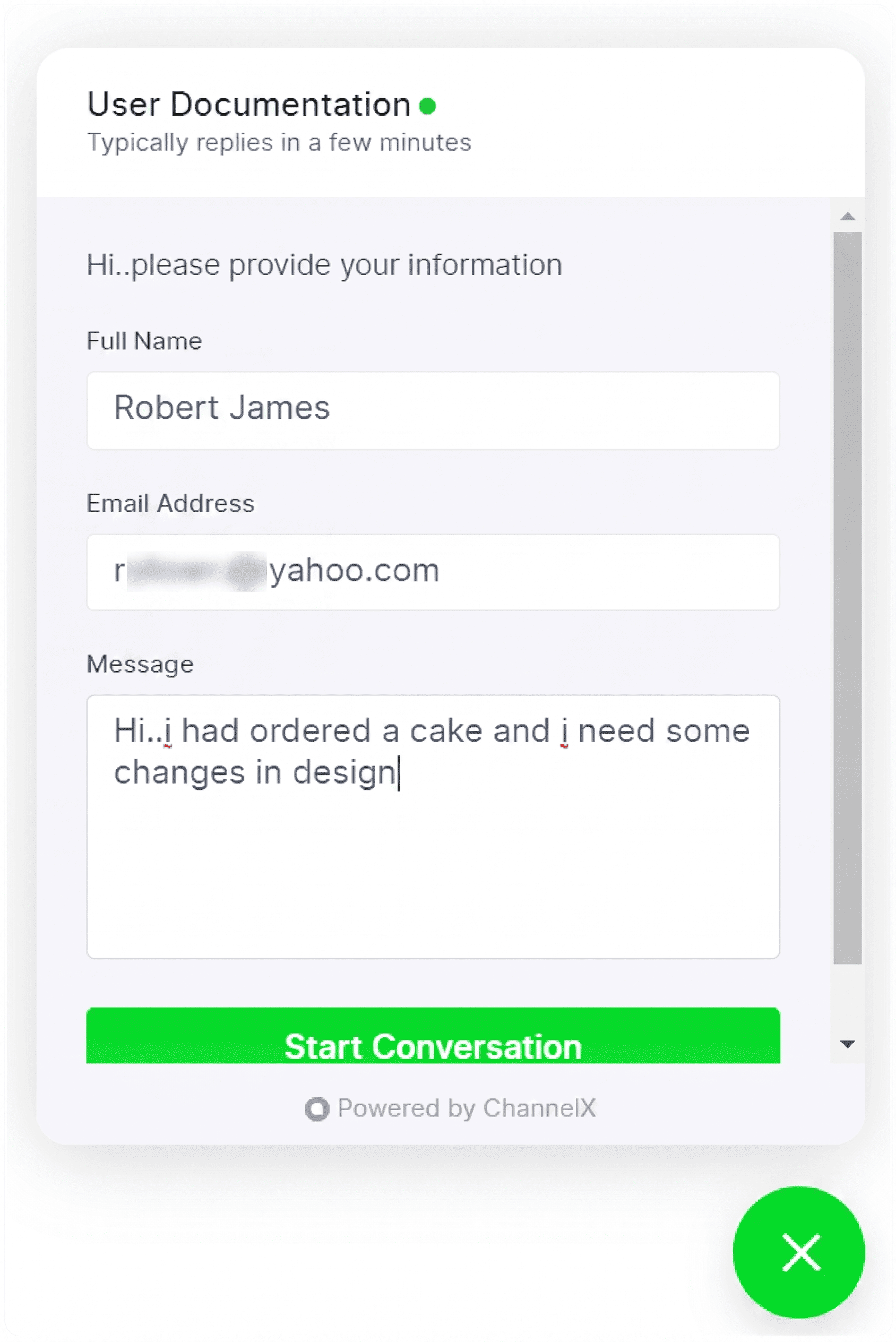 - Channel greetings — when a customer enters their email in a greeting message on a channel, ChannelX records them automatically.
Note
Automatic capture means your contact list grows on its own. It also means you may occasionally see duplicates or partial records, worth tidying up periodically.
Sorting contacts
Click the double-arrow icon at the top of any column to reorder the list.
 The sort behaves sensibly per column:
| Column | Sort order |
|---|---|
| Name | Alphabetical |
| Alphabetical | |
| Phone number | Numerical |
| Company name | Alphabetical |
| City | Alphabetical |
| Country | Alphabetical |
| Last activity | Chronological |
Grouping contacts by label
You can narrow the list to contacts carrying a particular label.
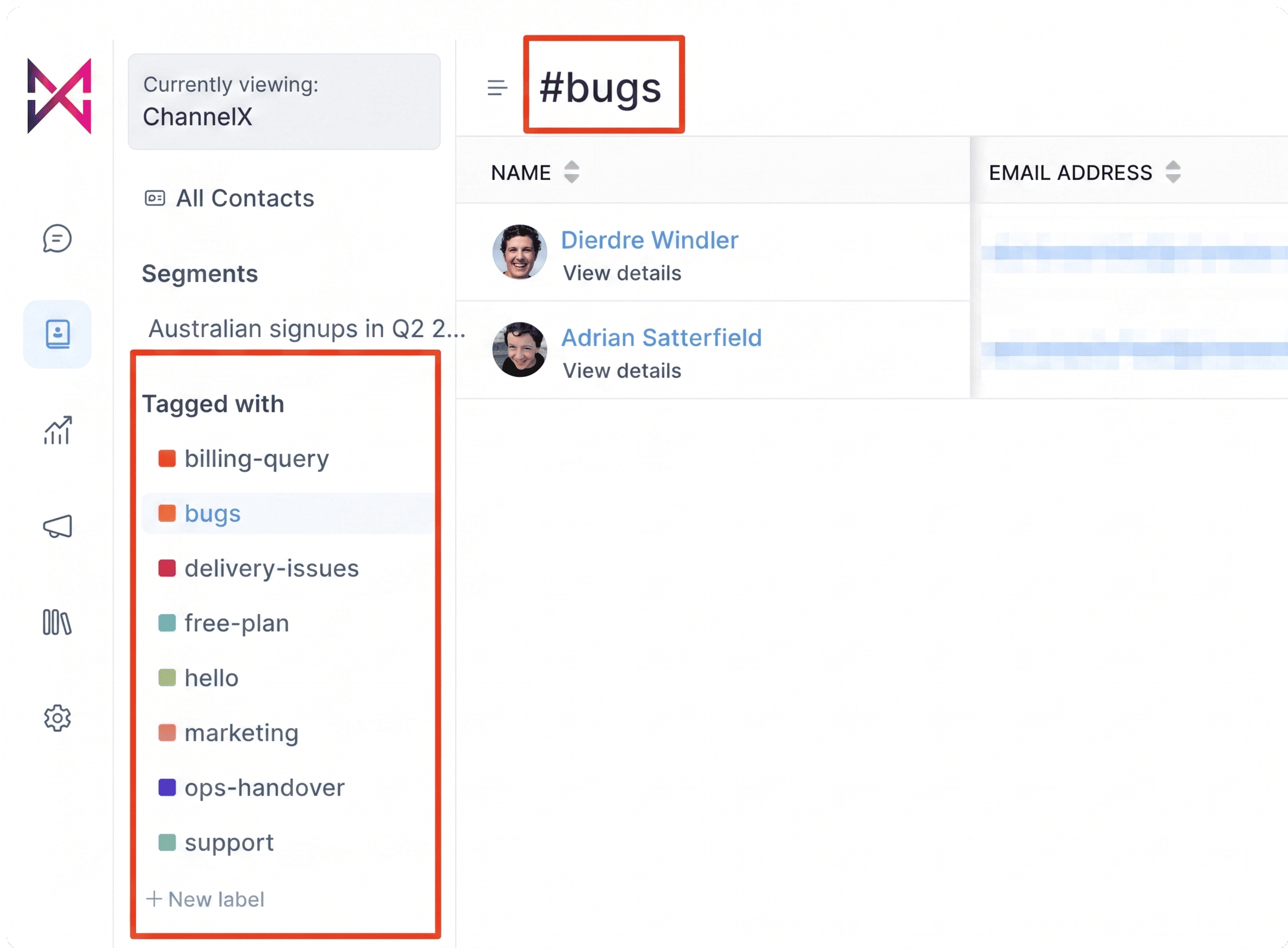 Pick a label from the Tagged with list to show only the people associated with it, handy for pulling up, say, everyone tagged as a trial user or a VIP.
Contact actions
Click a contact's name to open their profile in a sidebar. Alongside their details you will find actions you can take on that person.
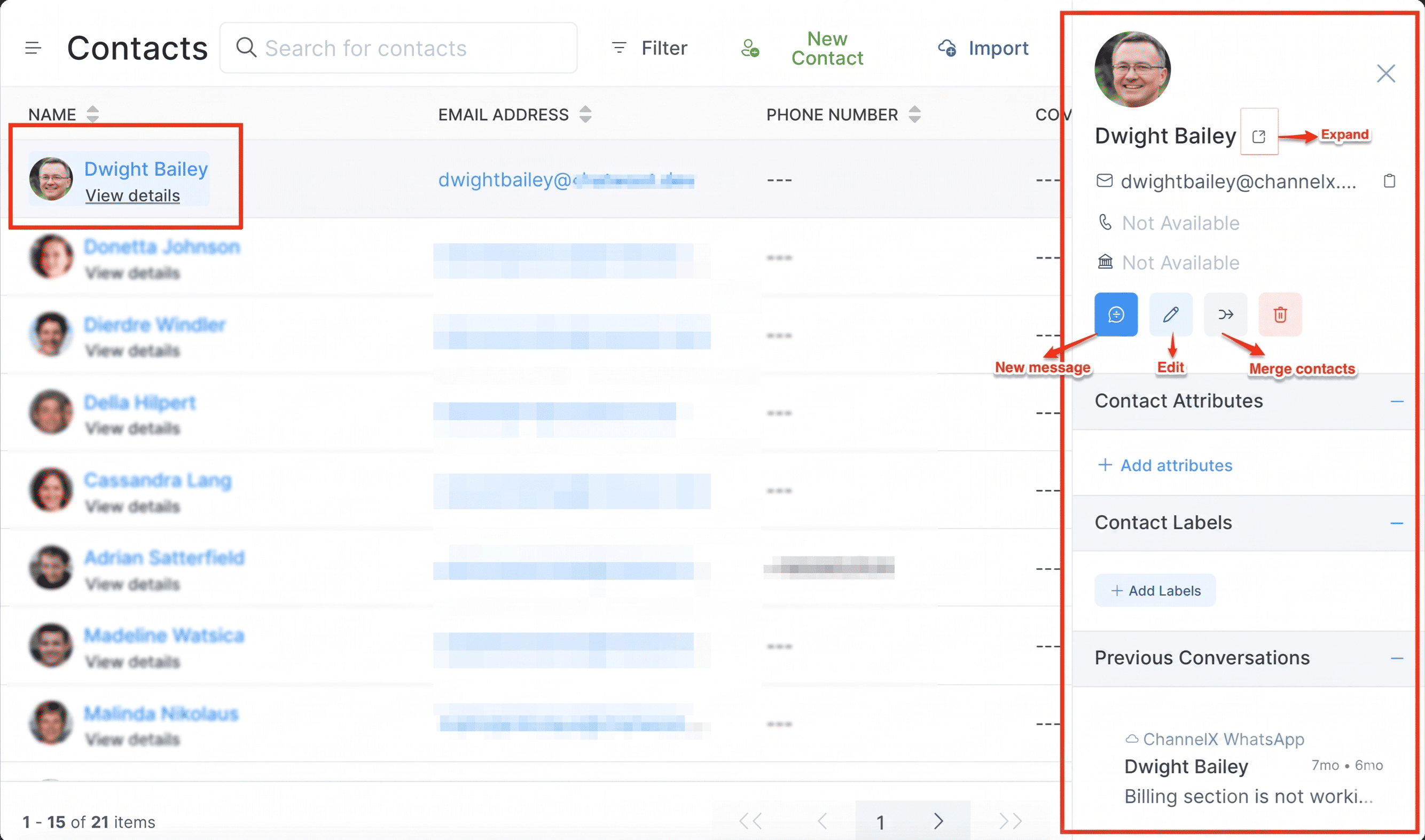
Send a new message
Use the New message button to start an outbound conversation with the contact. You can reach them on:
- Website (only for HMAC-identified contacts)
- SMS
Add notes
Notes let you record context that doesn't belong in a conversation, a summary of a phone call, a meeting outcome, or an internal reminder.
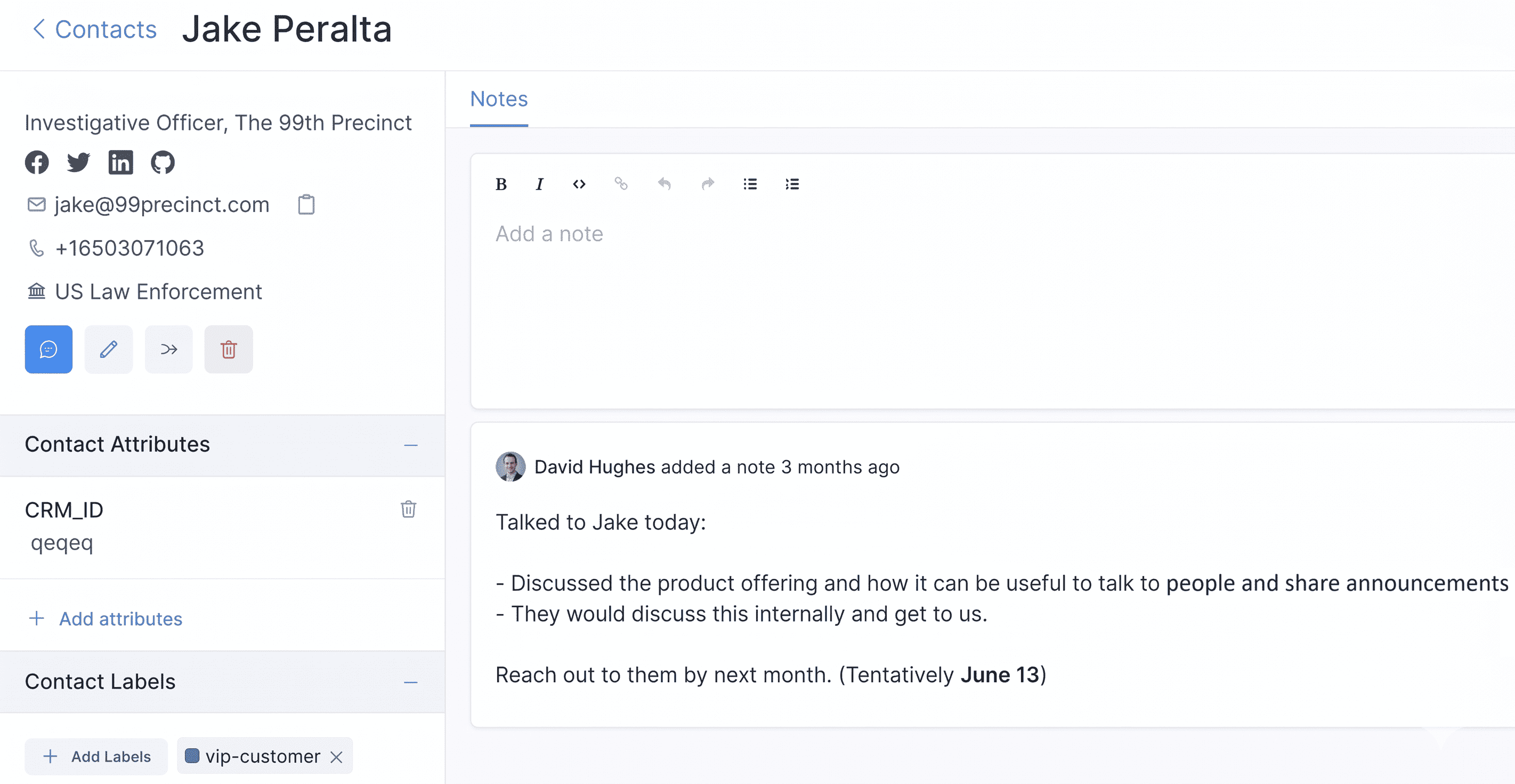
- Open the contact from the Contacts list.
- Type your note.
- Click Add, or press Cmd+Enter.
Notes support rich-text formatting, and you can delete them when they are no longer relevant.
Filtering contacts
Filters let you build a focused view of your contacts on demand.
- Click Filter at the top of the Contacts screen.
 2. Choose a field, then pick an operator such as equal to or not equal to, and enter a value.
3. Combine multiple conditions with AND / OR operators if you need to.
4. Click Submit. The list refreshes to show only the matching contacts.
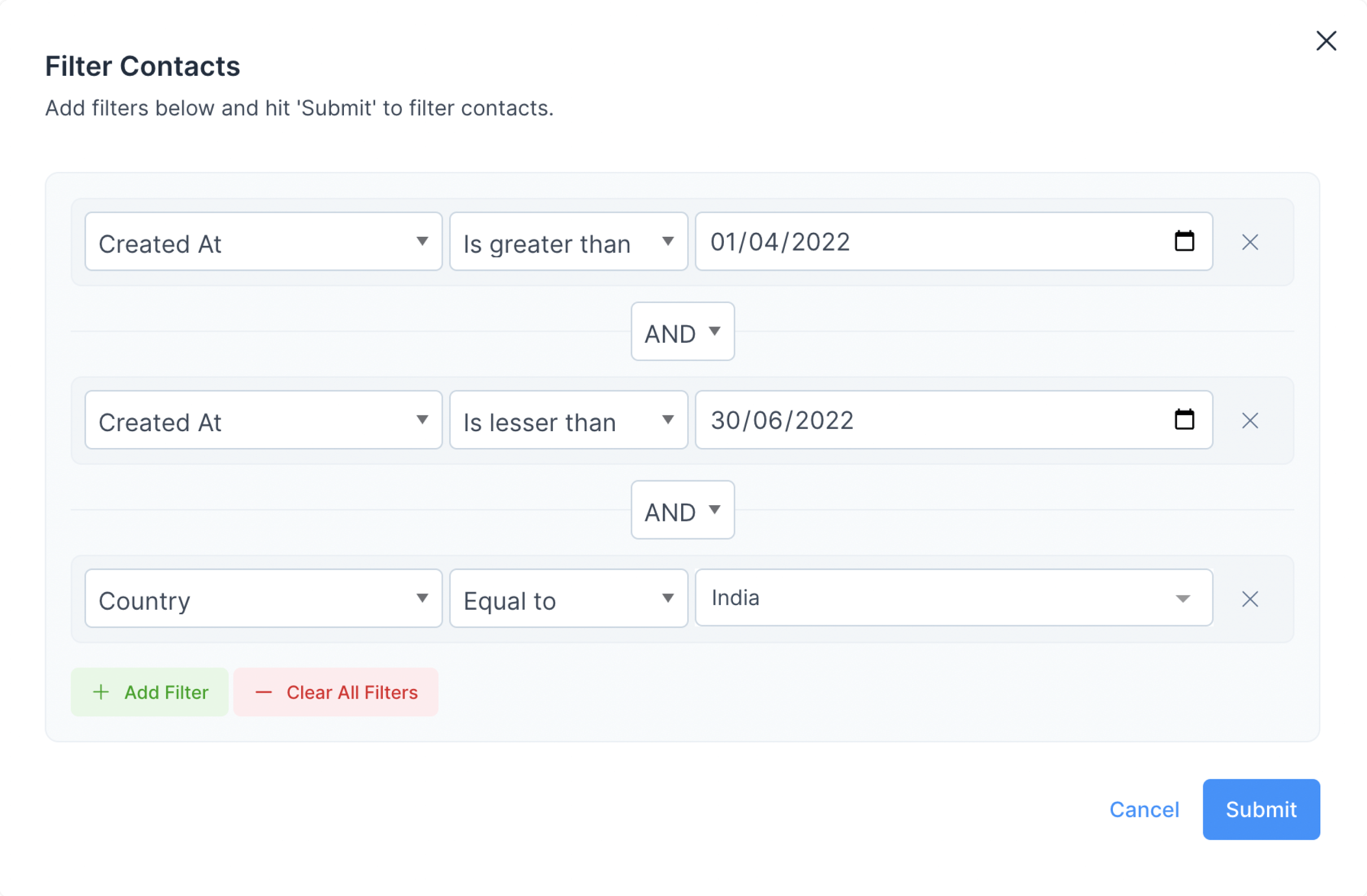
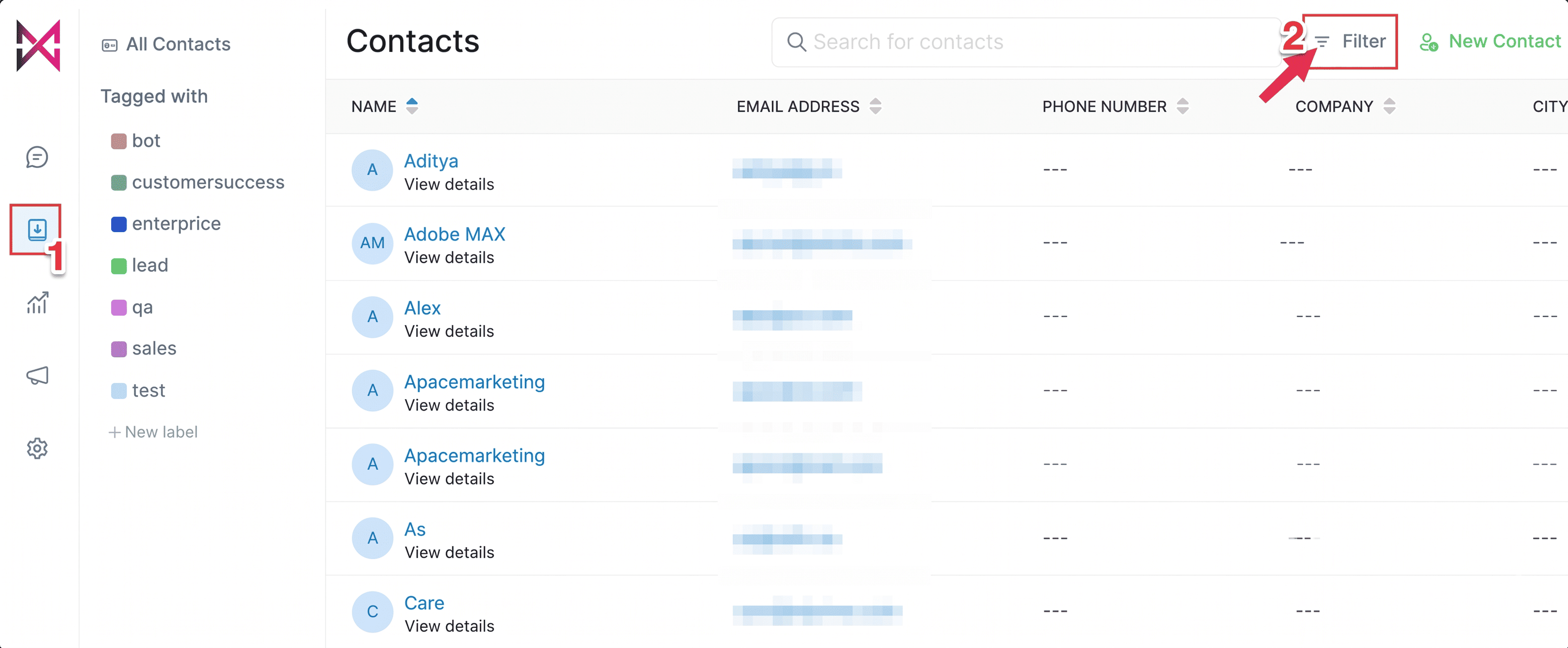

You can filter on any of the following:
- Contact name
- Contact email
- Phone number
- Contact identifier
- Country
- City
- Created at
- Last activity
- Any custom attribute defined on your account
To clear a filter and return to the full list, reopen Filter, adjust or remove the conditions, and submit again.
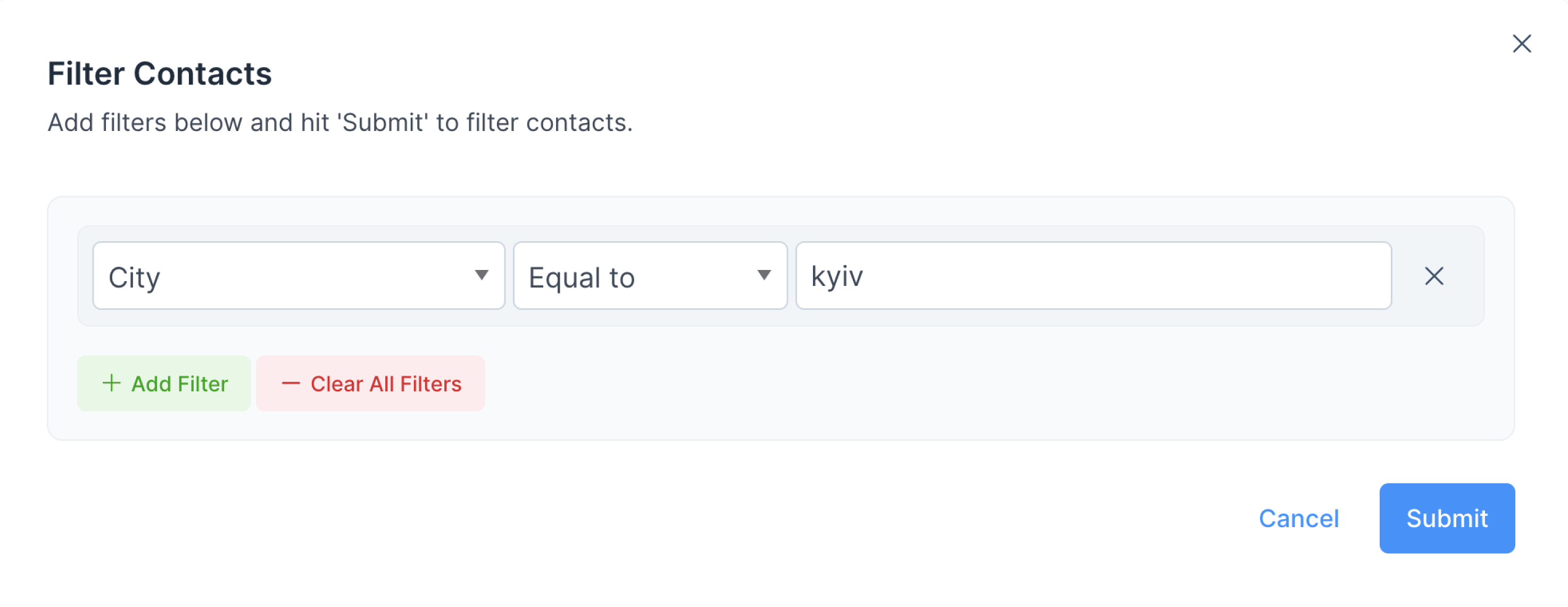

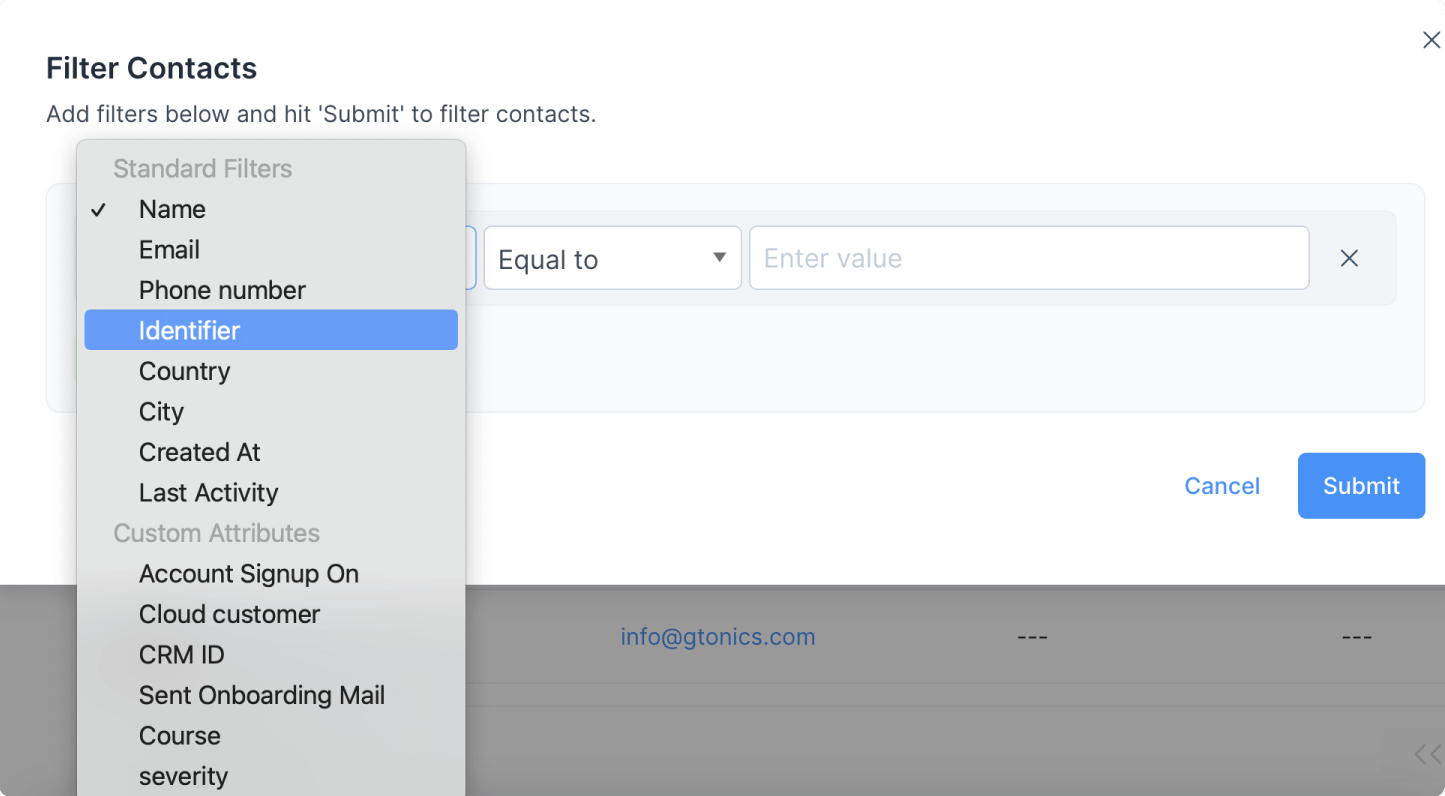
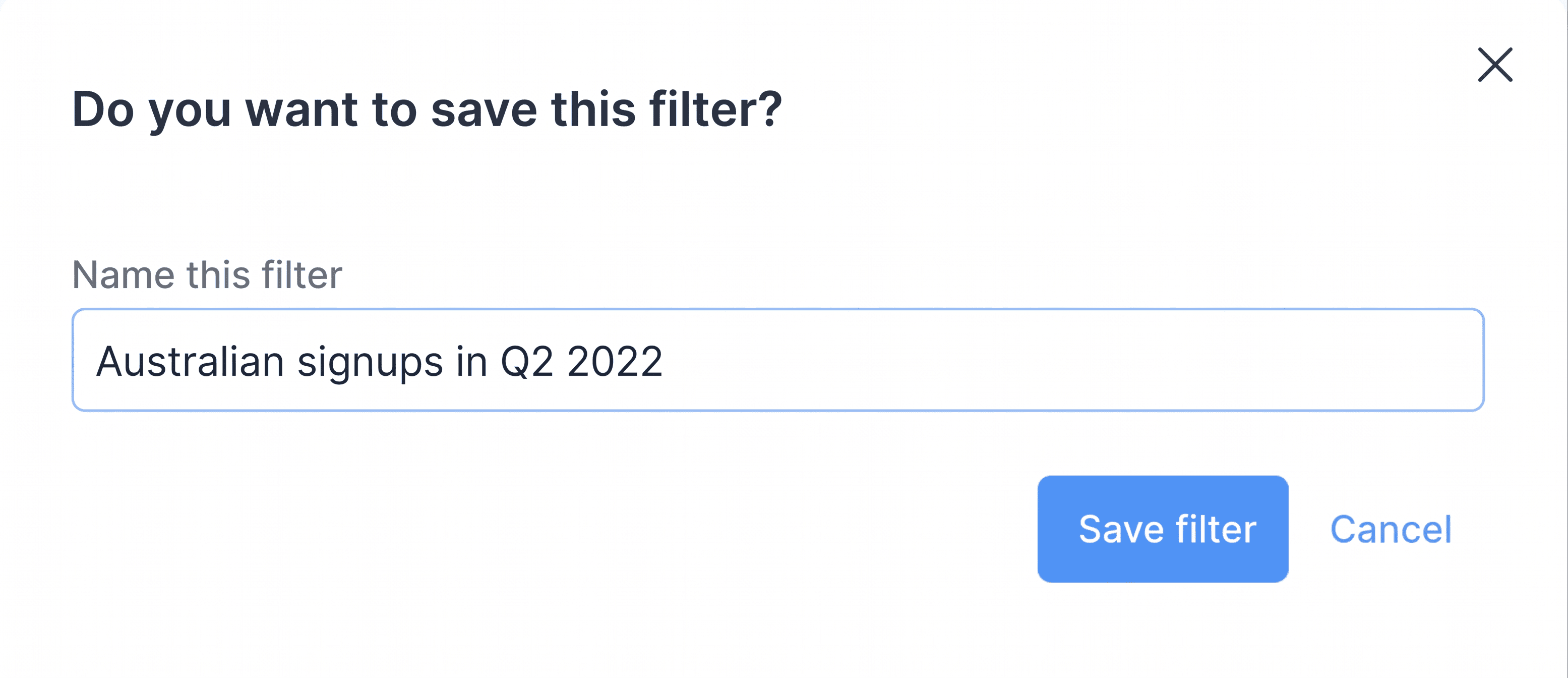
Click Save Filter to save this filter with a suitable name

Tip
If you find yourself rebuilding the same filter repeatedly, save it as a segment so you can recall it in one click. See Segments.
Common questions
Why do I see contacts I never added? Pre-chat forms and channel greetings create contacts automatically whenever a customer shares their email, so your list reflects everyone who has engaged with you, not just people you entered by hand.
Can I message a website contact directly? Only if they are HMAC-identified. Email, SMS, and WhatsApp contacts can be messaged outbound without that requirement.