Custom Attributes
ChannelX ships with standard fields for every contact and conversation, name, email, location, and so on. But your business almost certainly cares about details those fields don't cover. Custom attributes let you capture that extra information and attach it wherever it belongs.
A custom attribute can hold anything you want to track. Common examples include:
- Subscription plan
- Signup or subscription date
- Most-ordered item
- Link to an ordered product
- Date of the last transaction
The practical payoff is context and segmentation. Once you store purchase history or account status against a contact, agents see it at a glance and you can group customers by it.
Note
The key difference between custom and standard attributes is upkeep. Standard attributes update themselves automatically; custom attributes hold the values you (or your integrations) supply.
Creating a custom attribute
- Go to Settings → Custom Attributes and click Add Custom Attribute.
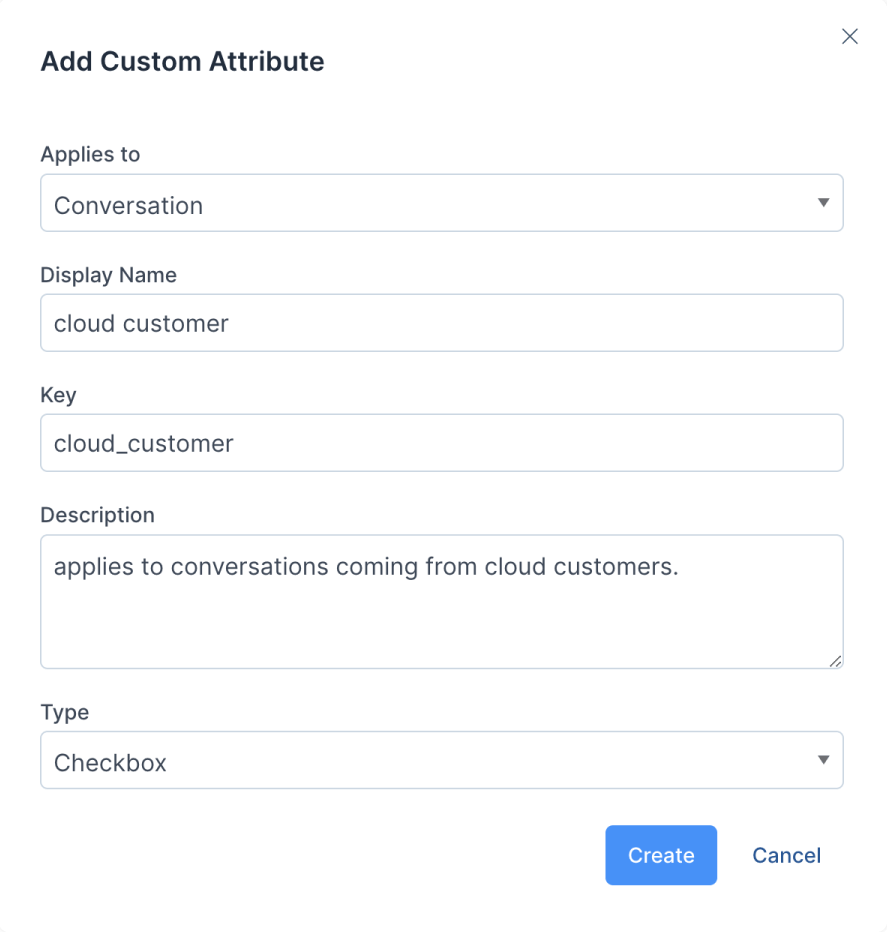
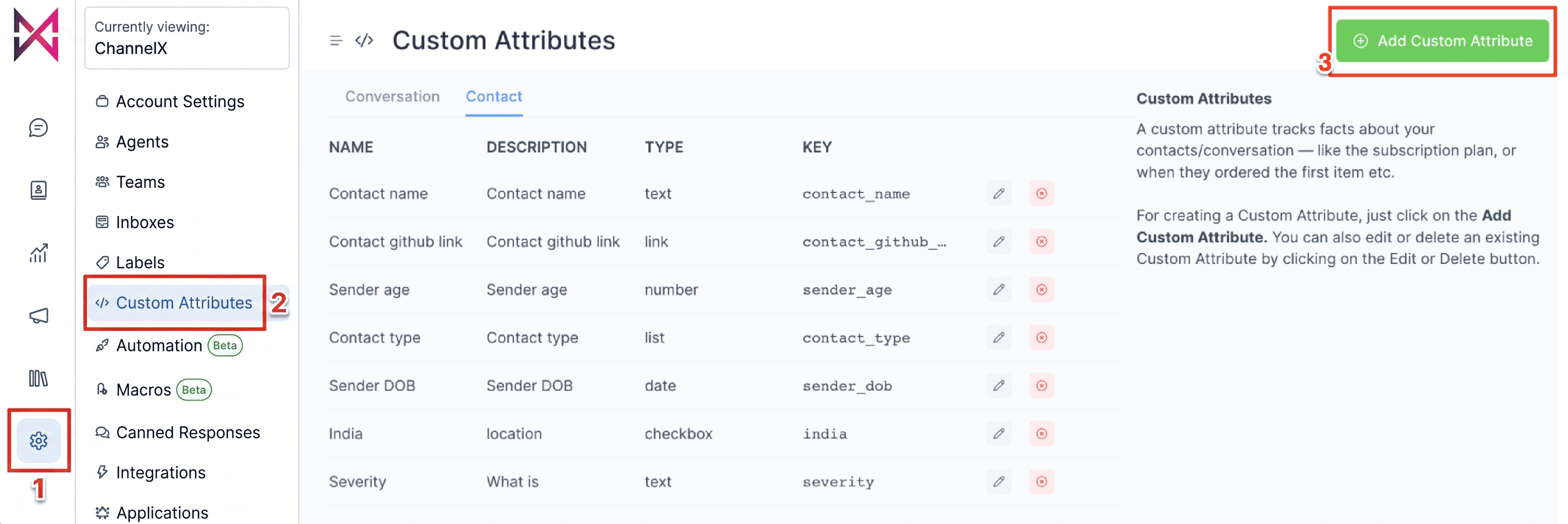 2. Fill in the details in the dialog that opens.
3. Click Create. A success message confirms the attribute was added.
The fields you provide are:
| Field | What it does |
|---|---|
| Applies to | Whether the attribute attaches to a Conversation or a Contact. |
| Display name | The human-friendly label shown in the interface. |
| Key | A unique identifier used to reference the attribute. |
| Description | A short explanation of what the attribute is for. |
| Type | The data type: Text, Number, Link, Date, List, or Checkbox. |
Warning
Keys must be unique within your account, you cannot create two attributes with the same key. Choose the key carefully, since integrations and templates rely on it.
Using a conversation attribute
Conversation attributes are populated from the conversation sidebar.
-
Open a conversation and find the Conversation Information section. Click the
+sign to expand it.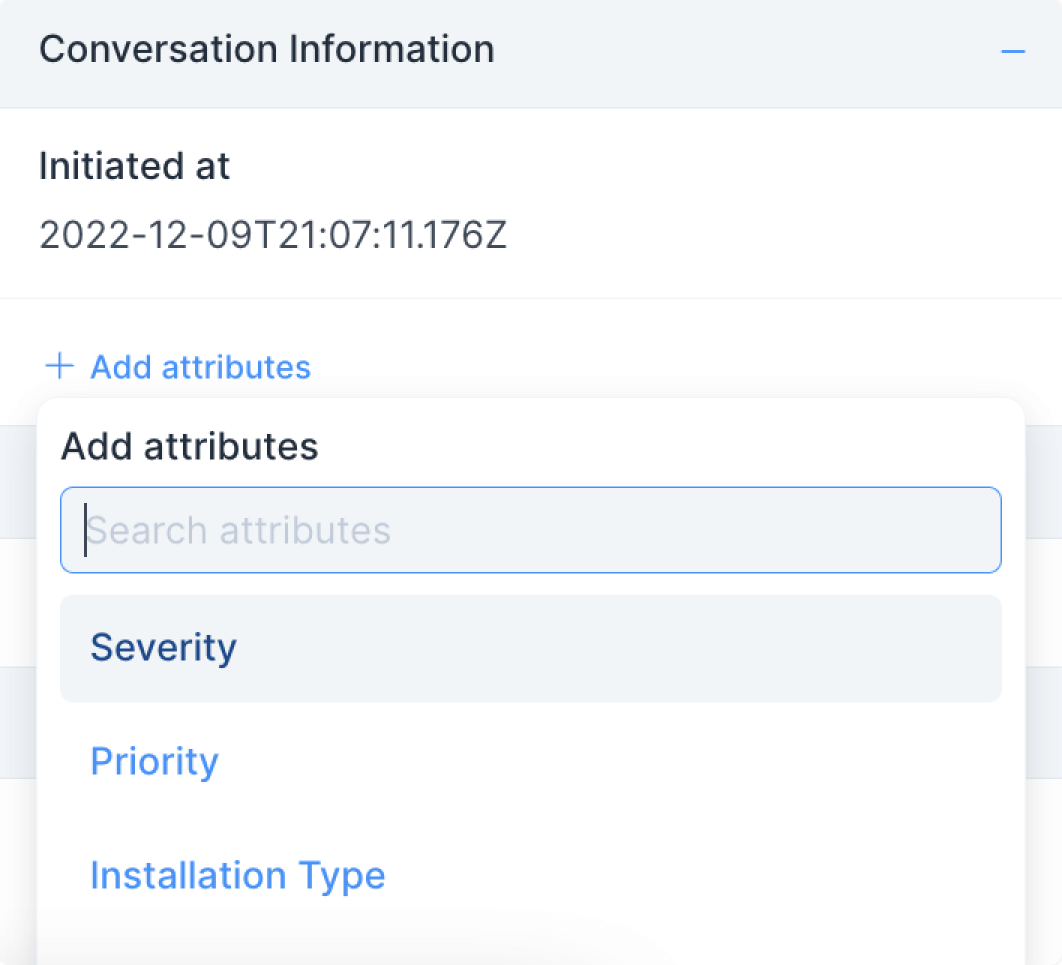
-
Choose Add Attributes. A dropdown lists every attribute on your account.
-
Use the search box to find the one you want, or create a new one on the spot with Create new attribute. Fill in the value according to the attribute's type
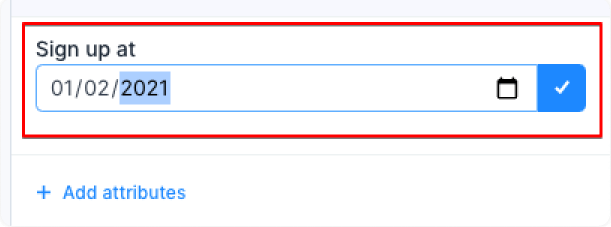
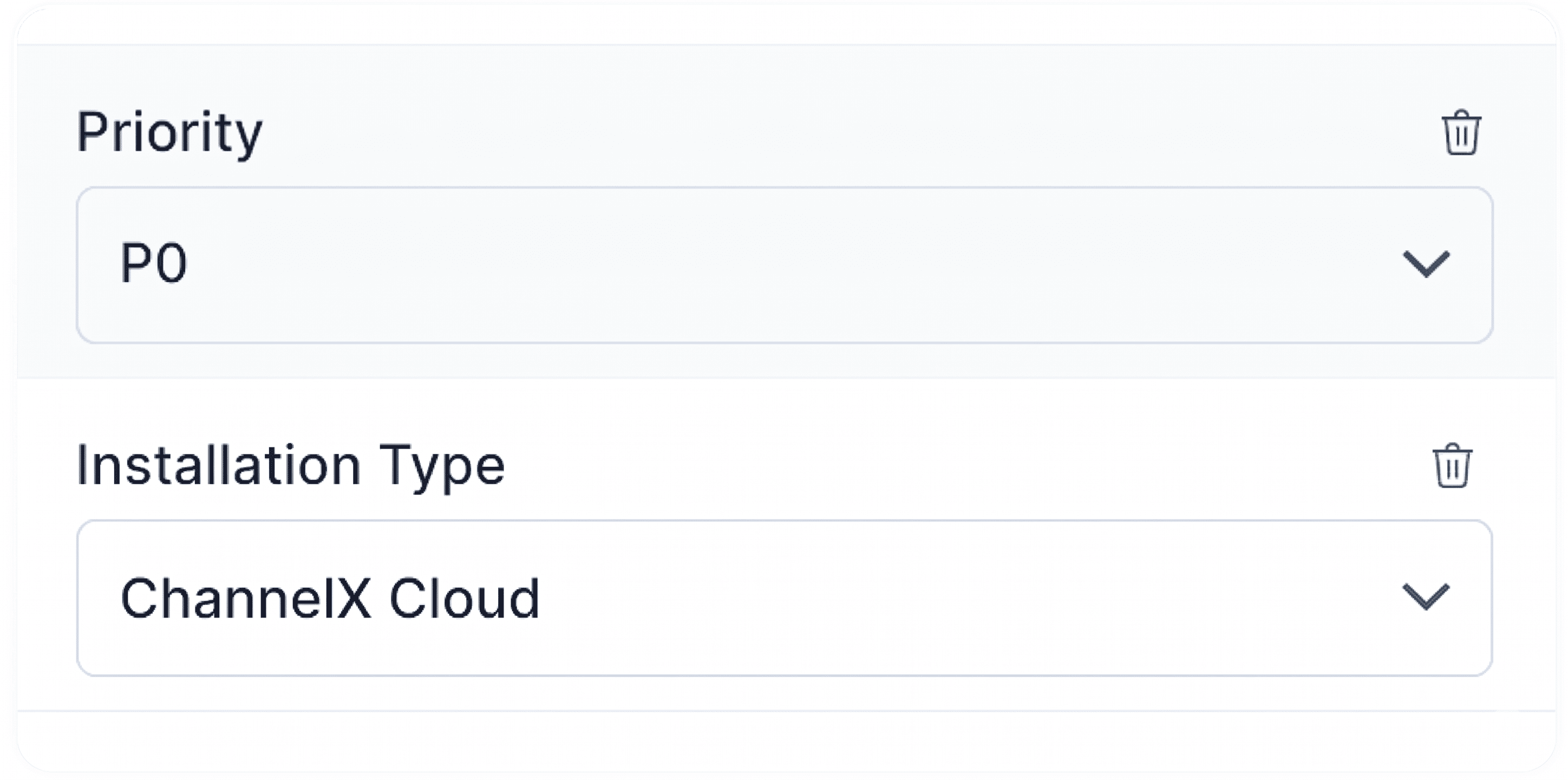
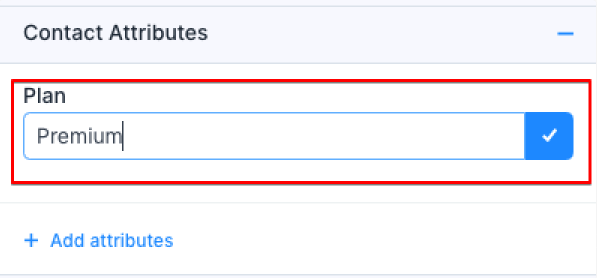
Pick from a list, tick a checkbox, type text, and so on.
To edit, delete, or copy an attribute's value, hover over it to reveal the options.
Using a contact attribute
You can set contact attributes in two ways.
From the contact sidebar
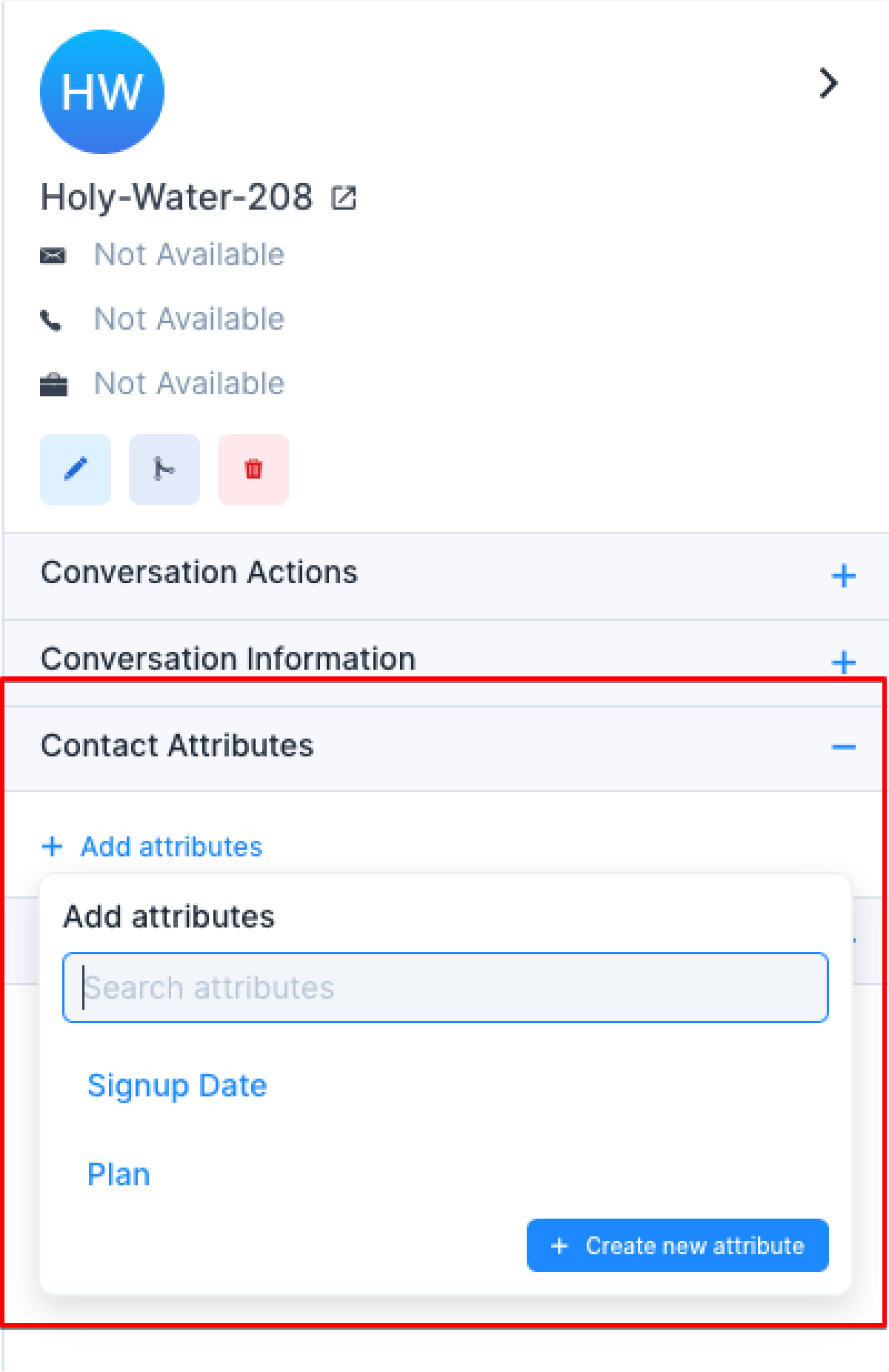
This works exactly like conversation attributes, but you use the Contact Attributes section of the sidebar instead. Expand it, add the attribute, and populate the value based on its type.
Via the SDK
If you embed the ChannelX widget on your site, you can push attribute values programmatically as you learn them. Use setCustomAttributes, passing keys that already exist as attribute definitions:
window.$chatwoot.setCustomAttributes({
  key: value,
  // The key must match a custom attribute you already defined.
  // The value should match the attribute's type (Number, Date, or String).
  // Make sure every value is JSON-valid, and flatten any nested structures.
});
To remove a value, call deleteCustomAttribute with the attribute key:
window.$chatwoot.deleteCustomAttribute("signUpDate");
Values set this way appear in the contact and conversation side panels just like manually entered ones.
Tip
Define the attribute in Settings first, then push values via the SDK. If a definition doesn't exist for a key, the value may render as plain text rather than its intended type.
Common questions
Where do custom attribute values show up? In the contact and conversation side panels. They are also available as filter criteria and as template variables in canned responses.
Can I change an attribute's type later? Plan the type up front. Changing how an existing attribute is interpreted can leave older values displaying incorrectly, so it is cleaner to define the right type from the start.