Account Settings
The Account Settings page is where an administrator sets top-level details about the ChannelX account itself — its name, default language, and a few account-level options.
Where to find it: Settings → Account Settings.
Admins only
Only administrators can view or edit this page. Regular agents and custom roles cannot access it.
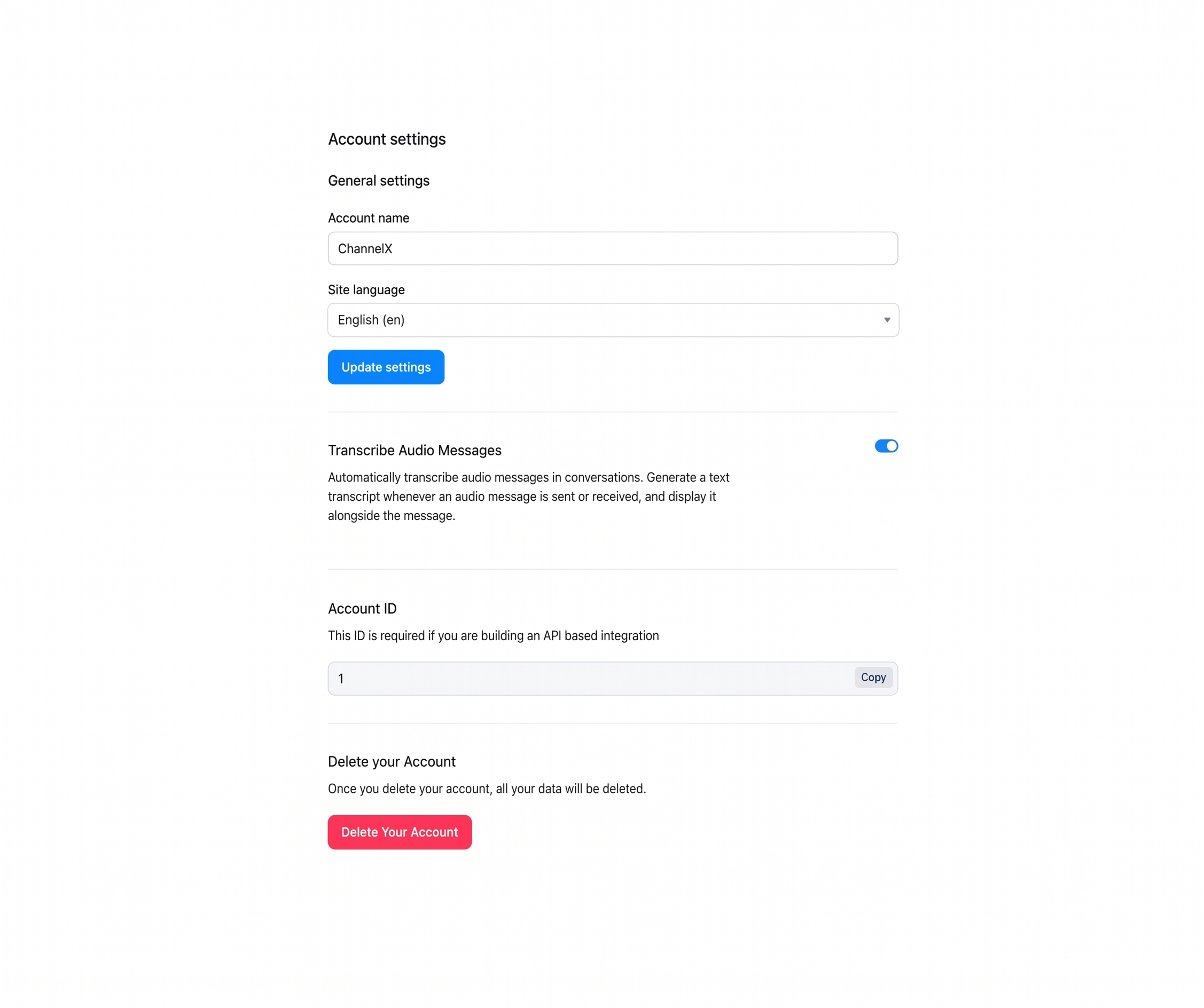
General settings
All fields are saved together using the Update settings button at the bottom.
| Field | Required | Description |
|---|---|---|
| Account name | Yes | Display name for the account, shown in account switchers and on email transcripts. |
| Site language | Yes | Default interface language for the dashboard. Individual users can override this in Profile Settings. |
Transcribe audio messages
When enabled, ChannelX automatically generates a text transcript whenever an audio message is sent or received in a conversation, and shows it inline alongside the audio. This section appears only when AI features are enabled on your account. Saving is automatic on toggle.
Localcom AI
In ChannelX, audio and call transcription is part of the broader Localcom AI integration, which also provides sentiment analysis and conversation summaries. See the AI & Nexus UC Integration section for the full picture.
Account ID
A read-only display of your account's unique numeric ID, shown in a copyable code block. You'll need it whenever you build an integration against the ChannelX application API. Click the code to copy.
Build info
A small footer shows the current ChannelX version and build identifier (click to copy the full value). This is useful when raising a support ticket — include the version and build identifier when reporting an issue. On self-hosted deployments, a notice appears here when a newer version is available.
Next
Continue to Agents & Roles.