Dashboard Basics
Knowing your way around the dashboard is what lets you support fifty customers without losing your mind. This page is the map.
The four regions of the dashboard
Almost every screen in ChannelX is laid out the same way. Once this clicks, the rest of the product becomes obvious.
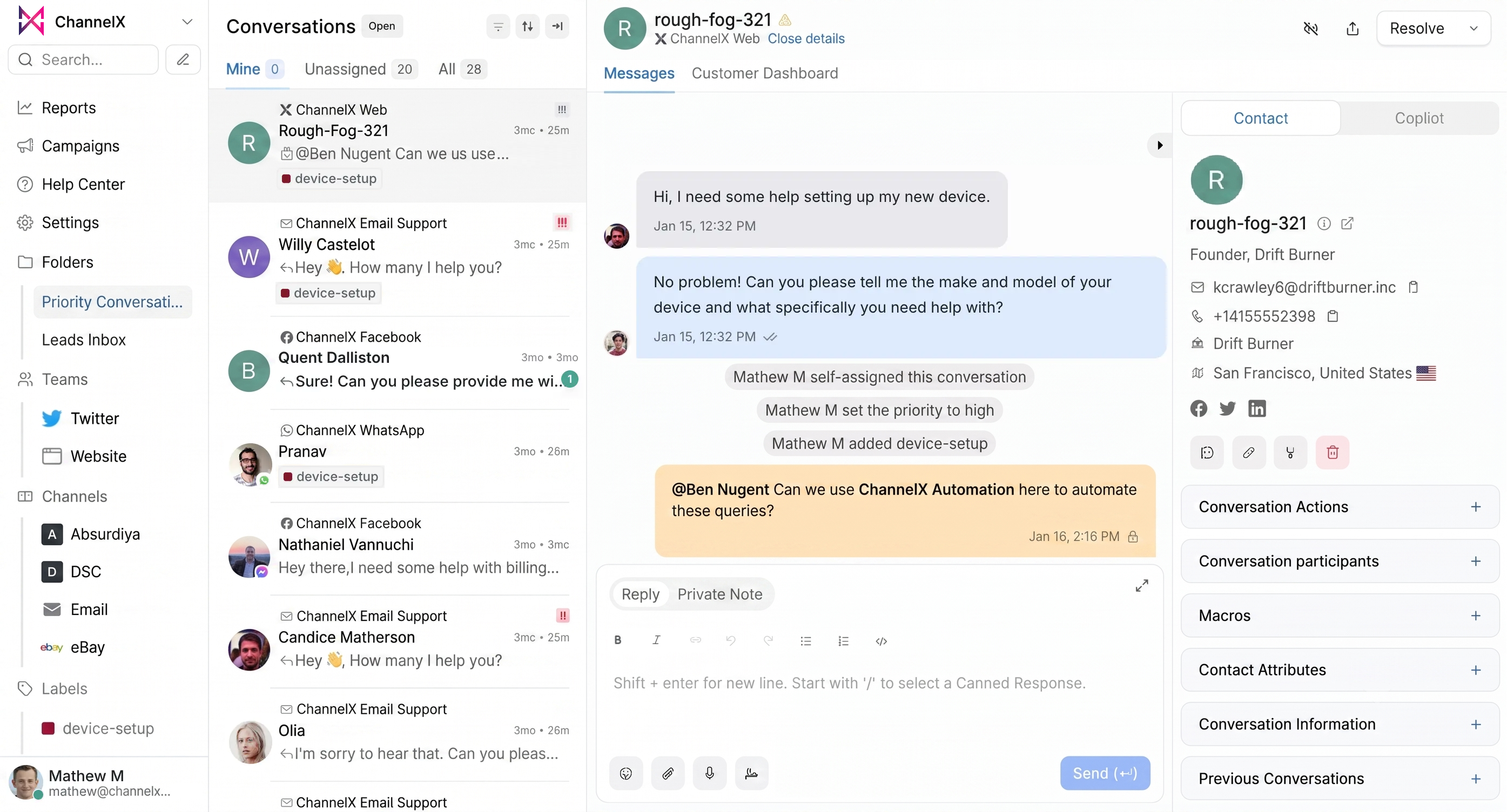
1. Navigation rail (far left). A vertical strip of icons: My Inbox, Conversations, Contacts, Reports, Campaigns, Help Center, and Settings. This is how you switch pages — everything else changes based on where you are here.
2. Conversation list (middle-left). A scrollable list of conversations with filters and tabs at the top. This is where you live during a shift.
3. Conversation view (center). The actual messages plus the reply box. Tabs let you switch between Reply, Private Note, and (where supported) Email mode.
4. Context panel (right). Everything you might need to know about the customer — contact details, previous conversations, custom attributes, and conversation actions (assign, label, team, status).
Tip
You can collapse the right panel — useful on small screens or when you're focused purely on the message thread.
The conversation list, in detail
Tabs: who owns what
| Tab | Shows |
|---|---|
| Mine | Conversations assigned to you. |
| Unassigned | Conversations no agent has picked up yet. |
| All | Every conversation in the inboxes you can see. |
Most teams build their day around Mine (work the queue you own) and Unassigned (grab the next one when Mine is empty).
Status filter: where in the lifecycle
Right under the tabs, switch between Open (the customer is waiting), Pending (a bot or AI is handling it), Snoozed (set aside until a time or until the customer replies), and Resolved (done).
Two more views to know
- Mentions — conversations where a teammate
@-mentioned you in a private note. Check it daily, like email. - Unattended — assigned conversations that still haven't had a first reply. This is where managers find dropped balls.
Filters, folders, and search
Below Conversations in the navigation you'll find filters for Inboxes (a specific channel), Labels, Teams, and Folders (filters you've saved).
Folders. Any time you build a useful filter, click Save filter as folder and name it. Examples worth saving on day one:
- VIP customers waiting — label
vip+ statusOpen. - Stuck in pending — status
Pending+ last activity over 1 day. - My snoozed — assignee
Me+ statusSnoozed.
Search. The search bar at the top searches across conversations, messages, contacts, and articles.
Conversation statuses, and when to use which
| Status | Use it when… | What it does |
|---|---|---|
| Open | The customer is actively waiting. | Default state — visible in everyone's queue. |
| Pending | An AI assistant or bot is handling it, not ready for an agent. | Hides from agent default views. |
| Snoozed | You're waiting on the customer or an internal team. | Auto-reopens on customer reply or timer. |
| Resolved | The issue is handled. | Drops out of Open; can reopen automatically if the customer replies. |
Rule of thumb
If you wouldn't want to see this conversation again today, snooze it. The Open queue is for things that need attention now.
Your status: Online, Busy, Offline
Bottom-left of the dashboard, click your avatar to set:
- Online — you're available; auto-assignment sends you new work.
- Busy — you're around but heads-down; the system avoids assigning you new conversations.
- Offline — you're done for the day; new work goes to others.
ChannelX marks you offline automatically if you close the tab or go idle, so you won't accidentally hold conversations after logging off.
My Inbox and notifications
My Inbox in the navigation shows in-app notifications: new assignments, mentions, conversation creations, and SLA alerts. Click any item to jump straight to the conversation.
You also have notification channels you can configure from Profile Settings → Notifications — audio, email, and browser push. See Notifications for the full guide.
Common questions
Why don't I see all my team's conversations? You only see inboxes you've been added to. If a conversation is missing, ask an admin to add you to that inbox.
My queue feels overwhelming. What do I work first? A good default order: Mentions → Unattended → Mine (Open) → Unassigned.
A conversation I resolved came back. Did I do something wrong? No — that's by design. If a customer replies after you resolve, ChannelX reopens the conversation automatically so it doesn't get lost.
Next
Continue to Core Features.