Labels
Labels let you categorize and prioritize conversations so your queue stays understandable at a glance. By tagging a conversation from the chat's side panel — with something like VIP, Urgent, Complaint, Technical_Support, or Follow_Up — anyone on your team can instantly see what it's about and how to treat it.
Labels are account-specific, so you can build custom workflows unique to your organization. You can give each label a distinct color and show it on the sidebar for fast, one-click filtering.
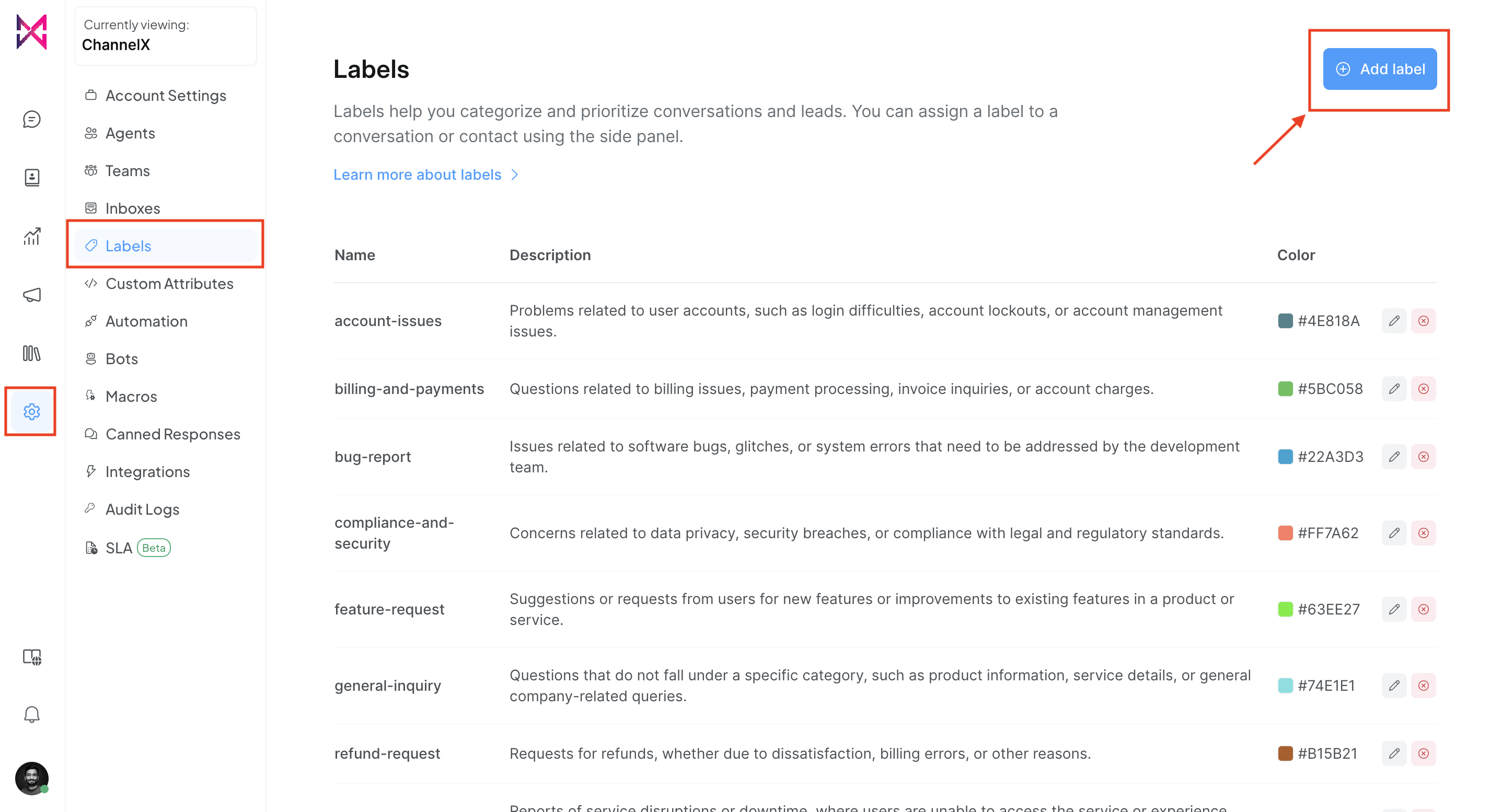
Adding a label
Step 1. From the ChannelX home screen, open Settings → Labels and click Add Label.
Step 2. Design the label. As your list grows, give each one a meaningful name and a distinct color to keep things clear.
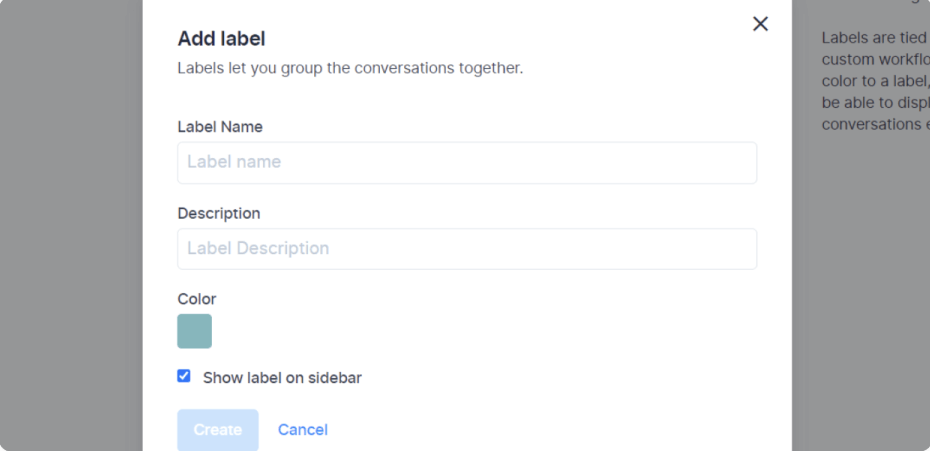
The fields are:
1. Label Name — a short identifier for the category, for example VIP, delivery-issues, or bugs. Only letters, numbers, hyphens, and underscores are allowed.
2. Description — a short note on what the label represents, so teammates understand it at a glance. For VIP you might write "Resolve this customer's issue as a priority."
3. Color — pick a color for quick visual identification.
4. Show on sidebar — tick this to display the label in the sidebar, making its conversations easy to find.
Step 3. Click Create. You'll see a confirmation that the label was added. Create as many labels as you need — they can be used across all teams.
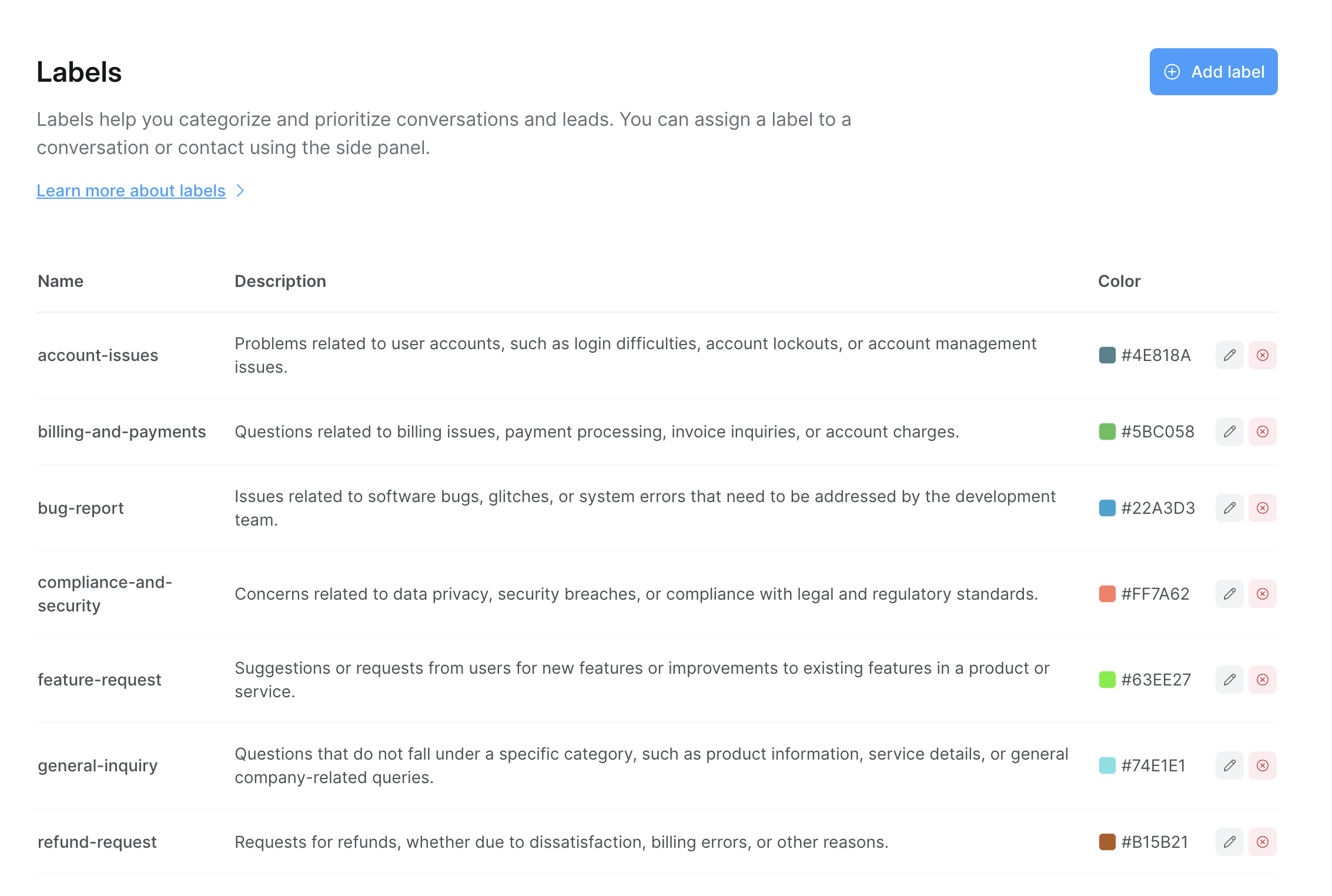
Editing or deleting a label
Step 1. Open Settings → Labels and find the label. Click the pencil icon to edit it, or the delete icon to remove it.

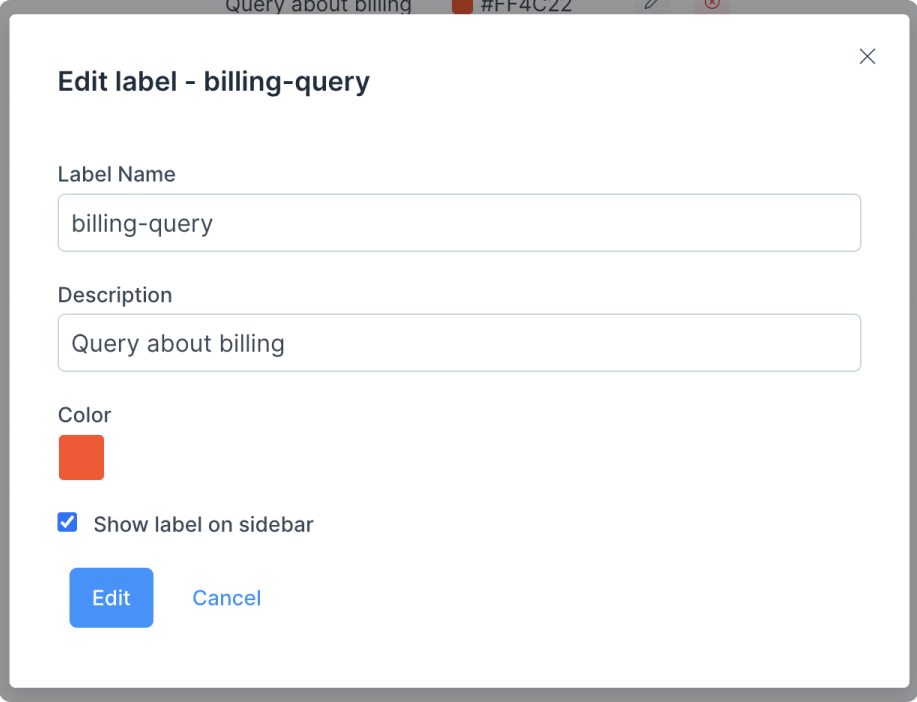
Step 2. When editing, a modal opens with the current details. Change the name or description and click Edit to save, or Cancel to discard.
How labels help
Once you have a working label set, you can:
- Filter the conversation list by one or more labels to focus on, say, every open
Complaintor allFollow_Upitems due today. - Combine labels with teams in saved folders, for example Team = Technical Support, Label =
Urgent. - Drive automation rules and macros — add a label automatically when a condition is met, or apply one as part of a one-click macro.
Common questions
Are labels shared across teams? Yes. Labels are account-wide, so every team can apply and filter by the same set.
Can a conversation have more than one label?
Yes. Apply as many as the situation calls for — for example both VIP and Complaint.
What characters can a label name contain? Only letters, numbers, hyphens, and underscores. Spaces and other symbols aren't allowed.
Keep your label set lean
A handful of well-chosen labels beats dozens of overlapping ones. Start with a small set like VIP, Urgent, Complaint, Technical_Support, and Follow_Up, and add more only when a real workflow needs them.